Mobile radiologist workflow
Mobile Radiologist is a mobile extension of PowerScribe One that enables radiologists to continue reporting workflows when they aren't at a workstation. It supports core tasks such as reviewing, editing, and signing reports from a mobile device while maintaining secure access to the system.
Conceptual knowledge
In PowerScribe One, reporting workflows are queue-driven. Reports move through stages such as draft, pending review, or completed. The Mobile Radiologist app mirrors this workflow by presenting reports in queues such as Pending, Corrected, and Rejected, depending on the user's role.
Access to features and queues depends on role and facility-based entitlements:
- Attending radiologists sign and finalize reports.
- Residents and fellows might approve or revise reports before final sign-off.
The mobile experience is designed for efficiency, but it doesn't include all desktop features. This means you should focus on review, quick edits, and report completion rather than complex editing workflows.
Mobile Radiologist supports the same reporting lifecycle as the PowerScribe One desktop, including report creation, editing, and finalization. Cloud-based access ensures continuity across devices.
Key concepts:
- Queue-based workflow: The app organizes reports by status for action.
- Role-based access: Your role determines the actions available (for example, Attending or Resident).
- Mobile-first interaction: Supports quick review and completion rather than full report authoring.
- Secure remote access: Enables productivity outside of a dedicated workstation.
Procedural guidance
Sign in and access reports
- Open the Mobile Radiologist app on your mobile device.
- Enter your username, password, and site name (PowerScribe One server URL).
- Select Log On.
- If prompted, select your role (for example, Attending or Resident).
Navigate queues
- After signing in, review the default queue (Signing or Approval).
- Use the queue tabs at the bottom to switch views:
- Pending: Reports awaiting signature or approval.
- Corrected: Reports returned after editing.
- Rejected: Reports needing revision (role-dependent).
- Use the menu to access Drafts, Worklist, or Settings.
Search for a report
- Select the search icon.
- Enter criteria such as accession number, patient last name, or MRN.
- Use partial values with wildcard symbols (* or %) if needed.
Review and edit a report
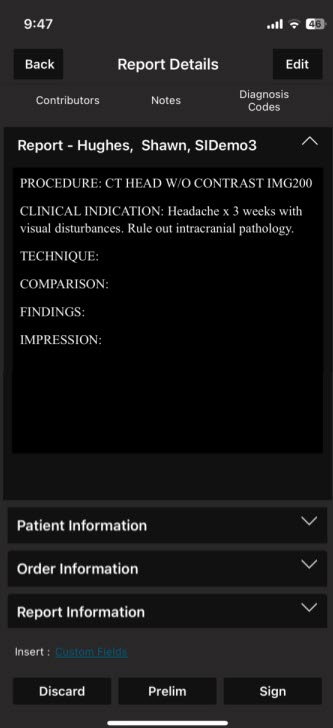
- Tap a report from the queue to open it.
- Review patient, order, and report information.
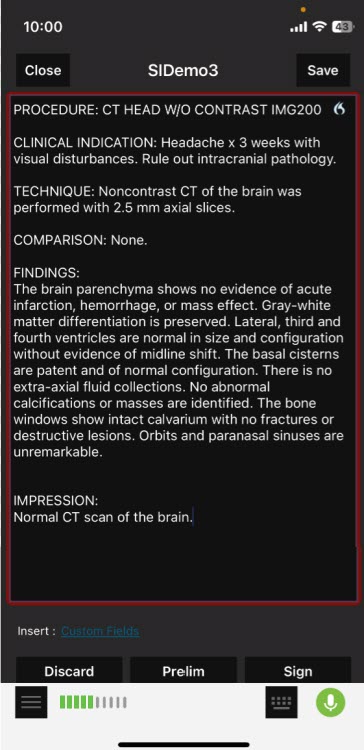
- Select Edit to modify the report.
- Use one of the following input methods:
- Microphone for dictation.
- Keyboard for manual entry.
- Save changes as needed.
Complete a report
- After editing, choose the appropriate action:
- Sign: Finalize the report (Attending).
- Prelim: Mark as pending signature.
- Approve: Forward for final review (Resident).
- Discard: Remove the report if appropriate.
- Confirm actions when prompted.
Create or update reports from a worklist
- Open the menu and select a worklist.
- Search for the relevant order.
- Select the order, then choose Create.
- Begin dictation or editing within the Report Editor.
Applied scenario
A radiologist is away from their workstation but needs to finalize reports before the end of the day. Using Mobile Radiologist, they sign in from a mobile device, open the Pending queue, and review reports awaiting signature. For one report, they make a brief dictation update using the microphone, then select Sign to finalize it. This ensures timely completion of reporting tasks without returning to a workstation.