Choose and explain enrollment methods
Microsoft Intune supports multiple enrollment methods to accommodate different device platforms, ownership models, and deployment scenarios. Choosing the right enrollment method ensures a smooth onboarding experience for users and gives you the level of control your organization needs.
Enrollment methods
An enrollment method is the process by which a device becomes managed by Microsoft Intune. The method determines:
- How much control IT has over the device
- What data is visible to IT administrators
- Which management policies can be applied
- The user experience during enrollment
The enrollment method you choose depends on:
- Device platform (Windows, iOS/iPadOS, Android, macOS)
- Device ownership (corporate-owned vs. personal/BYOD)
- Deployment scale (individual devices vs. bulk provisioning)
- User technical skill level
Windows enrollment methods
Windows offers flexible enrollment approaches for different deployment needs:
Important
On October 14, 2025, Windows 10 reached end of support and no longer receives quality or feature updates. Windows 10 is still an allowed version in Intune—devices can still enroll and use eligible features—but functionality isn't guaranteed going forward. Plan to migrate to Windows 11.
| Method | Best For | Prerequisites | Key Capabilities |
|---|---|---|---|
| User-driven enrollment (manual) | Existing devices, remote workers, small-scale deployments, BYOD scenarios | Windows 11 Pro/Enterprise/Education; internet connection; Intune license; automatic enrollment configured | Users manually join device to Microsoft Entra ID via Settings app; IT can enforce policies and deploy apps; user remains local admin by default |
| Windows Autopilot (User-driven) | New device deployments, remote users who need personalized devices | Windows 11 Pro/Enterprise/Education; device registered with Autopilot; deployment profile assigned; network connectivity during OOBE | User signs in during OOBE and becomes primary user; eliminates custom OS images; consistent configuration; supports remote deployment |
| Windows Autopilot (Pre-provisioning) | Devices needing extensive setup before user receives them | Same as user-driven Autopilot; IT technician access for initial provisioning | IT technician provisions device with apps and settings; ships to user who completes final setup; reduces deployment time for complex configurations |
| Windows Autopilot device preparation | New deployments requiring faster provisioning and improved monitoring | Windows 11, version 22H2 or later with KB5035942; Microsoft Entra join only; device must not be registered as a classic Autopilot device | Simplified single-profile configuration; enrollment time grouping for faster policy delivery; near real-time deployment monitoring and reporting; granular troubleshooting |
Autopilot benefits:
- Eliminates need for custom OS images
- Reduces IT workload for provisioning
- Provides consistent configuration across devices
- Supports fully remote deployment scenarios
Bulk enrollment
Bulk enrollment enables IT to enroll multiple Windows devices simultaneously without individual user interaction. This approach is essential for large-scale deployments where provisioning devices one-by-one would be inefficient or impractical. Bulk enrollment is best for:
- Kiosks, digital signage, and shared devices
- Education environments (shared student devices, computer labs)
- Dedicated-purpose devices without primary users
- Large-scale deployments with hundreds or thousands of devices
- Scenarios where devices need identical configuration
| Method | Description | Best Use Case | Key Requirements |
|---|---|---|---|
| Windows Autopilot (Self-Deploying Mode) | Pre-registers device hardware IDs; devices auto-provision during first boot without user sign-in | Shared devices, kiosks, digital signage | Windows 11 Pro/Enterprise/Education; no imaging required |
| Configuration Manager Co-management | Enrolls existing ConfigMgr-managed devices into Intune; enables gradual workload migration | Organizations with existing Configuration Manager infrastructure | Microsoft Entra hybrid join; supports thousands of devices |
| Windows Configuration Designer (Provisioning Packages) | Creates .ppkg files with device config, apps, enrollment settings; applied via USB/network/OOBE | Air-gapped environments or limited bandwidth locations | Token expires in 180 days; no internet required during setup |
| Group Policy (Hybrid Joined Devices) | Automatically enrolls Microsoft Entra hybrid joined devices through GPO | Organizations with existing Active Directory Domain Services | Devices joined to both on-premises AD and Microsoft Entra ID |
Considerations:
- Most bulk enrollment methods create devices without user affinity (not tied to a specific user)
- Limited policy support compared to user-driven enrollment for user-specific settings
- Choose method based on existing infrastructure (cloud-only vs. hybrid Active Directory)
- Provisioning packages and GPO require additional planning for certificate management and network access
Apple platforms (iOS/iPadOS/macOS)
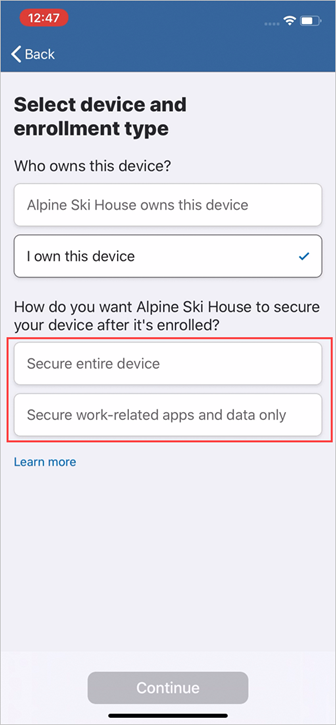
Apple devices can be enrolled through user enrollment (for BYOD scenarios with work/personal data separation) or Automated Device Enrollment (ADE) via Apple Business Manager (for corporate-owned devices). All methods use the Apple Push Notification service (APNs) certificate for communication between Intune and Apple devices. ADE enables zero-touch deployment and prevents users from unenrolling corporate-owned devices. Devices running macOS 11+ automatically receive supervision capabilities for enhanced management control.
Android enrollment methods
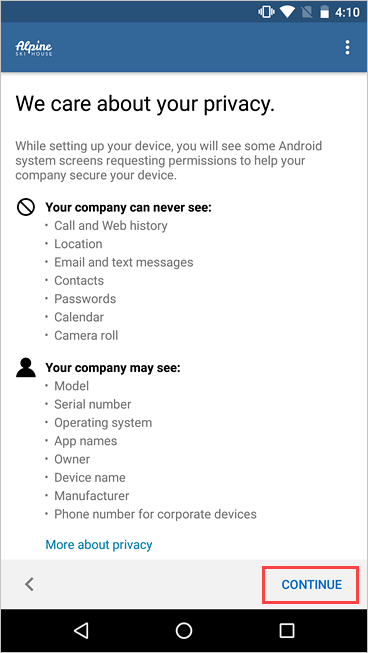
Android Enterprise provides three enrollment types: work profile (for BYOD with work/personal separation), fully managed (for corporate-owned devices with complete IT control), and dedicated devices (for kiosks and single-purpose devices without user affinity). Organizations must configure managed Google Play integration before enrolling Android devices.
Choose the right enrollment method
Selecting the wrong enrollment method creates security gaps, frustrates users, and increases management overhead. Match your enrollment strategy to three key factors:
- Control vs. privacy: Corporate-owned devices need automated methods that prevent unenrollment. Personal devices require user-controlled enrollment with work/personal data separation.
- Scale and efficiency: Manual enrollment works for pilot projects but automated methods (Autopilot, ADE) dramatically reduce per-device effort at enterprise scale. Consider total cost of ownership, not just initial setup time.
- Security requirements: Compliance-critical environments need full device management with enforced policies. BYOD scenarios often need only app-level protection without device-level control.
Common pitfalls to avoid
Match the enrollment method to device ownership and deployment scale:
- Using BYOD enrollment for corporate devices removes security controls and allows user unenrollment
- Forcing full device management on personal devices creates privacy concerns and employee resistance
- Manual provisioning at enterprise scale overwhelms IT staff with inconsistent configurations
- Ignoring remote deployment needs leaves remote workers without enrollment options
Enrollment recommendations by scenario
Use these tables to select the appropriate method for your specific situation:
For Windows devices
| Scenario | Recommended Method |
|---|---|
| New device purchase for known user | Windows Autopilot (user-driven) or Windows Autopilot device preparation |
| Existing device, remote user | User-driven enrollment |
| Shared device in lobby or conference room | Windows Autopilot (self-deploying) or bulk enrollment |
| Large-scale refresh for remote employees | Windows Autopilot (pre-provisioning) |
| Kiosks, digital signage, dedicated-purpose devices | Windows Autopilot (self-deploying) or bulk enrollment |
| Hybrid AD environment with existing infrastructure | Configuration Manager co-management or Group Policy |
For mobile and macOS devices
| Platform | BYOD Scenario | Corporate-Owned Scenario |
|---|---|---|
| iOS/iPadOS | User enrollment via Company Portal | Automated Device Enrollment (ADE) |
| Android | Android Enterprise work profile | Android Enterprise fully managed or dedicated |
| macOS | User-approved enrollment | Automated Device Enrollment (ADE) |
Enrollment strategy at Contoso
At Contoso Corporation, the IT team has selected enrollment methods tailored to their organizational needs and deployment scenarios.
| Device Category | Enrollment Method | Rationale |
|---|---|---|
| New Windows laptops (Finance, 50 devices) | Windows Autopilot (user-driven) | Pre-registered hardware IDs with OEM; users receive devices at home and self-provision with corporate credentials |
| Existing Windows desktops (Office workers, 200 devices) | User-driven enrollment (manual join) | Users manually join via Settings > Accounts; supports remote workers with existing hardware |
| Conference room devices (Shared, 15 devices) | Windows Autopilot (self-deploying) | Zero-touch kiosk deployment without user affinity; locked-down single-purpose configuration |
| Executive mobile devices (iOS, 25 devices) | Automated Device Enrollment (ADE) via Apple Business Manager | Corporate-owned; supervised management prevents unenrollment; pre-configured with corporate apps |
| Employee personal phones (BYOD, optional) | iOS user enrollment / Android work profile | Separates work and personal data; user-controlled enrollment; app-level protection only |
| Sales team tablets (Android, 100 devices) | Android Enterprise fully managed | Corporate-owned; complete device control; managed Google Play for approved apps only |
Contoso's enrollment strategy balances security, user experience, and operational efficiency. Corporate devices use automated methods (Autopilot, ADE) for consistency and security, while BYOD scenarios use user-controlled methods that respect privacy. This approach positions Contoso for a smooth pilot rollout and future enterprise-scale deployment.
In the next unit, you test your knowledge about preparing identity and onboarding devices with a knowledge check.