Specify DLP requirements across Microsoft 365 locations
Sensitivity labels and sensitive information types tell Microsoft Purview what counts as sensitive. Data loss prevention (DLP) is the layer that decides what happens next: whether that content can leave through a mailbox, a file share, a Teams message, a device, a Copilot prompt, or an agent's message to a person. As the hub admin, your job isn't to build the DLP policy yourself—a Purview specialist does that. Your job is to identify the requirement: which location the risk lives in, which condition detects it, and which action enforces it. Get those three right, and the specialist has everything needed to implement the policy correctly.
Apply the location, condition, and action model
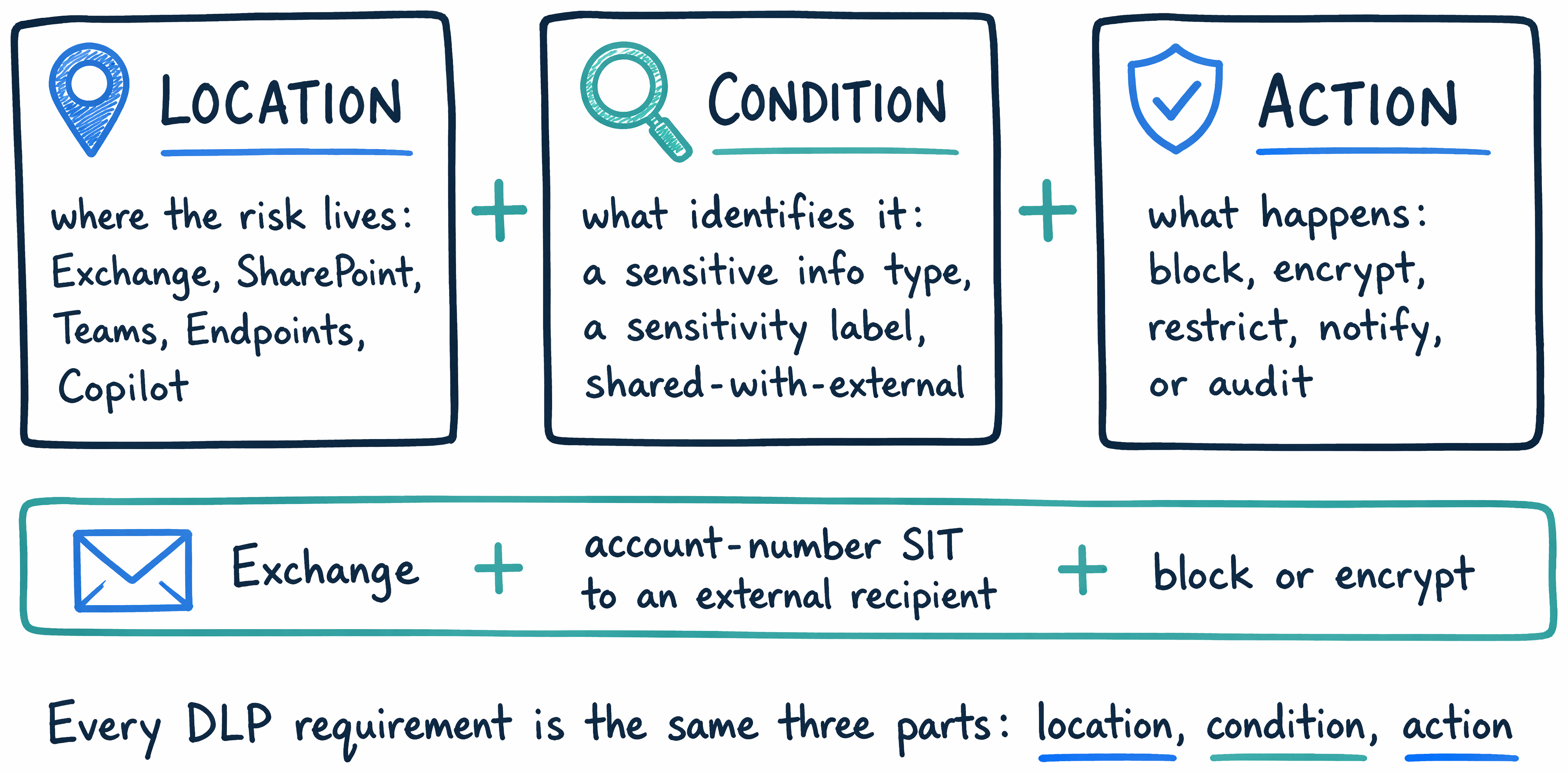
Every DLP requirement you specify reduces to the same three-part pattern, regardless of which Microsoft 365 workload the risk touches.
- Location is where the risk lives—the workload DLP monitors, such as Exchange, SharePoint, or Microsoft 365 Copilot.
- Condition is what identifies the sensitive content—a sensitive information type (like a credit card number), a sensitivity label, or an attribute like "shared with external users."
- Action is what happens when the condition matches—block access, encrypt the content, restrict sharing, notify the user, or simply audit the activity without interrupting it.
Consider a straightforward requirement: Relecloud's finance team can't email unencrypted account statements to external recipients. The location is Exchange, the condition is a sensitive information type matching account numbers combined with an external recipient, and the action is to block or encrypt the message. Specifying any DLP requirement—no matter how simple or advanced—means naming all three parts. Now that you understand the pattern, the next question is how each Microsoft 365 location applies it differently.
Match each location to its own considerations
The three-part model stays constant, but each location shapes what conditions and actions are realistic to specify.
Exchange governs outbound mail flow, so requirements here typically focus on messages leaving the organization—blocking, encrypting, or flagging mail based on recipient and content. SharePoint and OneDrive govern file sharing: a document containing sensitive content can be proactively blocked from guest access as soon as DLP detects it, while internal users continue to have access to that same file. Teams extends the same content-detection logic to chat and channel messages, catching sensitive content typed directly into a conversation rather than attached as a file. Endpoints—Windows 10, Windows 11, and the three most recent macOS versions—govern device-level activities such as copying a file to a USB drive. Endpoint coverage only works after you onboard the device to Microsoft Purview, which makes device onboarding itself a prerequisite you need to specify alongside the policy requirement.
Then there's a location that didn't exist in DLP a few years ago: Microsoft 365 Copilot and Copilot Chat, which governs prompts, the content Copilot grounds its answers in, and agent interactions. Relecloud's employees now paste Woodgrove account data directly into Copilot prompts, and Copilot's answers can surface files nobody explicitly reviewed for that conversation. That combination makes the Copilot location the newest and highest-stakes surface in this model—worth examining in depth.
| Location | What it governs | Consideration to specify |
|---|---|---|
| Exchange | Outbound mail flow | Requirements focus on messages leaving the org (block, encrypt, or flag by recipient and content) |
| SharePoint & OneDrive | File sharing | Block guest access to a sensitive file while internal access continues |
| Teams | Chat and channel messages | Catches sensitive content typed into a conversation, not just attached files |
| Endpoints (Win 10/11, recent macOS) | Device-level activities (copy to USB, paste to a browser) | Requires onboarding the device to Purview first |
| Microsoft 365 Copilot & Copilot Chat | Prompts, grounding content, agent interactions | Custom template only; selecting it disables every other location in that policy |
Specify requirements for the Microsoft 365 Copilot location
The Copilot location supports a specific set of conditions and actions, each suited to a different risk:
| Condition | Action | What it does |
|---|---|---|
| Content contains a sensitivity label | Prevent Copilot from processing content | Copilot doesn't use the labeled item's content in its response, though the item may still appear in citations. |
| Content contains a sensitive information type (in prompts) | Prevent Copilot from processing content—Processing prompts | Copilot doesn't respond to the prompt at all, and doesn't use it for internal or web searches. |
| Content contains a sensitive information type (in web search) | Prevent Copilot from processing content—Performing web searches | Blocks external web search as a grounding source for that prompt, while still allowing an internal-only response. |
| Email is received from an external user | Prevent Copilot from processing content | Excludes the external email from grounding; Copilot evaluates only sender metadata, not the message body. |
A few constraints shape how you specify a Copilot requirement. This location is available only in the Custom policy template, and selecting it disables every other location in that same policy—a Copilot requirement always gets its own policy. Sensitive information types and sensitivity labels can't be used together in the same rule, so a requirement that needs both means specifying two separate rules. Policy changes can take up to four hours to reach the Copilot experience, so a requirement that depends on immediate enforcement needs that lag accounted for. The location also doesn't support Administrative Units, and its protections extend to prebuilt agents inside Microsoft 365 Copilot and Copilot Chat, not just direct user prompts—so a requirement covering "Copilot" implicitly covers the agents that run inside it too.
Guiding question: You turn on the default DLP policy for Microsoft 365 Copilot. Does it start blocking sensitive prompts immediately?
Most administrators expect yes. It doesn't. The built-in "Default DLP policy - Protect sensitive M365 Copilot interactions" ships configured to run in simulation mode, which only logs matching events without blocking anything. To make it actually enforce a requirement, you have to switch its state to enforce mode—and editing that default policy requires an account with DLP Compliance Management permissions. Specifying "turn on Copilot DLP protection" as a requirement is incomplete without also specifying which mode it needs to run in.
Copilot prompts are one surface DLP watches. But Relecloud's agents also message people directly, outside of any prompt a user types. Does DLP see that too? The next unit picks up that exact question.