Create a Privacy Risk Management policy from a template
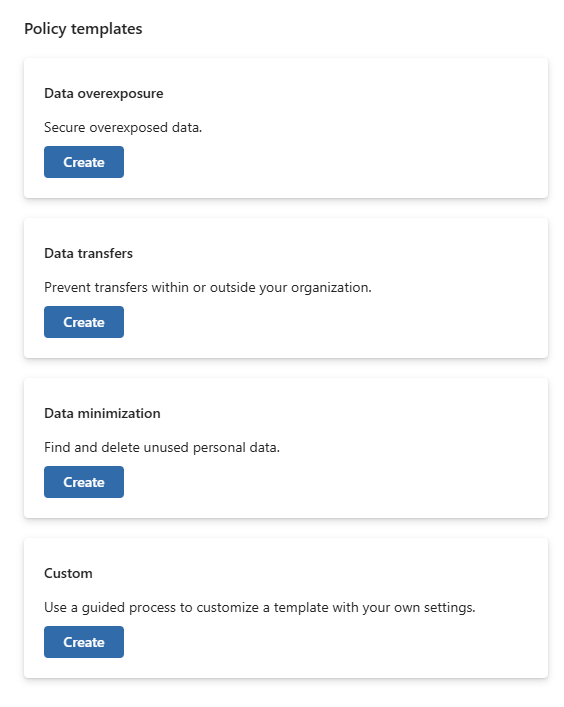
Microsoft Priva Privacy Risk Management offers three policy templates to address common challenges related to personal data protection. These templates, Data overexposure, Data transfers, and Data minimization, come with preconfigured settings for quick deployment or customization based on your organization's needs. This approach is ideal for organizations looking to deploy policies quickly with minimal configuration.
Policies created from these templates can help organizations:
- Identify and address overexposed personal data.
- Monitor and control personal data transfers.
- Reduce risks by managing older, unused personal data.
Policy template types
Privacy Risk Management templates focus on three primary data risks:
1. Data overexposure
Detects when personal data is accessible to more people than necessary, such as overly broad permissions on internal file shares or public links. Key features include:
- Notification options: Alerts content owners to review access permissions or restrict access.
- Multicloud settings (preview): Extend protection to Azure Storage, Azure SQL, and Amazon S3.
2. Data transfers
Monitors and flags personal data transfers across specified boundaries, such as:
- External sharing: Emailing personal data outside the organization.
- Internal transfers: Sharing data across departments or regions.
- Remediation options: Notifications can prompt users to revoke access to transferred data.
3. Data minimization
Identifies older, inactive personal data to reduce unnecessary retention risks. Features include:
- Notifications to content owners for review.
- Recommendations to delete or retain outdated data based on organizational policies.
Quick setup: Using a template with default settings
Follow these steps to quickly create a policy using default template settings:
Sign in to the Priva portal (preview).
Navigate to the Privacy Risk Management solution card and select Policies.
Select Create a policy in the top-right corner to open the policy creation pane.
Choose the desired policy type, then select Create.
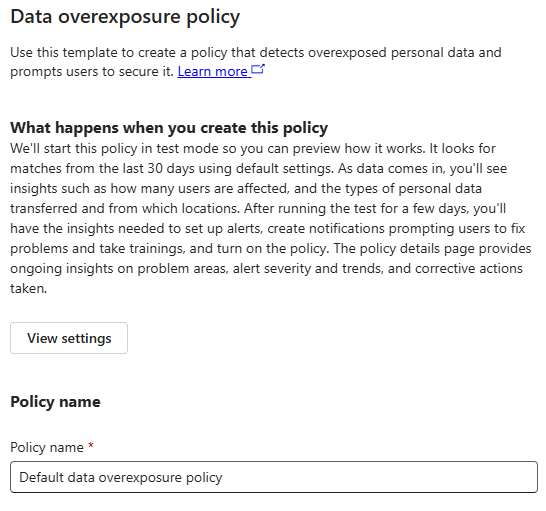
In the policy details pane, review the default settings by selecting View settings.
- Adjust settings as needed by selecting Edit settings.
- To proceed with default settings, enter a descriptive name for the policy, then select Create policy.
Once created, the policy appears on your Policies page.
The policy starts running in test mode, meaning no alerts or notifications are generated, and you can monitor its performance. When you're ready to turn on your policy, select your policy and edit it to turn in on.
Testing overview and matched items
Test mode allows you to review a policy's performance and adjust settings before activating it. Metrics like matches by location, user, and data type help validate the policy's effectiveness.