Introduction
The Microsoft Power Automate Process Mining desktop app is a feature-rich application that helps you complete more enterprise-focused process mining analysis. It offers a wide range of tools that help you gain a deeper understanding of your business processes, building on what you can accomplish on the Power Automate maker portal.
You can gain insights into how your processes run, identify the root causes of inefficiencies, and generate valuable outputs for your organization. The following list provides an overview of some features in the desktop app:
Process map - Represents the sequence of tasks in a process based on data that you can customize with filters and time metrics.
Statistics - Provide a statistical overview of the process properties through summary charts and reports.
Clusters - Help you visually encapsulate activities in the process map view. The system automatically creates clusters for you if your process has clustering attributes.
Variant DNA - Provides a visual overview of all process variants that the system finds during the analysis. You can explore all possibilities of how a process can develop and then identify problematic scenarios (for example, a transition variant with an unusually high number of events).
Process comparison - Compares processes at the level of the process map or at the more detailed level of activities and edges (arrows from one activity to another). With this feature, you can identify the differences in the flow and frequency or time metrics.
Root cause analysis - Shows hidden connections in your data to identify the key differences between cases. Root cause analysis can help you understand why some cases take longer to complete than others. Alternatively, you can use this feature to understand why some cases get stuck in reworks while others run smoothly.
Filtering - Eliminates/selects some parts of a process to focus on others. Filtering can also be helpful in identifying and focusing on the problematic parts of the process.
Custom metrics - Help you combine different operations, functions, and constants in a formula editor so that you can define your own custom or calculated metrics.
Business rules - Help you define and evaluate KPIs based on your thresholds and limits. The rules set thresholds that are associated with a category flag, such as error, warning, or OK, which you can use to quickly spot problems in your processes.
Use Copilot to analyze your process
From the desktop application, you can also use Microsoft Copilot to gain insights into your process. Copilot provides you with many suggested prompts to begin with, but you can also ask your own questions by composing your own prompt.
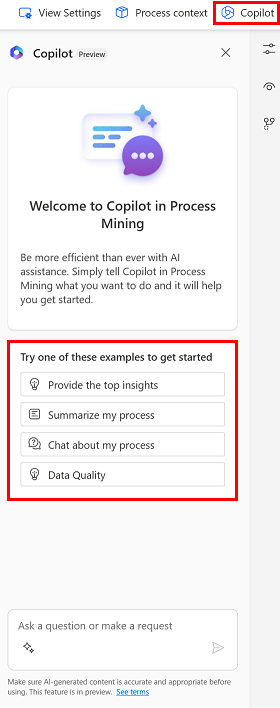
Copilot has access to process statistics of top items for activities, edges, and variants. You can ask questions that are related to your statistics, and Copilot can answer with correct data. Additionally, you can ask Copilot for help with process mining. For example, you could ask Copilot "What is root cause analysis?" or you could ask a more complex question, such as "Which is better: process compare or root cause analysis?"
Get started with the desktop application
To use the Power Automate Process Mining desktop app, you must first ingest the event log data for the process that you want to analyze from the Power Automate maker portal. Afterward, you can install the desktop app, open the same process analysis data, and then continue to perform deeper analysis on the data. The following image shows the desktop app and the available views for each process.
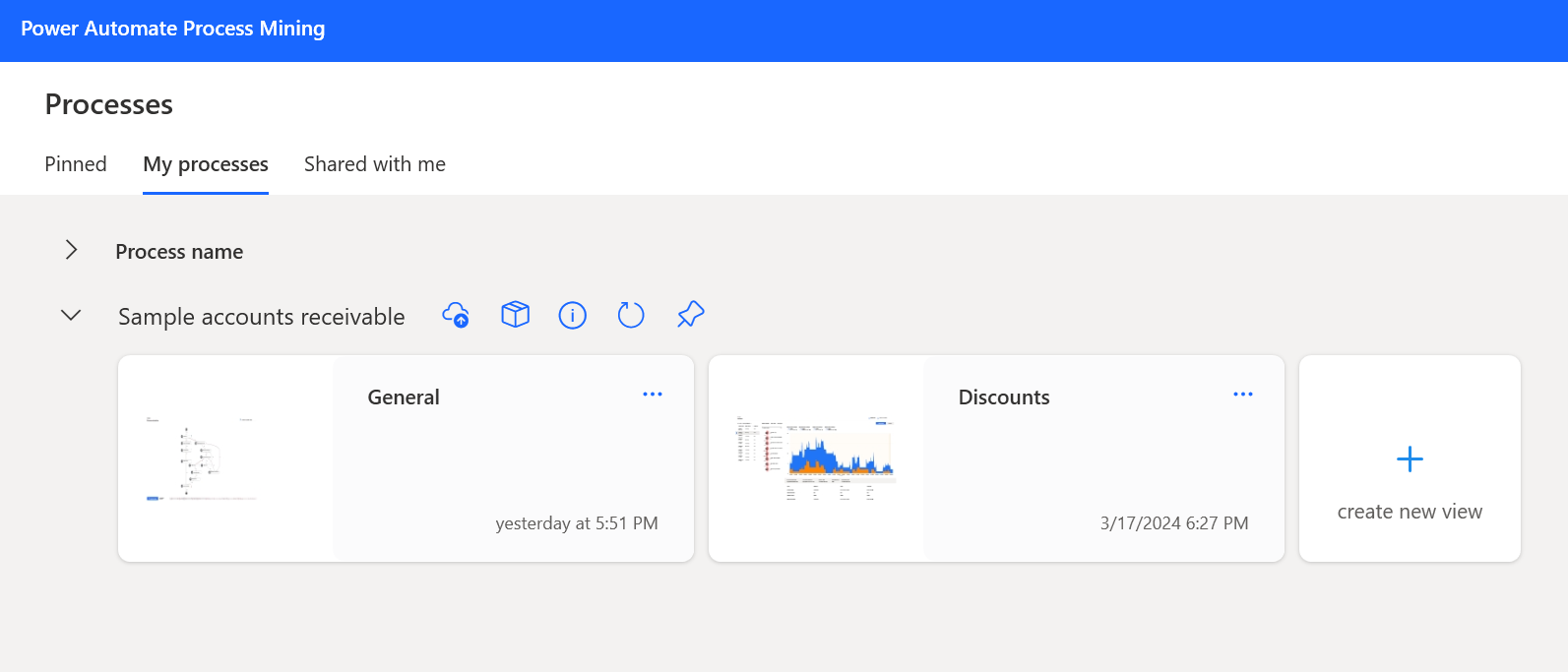
A view represents an analysis of a single process model. It stores all your settings for analyzing the process. To analyze a process from several viewpoints, you can create multiple views. You can work with a view by yourself and keep it private, or you can share it with your coworkers. When you open a process for the first time, only the default view displays. By using the icons on each process, you can manage the process-performing actions, such as publishing to Microsoft Power BI and modifying the process context settings. The process context setting is where you can create and manage process level settings that you want to apply to the views that you create for a process.
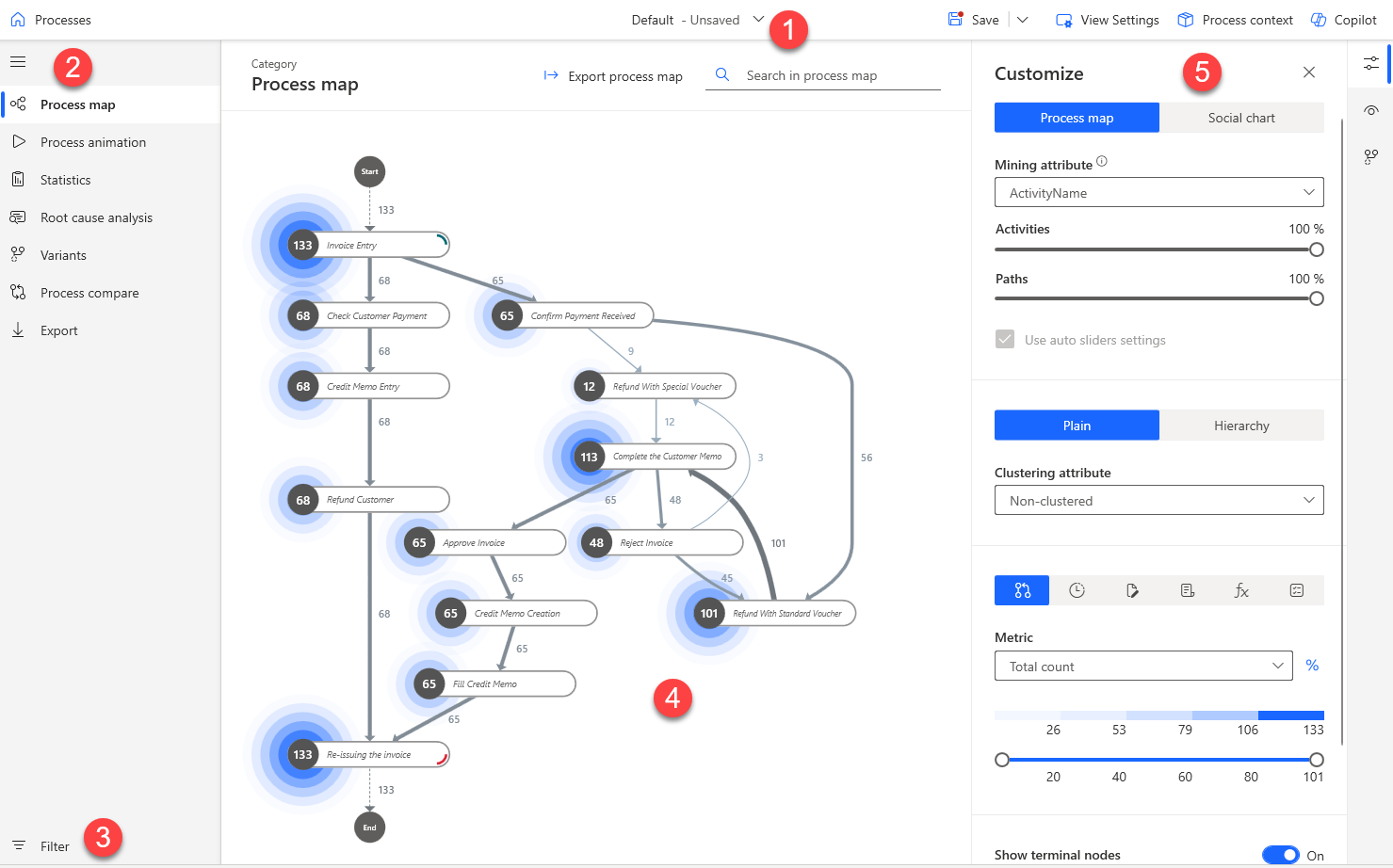
After you open a view of a process, you can start on the Process map page. The following image shows the desktop application's Process map page and its features, each number corresponding with the numerals in the screenshot.
View dropdown menu - Select different created views of the process.
Left navigation pane - Lists the main features of the desktop app (refer to the descriptions from the preceding table).
Filter - Select only certain parts of the process.
Process map - Shows the sequence of tasks in a process.
Customize panel - Customize your process map.
The rest of this module describes how to use the desktop app to help you further explore your process.