Post service
After the administrative employee reviews and, if necessary, updates or corrects the relevant fields, they can initiate the posting process. In this scenario, you start the posting process directly from the Service Order document by following these steps:
Go to the Service Order menu.
From the Home tab, locate and select the Post option to initiate the posting process.
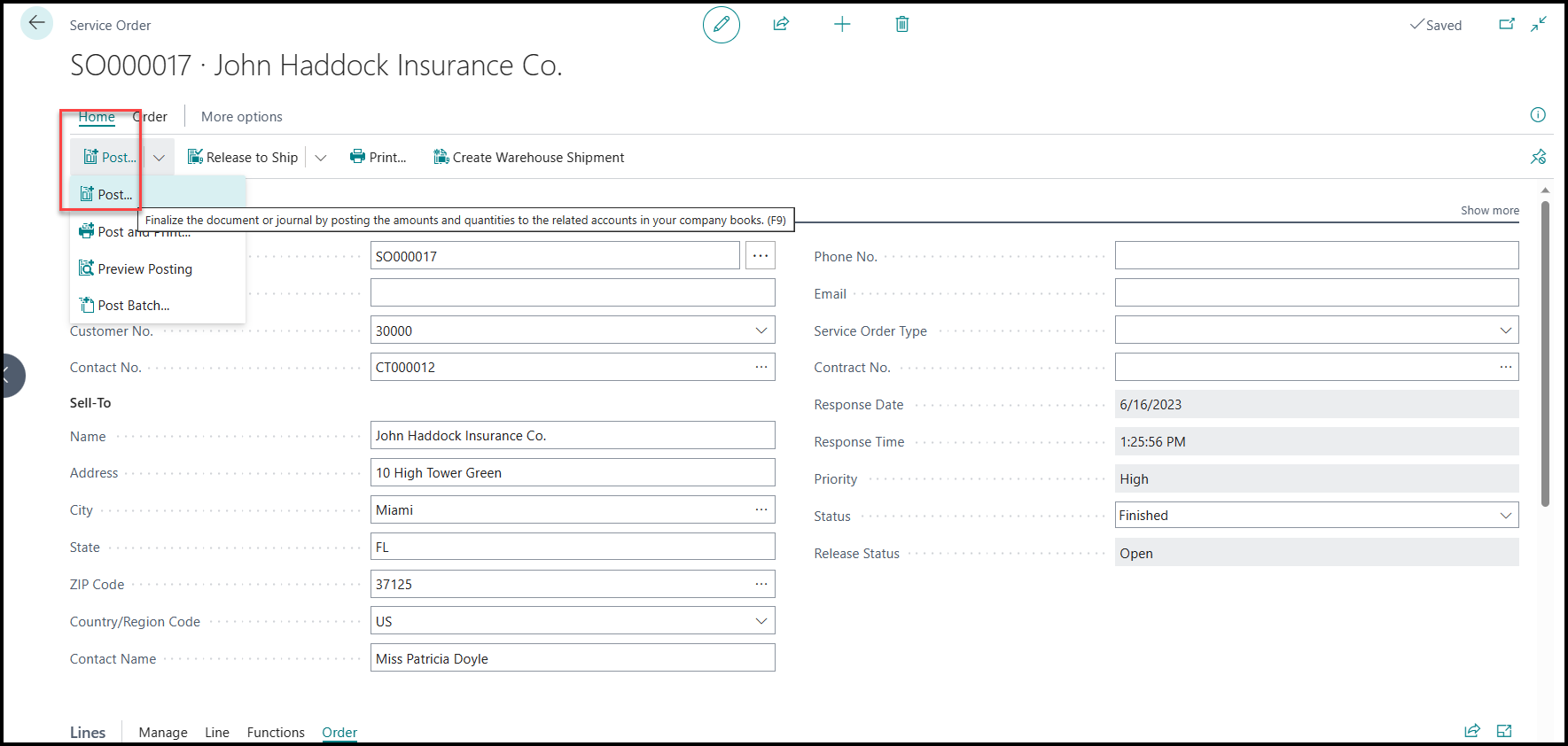
After initiating the posting process from the Service Order document, you'll be prompted to select the specific posting process to begin. In this scenario, you proceed with the Ship and Invoice process.
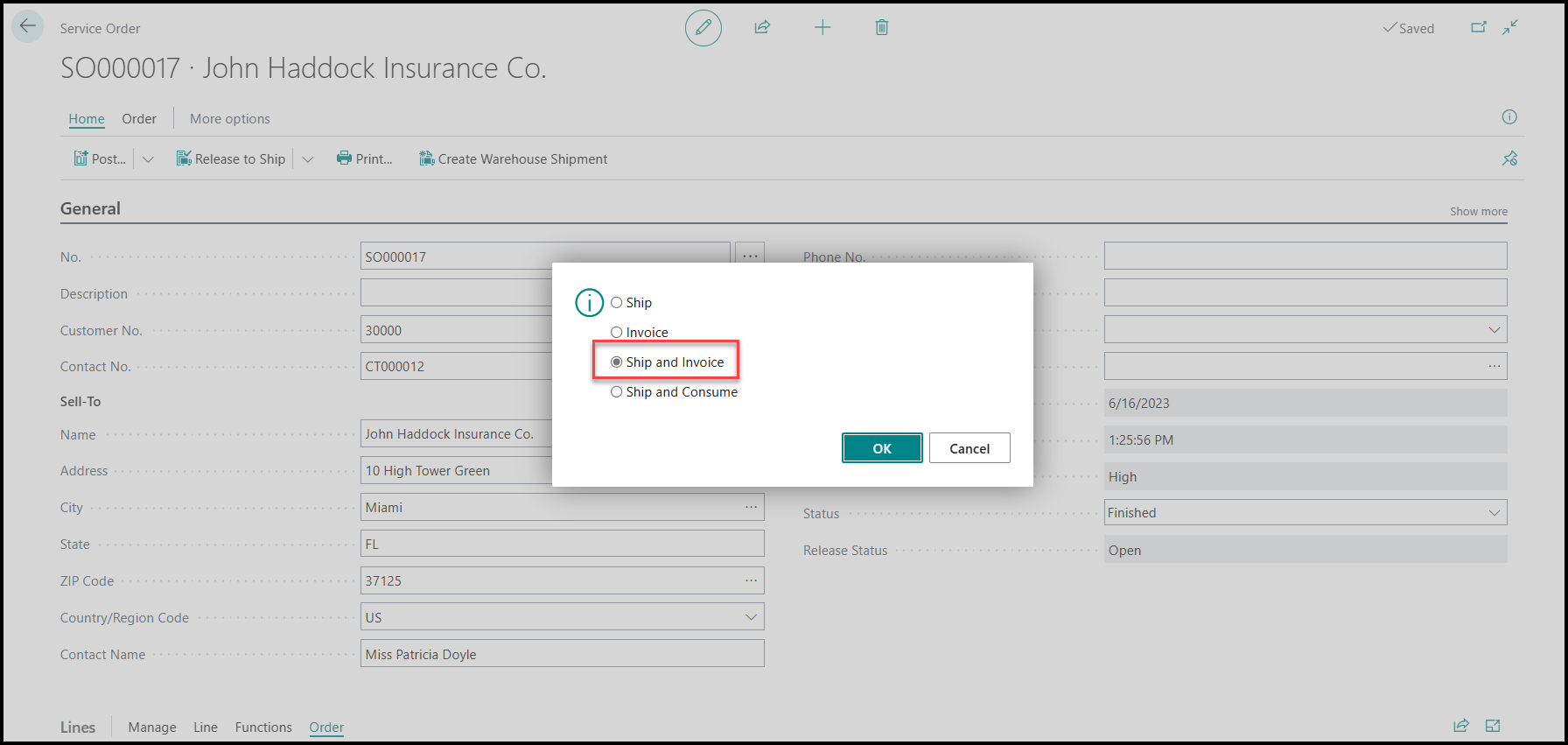
By choosing the Ship and Invoice option, you indicate that the service order items are ready to be shipped to the customer and an invoice is generated for the services that were provided.
After you complete the posting process, which includes shipping and invoicing, the service order transitions from an active, nonhistorical document to a closed state. As a result, you no longer find the service order in the active service order list.
Instead, the system creates two important historical documents as a direct outcome of the posting process:
Posted Service Shipment - This document provides a historical record of the physical goods, services, or costs that are recorded for the repair.
Posted Service Invoice - This document represents the invoice generated from the service order. It includes the invoiced amount, billing details, payment terms, and applicable taxes or discounts. The Posted Service Invoice document serves as a historical record of the invoiced amount and provides the necessary information for financial tracking and reconciliation.
When a service order is posted, it involves transferring the financial value of the transaction to specific accounts in the general ledger. This step ensures that the financial impact of the service order is properly recorded in the organization's financial records.
In addition to updating the general ledger, the posting process also updates subsidiary ledgers. These subsidiary ledgers, such as the customer and item entry ledgers, contain detailed quantity and financial information that are related to the transaction. The system uses the information that’s stored in these subsidiary ledgers for various purposes, including calculating service statistics.
By updating the subsidiary ledgers with the relevant quantity and financial data, organizations can track and analyze important service-related metrics. These statistics can include information such as the number of service orders completed, revenue that’s generated from service activities, and other key performance indicators that help evaluate the efficiency and profitability of the service operations.
Overall, the posting process ensures that the financial and statistical information that’s related to the service order is accurately recorded in the general ledger and the subsidiary ledgers, providing a comprehensive view of the organization's service activities and their financial impact.
Posted service shipment
After completing the posting process of the service order, you'll open a Posted Service Shipments document. This document is generated as a result of the posting. To access the Posted Service Shipments document, go to the Service Manager Role Center or use the Search function to quickly locate the desired document.
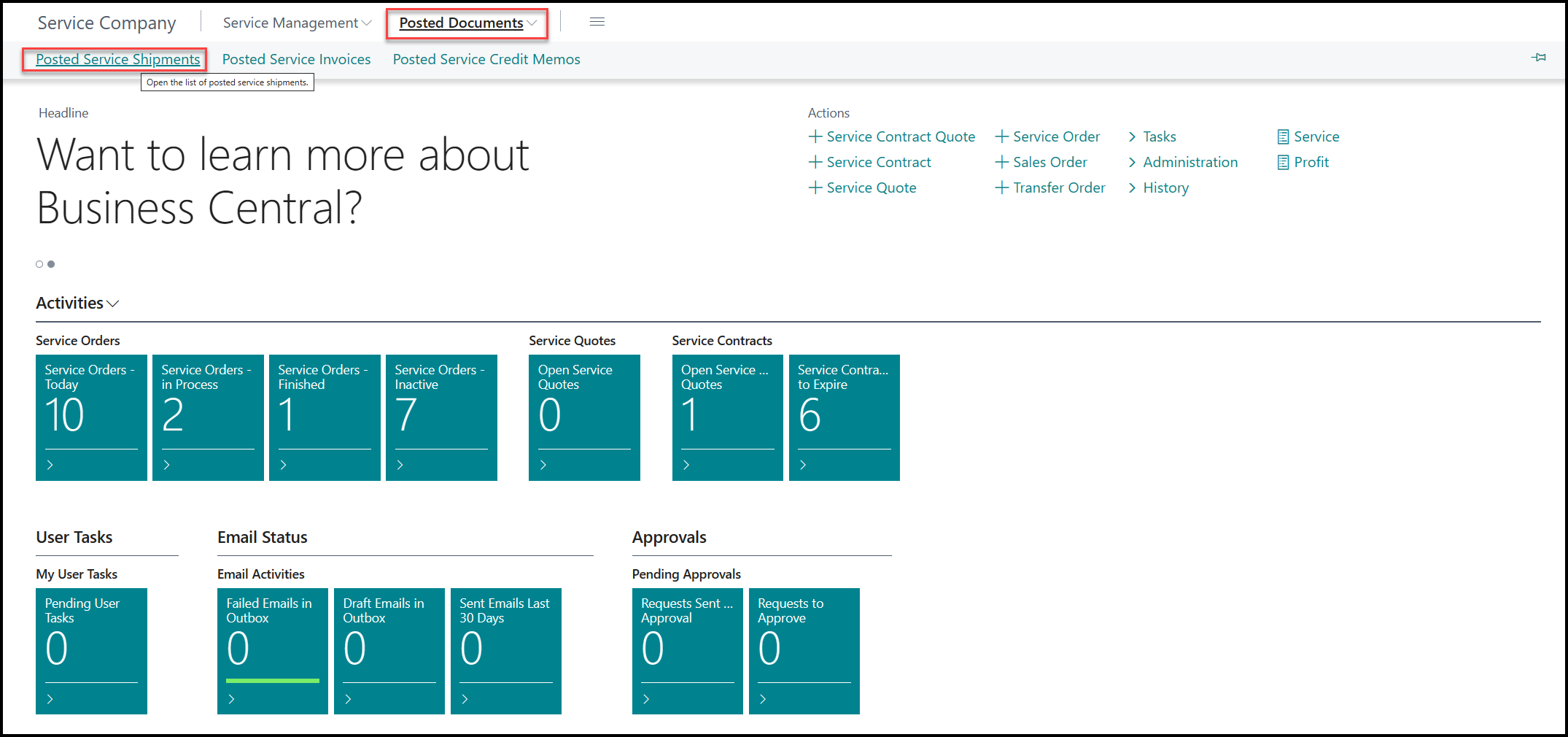
Within the Posted Service Shipments list page, you can open the relevant document. The Posted Service Shipment document corresponds to the service order that was previously posted and contains the posted service shipment item lines along with their respective service lines.
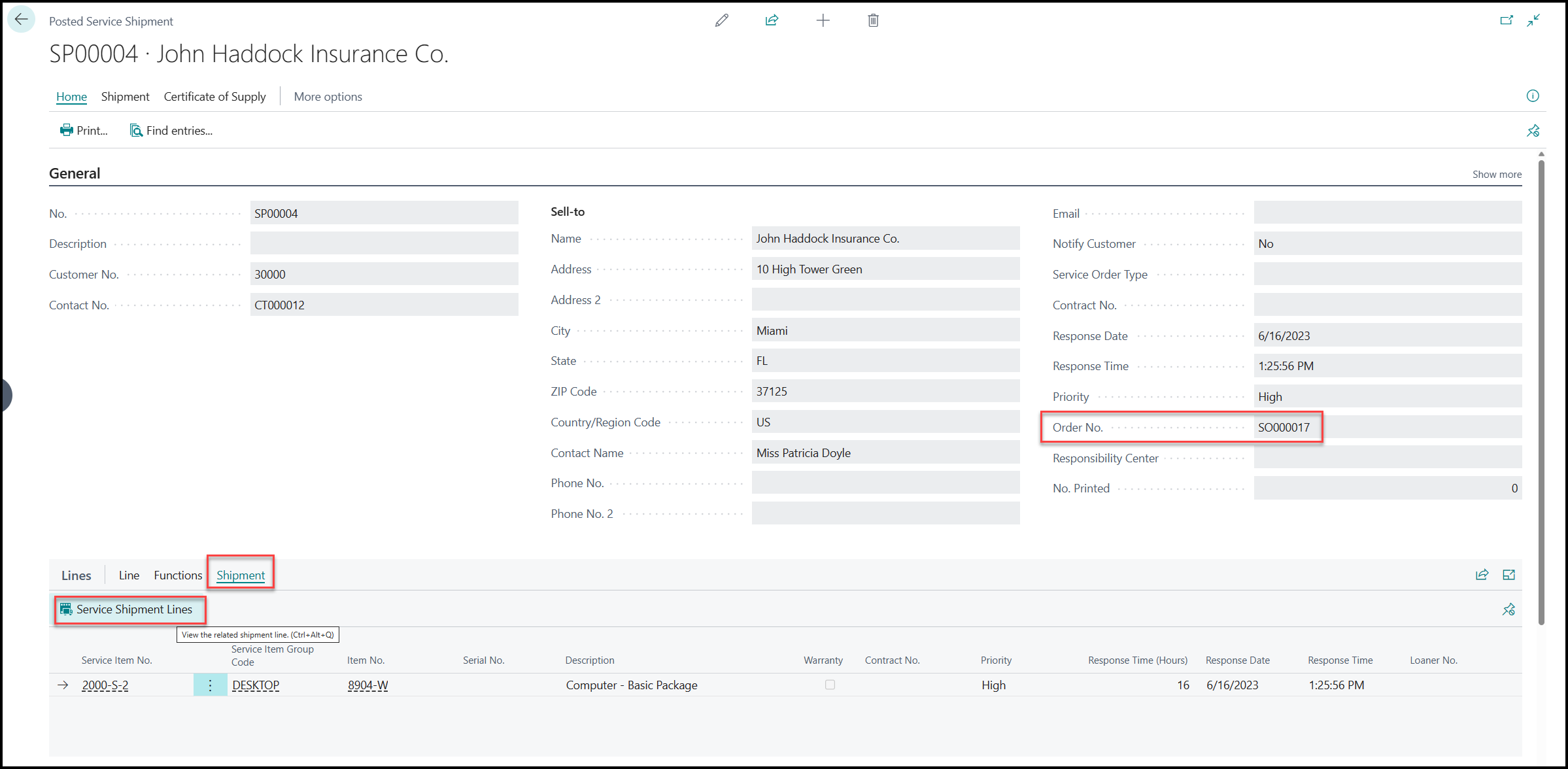
The service lines within the Posted Service Shipment document encompass the recorded usage that was shipped, providing visibility into whether these quantities are invoiced or not. By using the Find entries function under the Home tab in the menu, you can locate the entries that were generated as a result of posting this service shipment.
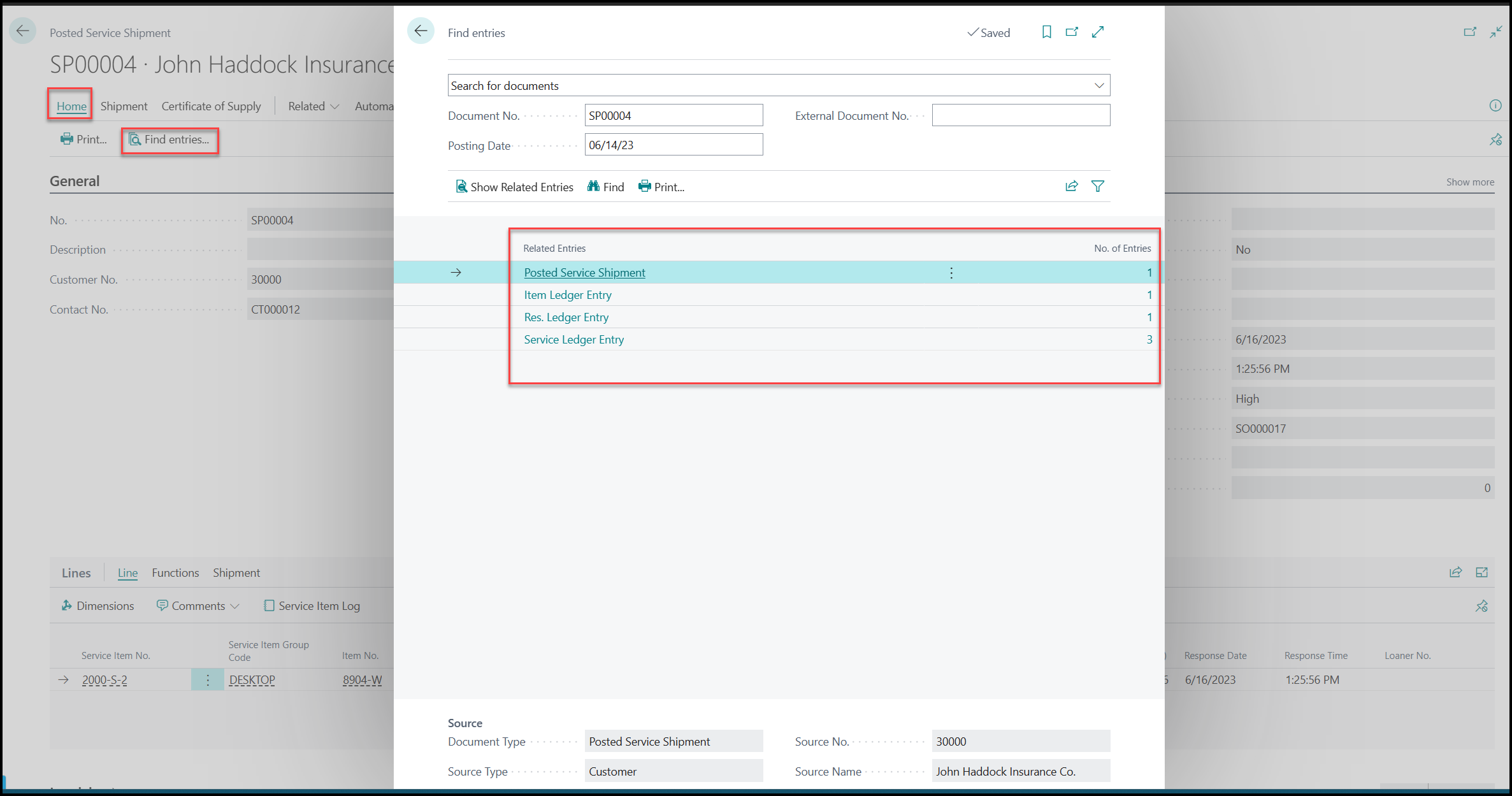
The related Item Ledger Entries page shows that the stock is adjusted to reflect the usage of the spare part, and it establishes a connection between the service order, shipment, and the transaction that caused this adjustment.

Similarly, when the technician is deployed for service repairs, the system creates resource ledger entries. The system also creates three service ledger entries, capturing the various posted usages for the service shipment and providing detailed records of the service activities that the technician performs.

Posted service invoice
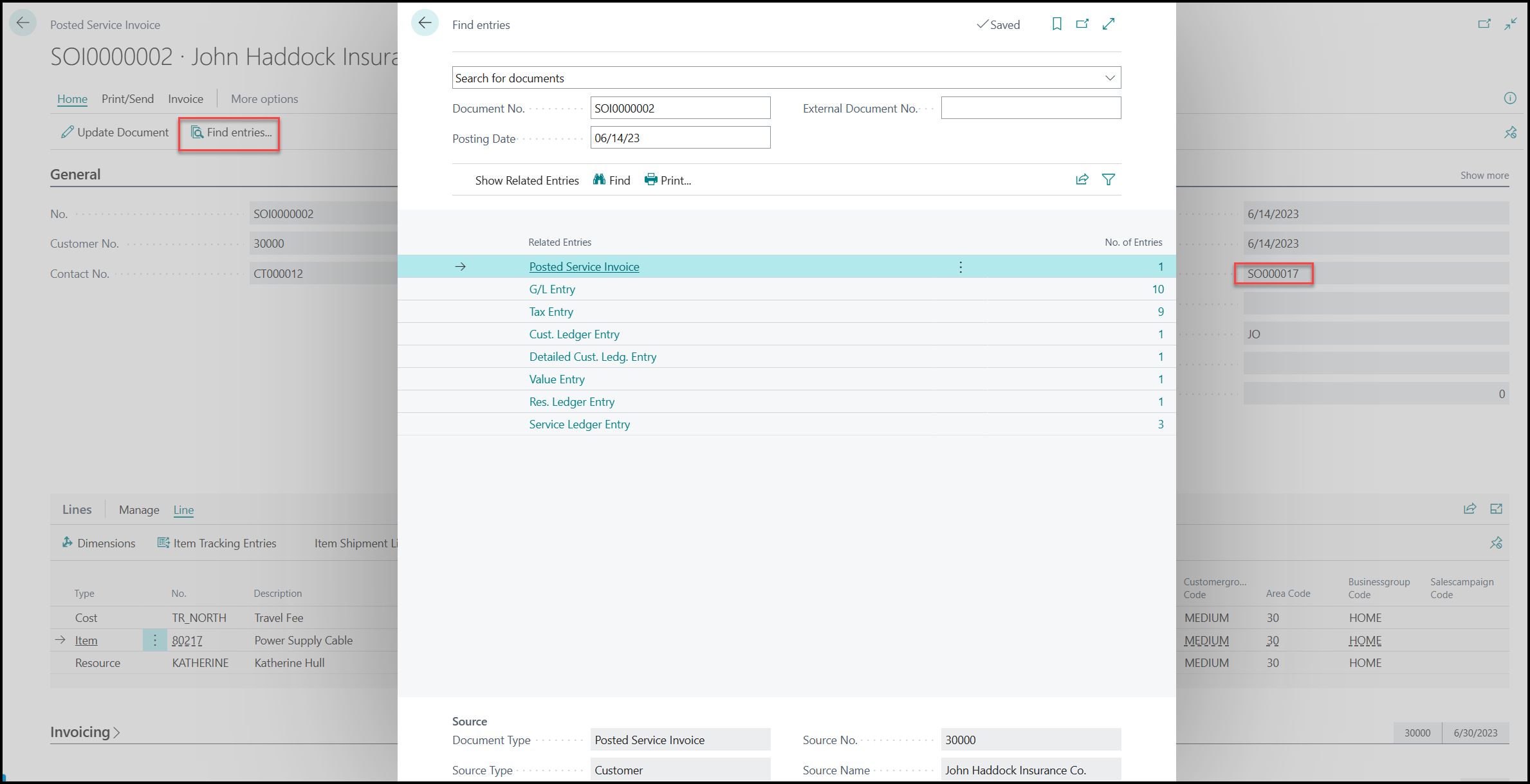
In a similar manner to finding the posted service shipment, you can locate the Posted Service Invoice page. On this page, you can review the invoiced items and services and the associated entries. The posted invoice is directly linked to the service order number, providing a clear reference for tracking and reconciliation purposes.
Invoice service orders with partial completion
The previous scenario examined the posting of a service order that was fully completed, which is typical for maintenance or repair tasks that you can complete within a day or that involve only one service item. However, other maintenance or repair scenarios occur where the service order involves the technician servicing multiple items over an extended period, such as performing yearly maintenance on safety doors in a hospital. In such cases, it might not be desirable to wait until the entire assignment is finished. Instead, you might prefer to invoice on a weekly basis, invoicing for the doors that are reported as ready for service.
For these scenarios, you can use the Service Management module in Business Central to directly invoice the reported usage from the service lines. This functionality helps you streamline the invoicing process by generating invoices based on the individual service lines. As a result, you can bill for the provided services as they're reported rather than waiting for the entire assignment to be completed.
For example, consider a scenario where a service order for John Haddock Insurance Co. involves three service items that require servicing. The service technicians initiate the servicing process for one service item and report the corresponding usage on the service lines.
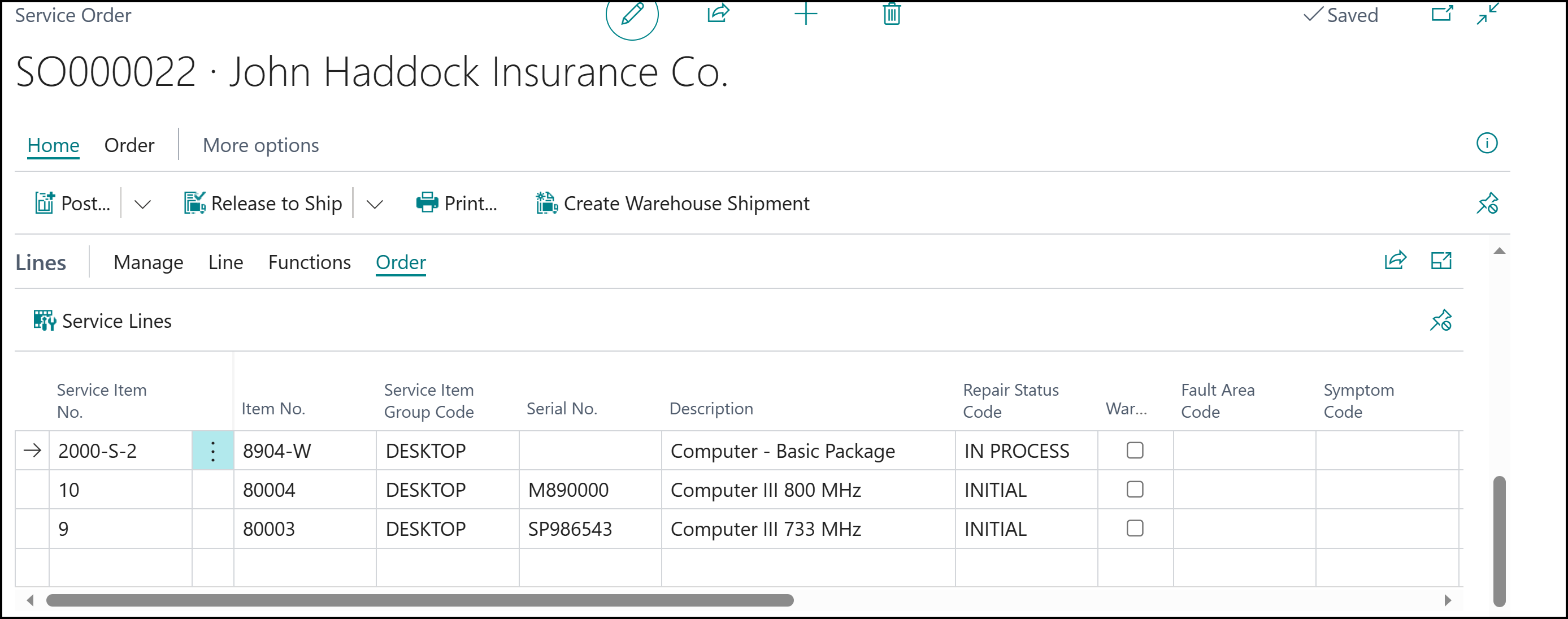
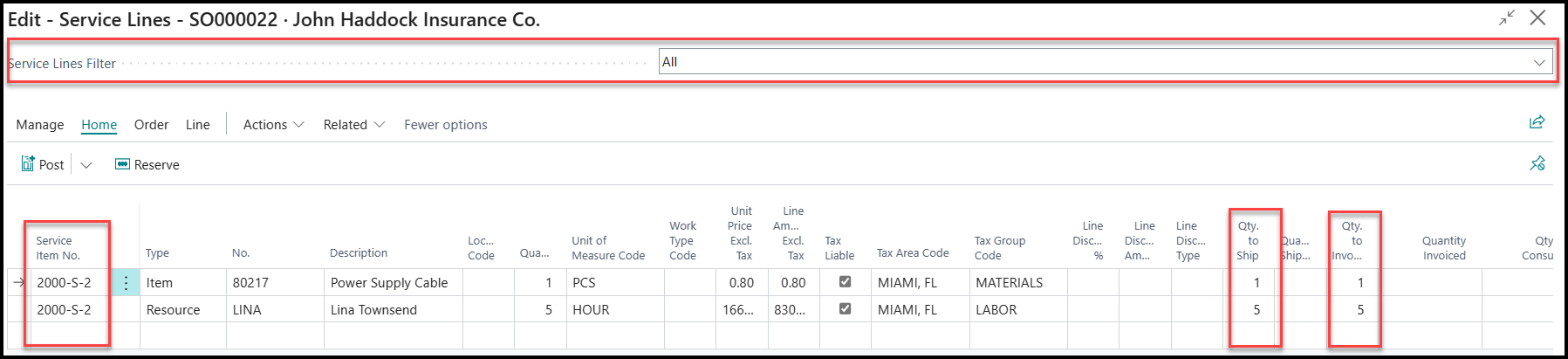
After the technicians consider service for a specific piece of equipment as completed, they can invoice the usage of spare parts and labor time directly from the service lines. When it’s time for you to initiate the invoicing process, you need to select the service lines that you want to include on the invoice. You can select multiple service line rows if needed. Then, select the Post option from the menu and choose the appropriate invoice option, such as Ship and Invoice.
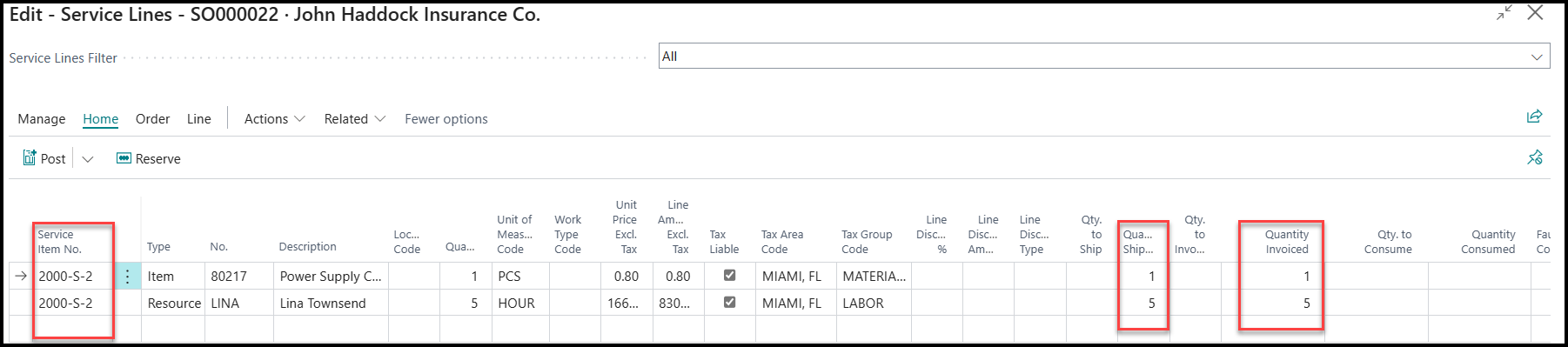
When you complete the posting action, the quantities in the Qty. to Ship and Qty. to Invoice fields are updated according to the quantities that you selected for invoicing. This step ensures accurate tracking of the shipped and invoiced quantities for the service order.
Furthermore, two historical documents generate as a result of this posting process:
Posted Service Shipment - Records the details of the shipped items and their quantities. It serves as a historical record of the items that were physically delivered to the customer.
Posted Service Invoice - Captures the invoiced items and their corresponding quantities.
If the service order only includes one service item and you posted the registered service lines directly from the service lines, the service order is considered completed. As a result, the service order no longer appears in the service order list. This aspect is important to keep in mind, especially when you're dealing with service orders that involve a single service item.
Combine posted service shipments on an invoice
You can approach the invoicing process differently by initiating the process from the (unposted) Service Invoice document instead of posting from the service order or service lines. Use the search function and enter service invoice to find and open the Service Invoice document.
Within the Service Invoice document, you can use the Get Service Shipment Lines function, which is available on the Lines FastTab under Functions. You can use this function to select multiple posted service shipments that are associated with a particular customer and then consolidate them into a single invoice.
By using this approach, you can streamline the invoicing process and combine multiple service shipments into a unified invoice for improved efficiency and convenience.
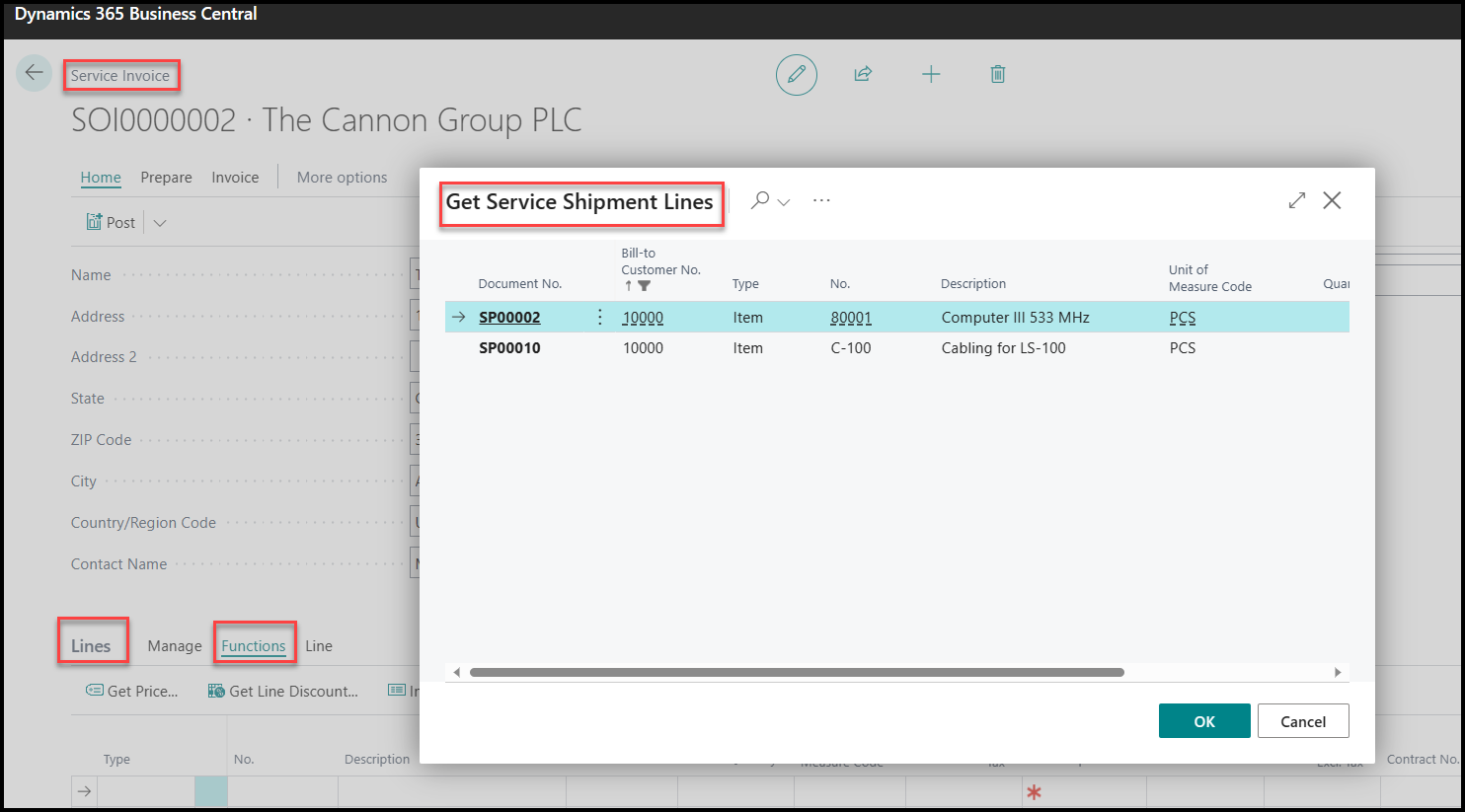
When you select the desired service shipment lines by using the Get Service Shipment Lines function, the system consolidates them on the same invoice. Each service shipment line is clearly marked, indicating the specific service shipment that it belongs to.
If you include a remark that indicates the corresponding service shipment for each line, you can maintain a comprehensive overview of the invoiced items and their associated service shipments. This approach can help you and the customer identify the origin of each line and understand the context behind the invoiced services.
Consumption
In the context of a service order, consumption is the internal usage or consumption of resources, such as spare parts, materials, or labor hours, during the implementation of the service task. It represents the resources that are used internally to complete the service but aren't directly charged or invoiced to the customer.
Tracking consumption helps businesses understand resource usage, calculate costs, and manage inventory. It provides valuable insights into the usage of resources and contributes to determining the overall profitability of service operations.
Essentially, consumption in a service order refers to the internal usage of resources without directly billing the customer for those resources.
You can register consumption for a service order on the service lines in Business Central by following these steps:
Open the relevant service order.
Go to the service lines section.
Select the specific service line for which you want to register consumption.
Enter the quantity of resources to be consumed in the Qty. to Consume field.
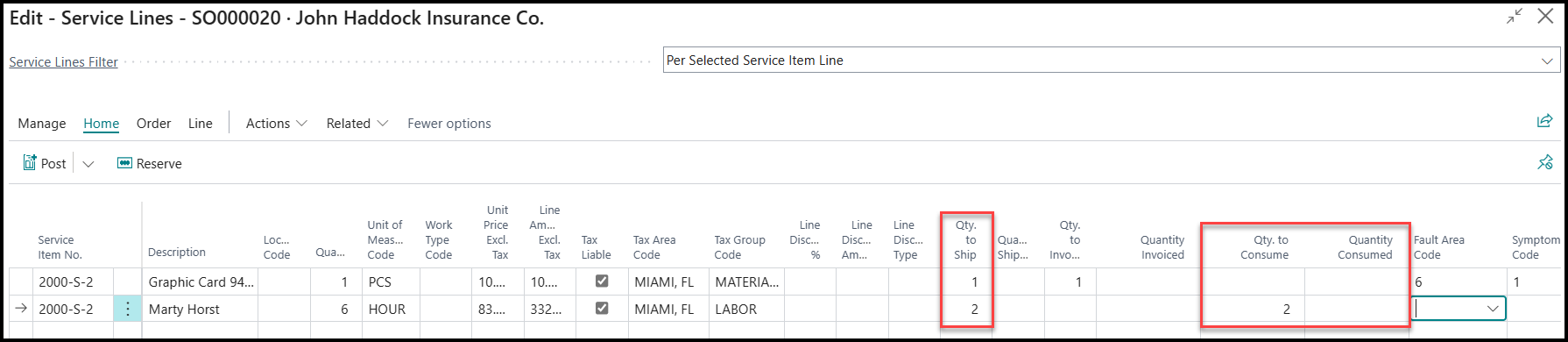
You can only post consumption for service lines that have quantities available for shipping. Select the Ship and Consume posting option to record the shipment and consumption of resources in a single posting action.
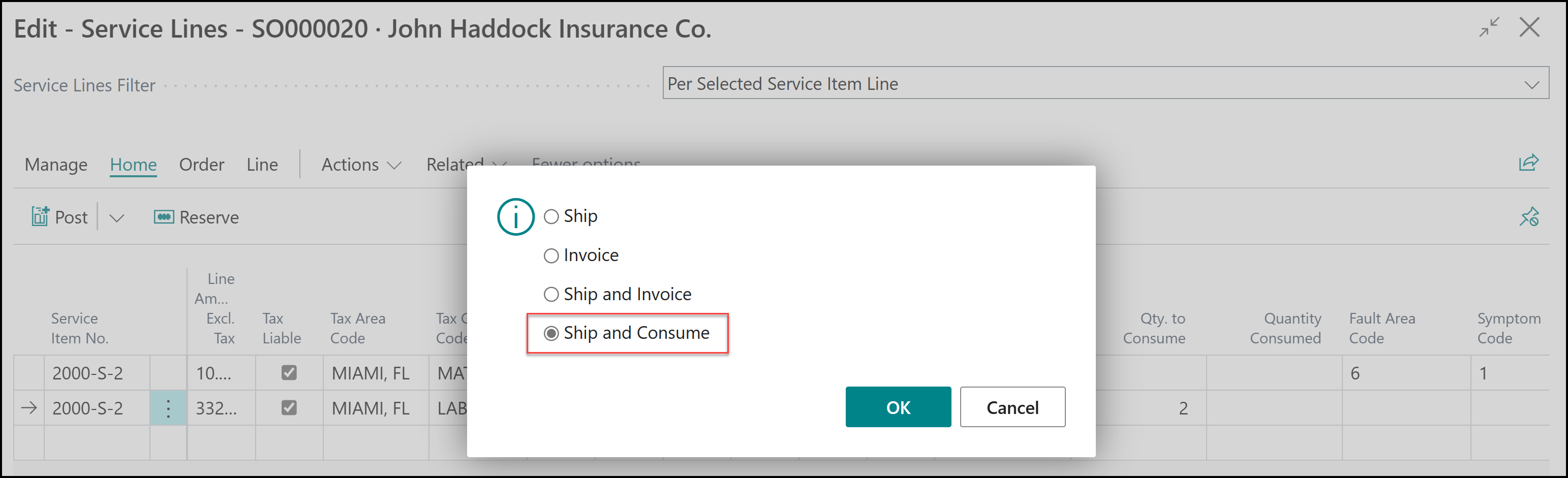
Additionally, you can't post consumption for service lines where all quantities were already invoiced. You can only post consumption for the shipment with no posted invoices or consumption.
When you use the Ship and Consume posting option, the Quantity Consumed field is automatically populated with the previous value from the Qty. to Consume field. When you post the service consumption by using the Ship and Consume option, the program handles the consumption based on the quantity that's specified in the Qty. to Consume field. It posts the service consumption partially or fully, depending on the value that's been entered.
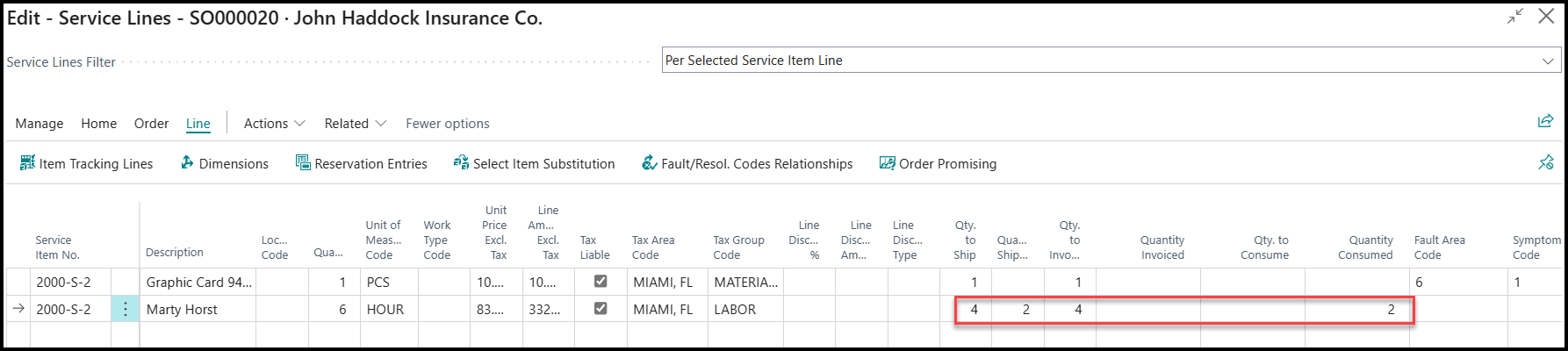
In the preceding example, six hours of labor were registered for the service order initially. Of these six hours, two hours were shipped and consumed, while the remaining four hours are still available to be shipped and invoiced. The two hours of labor that were consumed and aren't intended to be invoiced to the customer are posted.
During the posting process, the program creates the necessary ledger entries to record the consumption transaction. These ledger entries reflect the impact of the consumed resources on the financial accounts.
Furthermore, the program updates the previously posted service shipment documents in chronological order with the consumed quantities. This approach ensures that the service order history accurately reflects the consumption of resources over time.

Undo consumption
If you need to cancel the consumption on a service order due to a mistake or error, the program provides a functionality to undo the consumption.
To undo consumption on a service order in Business Central, follow these steps:
Open the Posted Service Shipment document.
Go to the Lines FastTab and select Shipment.
Select Service Shipment Lines from the dropdown menu.
Select the service shipment line that includes the quantity consumed that you want to correct.
From the Home menu, select Undo Consumption.
When prompted, confirm the action.
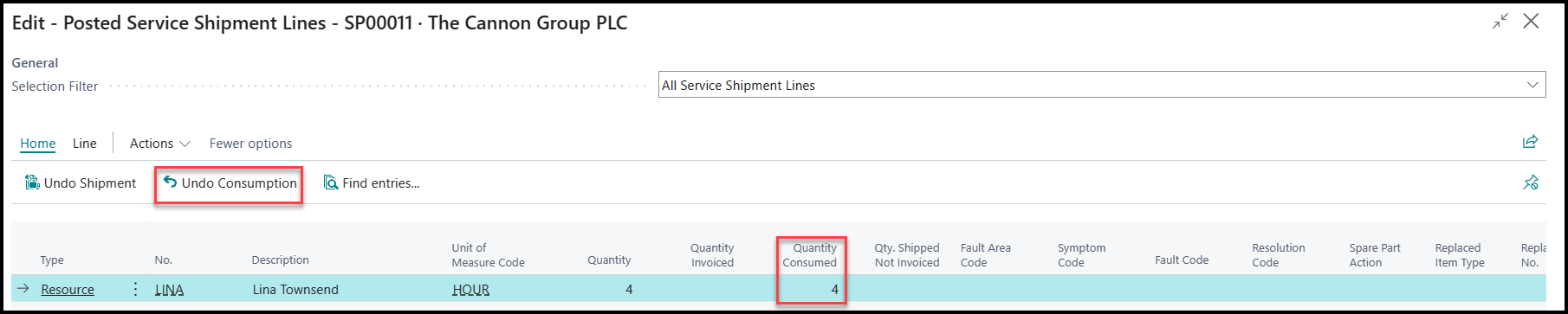
When you complete the undo consumption action, the program inserts a balancing service shipment line with negative values in the quantity fields for the selected lines.
As a result, the program effectively cancels out the previously posted consumption. The negative values in the quantity fields reverse the impact of the previous consumption, ensuring that the quantities are adjusted correctly.
Undo shipment
With the Undo Shipment function, you can reverse or cancel the posting of service shipment lines. This function is located on the Posted Service Shipment page, and it provides a straightforward way for you to correct mistakes or address erroneous information that might be included in the posted shipment.
By using the Undo Shipment function, you can effectively undo the posting of service shipment lines, ensuring that unintended or incorrect information is rectified.
When you use the Undo Shipment function to reverse a posted service shipment, the program creates a balancing service shipment line in the document. This balancing line adjusts the quantities and values of the initial line that was posted. The values in the Quantity Invoiced and Quantity fields of the balancing line are equal to the corresponding values in the initial line but with a minus sign, indicating the reversal of the posted quantities.
In addition to creating the balancing line, the program also generates the relevant ledger entries to account for the reversal of the shipment. This feature ensures that the financial impact of the original shipment is appropriately adjusted.
Furthermore, when you use the Undo Shipment function, the relevant quantities on the service line from which the shipment was originally posted are updated to reflect the reversal. As a result, the service line will accurately reflect the current status after the undo process.
The Undo Shipment function has certain limitations. One limitation is that you can't undo a service shipment that's fully invoiced and/or consumed. Basically, if all quantities from a shipment are invoiced or consumed, you can't reverse the shipment by using the Undo Shipment function.
However, if a shipment is partially consumed, you can cancel the shipment after running the Undo Consumption feature. Make sure that you use this function first to reverse the consumption before you proceed with the Undo Shipment process.
By using these functionalities, you can effectively manage and correct erroneous or unintended service shipments, ensuring accurate and up-to-date records in the system.
Delete service invoices
You can delete service invoices that have service ledger entries associated with them. This means that you can correct errors or make changes to service invoices without getting stuck or losing data. For example, if you forget to assign a product posting group to a G/L account, you can add it later and recreate the service invoice.
Use the Delete action to delete a service invoice. A corrective service ledger entry is posted, and the invoicing date and invoicing period are restored in the service contract so you can create the invoice again. You can revert several invoices, but you must do it sequentially starting from the last invoice. Business Central doesn't allow you to delete a service invoice if its details, such as the invoicing period or the prepaid toggle, were changed in the related service contract. Make sure that you delete invoices before you make such changes.