Initiate the posting process
This unit focuses on initiating the posting process in Business Central from a completed repair or maintenance scenario. When a service order reaches the stage where the repair or maintenance tasks are successfully performed and reported as finished, it's essential to commence with the posting process.
Therefore, after the technician reports that the repair or maintenance work is finished, they’ll set the repair status of the service items on the service order to Finished. As a result, the service order status is automatically updated to Finished.
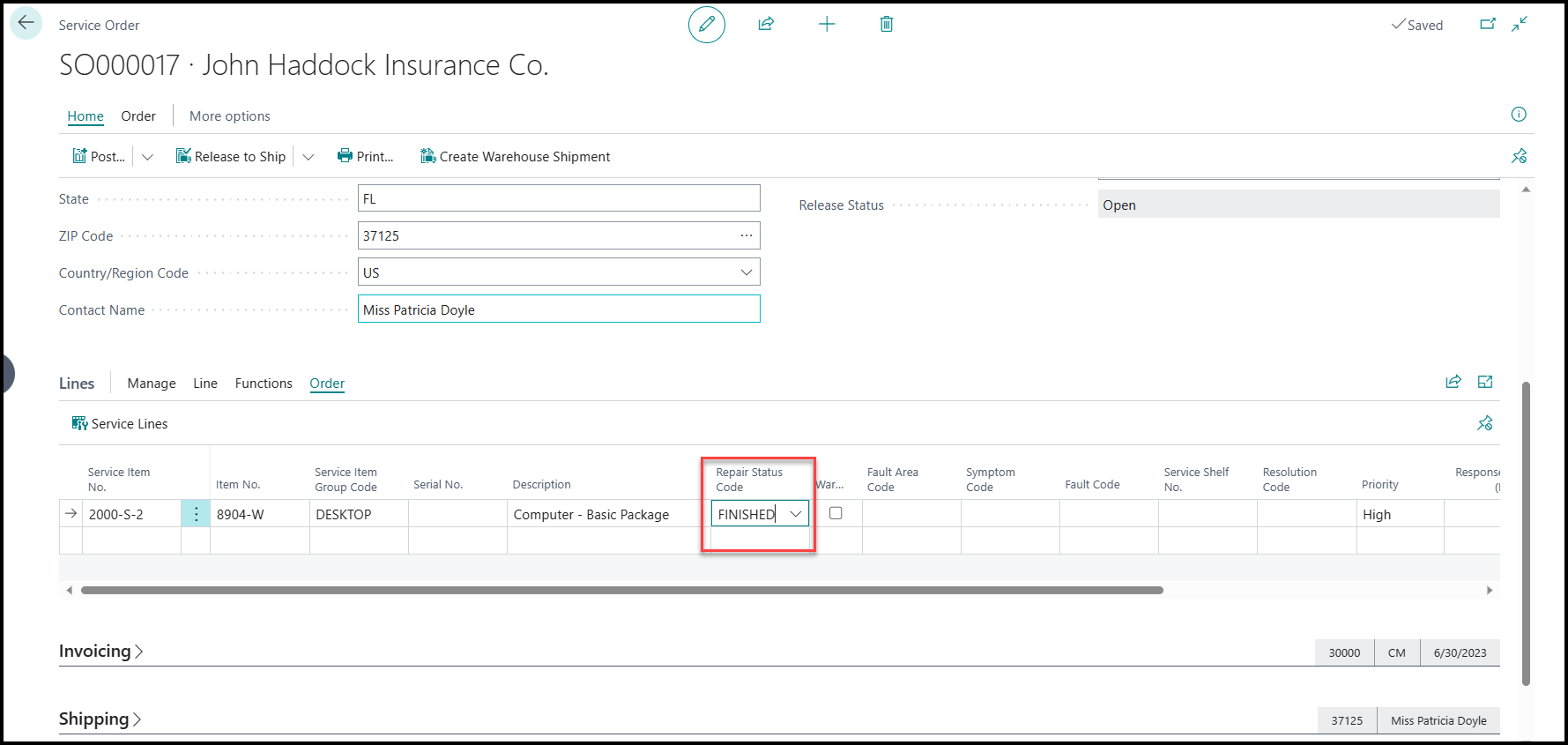
Then, the completed service order appears on the administrative person's role center under the Service Orders Finished tile.
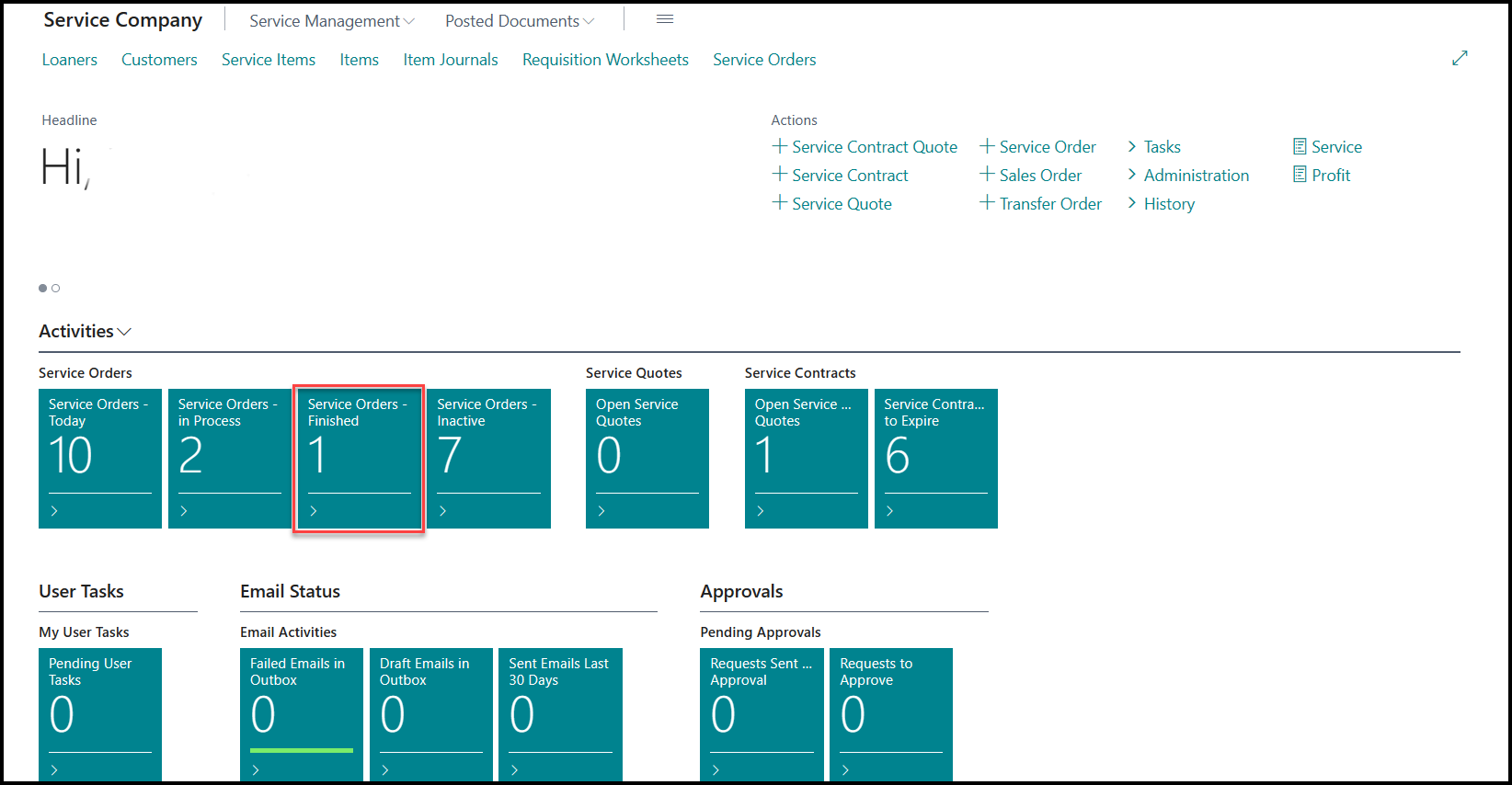
The Service Orders Finished tile serves as a convenient starting point for the invoicing process. By identifying and accessing the completed service orders, the administrative personnel can efficiently proceed with generating invoices for the provided services.
The administrative person continues the process by opening the completed service order and carefully examining the service item lines and the service lines. The service item lines provide an overview of the serviced items, while the service lines contain detailed information regarding the registered usage for the repair or maintenance.
By reviewing the service lines, the administrative person can verify the recorded repair usage, including the spare parts consumed and the labor hours logged by the technician. This thorough inspection ensures the accuracy and completeness of the repair documentation before the administrative person can proceed with the invoicing and posting process.
During this step, the administrative person can promptly identify and address discrepancies or missing information to ensure the integrity of the service order and the subsequent invoicing process. The administrative person plays a crucial role in ensuring that all relevant details are captured and documented correctly before continuing further.
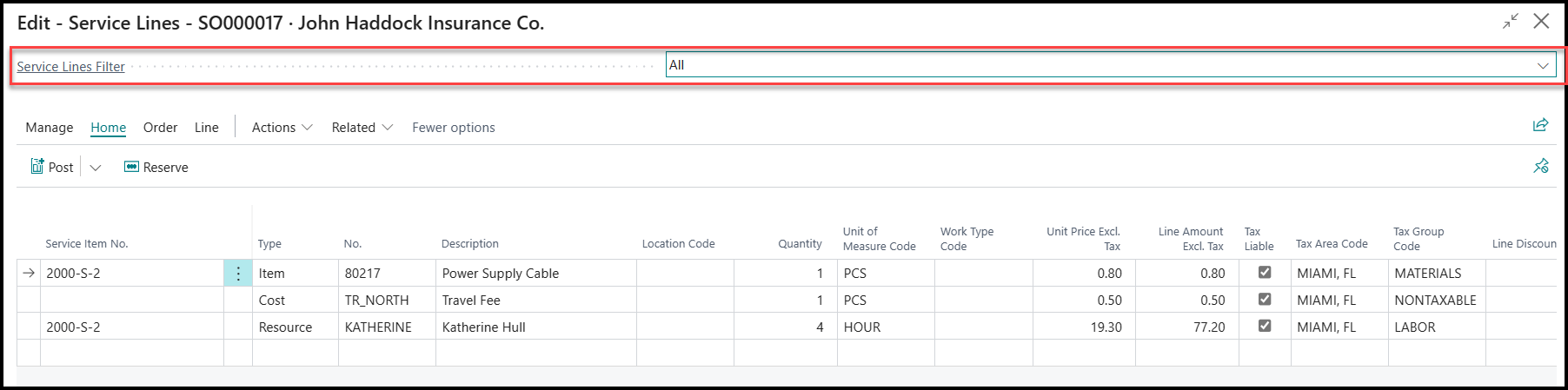
In the preceding example, the administrative person examines the service lines of the completed service order and discovers the following registered usage for the repair or maintenance:
Spare part - One spare part was registered as being replaced during the repair process. This entry indicates that a faulty component was identified and successfully replaced with a new one.
Labor hours - The technician logged a total of four hours of work for this service order. This entry represents the time and effort that the technician dedicated to repairing or maintaining the serviced item.
Travel costs - The technician recorded one unit of travel costs. This entry indicates that the technician incurred travel expenses while performing the repair or maintenance, such as transportation to the customer's location.
If the Service Lines Filter isn't set correctly, the travel costs might not be visible on the service lines. The Service Lines Filter determines which types of service lines are displayed, and if it excludes travel costs, they might not be visible in the current view.
To ensure that the travel costs are visible, we recommend that you set the Service Lines Filter to include all relevant types of service lines, including travel costs.
It's also important to know the significance of the following fields for the upcoming posting process:
Qty. to Ship - Indicates the quantity of items that are ready to be shipped to the customer as part of the service order. This field represents the physical inventory or components, services, or costs that are delivered to fulfill the service order.
Qty. to Consume - Refers to the quantity of items or resources that are internally consumed during the service order process. These items or resources include materials, spare parts, or resources that are necessary for completing the repair or maintenance task. The consumption quantity isn't charged or invoiced to the customer.
Qty. to Invoice - Represents the quantity of items or services that are included in the invoice that’s generated from the service order. This field reflects the amount that the customer is billed for, encompassing the consumed items and other provided services, expended labor hours, or any other billable components of the service order.
While the Qty. to Ship field focuses on the quantity of items to be shipped, the Qty. to Consume field tracks the internal usage of resources and the Qty. to Invoice field determines the billable quantity for the customer.
You can use posting policies to restrict users from posting service invoices or require them to post invoices together with the related service shipment.
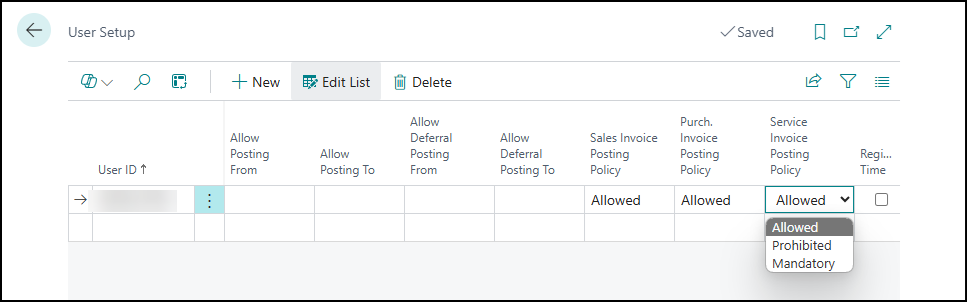
To specify a posting policy, on the User Setup page, choose one of the following options in the Service Invoice Posting Policy field:
Allowed (Default): Keep the current behavior, where you can choose the posting option, such as Ship, Invoice, and Ship and Invoice.
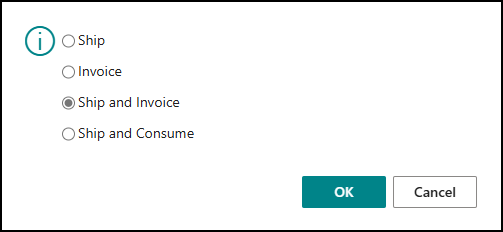
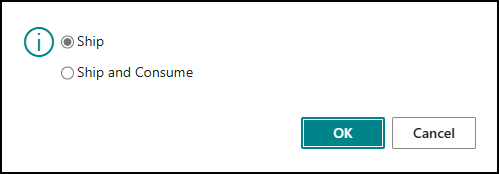
Prohibited: Prevent people from posting invoices. Business Central shows a confirmation dialog that provides only the Ship options.
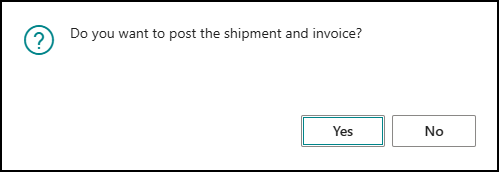
Mandatory: Let people post invoices along with service shipments. Business Central shows a confirmation dialog with the Ship and Invoice option.
The setting affects the following documents:
Service orders
Warehouse shipments
Service invoices
Service credit memos
When you post service invoices and credit memos, you don't have any posting options. The documents always post the physical and financial transactions together. You can't partially post invoices and credit memos.