Design what a sensitivity label protects
Relecloud's finance team has two protection problems on the same day, and they look nothing alike. A single Woodgrove Bank transaction record needs to stay encrypted and carry a confidentiality watermark no matter where it travels—downloaded to a laptop, attached to an email, forwarded to a partner bank. Separately, the regulated case team investigating a dispute needs its entire Microsoft Teams site locked down: no guests without approval, no access from unmanaged personal devices. Both problems get solved with a sensitivity label. But they're not the same kind of protection, and a label built for one doesn't automatically solve the other.
Guiding question: Between the transaction record and the case team's Teams site, which protection goal needs a label scoped to individual items, and which needs a label scoped to the container itself? Could a single label handle both goals at once? Hold your answer as you read through the two scopes below.
Protect the content itself with item scope
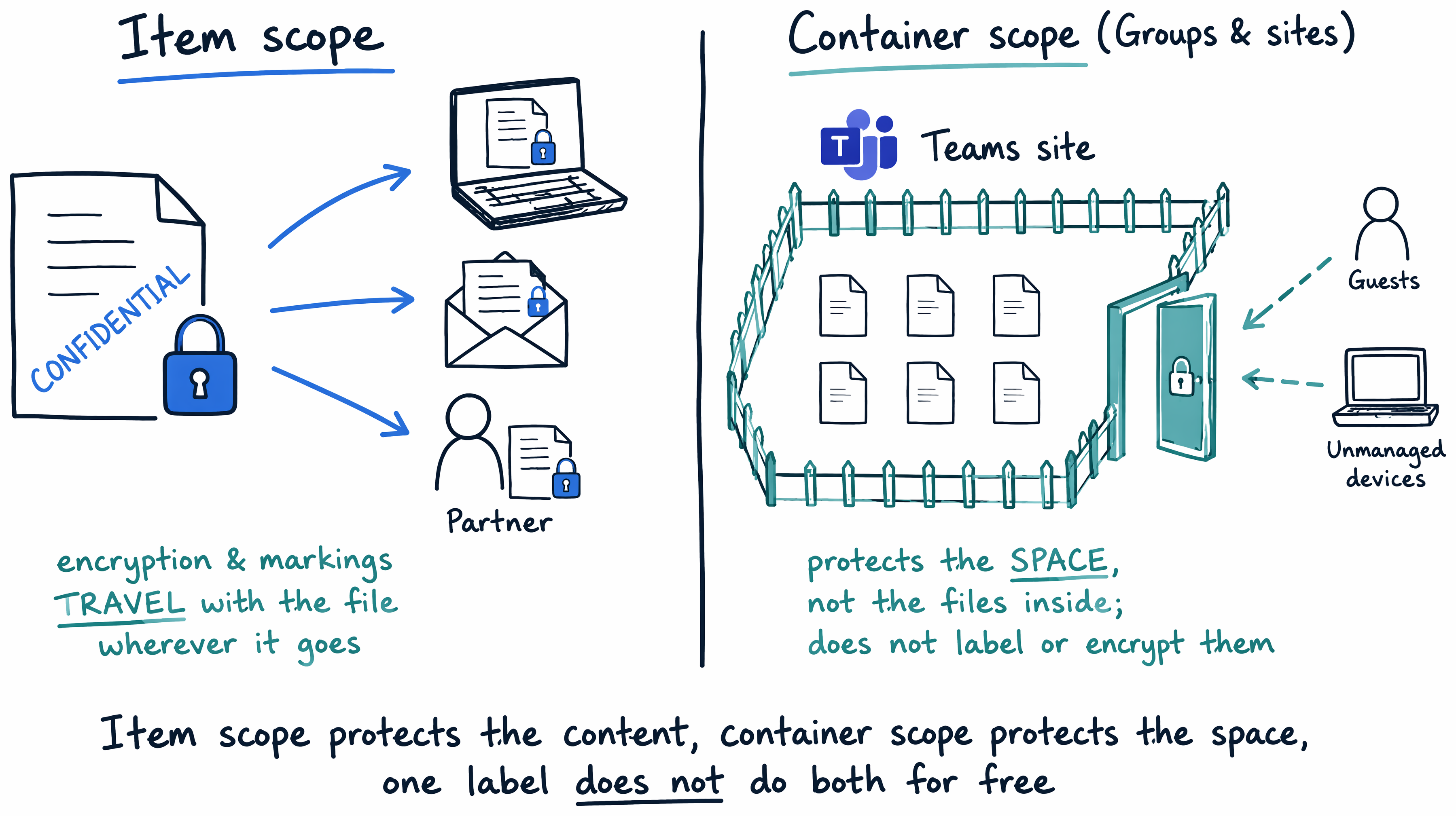
When you scope a label to Files & other data assets, Emails, or Meetings, that label applies item-level protection directly to a piece of content—encryption and content marking such as headers, footers, and watermarks travel with the file or message itself. This is exactly the protection the Woodgrove Bank transaction record needs: wherever that file goes, whoever opens it, the label's encryption and markings go with it, because the protection lives in the item rather than in the location where it's stored.
The three item-level scopes work together rather than as isolated switches. Files & other data assets is selected by default when you create a new label, since most organizations start there. Emails is typically selected alongside it, because an email and its attachments often share the same sensitivity and need matching protection. Meetings extends that protection to calendar events, Teams meeting options, and the associated Teams chat—but it requires Files & other data assets to also be selected, since a meeting bundles the invitation, attendee responses, any attached files, and the Teams meeting itself into one protected unit.
| Item scope | Protects | Note |
|---|---|---|
| Files & other data assets | Files—encryption and content marking travel with the item | Selected by default on a new label |
| Emails | Email messages and their attachments | Typically selected alongside Files |
| Meetings | Calendar events, Teams meeting options, and the meeting chat | Requires Files & other data assets to also be selected |
Learn more about configuring these settings in Get started with sensitivity labels.
Protect the collaboration space with container scope
The case team's Teams site is a different kind of problem. Encrypting individual files inside that site doesn't stop an unapproved guest from joining the team or an unmanaged device from signing in—what needs protecting here is the space itself, not any one document inside it. This is what the Groups & sites scope does. Instead of applying encryption to items, it configures container-level protection on the Microsoft 365 group, Teams team, or SharePoint site: privacy (public or private), whether external users can be added and what they can share, whether unmanaged devices can connect at all, whether a private team shows up in search and discovery, and controls over shared channels.
Here's the reveal for the guiding question above: a label scoped only to Groups & sites doesn't touch the files inside that container. It doesn't automatically label them, encrypt them, or mark them. As the setting is designed, "this label configuration doesn't result in individual items being automatically labeled but instead, the label settings protect content by controlling access to the container where content can be stored." Protecting the case team's site and protecting the transaction record are two distinct decisions, not one decision that scales up. A single label can carry both an item scope and the Groups & sites scope at the same time, but that's a deliberate choice you make, not something the container scope grants for free.
Learn more about configuring container protection in Use sensitivity labels to protect collaborative workspaces (groups and sites).
Turn on container labeling before you configure it
Before Relecloud's compliance team can set any of those container controls, container labeling needs to be turned on tenant-wide. Until that happens, the Groups & sites settings are visible in the label configuration experience, but they stay grayed out and can't be configured. It's a one-time enablement step, but it's easy to miss the first time you try to scope a label to a group or site and find the options unavailable—worth confirming early, before you build out a container-scoped label for the case team's site.
Choose scope by what needs protecting
Notice the pattern behind both examples: scope selection follows directly from what you're protecting, not from habit or from copying a label used elsewhere. If the goal is that the content itself stays encrypted and marked regardless of where it moves, you need an item scope—Files & other data assets, Emails, or Meetings. If the goal is controlling who can discover or get into a collaboration space, you need the Groups & sites container scope. A label scoped only to Groups & sites isn't even displayed in Office apps and can't be applied to a file or email at all, which is a useful check: if you expect users to see a label when they're working in a document, an item scope has to be part of that label's configuration.
This is the same specify-and-verify judgment you applied when choosing a classification technique for each of Woodgrove Bank's data shapes. There, the question was which technique matches the shape of the data. Here, the question is which scope matches the shape of the protection requirement—content, container, or both.
With the right labels and scopes in place, Relecloud still faces a practical question: how do the right users actually get the right labels in front of them, and what happens when a user falls under more than one label policy at the same time? The next unit picks up exactly there, with how label policies get published and how Microsoft Purview resolves priority when policies overlap.