Configure agent-specific risk detection controls
Protection controls can't cover every agent type equally. Where data loss prevention and sensitivity labels are unavailable or limited, detection is what catches risky behavior. Insider Risk Management (IRM) looks for risky patterns in agent activity over time, while communication compliance focuses on inappropriate content in individual agent conversations. Both feed risk signals into Data Security Posture Management (DSPM) AI observability, where you can see agent risk levels alongside your discovery data.
Include agent instances in IRM policies
Without IRM coverage, an agent instance that exfiltrates data or responds to prompt injection attacks generates no risk signal. Nothing distinguishes it from normal operation.
Include agent instances in IRM policies the same way you would include a user. You specify the agent instance directly in the policy's user scope.
To configure an IRM policy for agent instances:
- In the Microsoft Purview portal, go to Insider Risk Management > Policies.
- Select Create policy to create a new policy, or edit an existing policy.
- On the Policy template page, select the Risky AI usage template for detecting risky agent interactions including prompt injection attacks and accessing protected materials.
- On the Users and groups page, add the agent instances you identified during your decision planning.
- Complete the policy configuration, including selecting relevant indicators and setting thresholds.
- On the policy overview page, verify that the status shows On and the agent instances are listed under scoped users.
The Risky AI usage template
The Risky AI usage template is designed for detecting AI-related risks. For agent instances, it detects:
- Prompt injection attacks targeting the agent
- Agent responses that contain or reference protected materials
- Sensitive information in prompts sent to the agent
- AI-generated responses that include sensitive information
This template requires the Microsoft insider risk extension for Microsoft Edge or the Microsoft Purview extension for Chrome for browser-based detection. For agent interactions that occur within Microsoft 365 services like Teams, Outlook, and SharePoint, the template detects agent-specific trigger events like data exfiltration without requiring browser extensions.
Agent-specific trigger events
IRM supports built-in trigger events for agent instances, including data exfiltration. When an agent instance triggers an exfiltration event, IRM begins scoring the agent's activity against your configured risk indicators.
Without IRM configured for agent instances, the risk levels on the DSPM AI observability page have no agent data to work with. IRM risk signals for agent instances also integrate into Microsoft Defender XDR, so AI-related risks appear alongside other security alerts your SOC team already sees.
Detect inappropriate content with communication compliance
IRM looks at behavior patterns over time. Communication compliance catches something different: problematic content in individual interactions, which IRM doesn't cover.
An agent that generates inappropriate responses in Teams, or that users send harmful prompts to, goes undetected unless communication compliance covers AI app locations.
Communication compliance detects inappropriate content in agent-to-human and human-to-agent interactions. Detection scope includes unethical communication, sharing of sensitive information, harassment, threats, and adult content in agent conversations.
Add AI app locations to a policy
To configure communication compliance for agent interactions:
- In the Microsoft Purview portal, go to Communication Compliance > Policies.
- Create a new policy or edit an existing policy.
- On the Choose locations to detect communications page, select one or more generative AI locations:
- Microsoft Copilot experiences for Copilot-based agents
- Enterprise AI apps for Entra-registered and Foundry agents
- Other AI apps for browser-detected AI interactions
- Configure conditions for detection, like sensitive information types, keyword dictionaries, trainable classifiers, or content safety classifiers.
- Set the review percentage and assign reviewers.
- On the policy list page, verify that the policy status shows Active.
Use the Detect Microsoft Copilot interactions template
If you're focused on Copilot agents specifically, a preconfigured template gets you to a working policy faster than building conditions from scratch.
This template analyzes interactions between users and Copilot agents. You scope it to the users whose interactions you want to include, not to the agent instances themselves.
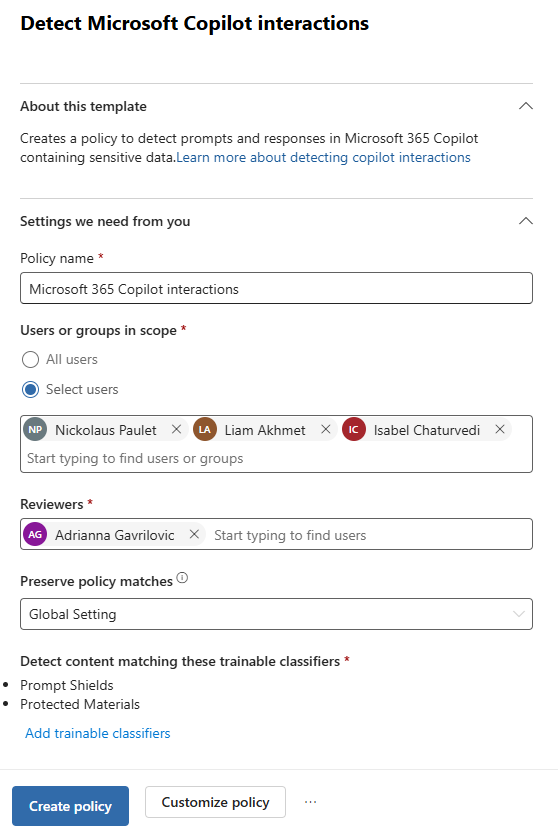
For a faster setup focused on Copilot agent interactions:
- Go to Communication Compliance > Policies > Create policy.
- Select the Detect Microsoft Copilot interactions template.
- Enter the policy name, select the users whose agent interactions you want to include, and assign reviewers.
- Review the preconfigured settings and create the policy.
The template gives you a working policy immediately. Adjust detection conditions and scope after you see initial results.
What communication compliance detects for agents
Communication compliance supports detection for:
- Agent-to-human interactions in Teams and emails
- Human-to-agent interactions in Teams and emails
- Sensitive information types in agent conversations
- Trainable classifiers for targeted threat, profanity, and harassment
- Content safety classifiers based on large language models
Both IRM and communication compliance require you to explicitly include agent instances in policy scope. Agents don't inherit coverage from broader policies by default.