Discover active agents and assess coverage gaps
Before you can configure policies for agents, you need to know which ones are running, what risk they carry, and which ones aren't covered by existing policies.
Data Security Posture Management (DSPM) AI observability is where you get that picture.
Prerequisites
Access to DSPM and AI observability requires the Compliance Administrator role, assigned in either Microsoft Entra or the Microsoft Purview portal. Some features require separate roles. For example, Security Copilot capabilities within DSPM require the Data Security Viewer role.
DSPM pulls risk signals from DLP, Insider Risk Management, and Communication Compliance, so you need licensing for those solutions to investigate and act on what it finds. Microsoft 365 E5 or equivalent licensing covers DSPM and all of these capabilities.
For more information, see the Microsoft Purview service description.
Navigate to AI observability
To access agent discovery and risk data:
- In the Microsoft Purview portal, go to Solutions > DSPM.
- Select AI observability from the DSPM navigation.
Note
Use the current DSPM version. The classic version (DSPM for AI (classic)) doesn't support Agent 365.
Review active agents
The AI observability page provides an overview of all agents in your organization with activities in the last 30 days. Agents are prioritized by the highest risk level determined by Insider Risk Management.
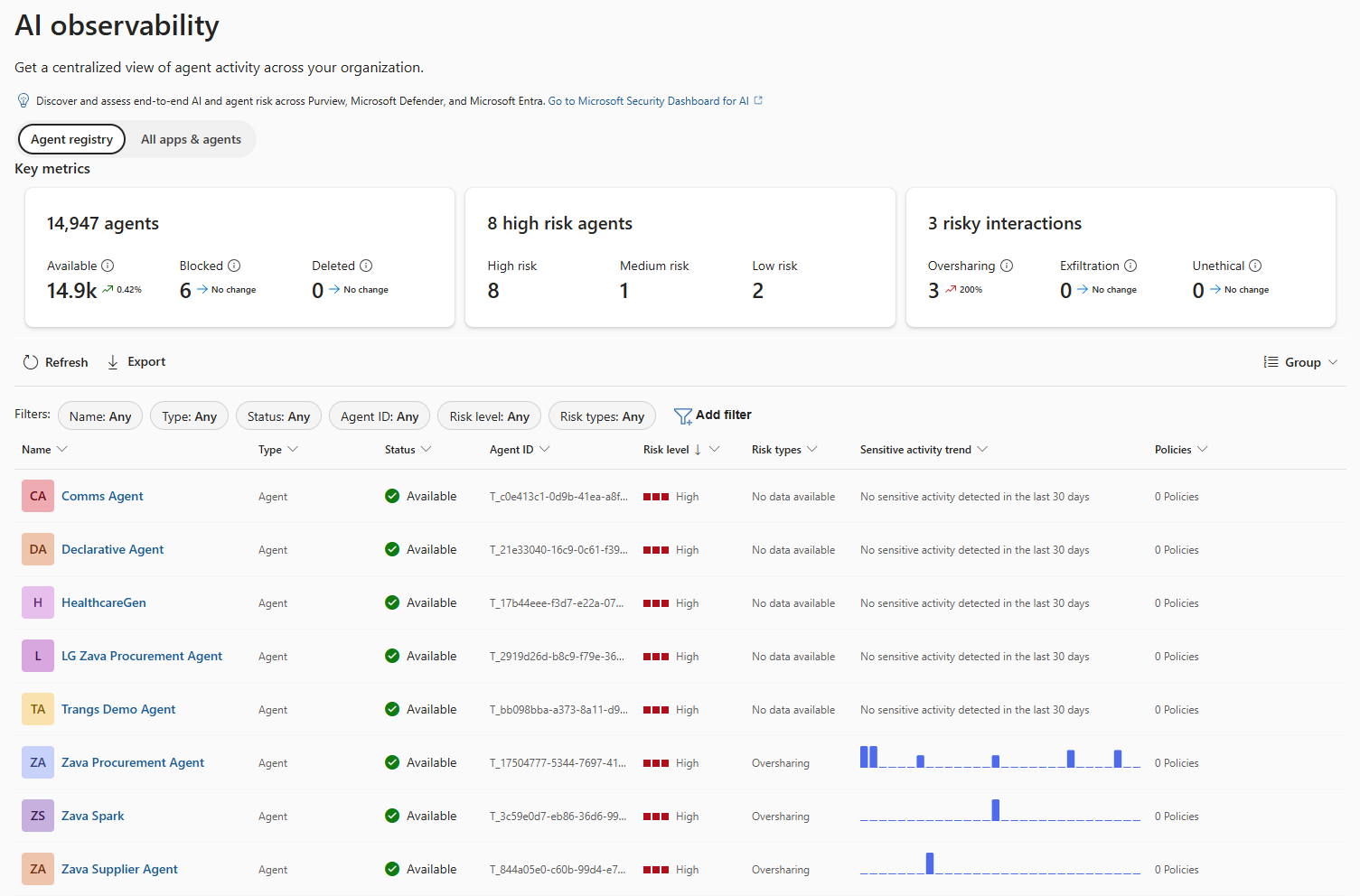
From this overview, you can immediately identify:
- Which agents are active and generating interactions
- Which agents have the highest risk levels
- Where activity volumes indicate heavy agent usage
Agents with high risk levels and frequent activity are the starting point for your gap assessment.
Analyze risky activities
The AI observability page highlights three categories of risky activity:
- Oversharing: Agent interactions that expose data beyond intended recipients
- Exfiltration: Agent interactions that move sensitive data outside organizational boundaries
- Unethical behavior: Agent interactions that contain inappropriate, threatening, or policy-violating content
Use these categories to decide which policy type to check for that agent. Oversharing and exfiltration point to potential data loss prevention (DLP) gaps. Unethical behavior points to communication compliance gaps.
Investigate individual agent instances
Select a specific agent to view detailed information:
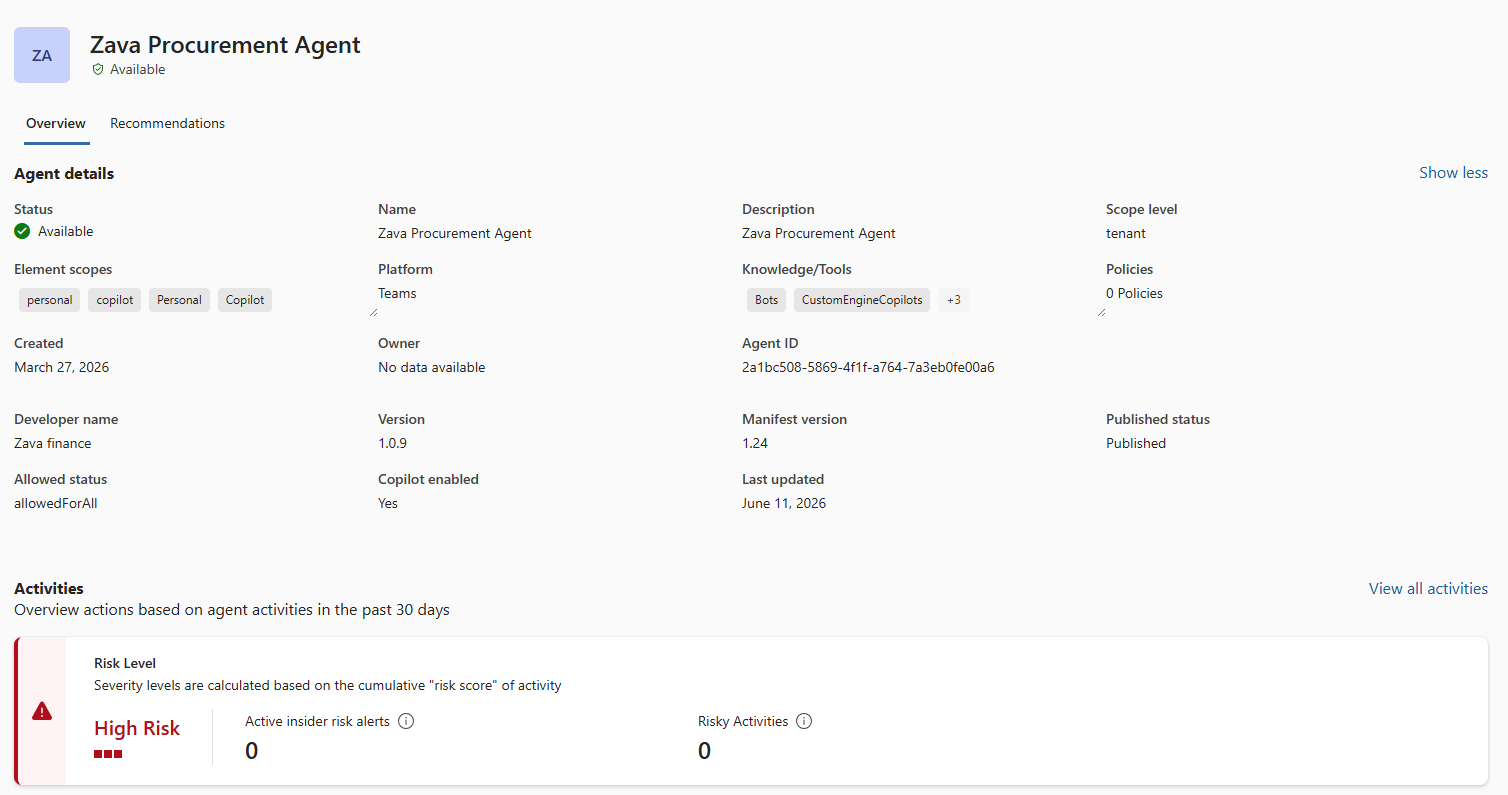
- Agent details: Entra-enabled status, created date, owner, agent user ID, and which parent agent it's an instance of
- Agent activities: Risk level determined by Insider Risk Management and specific risky activities from agent interactions
- Recommendations: Remediation actions that use Microsoft Purview solutions, based on the identified risks
Use the agent details to find which row of the coverage matrix applies. Once you know the parent agent, you know which Purview capabilities are available. The recommendations give you a starting point for what to configure, and the coverage matrix fills in the rest.
Tip
The agent user ID is the identifier you use when adding agent instances to DLP, Insider Risk Management (IRM), and other policies. Note it during discovery so you have it when you configure policies.
Identify coverage gaps
After reviewing active agents and their risk levels, connect what you see to what you know about coverage:
- For each active agent, identify its parent app and find the corresponding row in the coverage matrix.
- Compare what's available for that agent type against what you've actually configured. Available capabilities that aren't configured represent gaps.
- Check whether the agent instance is explicitly included in any existing policies. If DLP policies scope to "all users" but don't include agent instances, the agent isn't covered even if the capability is available.
- For Agent 365 instances specifically, check whether the behavioral differences are addressed in your current policy design:
- Explicit sharing
- Encryption rights
- No label inheritance
- Block-action unawareness
Prioritize high-risk agents with available but unconfigured capabilities. Agents where the coverage matrix shows only data classification have limited options regardless of risk level.
Check for new agents
DSPM doesn't alert you when a new agent appears. The Apps and agents page under Discover updates as agents are used, but nothing notifies you that an uncovered agent has been created. Build a regular review cadence, whether that's checking DSPM weekly or tying it to your change management process for new app registrations.