Assess data classification and labeling with asset explorer
Classification and labeling form the foundation of data security posture. Sensitivity labels control access, data loss prevention (DLP) policies reference labels for enforcement, and posture metrics reflect labeling coverage. Asset explorer answers the same questions at the individual asset level, which is where gaps become specific enough to act on.
Distinguish two types of labeling gaps
Before using asset explorer, it helps to understand the two distinct assessment questions it answers. The difference between them determines what action is appropriate.
Unlabeled data: Assets with no sensitivity label applied. These assets aren't protected by label-based DLP policies or access controls. If most assets in a workload are unlabeled, the gap is broad and affects every downstream protection that depends on labels.
Classified but unlabeled data: Assets already identified with sensitive information types but still unprotected by a label. These are the more urgent gap. The system recognizes them as sensitive, but no label governs access or triggers DLP enforcement. They're known risks without controls applied.
A workload where most assets are both unclassified and unlabeled needs a classification strategy first. A workload where assets are classified but unlabeled needs labeling policies extended to cover what classification has already found. The action path is different, and asset explorer helps you tell which situation you're in.
Focus assessment with filters
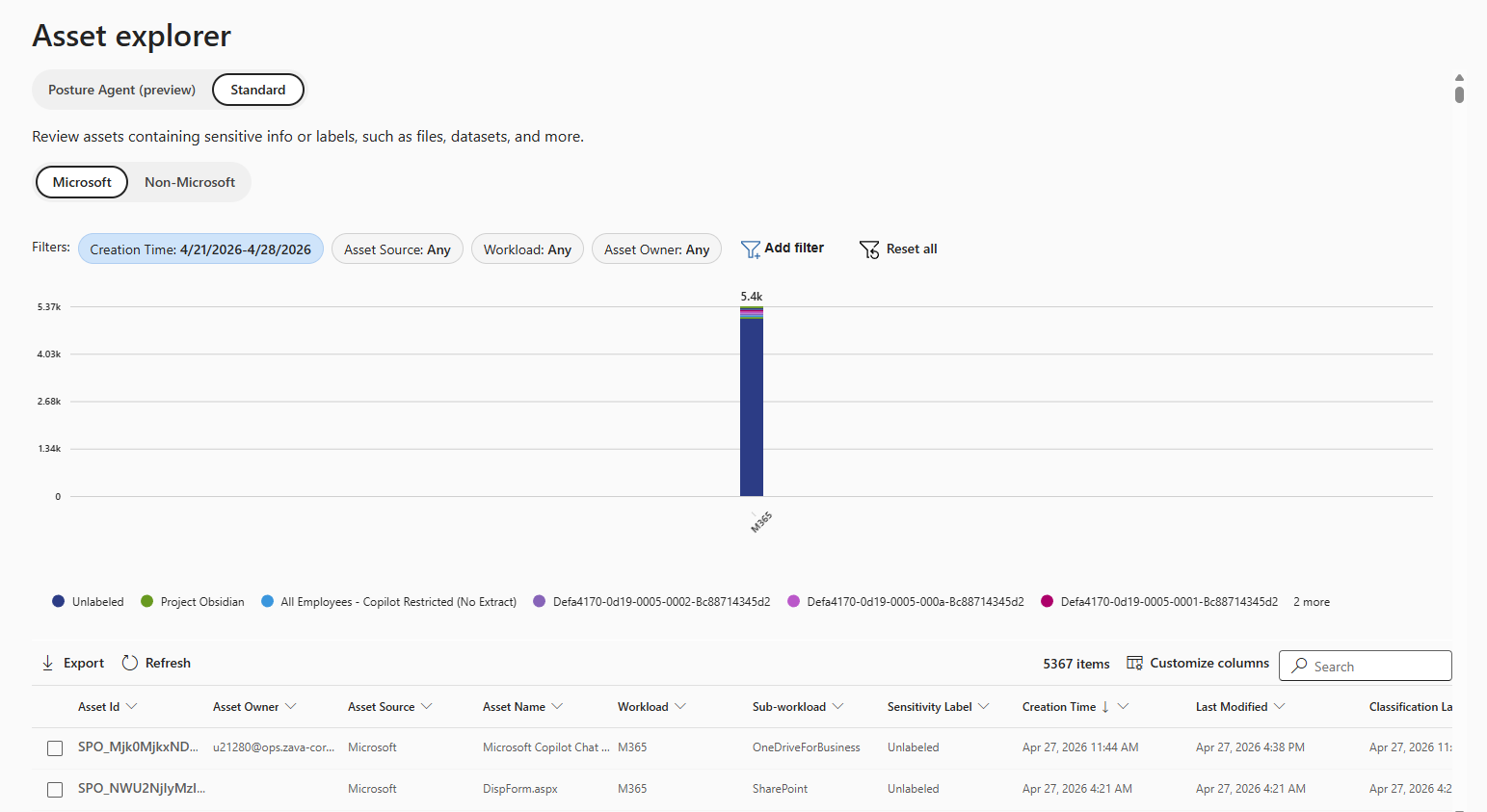
The Standard tab in asset explorer shows assets containing sensitive information or labels across Microsoft and non-Microsoft locations. The visual summary gives you a quick read on overall labeling distribution, but the real assessment value comes from filtering to isolate specific gaps:
- Workload filter: Compare labeling coverage across subworkloads like OneDrive versus SharePoint. If one subworkload has more unlabeled assets, that's where labeling policies have the least reach.
- Creation time filter: Focus on recently created assets. A high rate of new unlabeled assets suggests autolabeling policies aren't keeping pace with content creation.
- Asset source filter: Separate Microsoft from partner-sourced data when evaluating coverage across the full estate. If partner integrations aren't configured, non-Microsoft locations won't appear, which is itself a coverage gap.
The filters let you move from "labeling coverage is low" to "labeling coverage is low specifically in this workload, for assets created in this time frame." That specificity is what makes asset explorer useful for prioritization.
Test specific concerns with the Posture Agent
The Posture Agent (preview) tab takes a different approach. Instead of browsing structured views, you describe what you're looking for in natural language. Queries like "customer data shared in chats" or "files containing product roadmap details" tell the agent what to search for across SharePoint, OneDrive, Teams, Exchange, and Copilot interactions.
Use the Standard tab to measure labeling coverage across workloads. Use the Posture Agent when you need to test a specific concern, such as whether a particular type of sensitive content exists and lacks protection.
Note
The Posture Agent requires Security Copilot SCUs (security compute units) to run. If your organization hasn't provisioned SCUs, the agent isn't available.