Create and manage review sets in eDiscovery
In Microsoft Purview eDiscovery, review sets play a central role in managing the content you need to examine during a legal or compliance investigation. A review set is a static, organized collection of data that has been added to a case for deeper analysis.
Review sets help you move from broad data collection to focused analysis. Because their contents are fixed once added, they preserve the integrity of your investigation. Review sets give legal and compliance teams a consistent workspace to search, filter, tag, and prepare content for export or further action.
Create a review set
In Microsoft Purview eDiscovery, review sets are created as containers for holding static copies of content you want to analyze. You can create a review set on its own and add data later, or you can create one directly from a search.
Step 1: Create the review set
To create a new review set:
- In your eDiscovery case, go to the Review sets tab.
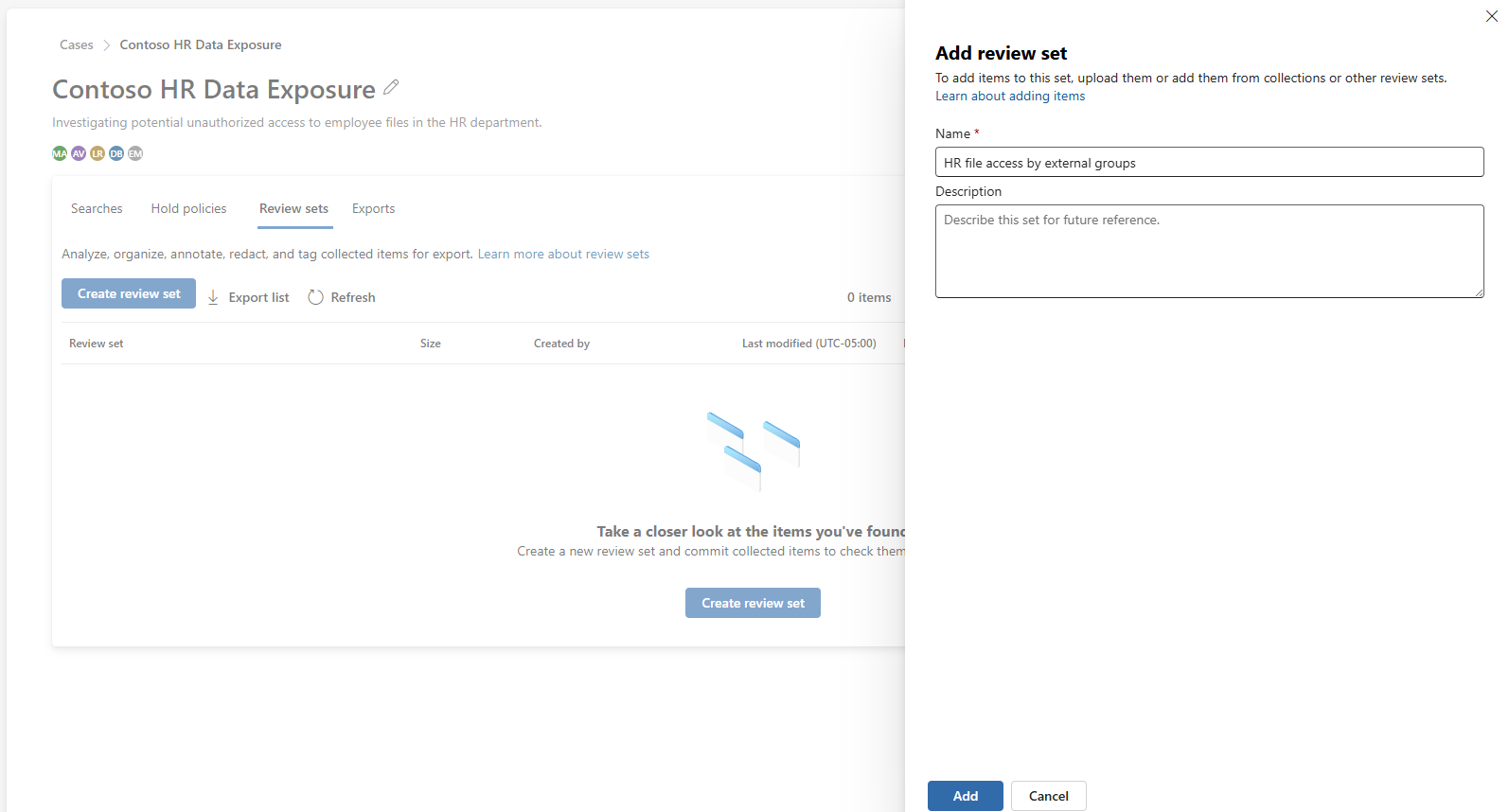
- Select Create review set.
- Enter a name and optional description.
- Select Add to create your review set.
At this point, the review set exists but doesn't contain any items.
Note
If you open the review set and go to the Searches tab, you can select View searches to jump to the Searches page. From there, follow the steps to add content.
Step 2: Add search results to the review set
To add data to your review set:
Go to the Searches tab for the case.
Open the search that contains the results you want to review.
Select Add to review set from the command bar.
Choose whether to create a new review set or add to an existing one.
Configure how content will be included:
- Choose which types of items to include (indexed, partially indexed)
- Decide how many document versions to collect
- Choose whether to include folders, list items, and attachments
- Optionally include conversations and access links
Select Add to review set to begin processing.
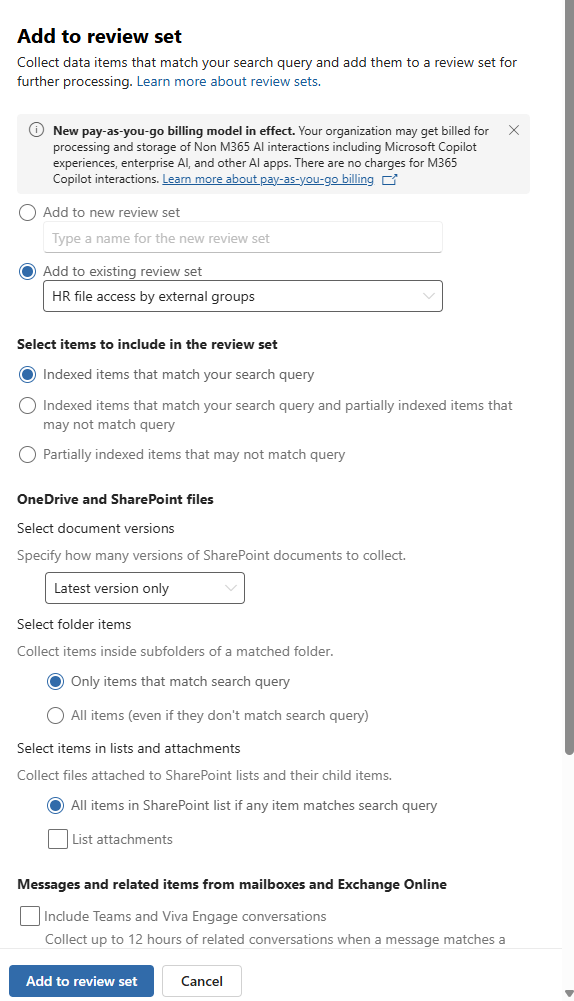
Once processing is complete, the data is visible in the review set and ready for analysis.
Review set behavior after creation
After a review set is created, its contents are fixed. You can add more content over time by committing new searches, but you can't remove individual items once they're added.
This behavior supports defensibility by ensuring that the review set remains a consistent, auditable snapshot of the data collected for investigation.
View and organize review sets
From the Review sets tab, you can view all review sets in the case and organize them to make review easier. You can:
- Filter and group existing sets
- Customize the dashboard columns
- Search for a specific review set
- Download a .csv file with metadata
Each row shows the name, size, creator, modified date, number of searches and exports, and any added description.
If you're reviewing a long list, you can group the sets by the user who created or last modified them.
Open a review set
Select a review set to open its summary page. This page includes:
- Overview tab: Displays general details, including size, owner, and modification history
- Searches tab: Shows each search added to the review set and its processing status
- Process manager tab: Lists actions taken on the review set, such as exports, with details like status, duration, and who initiated the action
You can also download a list of actions from the Process manager tab.
Start working with review set items
After selecting Open review set, you're ready to begin analysis. From the command bar, you can:
Search across the content
Group and view items in a review set
Tag documents based on privilege, relevance, or other criteria
Run analytics
Export selected items
Add content to another review set
Create keyword summaries with Query Report (preview)
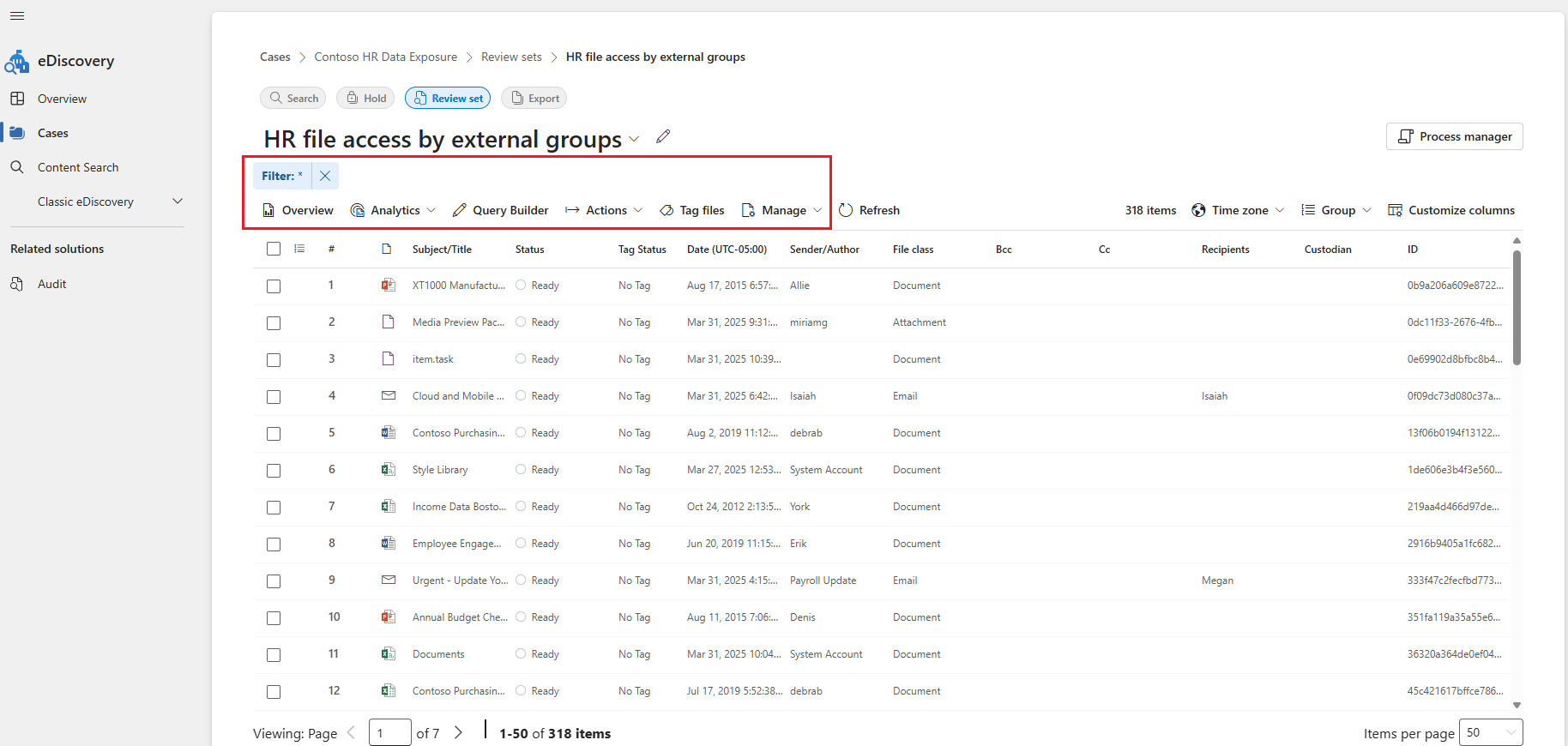
These actions help teams organize and evaluate content before deciding on next steps.
Understand review set structure
Each review set displays high-level statistics and details that help you track and manage the content.
Overview statistics include:
- Total extracted documents
- Total processed items
- Failed extractions
Load sets show each batch of data added to the review set. You can view:
- Load date
- Source name (search, review set, or upload)
- Load ID
- Item count
- Processing status
This information is helpful when reviewing content origins and the completeness of your data set.
Pagination settings
By default, review set items appear in pages of 50. Use the navigation controls to move between pages or enter a page number directly. If you prefer to scroll through all content without breaks, go to Manage and select Turn pagination off.
Review sets are where investigative teams do their most detailed analysis. By organizing content into review sets, applying tags, and using tools like analytics and export, you create a defensible, auditable process for handling sensitive data during legal or compliance matters.
Create and manage review sets interactive guide
Use the Create and manage review sets interactive guide interactive guide to walk through creating a review set.