Run analytics on review sets
When you're working with large volumes of case data in Microsoft Purview eDiscovery, reviewing every item manually isn't feasible. That's where analytics comes in. By running analytics on a review set, you can reduce redundant items, identify patterns, and prioritize what gets reviewed.
Analytics helps reduce review volume and highlight key documents by identifying near duplicates, threading emails, and detecting themes. You can run analytics on a review set and use the results to streamline document review.
Why run analytics?
Analytics helps legal and compliance teams surface the most meaningful data and cut through the noise. Here are some of the things analytics can do for you:
- Remove duplicate documents
- Identify the most inclusive emails in a thread
- Group near-duplicate files together
- Organize content by theme
- Flag potentially privileged material using machine learning
These capabilities reduce the volume of content that needs manual review and give your team the context needed to make informed decisions.
How to run analytics on a review set
To run analytics, open a review set and start the analysis process:
In the Microsoft Purview portal, open your eDiscovery case and go to the Review sets tab.
Select a review set and choose Open review set.
In the command bar, select Analytics > Run document & email analytics.
Confirm that you want to start the analysis.
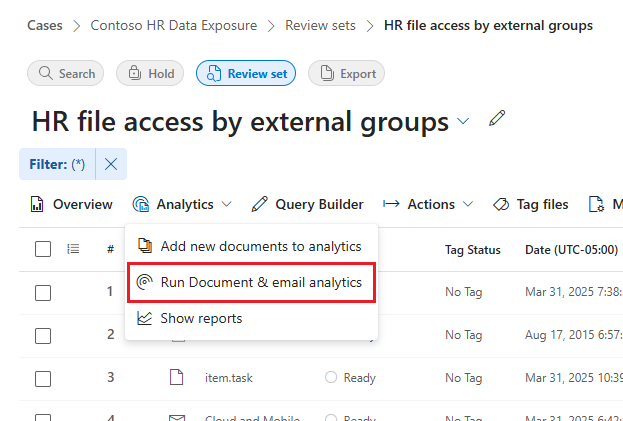
Analytics might take time to complete. You can check progress from Process manager in the review set. When it's done, your documents are enriched with new metadata that reflects duplicates, inclusiveness, and more.
Use analytics filters to refine your review
After running analytics, you can use built-in filters to narrow your focus to the most relevant content. These filters appear in the Saved filters dropdown in the review set condition builder.
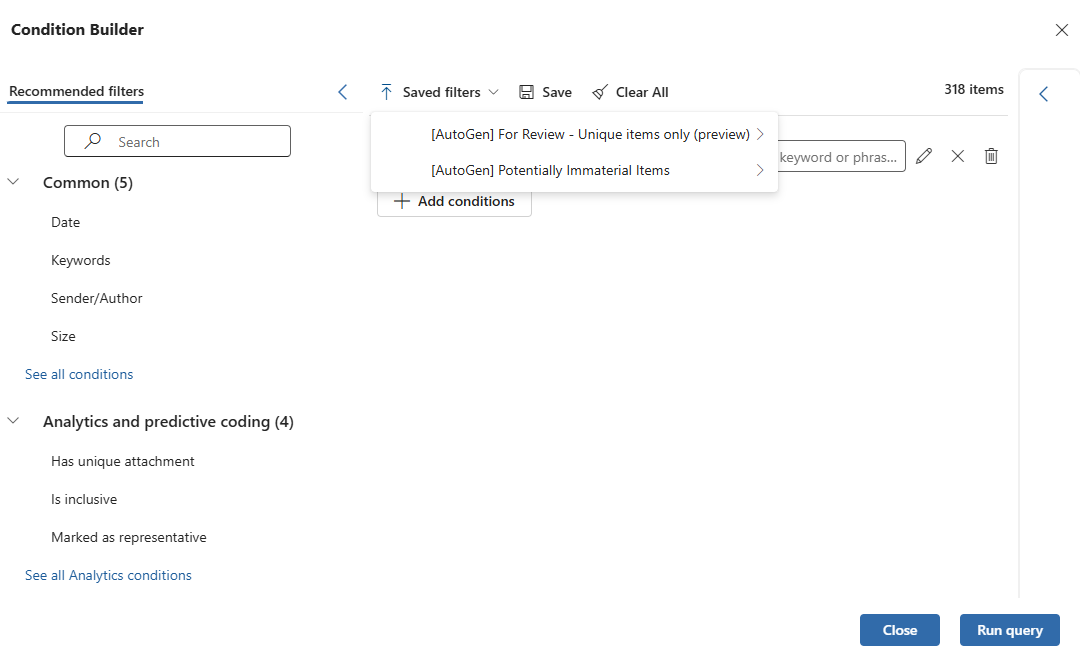
For Review – Unique items only (preview)
This filter helps reduce data volume by excluding duplicate, immaterial, or noninclusive content. It focuses your review on items that are unique or representative within the set:
- Emails that are inclusive and representative of their thread
- Attachments and documents that are unique (not exact duplicates)
- Teams or Viva Engage conversations that are unique in the data set
- Items without representative metadata that might still require attention
Use this filter when you want to focus on high-value content without missing key context from threads or conversations.
Potentially Immaterial Items
This filter helps identify items that are unlikely to be important to the review. It includes:
- Compressed files, such as .zip archives
- Small images under 3 KB, which are often thumbnails or icons
Use this filter to separate noise from potentially meaningful evidence, especially when reviewing large, diverse document sets.
Review the analytics report
To understand how analytics processed your content, you can open the Analytics report. In your review set, go to Analytics > Show reports.
You'll see breakdowns such as:
Total number of emails, attachments, and documents
Inclusive emails
Unique vs duplicate documents
File types and original sources
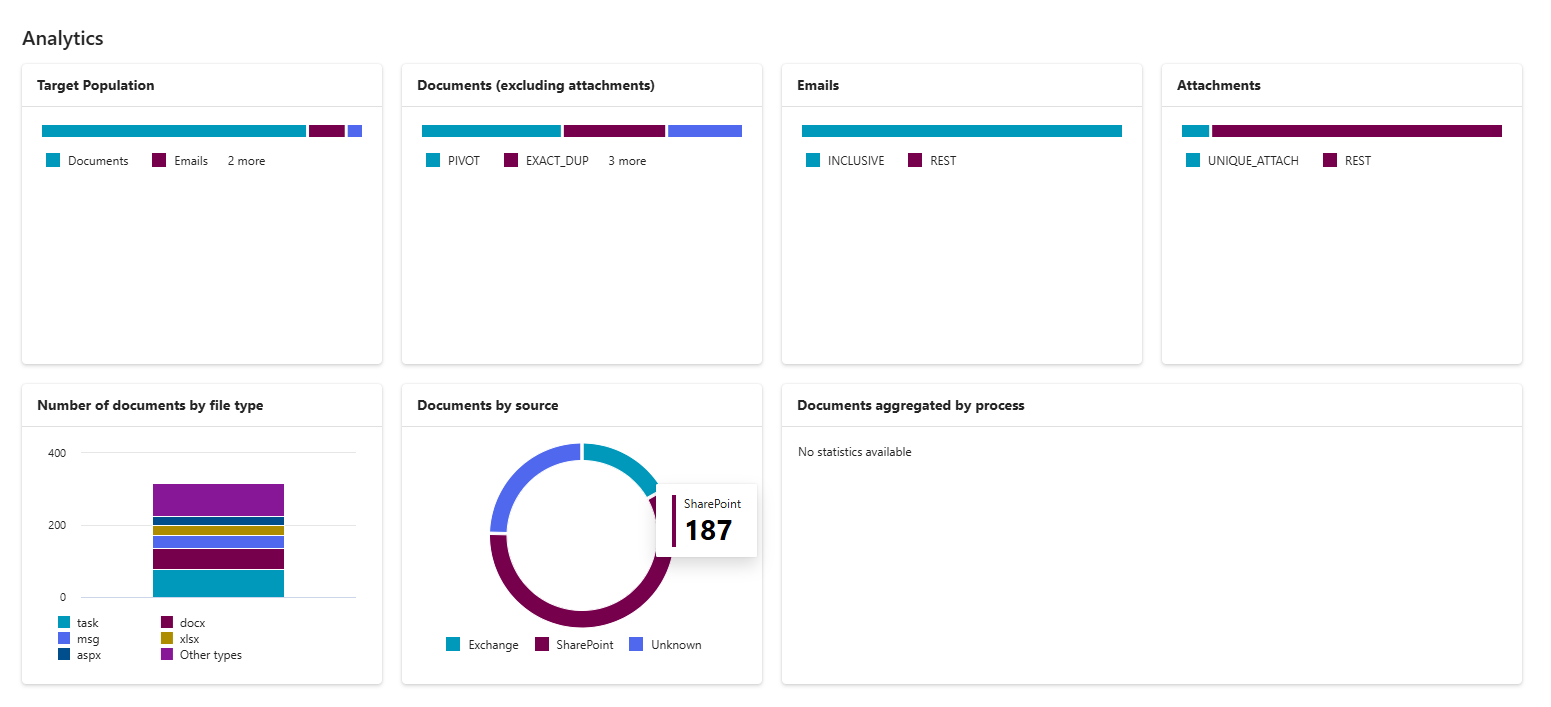
Hover over each section of the report to view item counts.
Use attorney-client privilege detection
If enabled for your organization, attorney-client privilege detection is part of the analytics process. This feature uses machine learning to:
- Score how likely a document contains legal content
- Check if participants include someone on your organization's attorney list
- Flag content that might be privileged
After analytics runs, this information appears as metadata fields in the review set. You can search, filter, or tag based on these values to help your legal team focus on sensitive items.
To take full advantage of this feature:
- Make sure your eDiscovery administrator enables it in Settings > eDiscovery > Analytics
- Upload an attorney list as a .csv if you want participant checks to work
You can also use smart tags to visually indicate when a document is potentially privileged, based on analytics results. This helps reduce risk during legal review and ensures potentially privileged material is handled appropriately.