Tag and organize content in review sets
Tagging helps you organize content in a review set so legal and compliance teams can make informed decisions during an investigation. Whether you're identifying items to review, labeling them for privilege, or excluding irrelevant data, tags give you a structured way to document decisions.
Why tagging matters
When reviewing case data, it's not always enough to identify content. Reviewers often need to assign labels that reflect their analysis. For example, they might:
- Mark content as relevant or not relevant
- Flag content that requires legal review
- Identify attorney-client privileged documents
Tags make it easier to separate documents, repeat workflows, and export or search based on reviewer input.
Create tags for your case
Before you can tag documents, you need a tag structure. You can either import a predefined tag template or create custom tags specific to the review set. If you don't plan to use a tag template, creating tags directly in the review set lets you tailor them to the case.
To create a custom tag group:
In your review set, select Manage > Tags.
On the Manage tags page, choose a tag group name and select whether the group should allow one tag (Single-select) or multiple tags (Multi-select).
Add one or more tags to the group.
Optionally, create more groups to organize tags by category.
Select Save to apply the tags to your case.
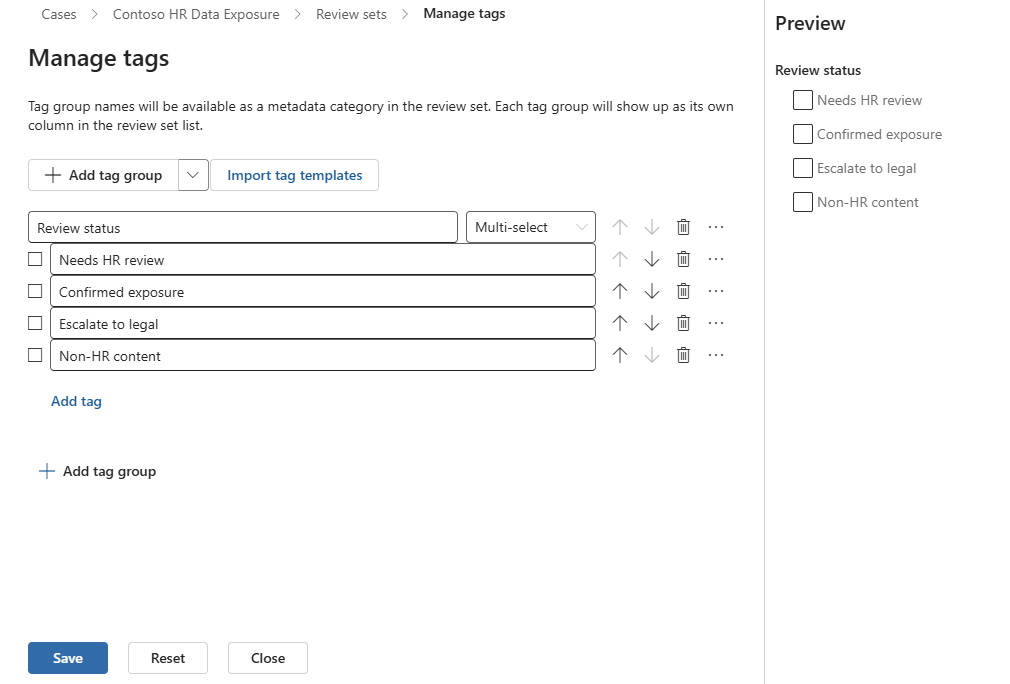
You can now use these tags when reviewing content.
Use tag templates to standardize review
Tag templates help you apply a consistent tagging structure across all cases. These templates are created by eDiscovery administrators and can be imported into any review set.
To use a tag template:
- Go to Manage > Tags in your review set.
- Delete the blank tag group.
- Select Import tag templates.
- Choose a template and select Import.
- Make changes if needed, then select Save.
This is helpful when your organization wants to standardize terms like Responsive, Nonresponsive, or Privileged.
Apply tags to review set items
To tag items:
Select Tag files from the review set command bar.
In the tagging panel, choose the scope:
- Tag selected items to apply tags only to items you've selected
- Tag all items in list to apply tags to all items shown in the filtered view
Choose whether to include related items in your tagging scope:
- Include family groups to tag files like attachments along with their parent
- Include conversation groups to tag all messages in a Teams or Viva Engage thread
Select one or more tags from the tag groups, then choose Apply tags.
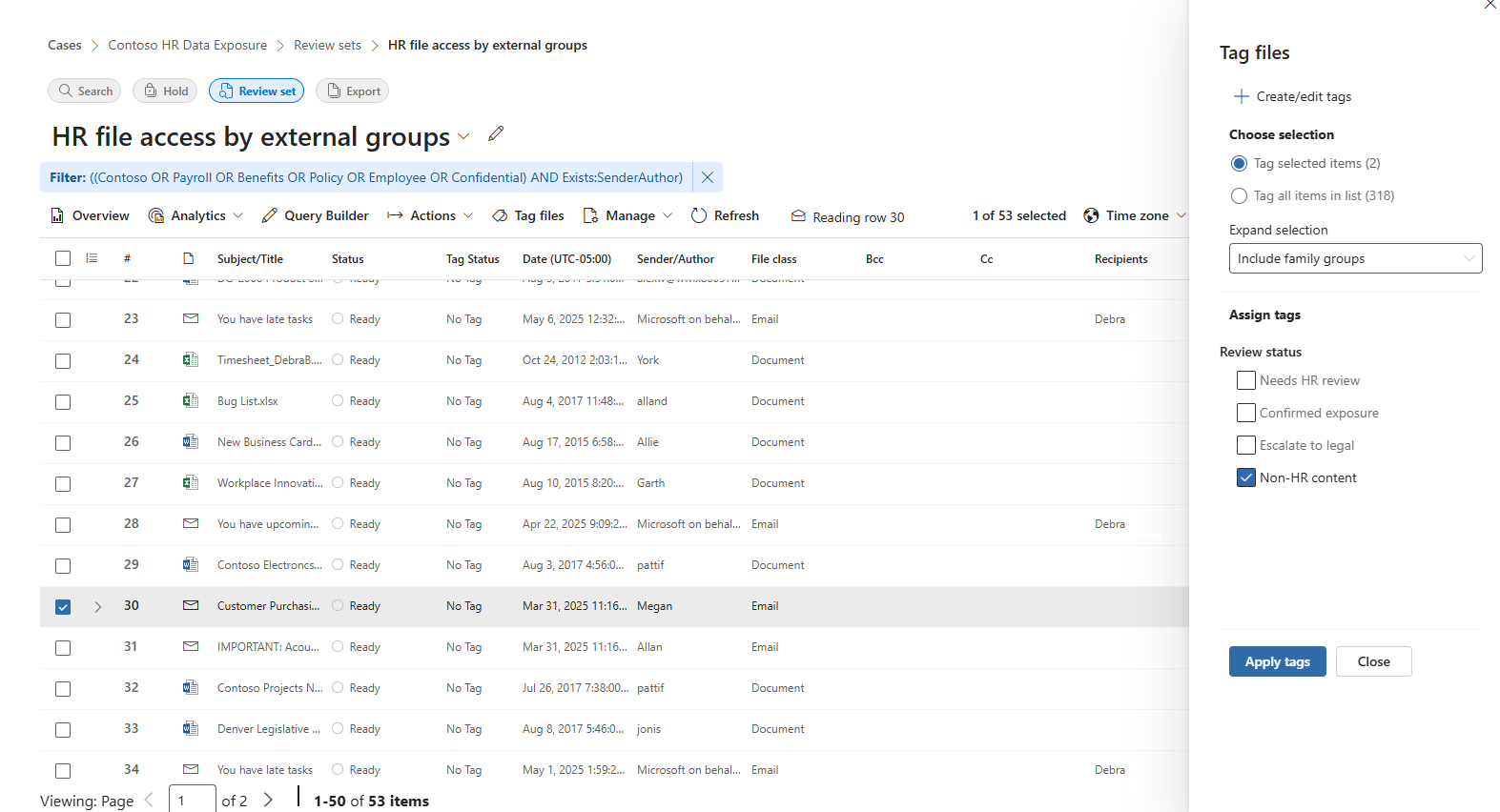
You can monitor the status of large tagging jobs from the Jobs tab in the case.
Tip
Use consistent tagging criteria among reviewers. This ensures clarity across the team and supports reliable export or reporting workflows.
Set up smart tags for machine learning
If you're using features like attorney-client privilege detection, you can enable smart tags. These tags display model results next to each item so reviewers can decide whether to apply the tag.
To add a smart tag group:
- In the review set, go to Manage > Tags.
- Select Add tag group > Add smart tag group.
- Choose a model, such as Attorney-client privilege.
- Rename the group and tags if needed, such as using Privileged and Not privileged.
Smart tags don't automatically tag content. Reviewers still decide how to label each item.
Remove or change tags
To remove or change a tag:
Select the items you want to update.
Open the Tag files panel.
Uncheck or replace the current tag with a new one from the same group.
Select Apply tags.
Note
Single-select tags can't be removed without replacing them with another tag from the same group.
Tags help turn document review into a repeatable, auditable process. By using consistent tag structures and clear labels, your team can focus review efforts, reduce risk, and move faster through the case.