How to use Recall (preview)
Recall (preview) allows you to find and revisit content you’ve previously seen on your PC using natural language or by browsing a timeline of activity. It builds on familiar search experiences, making it easier to work in the way you’re most comfortable.
Search for something you’ve seen before
- Open Recall (preview) from your device
- Enter a description of what you remember
- Example: “budget spreadsheet I worked on last week”
- Review the results
- Select the snapshot to return to that content
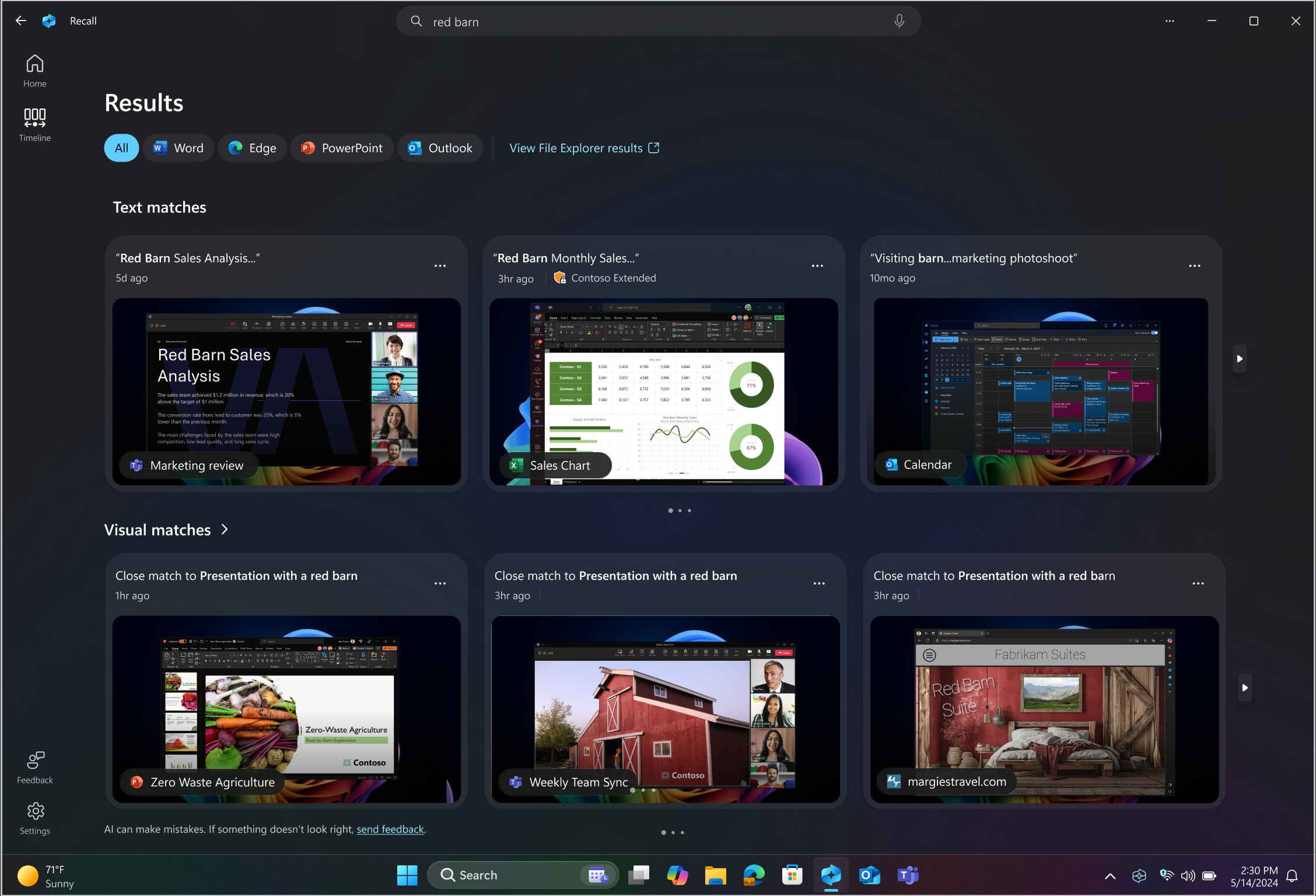
This image shows how Recall (preview) can return relevant results across multiple apps using a natural language search.
Recall (preview) doesn’t require exact keywords. It matches results based on meaning, context, and visual content.
Tip
If you remember roughly when you saw something, try the timeline instead of searching—it can be faster than describing it.
Scroll through your timeline
You can also browse your activity using the timeline:
- Browse a timeline of past activity
- Scroll to a specific point in time
- Select a snapshot to reopen the associated app, site, or file
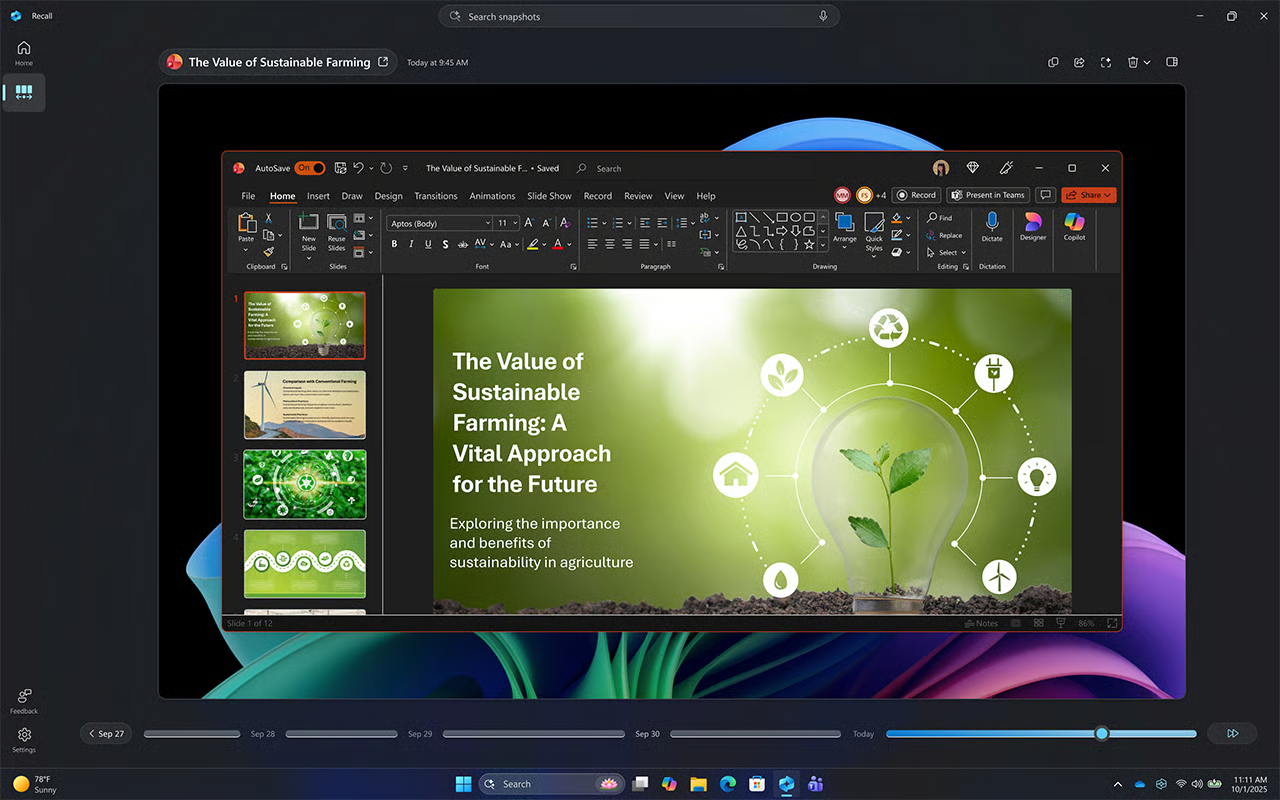
This image shows how users can browse past activity visually and go back to previous content.
This is especially useful when you don’t know how to describe what you’re looking for but remember roughly when you accessed it.
Filter what's captured
Recall (preview) provides options to help you manage what is included:
- Exclude specific apps or websites
- Control what content Recall (preview) captures
- Manage stored snapshots
These controls help ensure Recall (preview) aligns with your workflow and preferences.
Common mistakes to avoid
As you start using Recall (preview), being aware of common mistakes can help you get more accurate results and avoid unnecessary frustration.
Trying to use exact file names instead of describing what you remember: Recall (preview) doesn’t depend on exact matches. Instead, describe what you remember about the content (for example, “presentation about onboarding” or “chart showing revenue trends”) to get more relevant results.
Using Recall (preview) when you already know where something is stored: If you know the file name, folder, or app location, it’s often faster to use search or navigate directly. Use Recall (preview) when you remember the content but not where it was saved.
Expecting Recall (preview) to replace search or file organization: Recall (preview) complements existing tools but doesn’t replace them. Continue using search and file organization for structured workflows—and use Recall (preview) when memory and context are more useful than location.