Register consumption
When a maintenance job has finished, the next step is to register the consumption and post the information to the journals.
Registrations consist of the following consumption types:
- Hours
- Items
- Expenses
The journal setup in Asset Management posts separate journals for hours, items, and expenses in the Project management and accounting module.
Follow these steps to register consumption:
- Go to Asset management > Work orders > All Work orders or Active work orders and then select a work order.
- In the Project section, select Journals. The Work order journals page appears.
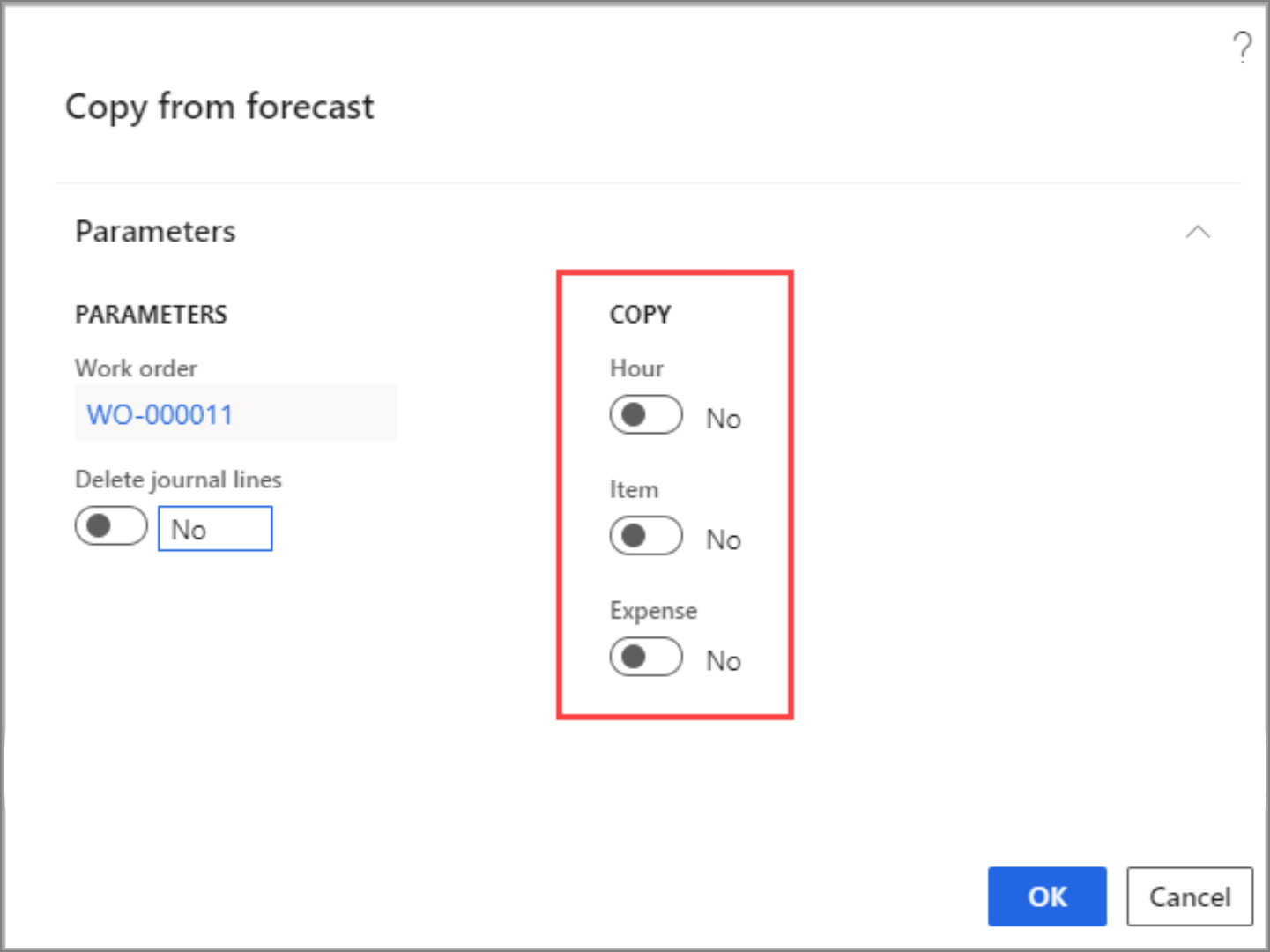
- From the Action Pane menu, select Copy from forecast. The Copy from forecast dialog box will open, where you can select which consumption types you want copied from the work order by switching the toggle button to Yes. After you have completed the task, select OK, which will redirect you to the Work order journals page.
On the Work order journals page, you can add more consumption lines to each consumption type on their respective FastTabs.
For example, during the inspection, the worker found another issue that required one hour of an electrician’s time. Consequently, you need to go to the Hours FastTab, select Add line, select a resource from the Resource field, and enter 1 in the Hours field to add the extra time.
Select Validate journals to ensure that the journal lines are correct before posting. If a mistake occurs, an error message will appear. Select the message to view the details. If everything is correct, you will receive a notification stating that the journal is OK.
After the journal has been validated, select Post journals to post the journal lines.
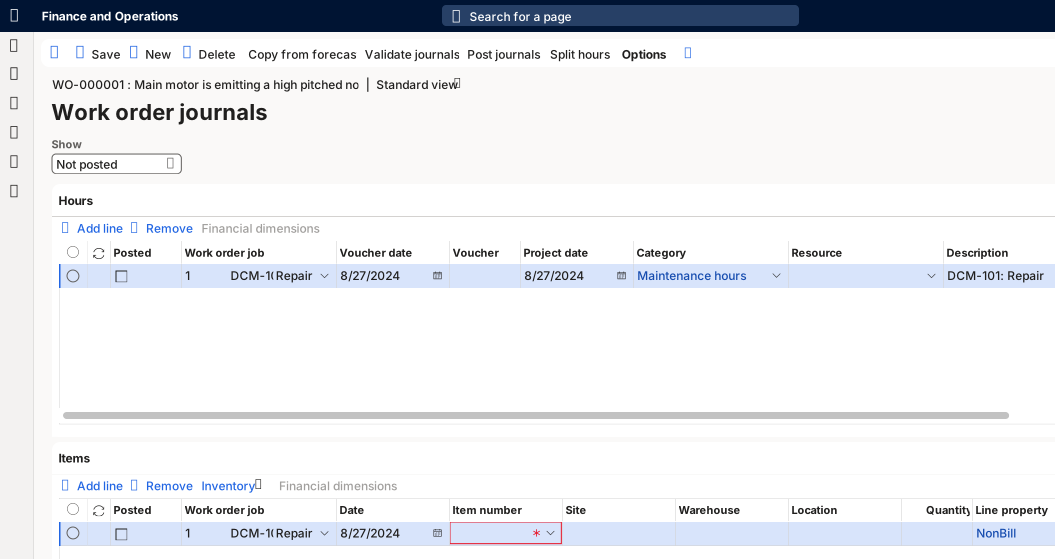
The following screenshot shows an example of hour and item registrations on a work order on the Work order journals page.
Watch the following video to see a demonstration of how to register consumption and post the journals.
Now that the journal is posted, you will want to show that the work order is complete. To perform this task, you need to update the work order lifecycle state to Completed or Ended.
- To view all posted journals, go to the Show field at the top of the Work order journals page and select Posted. Posted journals have a check mark in the Posted check box.
- From the Active work orders page, select the posted work order and, in the Lifecycle state section, select Update work order state to open the dialog box where you can select Completed.
Before posting information in journals, consider the following factors:
- A work order lifecycle state can be created to automatically post journals. To learn more about how to set up this feature, go to Work order lifecycle states.
- When item lines add to a work order journal, the item’s product dimensions and tracking dimensions are automatically transferred to the journal line.
Split hours on work orders
Consider the scenario where you have a large work order that requires 10 hours of maintenance. Rather than assigning it to one worker, you want to split up the hours between two workers so that the job can be done in one day. The following procedure shows how you can make that happen.
- Go to Asset management > Work orders > All Work orders or Active work orders, select the work order, and then select Journals.
- On the Hours FastTab, select the work order line that you want to split and select Split hours from the Action Pane.
- The Split hours on work order maintenance jobs dialog box opens. In the Worker field, select the name of the person that you want to add to this work order.
- In the Category field, select a category for the time spent.
- In the Hours field, enter the number of hours that you want them to work. In this case, you want to assign them five hours. After you have completed the task, select OK.
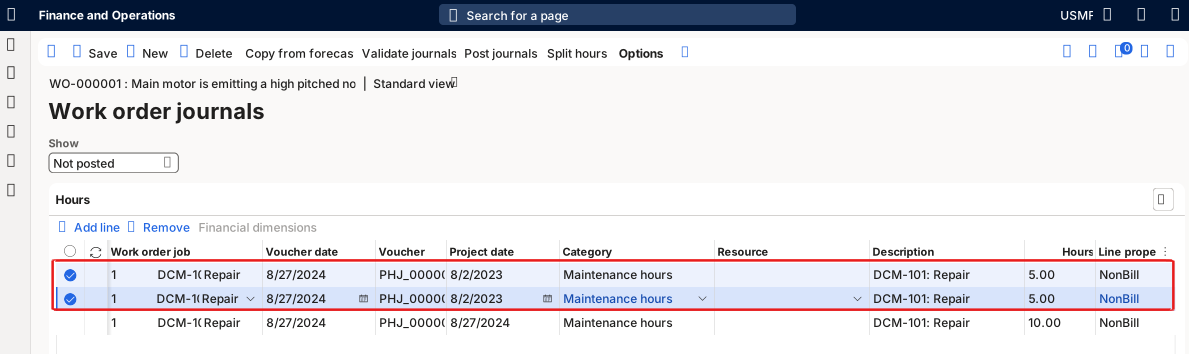
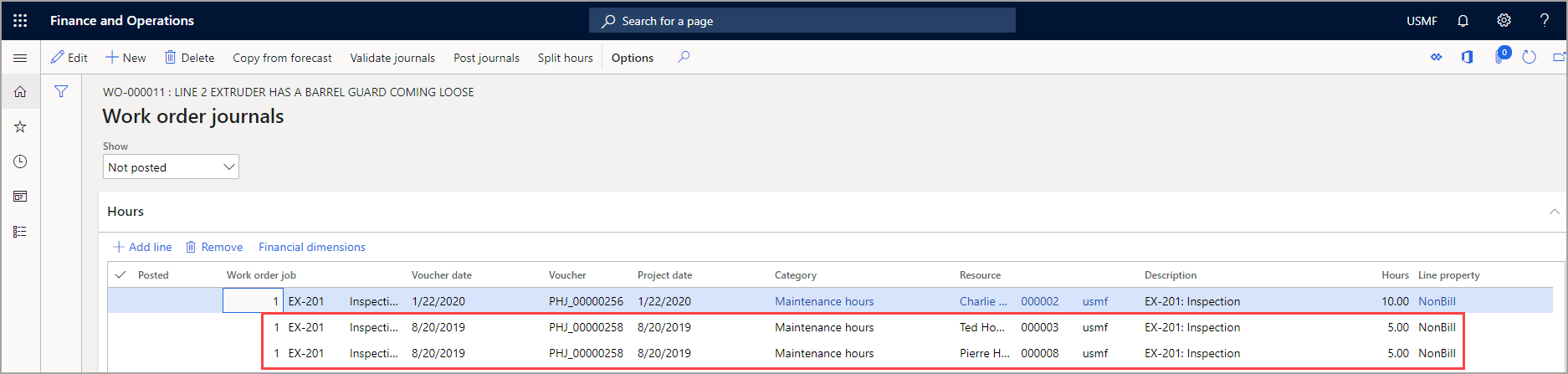
In the following screenshot, notice that the hours have been split between two workers, assigning both of them five hours of work. Now that the time has been split up, the original line showing the 10 hours can either be deleted or kept. Asset management > Common > Work orders > All Work orders
Financial dimensions on consumption registrations
When you register consumption, depending on the registration type, financial dimensions are added to the registrations in the following sequence.
Hour and expense registrations:
- Financial dimensions from the journal header
- Financial dimensions from the related work order project
- Financial dimensions from the resource
Item registrations:
- Financial dimensions from the journal header
- Financial dimensions from the related work order project
- Financial dimensions from the site
- Financial dimensions from the item
Note
All financial dimension combinations are validated. If any invalid combinations exist, they will be blanked out. This setup is standard for many finance and operations applications.