Compare different device options
Remote Assist can be used on both HoloLens and HoloLens 2 devices and can be supported on mobile phones and tablets. The overall experience of making mixed reality calls and sharing knowledge is similar; however, a few advantages and differences exist based on each platform.
Regardless of the device, Remote Assist users can:
Call remote collaborators.
Draw mixed reality annotations.
Send messages and images through chat.
Share and receive files with remote collaborators.
Record the call.
Take snapshots and annotate them.
Post call logs and other details to Field Service work orders.
Use Remote Assist on mobile devices
The ability to use Remote Assist on your current mobile device provides ease of physical access, familiarity, and the possibility of using Remote Assist with another application that is already running on your device.
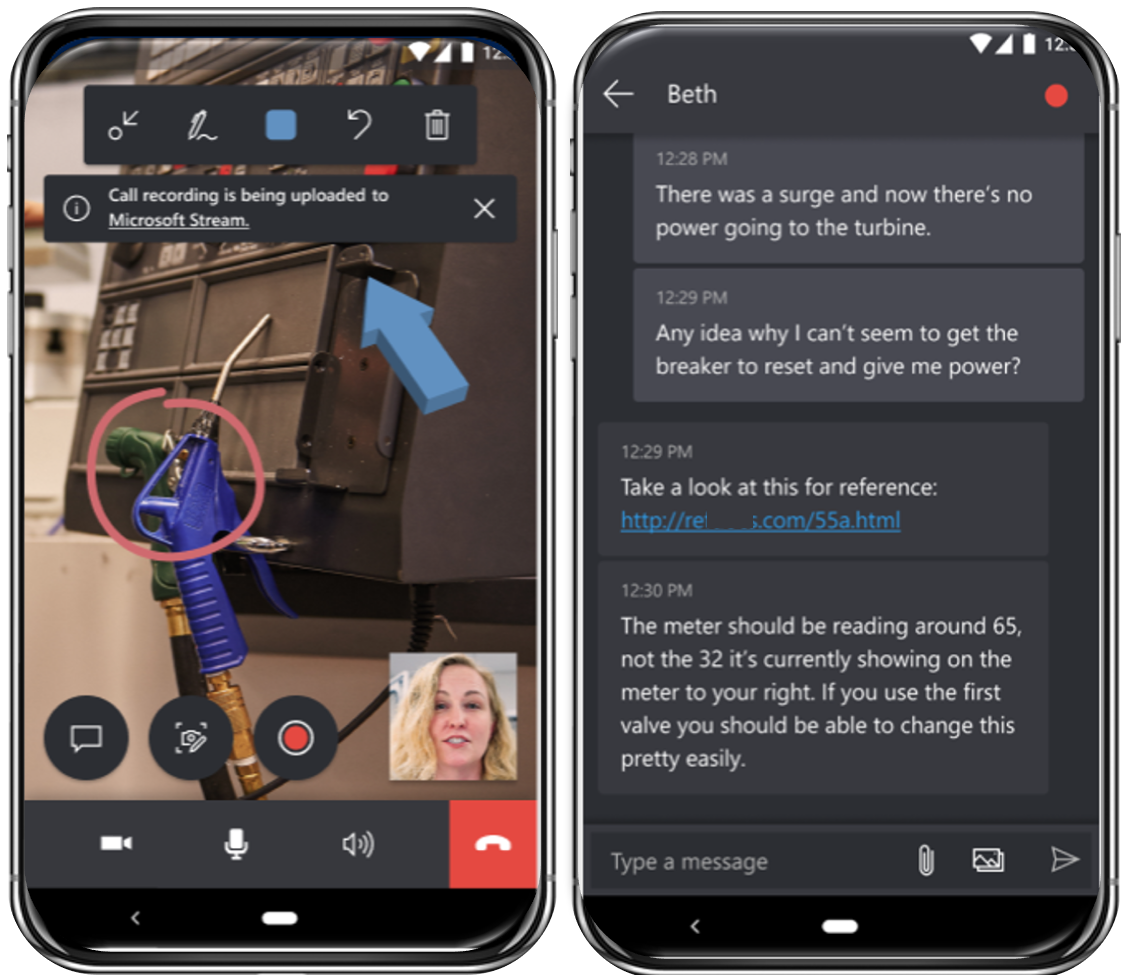
Mobile advantages
The advantages of using Remote Assist on a mobile device include:
Use existing devices - Because Remote Assist is accessible on iOS and Android devices, organizations can use either personal or business-provided phones that technicians already own. Purchasing additional hardware for the experience isn't necessary.
Easier physical access - Mobile devices are much smaller and easier to maneuver than a HoloLens device, which can help make it easier for technicians to work in tighter and more confined spaces. Technicians can take snapshots and use other features in spaces that they might not have been able to access while wearing a HoloLens device.
Device familiarity - Because technicians are likely to use their device every day, they are already familiar with how to take pictures, navigate the applications, and more.
Application context - Remote Assist is likely running on the same mobile device as other applications, such as Field Service Mobile or Microsoft Outlook. As a result, Remote Assist can be run in the context of other applications and as part of your company workflows. For example, you can launch Remote Assist from the Field Service Mobile application and then update note information from the call.
For more information on Remote Assist Mobile, see Remote Assist mobile overview.
Use Remote Assist with HoloLens
While the physical HoloLens devices have additional costs, the HoloLens version provides several advantages over the mobile version.
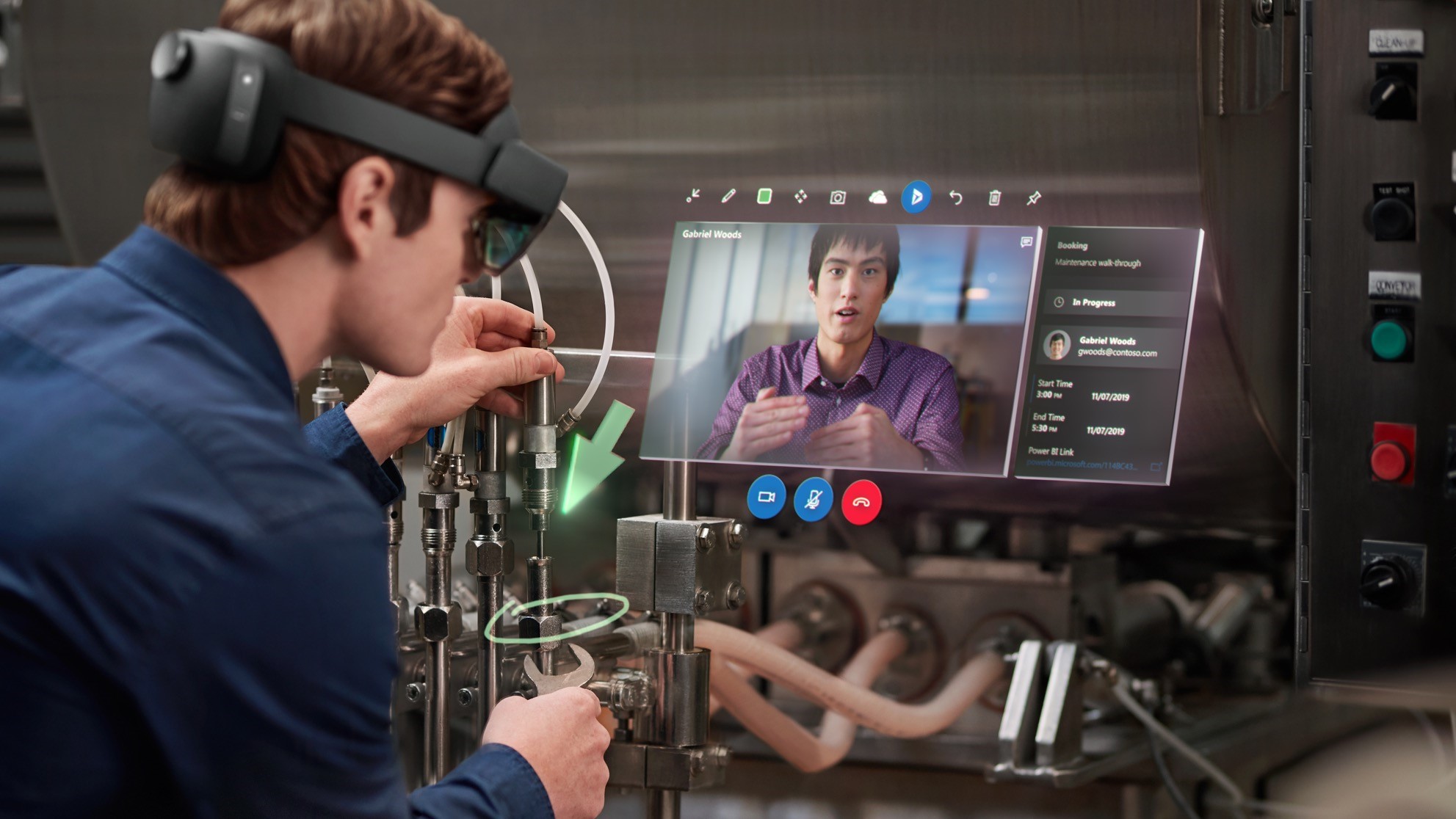
HoloLens advantages
The advantages of using a HoloLens device over a mobile device are:
Hands free - When working on a HoloLens device, technicians have a hands-free experience. For example, while working on a piece of equipment at a manufacturing plant, the technician can initiate the application. When in the application, the technician can use familiar HoloLens gestures such as touch, gaze, and air taps to navigate through the application and access the necessary features that they need, such as engaging with a remote collaborator.
Immersive experience - With HoloLens devices, technicians will be able to immerse themselves in the workspace. This ability allows them to have access to the necessary tools that they need to work on the item. For example, as remote collaborators are making notes and annotations, such as calling out a part switch that needs to be flipped or a part that should be adjusted, those items are being reflected in the mixed reality space that the technician is working in. This capability ensures that the technician can see what the remote collaborator is referencing and that they can have access to the necessary tools while working with them.
Group calling - When working with HoloLens devices, one onsite technician can work with many remote collaborators. This feature can be helpful in more complex scenarios where technicians are working with several items.
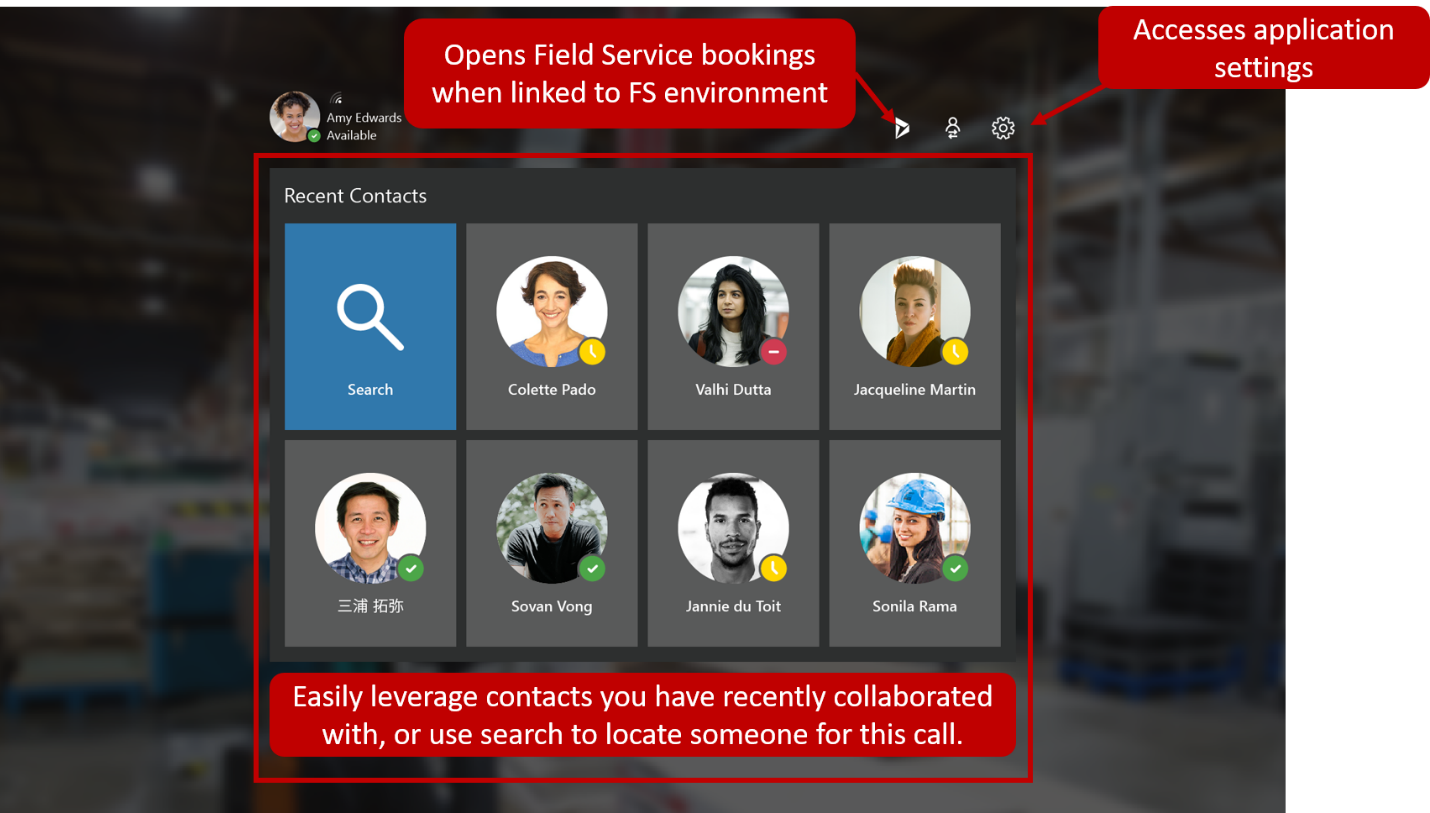
When you first launch Remote Assist, you will be presented with your recent contacts. These contacts represent people whom you have recently collaborated with on issues. For organizations that are using Field Service, you can access Field Service bookings by selecting the Dynamics 365 icon in the upper-right corner.
After you have initiated a call, you will see a video card. All tools that can be used are displayed along the top and bottom of the video card. You can use the participant tray to display the avatars of all call participants. Remote Assist HoloLens users can make or join a one-to-one call, group call, or meeting that is scheduled from Teams or Outlook.
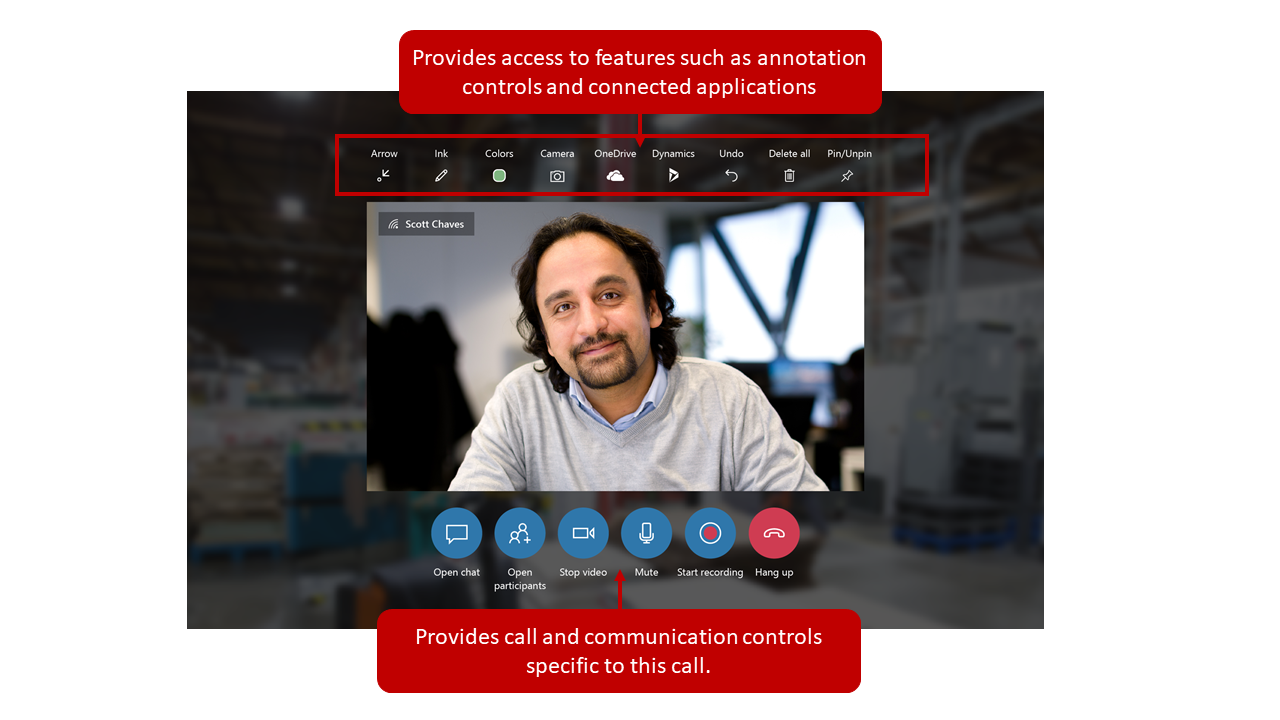
For more information on using Remote Assist on HoloLens and HoloLens 2 devices, see Overview of HoloLens.
The following table provides a complete comparison of the differences between Remote Assist on HoloLens and Remote Assist on mobile devices.
| Feature | Available when using Remote Assist on HoloLens | Available when using Remote Assist mobile |
|---|---|---|
| Join an ad hoc one-to-one call | Yes | Yes |
| Join an ad hoc group call | Yes | Yes |
| Join a meeting | Yes | Yes |
| Control outgoing video, outgoing audio, and incoming audio | Yes | Yes |
| Take a still snapshot | Yes | Yes |
| Annotate still snapshot using arrows and ink | Yes | Yes |
| Remote collaborator can add 3D annotations to the Remote Assist user’s environment | Yes | Yes |
| Send a text message | Yes | Yes |
| Share files from OneDrive or device | Yes | Yes |
| Make cloud-based call recording | Yes | Yes |
| Screen share (View Teams PC screen) | Yes | No |
| Integrate with Field Service | Yes | Yes |
| Update Field Service booking | Yes | Yes |
| One Time Call | Yes | Yes |
| Automatically post call logs, files, and snapshots from your Remote Assist call to a Field Service work order | Yes | Yes (if saved to chat) |
Now that you have learned about the different devices, you can explore the overall experience of making a call with Remote Assist.