Launch with a keyboard shortcut
The point of an attended desktop flow is that a person triggers it in the middle of their work right here with a key press.
Close the designer and return to the flow list in the Power Automate console.
Right-click the flow and select Properties.
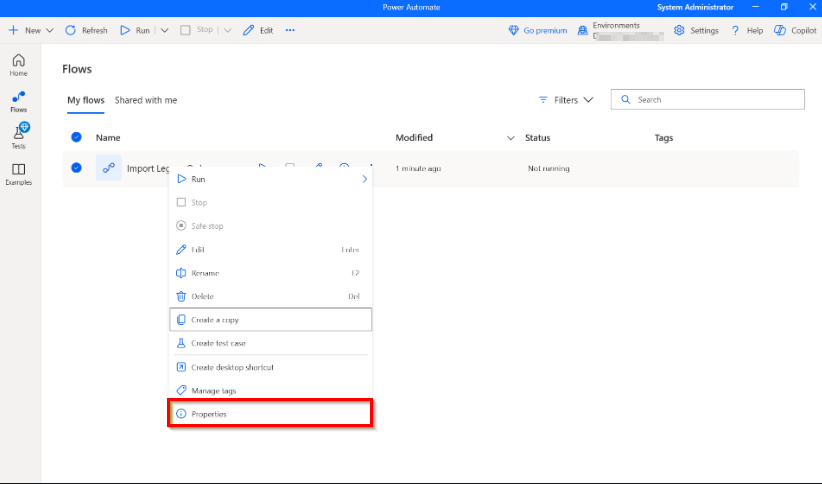
In Run with keyboard shortcut, press the combination to assign — for this lab:
Ctrl + Shift + P— and select Save.
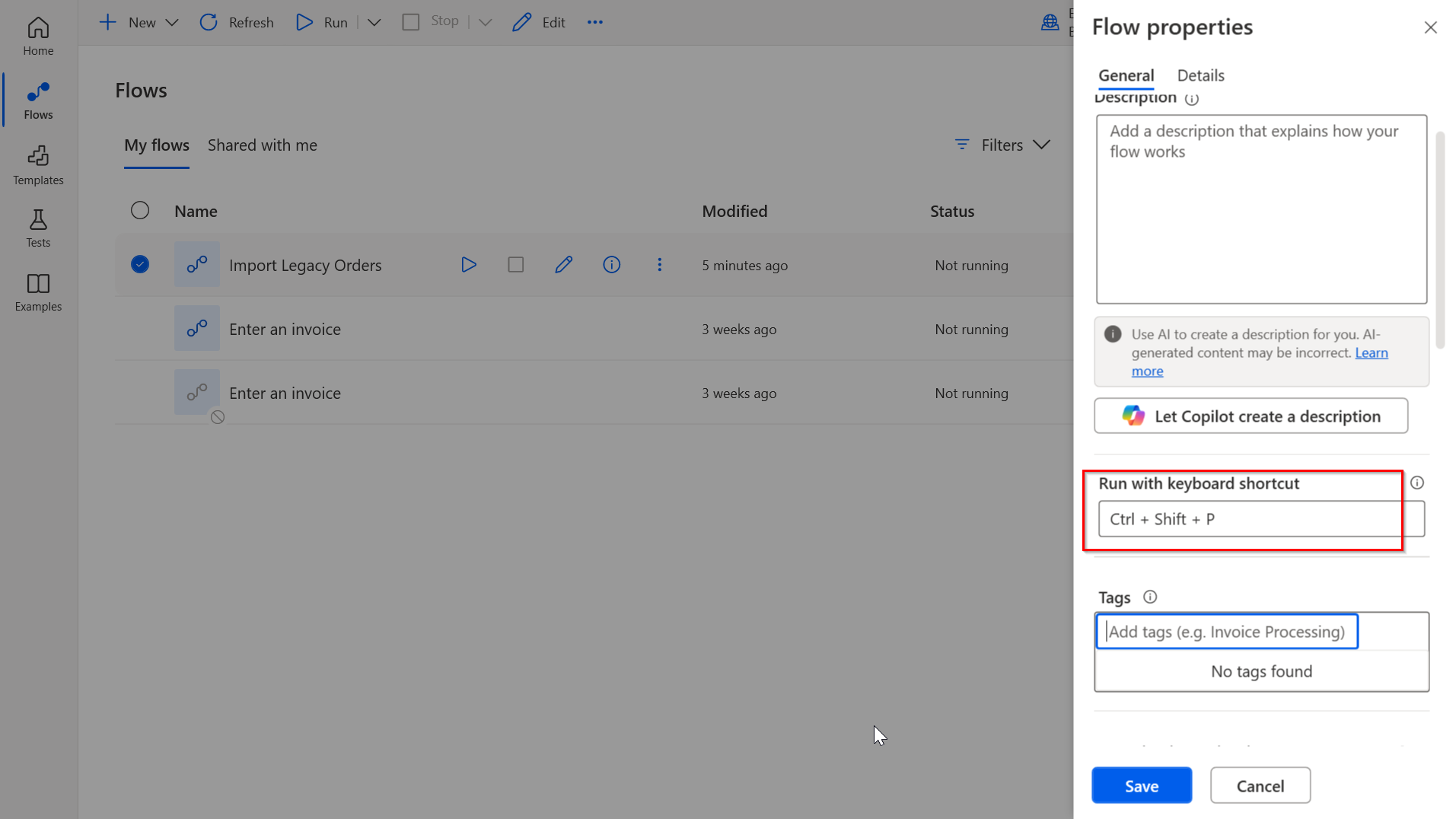
Press the shortcut. Power Automate runs the flow; watch the status in the console.
Tip
💡 Tip: To keep the Module 2 solution complete, you can add the desktop flow to it: in https://make.powerapps.com, open the Order Automation solution and select Add existing > Automation > Desktop flow, then add the connection references it offers.
