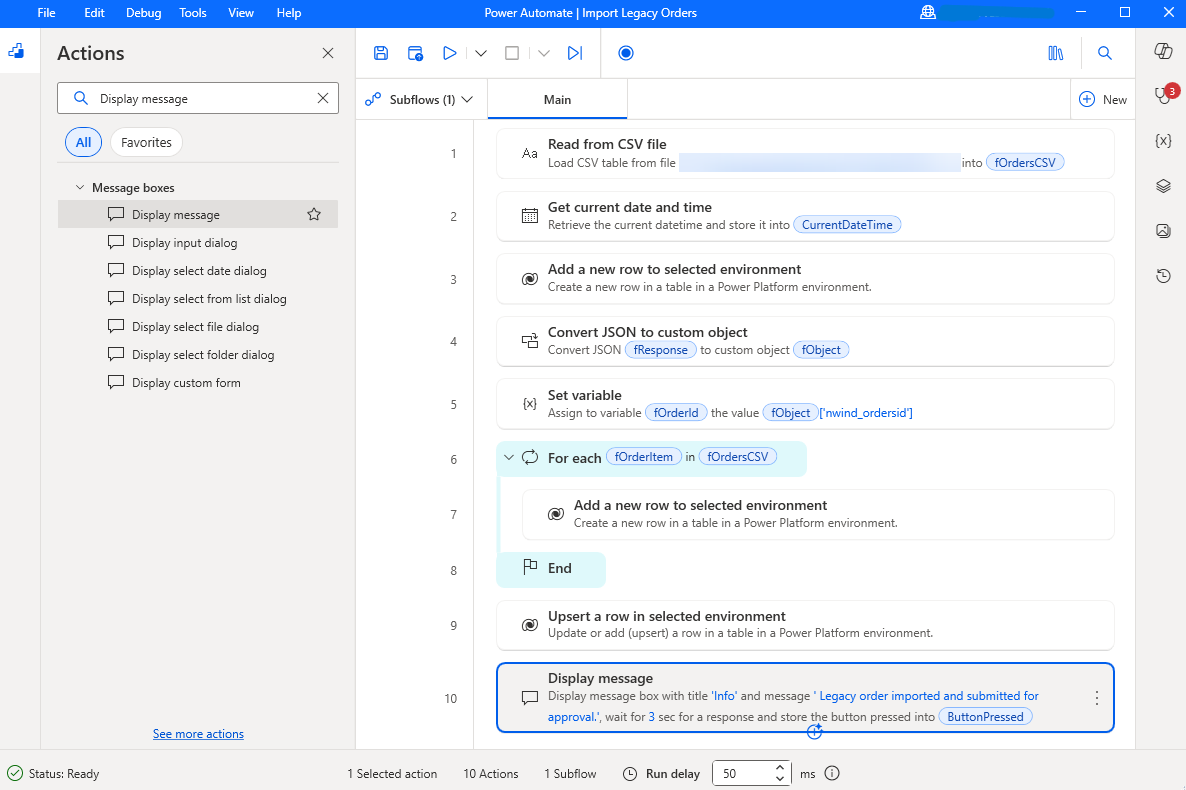
Submit the order for approval
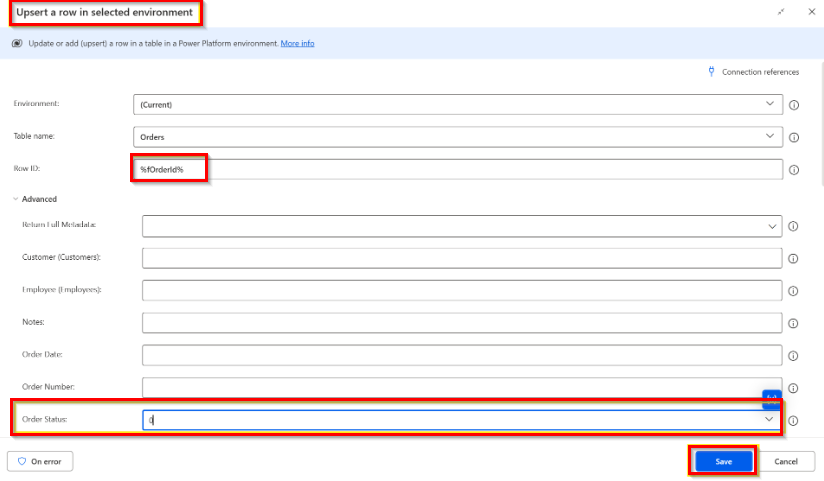
Below the loop (at the top level, not inside it) add an Upsert a row in selected environment action:
- Environment: your development environment
- Table name: Orders
- Row ID:
%fOrderId% - Under Advanced, Order Status:
0
Choice columns take the choice's numeric value here, and
0is New, the exact value Module 2's trigger filter checks (nwind_orderstatusid eq 0).This single update is the handover: the moment the status becomes New, the Order Automation flow from Module 2 fires. Its trigger sees a modified order whose status is New, exactly as when you save an order in the app.
Add a Display message action: Message box title
Info, Message to display:Legacy order imported and submitted for approval.Switch on Close message box automatically with a Timeout of
3, and select Save.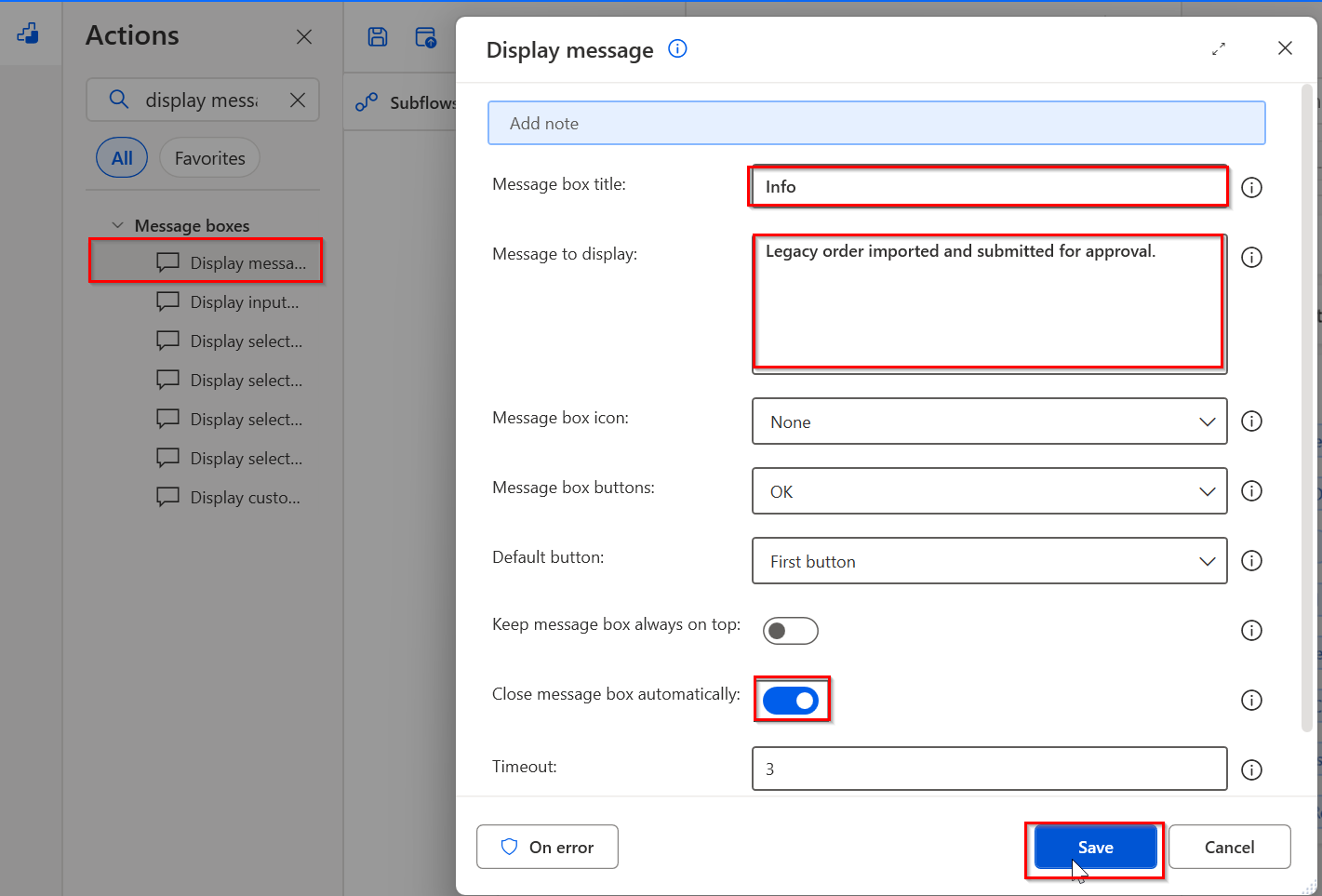
Select Save draft, then Publish. Only the published version of a flow runs from the console.
✅ Checkpoint: The canvas shows, in order: Read from CSV file > Get current date and time > Add a new row (Orders) > Convert JSON to custom object > Set variable > For each containing Add a new row (Order Details) > Upsert a row (Orders) > Display message.