Build a workspace for recurring work
If you've ever reattached the same three files at the start of every monthly review, you know how much time it quietly takes, and how easy it is to grab last month's version by mistake. Recurring work deserves a home: one place where its sources, your standing guidance, your conversations, and what you create from them stay together. The Copilot app offers two kinds of home, a workspace and a project, and each fits a different way of working. In this unit, you choose the right home and build a workspace. In the next, you learn to work from it over time, on your own or with your team.
Decide where recurring work lives
For a one-time question, references in Chat are usually all you need. A dedicated home earns its setup when you keep coming back to the same body of work. Five questions help you decide:
- Recurrence: Will this work come back often enough to make setup worthwhile?
- Source overlap: Does each round draw on mostly the same information?
- Consistent guidance: Would standing instructions about audience or format improve every answer?
- Evidence control: Do you need to know exactly which sources Copilot works from, so you can check its answers?
- Collaboration: Will teammates contribute to the work or need its working context?
If the first three answers are mostly no, references in Chat are enough. If they're mostly yes, the last two help you choose between a project and a workspace:
| Choose... | When you want to... | For example |
|---|---|---|
| References in Chat | Answer a one-time question from sources you pick | A one-time supplier comparison |
| A project | Keep your own related chats, tasks, files, and results together | Organizing your own talking points and follow-up tasks before each review |
| A workspace | Work from a set of sources you choose and can check, on your own or with your team | The monthly Project Atlas review, built from the tracker and meeting notes the delivery lead keeps current |
A project keeps your chats, tasks, files, and results together for your own work. A workspace gives your team a shared space in the Copilot app to work alongside Copilot on an ongoing workstream, bringing context, team members, and working files together. It stays private until you invite people. In a project, Copilot draws on the project's context first and then on your broader Microsoft 365 work context. In a workspace, Copilot grounds its answers in the references you add, which makes the source checks in this module practical. You can use both projects and workspaces.
Note
Projects are available from Home for use with Chat and Cowork. Availability can vary during rollout. Copilot Workspaces are separate from Loop workspaces, which you might also see in Microsoft 365.
Project Atlas fits a workspace best: the review recurs, draws on the same sources each month, benefits from standing guidance, and depends on evidence you need to check before an executive sees it. Because the delivery lead keeps the tracker current, the workspace also gives you an easy way to bring them in later. A one-time supplier comparison probably needs neither a project nor a workspace, and that's fine.
Set up a focused workspace
Note
Copilot Notebooks is now Copilot Workspaces. Existing notebooks become workspaces with their content and sharing preserved. If you still see Notebooks, use that entry; the steps are the same. For an overview, see Copilot Notebooks is now Copilot Workspaces.
- In the Copilot app, select Workspaces in the navigation pane, and then create a workspace.
- Name the workspace for its outcome, such as Project Atlas - monthly executive review. A clear purpose makes it easier to decide what belongs.
- Add the sources the work depends on as references.
- If others will work with you, you can invite them now or later by selecting Invite in the workspace. The next unit covers what to plan for before you do.
- If available, open the workspace's More options menu, select Instructions, enter your standing guidance, and select Save. If this option isn't available, include the guidance in your chat prompt. Repeat it when you start a new conversation.
If you don't see Workspaces or Notebooks, check the app launcher or work in one Chat conversation instead. Attach your chosen sources or paste content you're authorized to use, include your response guidance in the prompt, and keep your checked findings in that conversation. Repeat the relevant context and guidance if you start a new chat.
Curate what Copilot works from
For the source-checked workflow in this module, work from your workspace references. Copilot uses the references you add to ground its answers. That focus helps you check the evidence, and it's why choosing references is the most important decision you make here.
Reach for the sources where the work actually happens. A workspace can include Word, Excel, PowerPoint, PDF, Copilot Pages, Loop files, OneNote content, text and Markdown files, and public web pages. With a Microsoft Copilot license, you can also add Outlook emails, Teams meetings with their transcripts and associated content, and SharePoint sites, pages, and folders. For Project Atlas, that might mean the status tracker, the latest deck draft, last week's meeting, and the vendor's email thread, rather than a summary someone copied from them.
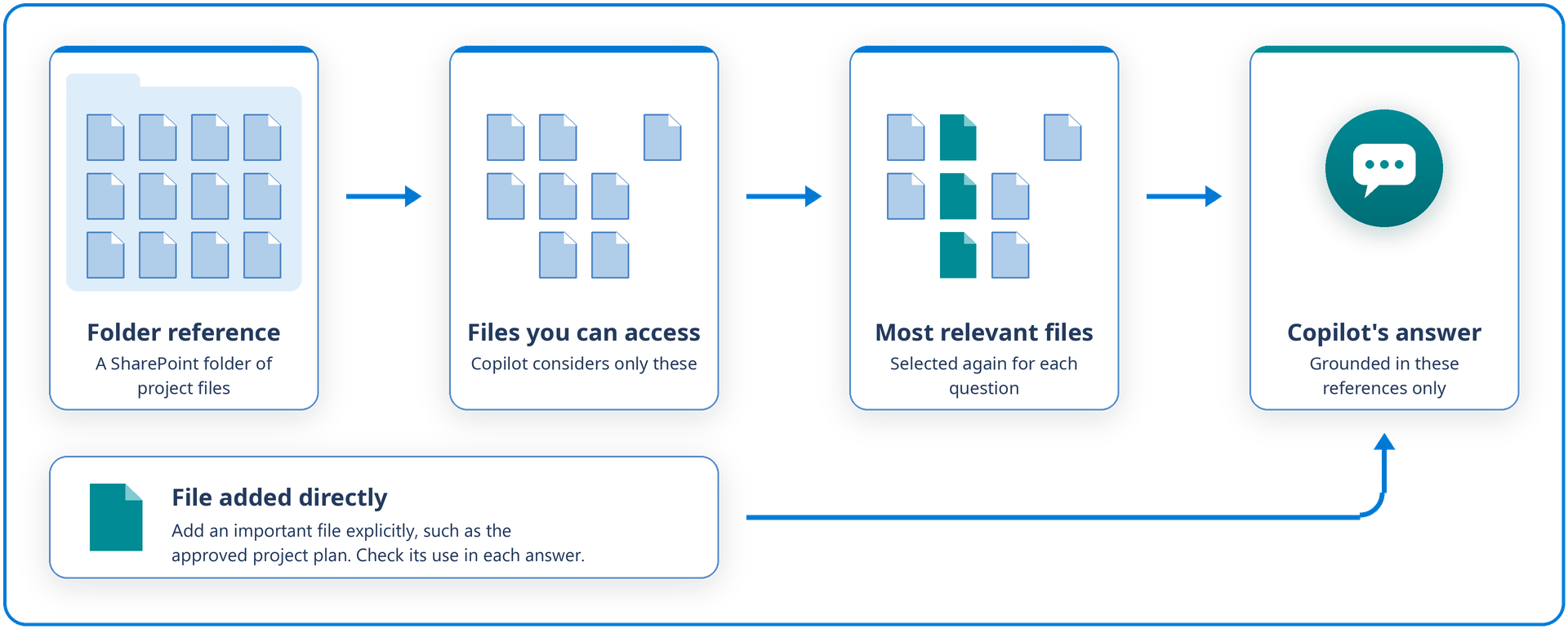
Choose between a folder and individual files on purpose. A SharePoint folder is convenient when a body of work's files live together and change often. When you add one, Copilot considers the files you can access there and selects up to 300 that are most relevant to each question. If a specific file matters to the task, like the approved project plan, add that file directly as well. This makes it an explicit reference rather than relying on folder selection; it doesn't guarantee that every answer reflects every relevant passage. Check the response against the file itself.
Leave out what doesn't help. Older duplicates, unrelated background, and sensitive content the task doesn't need make answers less focused, not more complete.
Know your limits. With a Microsoft Copilot license, you can add more than 300 references, and Copilot grounds its answers on the first 300.
Write instructions that shape every answer
Workspace instructions apply to every question in the workspace, including questions from anyone you invite, so they're the right place for guidance that holds for the whole body of work. They work best when they describe how to treat the evidence rather than restate it:
Respond in concise bullets for the executive sponsor. Prioritize decisions, owners, dates, and material risks. Keep approved decisions separate from proposals, and flag any missing approvals or due dates.
Save one-time requests, like a specific word limit, for the prompt itself.
If you include this guidance in a chat prompt instead, it applies in that conversation, not across the workspace. Each collaborator needs to include it in their own chat.
Test the workspace before you rely on it
Ask a question you can check against a reference:
What risks appear in last week's meeting or the vendor thread that aren't reflected in the executive presentation draft? Name the source for each one.
Check the answer for support, freshness, authority, and coverage. If something seems to be missing, trace it:
| What you notice | Likely cause | What to try |
|---|---|---|
| A decision you know about is missing | The source isn't in the workspace | Add the reference and ask again |
| A file in a folder reference isn't reflected | It wasn't among the files selected for that question | Add the file directly |
| A source is listed but not reflected | You can't open it, or it doesn't cover the question | Check your access, then read the source |
| Answers don't suit the audience | Instructions are vague or missing | Refine the workspace instructions or the guidance in your chat prompt |
After a fix, compare the new answer with the source itself. Adding a reference makes it available; it doesn't change what the reference says.
Bring it to your own work
You're ready to move on when your workspace has a clear purpose, references chosen on purpose, response guidance saved as instructions or included in your chat, and a test answer you've checked, and when you can explain when references in Chat or a project would fit better.
Tip
What recurring work keeps sending you back to the same files, meetings, or email threads? If you need to check exactly what Copilot works from, or your team works on it too, that's your best candidate for a workspace. If you mainly want your own chats and tasks kept together, consider a project.
Next, you learn how to work from your workspace as the work moves forward.