What is School Data Sync?
School Data Sync, or SDS, is a free service in Microsoft 365 for Education that securely reads school and roster data from your SIS using CSV files or the industry-standard OneRoster API. SDS helps IT admins automate user and class management using SIS data.
With Microsoft 365, SDS prepares and normalizes education data from student information systems so it can be consistently used across Microsoft services. This data is exposed through Microsoft Graph Education APIs, enabling application developers to build education apps that integrate with multiple SIS platforms and support scenarios such as rostering and single sign‑on (SSO). SDS itself isn't an API surface; it's the data synchronization and provisioning service that ensures Microsoft 365 has accurate, up‑to‑date education data.
Important
To use SDS, your organization must have a Microsoft 365 Education tenant, and the Microsoft 365 Global Administrator (Microsoft Entra ID) for the Microsoft 365 Education tenant must grant access.
Benefits and integrations enabled by School Data Sync
SDS simplifies Microsoft 365 education environments by automating roster-based provisioning and enabling consistent app integrations across the tenant.
Administrative benefits:
- Automates user, group, and class lifecycle management
- Reduces manual configuration and provisioning errors
- Improves tenant health and data consistency
Integration benefits:
- Enables Microsoft Education tools such as Teams, OneNote Class Notebook, and Intune for Education
- Supports secure third-party app integrations through roster APIs and single sign-on
- Ensures educators and students experience consistent access across tools
SDS reduces manual administrative overhead by automating user, class, and group management using authoritative SIS data. By keeping rosters continuously synchronized, SDS helps organizations maintain a healthier Microsoft 365 tenant, reduce configuration errors, and enable educators to focus on teaching rather than administrative tasks.
Why education institutions should use School Data Sync
SDS streamlines Microsoft 365 setup and ongoing management. Using SIS data, SDS can:
- Create new users in Microsoft 365.
- Assign licenses during provisioning. License assignment during provisioning is optional and often handled via group-based licensing.
- Automatically place users into the correct schools, classes, and groups.
By automating these tasks, SDS reduces manual setup, minimizes errors, and ensures that teachers and students can begin using Microsoft 365 tools quickly and seamlessly.
Simplify group management with School Data Sync
SDS can automatically create and manage groups across Microsoft 365, including:
- Exchange Online groups
- SharePoint Online groups
- Class teams for teachers and students
- Security groups for:
- Device management
- Administrative units (AU) that contain users and groups. AU creation is configurable and not always enabled by default in newer SDS setups.
For organizations that previously managed users, groups, and devices manually, SDS improves usability and simplifies user and class management. By syncing SIS data, SDS provides additional attributes for staff and student accounts and manages group memberships when class rosters change in Microsoft Entra ID.
SDS also automates group and class lifecycle tasks like bulk archiving. It provides structure for user and device management by creating administrative units and security groups. The SDS Admin Center offers a centralized place to review and manage the data processed into Microsoft 365.
Simplify Microsoft Education and third-party app integration with SDS
SDS enables Microsoft Education tools and approved third party applications to use consistent roster and identity data through standardized provisioning and APIs. When SDS connects SIS data to Microsoft cloud services, applications such as Microsoft Teams, Intune for Education, and LMS integrations can rely on accurate group membership and single sign-on (SSO) to deliver a seamless classroom experience.
How School Data Sync connects with Microsoft Education tools
SDS connects and integrates with many Microsoft Education tools to provide complete support to teachers, staff, and students.
- Microsoft Teams: SDS automates the creation of class teams and updates team memberships as rosters change, saving teachers time by eliminating manual administrative tasks.
- OneNote Class Notebook: SDS streamlines setup of OneNote Class Notebook, which is included in every class team.
- Microsoft Intune: SDS can create and manage dynamic security groups that help IT admins to easily assign device policies.
- Microsoft 365 groups: SDS automatically creates SharePoint Online groups and Exchange Online mailboxes.
- Microsoft Copilot: SDS provides identity and roster readiness that supports Copilot scenarios.
- Third-party apps: SDS allows developers to integrate apps through roster APIs and single sign-on, provides secure access to SIS data, and improves the class experience.
Manage user identities with School Data Sync
SDS can create and provision user accounts in Microsoft 365. When SDS creates a user, it uses the username from the SIS, syncs the user’s first and last name, and assigns a temporary password. You can also automatically assign a license SKU during user creation. This step is optional if your organization manages licensing through another tool or process. SDS sends a core set of attributes required for user creation, including:
- SIS ID or sourced user ID
- School ID or school-sourced ID
- Role (staff or student)
These attributes are required for SDS to process each user. SDS can also sync additional optional attributes. These attributes are typically used for reporting, downstream systems, or third-party integrations.
Match new users to existing Microsoft 365 users
SDS can map SIS users to existing Microsoft 365 user objects. To do this, the SIS data must match the user’s User Principal Name (UPN) or mail attribute in Microsoft Entra ID. UPN is the most common target field for identity matching. For this scenario, the user objects must already exist in Microsoft Entra ID. It might originate from:
- A hybrid identity environment using Microsoft Entra ID Sync
- A Local Active Directory synced to the cloud
- A custom user creation integration
When a match is successful, SDS writes the user’s SIS ID, school ID, and role to the account. Optional user attributes can also be synced.
Note
Mismatched identity rules are the most common cause of downstream SDS errors.
Education extension attributes
All attributes processed by SDS are added to each user object as Education extension attributes. These attributes determine the user’s school, role, and group memberships. Admins can view these attributes in the SDS Admin Center or retrieve them using PowerShell or Microsoft Graph.
Create groups and classes
SDS creates Microsoft 365 groups, administrative units, and Security groups.
For each class section, SDS syncs:
- Section name (used as the group display name)
- Section SIS ID or sourced ID (used as the group’s unique identifier)
- School SIS ID or sourced ID (used to associate the group with the correct school or administrative unit)
SDS uses this information to create and manage class sections in Microsoft 365. Group display names can be preserved if display-name overwrite is disabled in Managed Data settings.
Administrative units
SDS automatically creates administrative units (AUs) to contain the users and groups it syncs. Each administrative unit includes the school name and the school’s SIS ID or sourced ID.
Administrative units are especially useful for role-based access control. For example, you can assign a help desk administrator to manage only users and classes at a specific school. Scoped role assignments might be easy to configure in PowerShell but manually creating and maintaining school-level administrative units isn’t. SDS builds and maintains these AUs automatically and eliminates the need for manual role-based access setup.
Administrative units are no longer created by default and must be explicitly enabled in Managed Data provisioning.
Security groups
SDS uses the same school data to create security groups in Microsoft 365. You can use security groups with Microsoft Intune to support advanced user and device management at the user or school level. You can also nest additional security groups within groups created by SDS. SDS stores all synced values as education extension attributes on each object. Common scenarios include conditional access, device targeting, and group-based licensing.
Group and roster management
SDS manages rosters for all synced schools and classes and assigns educators and students to each class.
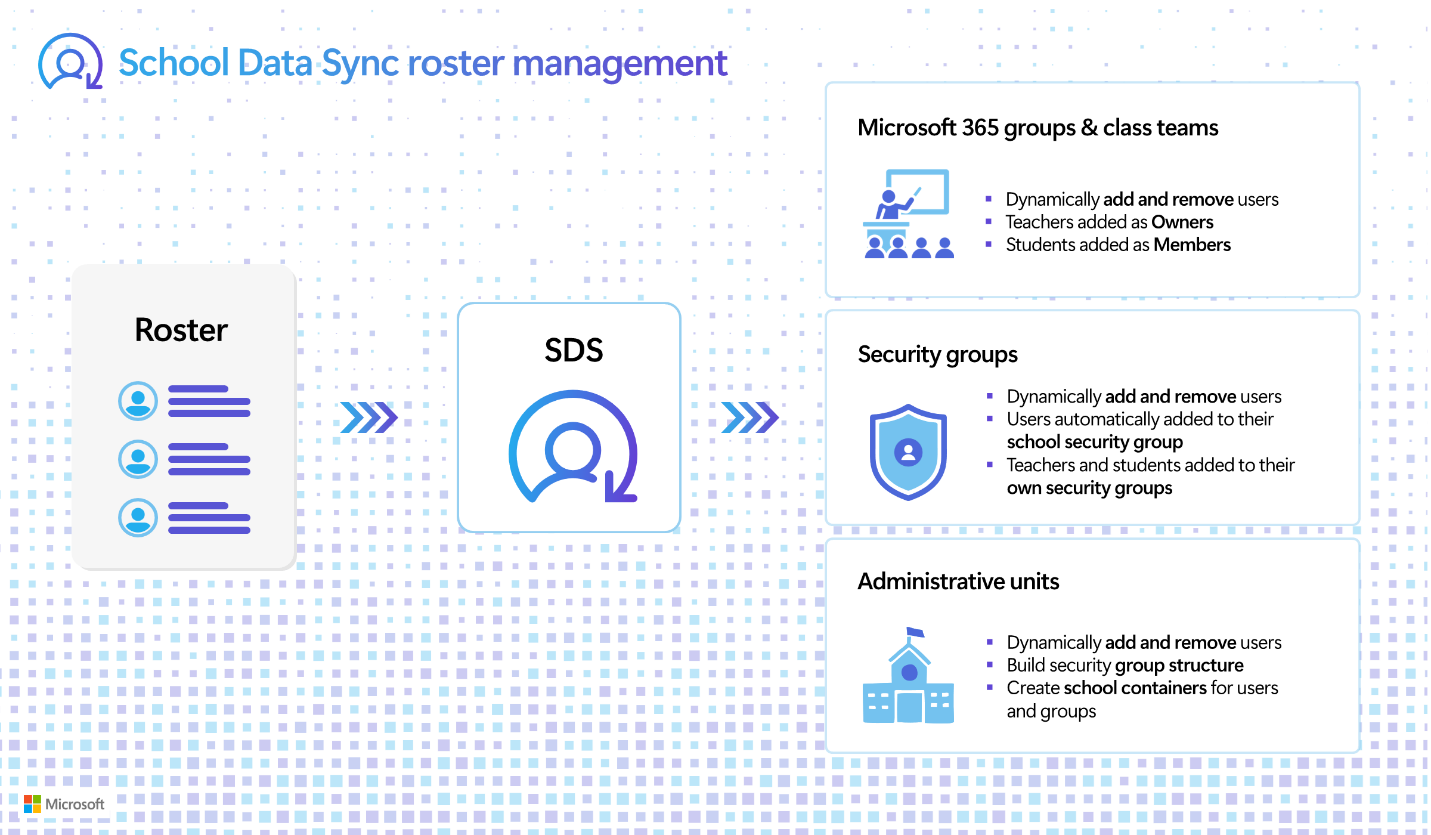
SDS:
- Adds educators as group owners, which gives them administrative capabilities within the group and class team
- Students as members
- Removes users from groups automatically when changes are detected in the SIS roster
Dynamic updates
SDS also dynamically updates security group memberships. Users are automatically assigned to their school-level groups. Separate staff and student groups allow you to manage policies independently at the school or user level. These staff and student groups are nested within each school’s security group for consistent hierarchy and policy scoping.
Administrative units are also updated dynamically. If you enable security groups, SDS nests the groups inside the appropriate administrative units. IT admins can use these AUs to configure information barriers, delegated IT administration, and scoped role assignments.
Parent and guardian sync
SDS includes support for parent and guardian data when this information is provided by a supported SIS provider and has been validated for use with SDS. When enabled, guardian contact information is associated with student records and stored as education extension attributes in Microsoft Entra ID.
Parent and guardian sync availability depends on SIS provider capabilities and tenant configuration. This data can support family communication scenarios in Microsoft 365, such as features that surface student activity summaries to guardians, when those features are enabled and supported in the tenant. SDS doesn't support mixing CSV based and API based sources for parent and guardian records.
Learning Accelerators
SDS also supports Microsoft Learning Accelerators, a set of free tools included in Microsoft 365 for Education. Learning Accelerators streamline the creation, review, and analysis of practice assignments and provide students with real-time coaching. These tools help educators support foundational and future ready skills by offering personalized practice and targeted feedback in an inclusive learning environment.
The SDS onboarding flow is organized into two phases — Connect Data and Manage Data — to help IT admins streamline onboarding, monitoring, and data health management.
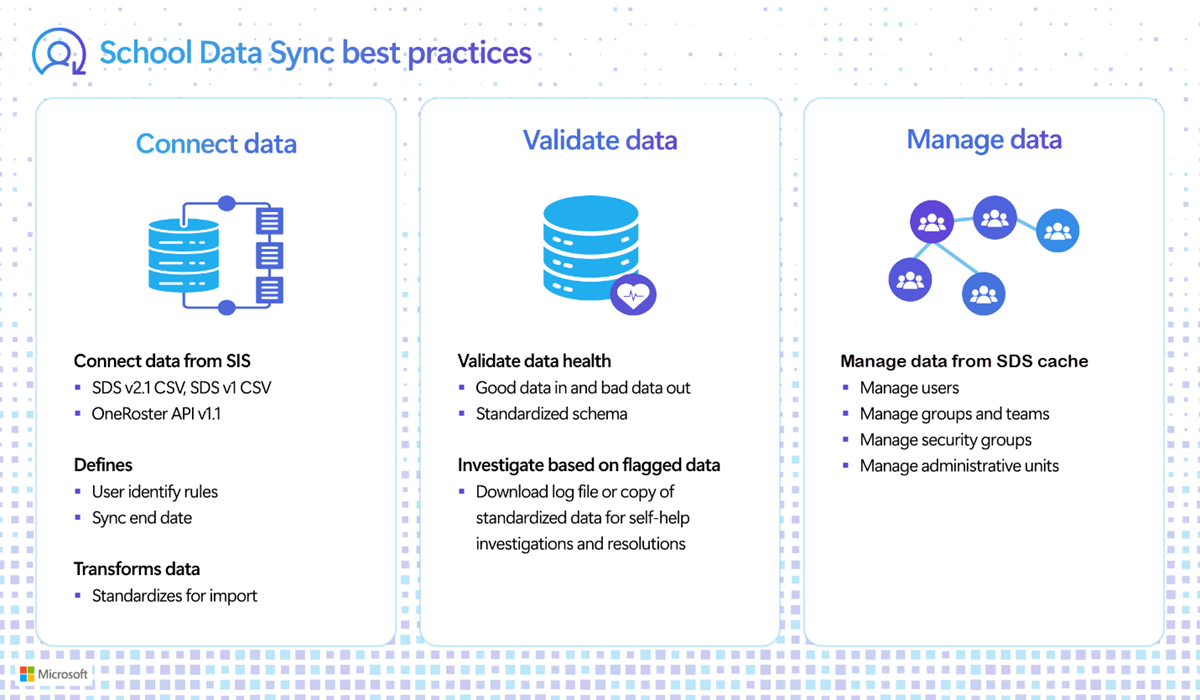
In the next unit, we'll start with the first phase: Connect Data.