Manage data with School Data Sync
After you connect SIS data to School Data Sync (SDS), you can enable one or more Managed Data scenarios. Microsoft 365 provisioning uses synced users, classes, and roles to support:
- Microsoft Teams for Education
- Microsoft Intune for Education
- Exchange Online
- SharePoint Online
- OneNote Class Notebook
- Rostering and Single Sign-on (SSO) for third-party apps
During each sync run, SDS applies data matching and validation rules to ensure it only writes valid data to the SDS cache. It flags records that fail validation as errors or warnings and doesn’t process them.
Managed Data can be enabled incrementally.
What is Managed Data in School Data Sync?
When you enable a Managed Data scenario, SDS creates a corresponding outbound flow. Microsoft 365 provisioning uses data stored in the SDS cache to create or update objects. Managed Data provisioning supports:
- Microsoft 365 users
- Microsoft 365 groups and class teams
- Security groups
- Administrative units
User provisioning
SDS can map SIS users to existing Microsoft Entra ID users with identity rules you defined in the Connect Data process. If your organization uses Microsoft Entra ID Connect or another provisioning tool, SDS defaults to mapping only.
SDS can also create and license users for organizations that don’t otherwise automate user creation. SDS supports default password configuration that meets Microsoft Entra ID password protection requirements.
Class groups and class teams
SDS can create class groups and Microsoft Teams class teams and sync enrollments from SIS data. Educators can now prepare class teams ahead of time and activate them when they're ready for students to join.
You can choose not to automatically create class teams; educators can create teams based on the Microsoft Entra ID class group they own. SDS supports up to 27 enrollment roles to allow for accurate owner and member assignments across K-12 and higher education.
Security groups
SDS can create security groups and manage their memberships based on SIS data. These groups support:
- Identity management
- Device and app policy assignment
- Microsoft Intune targeting
- Core Microsoft 365 management scenarios
Security groups can be enabled independently from other provisioning options.
Administrative units
When enabled in Managed Data provisioning, SDS can create and manage administrative units (AUs) to organize users, groups, and classes by school or organizational structure. Administrative units are optional and aren't created by default.
Administrative units are useful for role based access control scenarios, such as delegating administrative responsibilities to help desk staff or school level IT administrators. When enabled, SDS automatically maintains AU membership based on changes in SIS data, eliminating the need for manual updates.
Configure Managed Data
If you just completed the Connect Data process, you can configure Managed Data now or return later after the run completes.
In the SDS Home dashboard, select Manage Data. This is where you define how SDS shares connected SIS data with Microsoft 365.
Step 1: Select provisioning type
Choose which provisioning types you want to enable. The wizard displays pages based on your selections.
- Configuration name defines a unique name for the Managed Data configuration.
- You can include all organizations or filter to specific organizations.
- You can create multiple configurations (for example, separate configurations for primary and secondary schools).
Filters should not be used to split data for performance purposes. Additional configurations increase sync run durations.
Provisioning types:
The Users provisioning type enables automated mapping and management of Microsoft 365 users. SDS writes the match link to the Microsoft Entra ID user object based on the sourced ID. If your organization doesn't use AD Sync or another provisioning tool, you can enable Create unmatched users. This allows SDS to create new accounts when no match exists. Do not enable this if users are created through other automated processes.
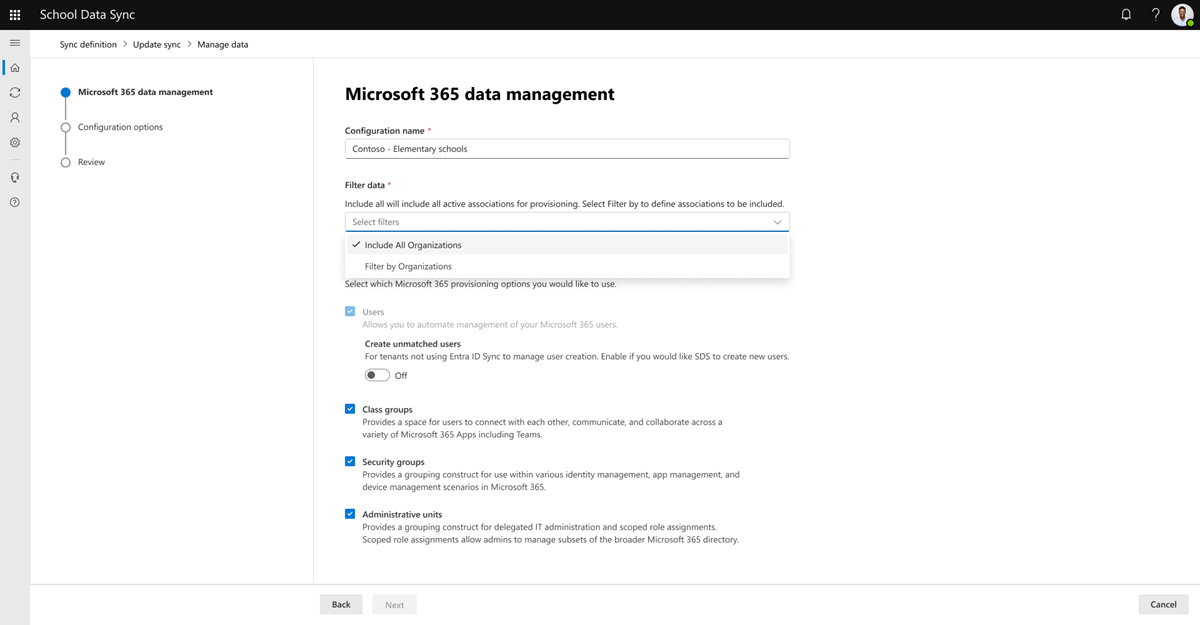
The Class groups provisioning type creates class groups for each active class that has at least one mapped owner. SDS syncs enrollments and can also create corresponding class teams if the option is enabled.
The Security groups provisioning type creates security groups and syncs memberships for use in identity, app, and device management scenarios.
The Administrative units provisioning type creates AUs and syncs their memberships for delegated administration and scoped role assignments.
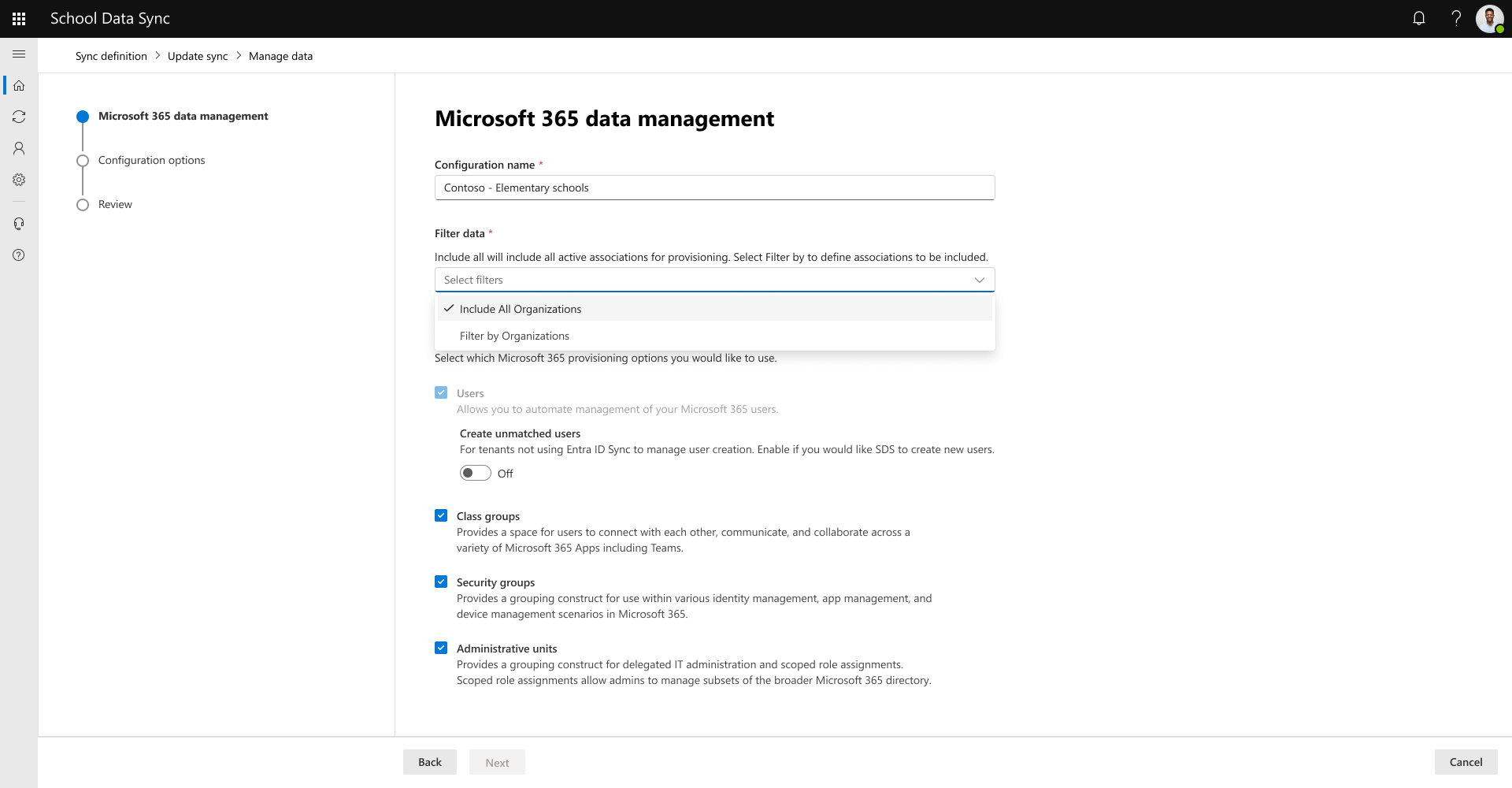
Example configuration
- Select Filter by organizations.
- Turn on Create unmatched users.
If we choose to apply filtering, any future new organizations from the connected data source are excluded by default. If multiple configurations target the same organization, SDS applies the configuration with the earliest creation date. You can view configuration creation dates on the Managed Data configuration screen.
After you define your settings, select Next.
Step 2: Optional user attributes for Microsoft Entra ID
In this step, you can choose optional attributes to write to the Microsoft Entra ID user object under Education extension attributes. These values come from the SIS data processed during syncing.
Default attributes written for every mapped user include:
- User external ID, from the user's sourcedId
- Organization external ID, from the organization's sourcedId
- Organization role, from the user's role in the associated organization
Optional attributes (written only if selected and available) include:
- Grade level, from the user's grade
- User number, from the user's userNumber
Determine the user role value
If a user has multiple organization roles, SDS determines the role value to write to Microsoft Entra ID using the following rules:
- If IsPrimary is set for all student roles, use the student role
- If IsPrimary is set for any staff role, use the staff role
- If IsPrimary is set for both staff and student roles, use the staff role
- If IsPrimary is not set for any roles, default to staff
If the user belongs to multiple organizations, SDS uses the Organization Role Sort Order from the default List of Values to determine the final role written to Microsoft Entra ID.
These attributes can be used to build dynamic groups, like:
- Groups by grade
- Groups by school
- Groups for students versus staff
- More specific groups (for example, Contoso Elementary - Grade 5 students)
Minor classification
You can choose to mark all students as minors based on the selected role value. If the user's role resolves to Student, SDS sets:
- LegalAgeGroupClassification = Minor
- AgeGroup = Parental Consent Required
This helps Microsoft and third-party applications apply appropriate protections to student data.
Student contacts (parent/guardian associations)
If student contact data is included from the SIS and the student's resolved role is Student, SDS can write parent/guardian relationships to the Microsoft Entra ID user object. This feature supports educator communication scenarios across Microsoft 365.
Create unmatched users
By default, Create unmatched users is turned off. Only enable the Create unmatched users setting when:
- You're not using Microsoft Entra ID Connect or any other automated identity system.
- You want SDS to create new user accounts when no match exists.
SDS constructs the User Principal Name (UPN) using the identity rules you defined during the Connect Data process. This practice ensures that the same rules are used for matching in future runs and prevents the creation of new users with inconsistent identifiers.
In this step, you can configure:
- Default passwords for staff
- Default passwords for students
- Optional default licenses (leave blank if you use group-based licensing)
Note
Passwords must meet Microsoft Entra ID Password Protection requirements.
Step 3: Class group management
In this step, you configure how SDS creates and manages class groups.
Default class group properties written to the Microsoft Entra ID group include:
- Class external ID, from the section sourcedId
- Class title, from the section title
- Organization external ID, from the org sourcedId
Optional class attributes written if selected and valid:
- Class code
- Course title
- Course code
- Course subject
- Course grade level
- Course external ID
- Academic session ID
- Academic session title
Important
All values must match the corresponding List of Values; mismatches are ignored until corrected.
Class group options
Under Class group options, you can set the following behaviors for class teams.
- Automated class team creation
- If turned On: SDS creates both the Microsoft 365 group and the class team.
- If turned Off: SDS creates only the Microsoft 365 group; educators create teams manually.
- Early access for educators
- Educators and owners can access the class team before students.
- Students gain access only when the educator activates the class.
- Display name management
- If turned On: SDS sets the display name only during initial creation.
- This setting allows admins and educators to rename the group without SDS overwriting it.
Enrollment roles
For each class, define:
- Which enrollment roles to include
- Whether to map each role as group owner or group member
A user's access depends on:
- The enrollment role provided by the SIS
- Whether that role is selected in the Owners or Members list
- Owners:
- Appear as both owners and members
- Can edit group membership
- Can manage team settings
- Members:
- Can access the team with limited permissions
- Students can't access the class team until it's activated
- Owners:
Step 4: Security group configuration
If you don't plan to manage security groups, make sure the Security groups provisioning type is not selected in the first step.
Security groups support:
- Device management with Intune for Education
- Conditional access and app management
- Teams policies
- Identity management, including group-based licensing and self-service password reset (SSPR) policies
Important
For SDS Classic transitions, group splits in SDS might not map to legacy Classic security groups. Review and re-apply any needed configurations after the first successful sync run creates the new SDS groups.
Security group split options
Two split modes are available for security groups:
- Role groups (default)
- Creates one group for all students
- Creates one group for all staff
- Organizations + role groups
- Creates a security group for each organization
- Creates nested groups for:
- Students in each organization
- Staff in each organization
Example:
- Contoso School - Students
- Contoso School - Staff
- Both groups are nested under Contoso School's organization-level security group
Security groups can be used across Microsoft 365 for many scenarios. Examples include:
- Group-based licensing: Group-based licensing in Microsoft Entra ID lets you assign licenses at scale without using complex PowerShell scripts. SDS can automatically create and maintain the security groups you need, and you configure the licensing rules.
- Conditional access policies: Control which users can access specific applications. For example:
- Restrict access for elementary students
- Apply different app policies to staff and students
- Lock down access to high risk apps
- Identity management: Define which users can use self-service password reset (SSPR) by placing them into appropriate security groups.
Step 5: Define how to split administrative units
If you don't want to manage administrative units (AUs), make sure the Administrative units provisioning type is not selected at the beginning of the wizard.
Important
If you're transitioning from SDS Classic, note that AU splits might not match Classic AU configurations. You might need to review and reapply previous AU settings after SDS creates the new units. Updates are applied after the next successful sync run.
Organizations (default)
SDS creates administrative units based on each organization (for example, each school) and links:
- All users with active associations to that organization
- All students with roles in the student role group
- All staff with roles in the staff role group
- All classes associated with the organization (if Microsoft 365 groups are also provisioned)
This split also makes the organization available in the Education Graph Schools endpoint.
For example:
Contoso School AU includes:
- Contoso School users
- Contoso School class groups
- Contoso School security groups
Organizations + role groups
SDS creates an administrative unit for each organization and role-group combination.
For example:
- Students - Contoso School AU
- Staff - Contoso School AU
This feature is useful for scenarios where educators are allowed to perform delegated IT administration for their student populations.
Other uses for administrative units
Administrative units can also support a wide range of platform scenarios:
- Role-based access control (RBAC): Create school-specific AUs to assign scoped roles. SDS automates the creation and maintenance of these AUs and removes almost all manual effort required to configure RBAC. For example: Assign a help desk admin at each school who can manage only that school's users and groups.
- Organizations + role groups: Enable scenarios where permitted teachers can perform delegated IT administration for students in their school (for example, password resets).
- Dynamic groups: Assign dynamic groups to AUs for further automation and targeting flexibility.
Step 6: Review and submit
Review the configuration settings on the Review page. If everything is correct, select Submit. If you need to make changes, go back to update your selections.
After you select Submit, SDS sends a request to create the outbound flow using your configuration. If the outbound flow creation is successful, the wizard completes and you can select Return to dashboard.
Wait for the next sync run. The Sync status card shows status updates like Running based on the Managed Data configuration you created.