Data health and validation in School Data Sync
As discussed in the previous unit, after you connect your SIS data, you can enable Managed Data scenarios that use Microsoft 365 provisioning to support:
- Users
- Classes
- Class teams
- SharePoint sites
- OneNote Class Notebooks
- Intune management
- Third-party app integrations
During each sync run, School Data Sync (SDS) validates the data to ensure that only good, required, and optional data enters the SDS cache.
What happens during data validation
During each sync run, the inbound flow prepares SIS data for import:
- Standardized schema: SDS maps roster data to a temporary import schema it uses across all supported input formats.
- Microsoft Entra ID cache: SDS pulls a copy of the tenant's Microsoft Entra ID users and groups into its cache. This cache is used to run identity matching rules to identify existing users.
- At this stage, matches are stored only in the SDS cache.
- SDS doesn't write any values back to Microsoft Entra ID until a Managed Data user provisioning scenario is enabled.
- Advanced validation: SDS applies multiple categories of validation rules, including:
- Type and code validation (for example, grade levels, subjects, and other List of Values)
- Data matching rules
- Required and cross-reference validation (to ensure data links across files or endpoints are correct)
Note
Only data that passes validation is written to the SDS cache.
Errors and warnings
Validation results include:
- Errors: Required data is missing or invalid. The entire record is excluded from processing.
- Warnings: Optional data is invalid and removed, but the rest of the record continues to process.
To support troubleshooting, SDS generates a Customer Errors and Warnings file that includes:
- One row per affected record
- The validation rule that failed
- Whether the issue is an error or warning
This report helps you understand the health of your incoming SIS data.
How SDS stores data in the cache
When validated data is written to the SDS cache, SDS tracks the lifecycle of each record to help identify data changes over time.
For each record, SDS records:
- FirstSeenDateTime: When SDS first encountered the record
- LastSeenDateTime: The latest sync run in which the record was present
- IsActiveInSession: Whether the record is currently active based on the latest sync
SDS updates these values to help you accurately track changes, troubleshoot data issues, and monitor overall data health.
| Scenario | Handling |
|---|---|
| New record detected | - Sets FirstSeenDateTime and LastSeenDateTime to the current time - Marks the record as active |
| Record still present in subsequent runs | - Keeps FirstSeenDateTime unchanged - Updates LastSeenDateTime - Leaves IsActiveInSession = true |
| Record missing in a subsequent run | - Keeps FirstSeenDateTime and LastSeenDateTime - Sets IsActiveInSession = false - Indicates only that SDS didn't see the record in the current run (not necessarily that it was deleted in the SIS) |
General data-handling rules for missing data in subsequent sync runs
When a record is missing in a later sync run for the same source and academic session, SDS applies the following handling rules:
| Missing record | Handling rule |
|---|---|
| Organizations | No change, the record persists |
| Users | IsActiveInSession is set to false on the: - Person - OrganizationRole - EnrollmentRole associations |
| Organization roles | IsActiveInSession is set to false |
| Academic sessions | No change, the record persists |
| Classes (sections) | IsActiveInSession is set to false on: - Section - SectionSession - Enrollment |
| Enrollment | IsActiveInSession is set to false on Enrollment record |
| Courses | IsActiveInSession is set to false on Course record |
| Demographics | No change, the record persists |
| User flags | No change, the record persists |
| Relationships (parents/guardians) | No change, the record persists |
Rolling updates for inactivated records
When a record like a user or enrollment isn't present in a later sync:
| Missing record | Handling rule |
|---|---|
| User | The record persists. (not deactivated) FirstSeenDateTime and LastSeenDateTime are preserved. IsActiveInSession is set to false for: - OrganizationRole - EnrollmentRole - Other association records |
| Organization | The record persists (not deactivated). FirstSeenDateTime and LastSeenDateTime are preserved. IsActiveInSession is set to false for: - OrganizationRole - EnrollmentRole - Other association records |
| Session | The record persists (not deactivated). FirstSeenDateTime and LastSeenDateTime are preserved. IsActiveInSession is set to false for: - OrganizationRole - EnrollmentRole - Other association records |
| Enrollment | FirstSeenDateTime and LastSeenDateTime are preserved. IsActiveInSession is set to false for: - OrganizationRole - EnrollmentRole - Other association records |
If a previously missing record (like a user section enrollment) re-appears within the same academic session, SDS updates the existing record rather than creating a new one.
Sync health overview
| Status | Action |
|---|---|
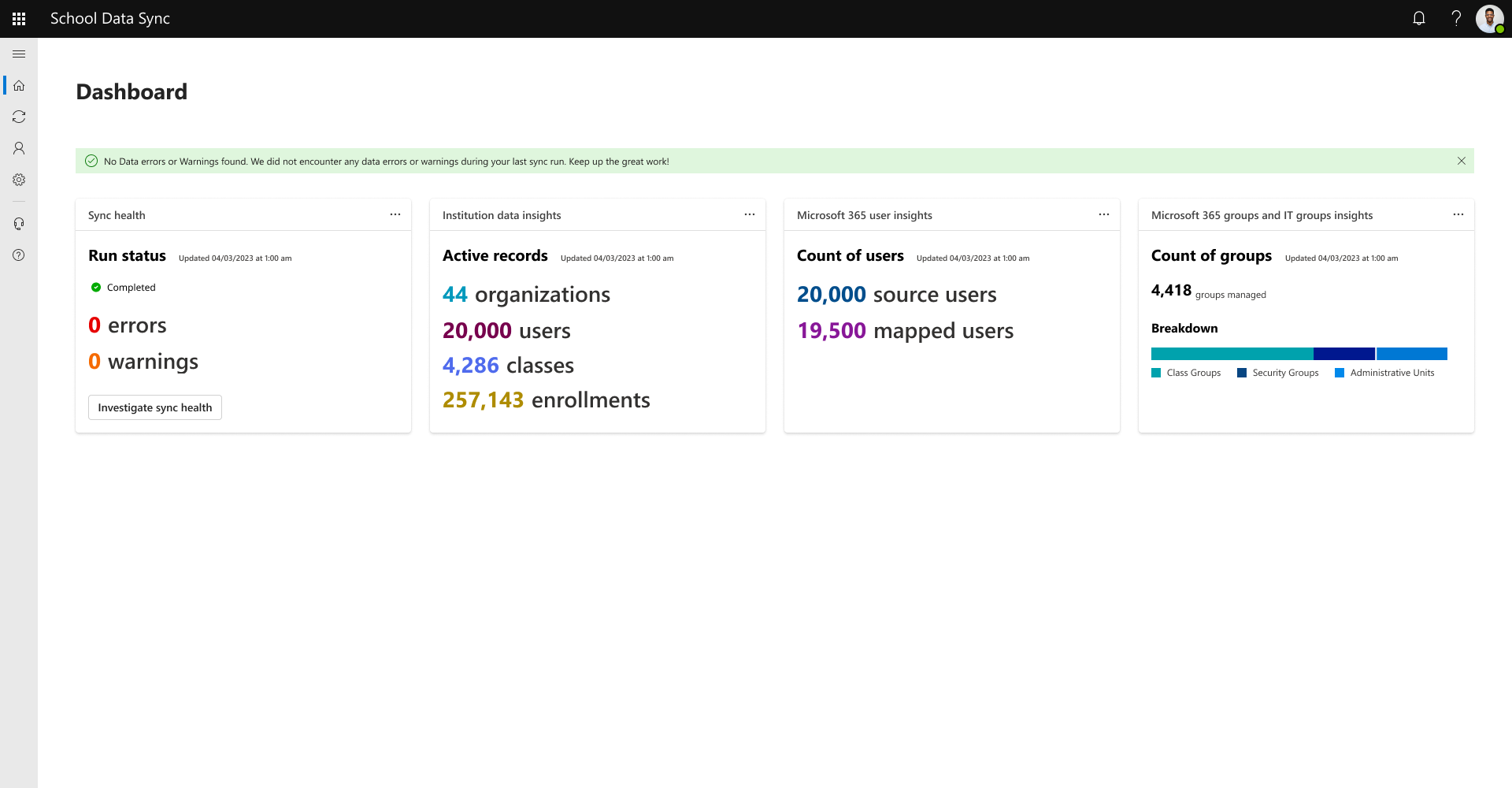
| If no errors or warnings are found | - The run is marked Completed. - The SDS homepage displays: "No data errors or warnings found. We did not encounter any data errors or warnings during your last run." |
| If errors or warnings are found | - SDS flags the run as Completed with errors or Completed with warnings. - The homepage displays a notification encouraging admins to review the data: "We found some issues with your data. We recommend reviewing your sync health." - Select Investigate Sync Health to review details. |
Errors and warnings help assess the impact of data issues.
- Errors:
- Required data failed validation
- The record wasn't sent to the SDS cache
- Warnings:
- Optional data failed validation
- Invalid values were removed, but the record was still included in processing
A downloadable log file is available for deeper investigation.
Understand errors and warnings with Sync Health
Sync Health helps you understand:
- What data changed during the latest sync
- Historical trends across the last 14 runs
- Where issues occurred
- What actions might be needed in the SIS
Key run-status indicators
| Status | Description |
|---|---|
| Running | Sync is in progress |
| Completed | No errors or warnings |
| Completed with errors | Errors occurred |
| Completed with warnings | Only warnings occurred |
| Failed | The run was canceled by the system or customer |
Admin actions
| Action | Description |
|---|---|
| Download report | Provides detailed error/warning data |
| View run details | Opens additional details in a flyout |
Run details
Run details are divided into:
- Overview
- Run start time
- Run end time
- Overall status
- Troubleshooting
- Statistics
Source data
Shows raw data counts before transformation or validation:
- Organizations
- Users
- Classes
- Enrollments
Transformed data
Shows data counts after transformation and advanced validation:
| Metric | Description |
|---|---|
| Error count | Required fields are missing or invalid |
| Warning count | Optional fields removed due to invalid values |
| Matched users | SIS users linked to Microsoft Entra ID users |
| Unmatched users | SIS users with active roles but no match |
Stages view
The Stages tab displays the sequence of steps used to process data during the sync run:
- Connected Data (institution data)
- Managed Data provision types, including:
- Microsoft 365 users
- Microsoft 365 groups (class groups)
- Microsoft 365 administrative units and security groups
Stage status values include:
| Status | Description |
|---|---|
| Completed | No errors or warnings |
| Completed with errors | Errors occurred |
| Completed with warnings | Only warnings occurred |
| Failed | Stage canceled |
Advanced validation rules
During processing, records pass through advanced validation to ensure data integrity. SDS checks:
- Data format
- Required fields
- Cross-record relationships
- List of Values (enums)
- Identity-matching rules
- Type validation
SDS validates field values against seven main data types:
| Data Type | Validation Rules |
|---|---|
| Unique ID | - Must be globally unique - Case sensitive - Stored as received |
| List of Values (enums) | - Validates against predefined or custom codes - Case-insensitive matching - Stored as the normalized code value |
| String | - Letters and numbers, typically up to 255 characters - Case sensitive - Stored as received |
| - Must follow RFC 5532 formatting - Validates structure, not existence - Stored in lowercase |
|
| Date | - Must follow ISO 8601 (YYYYMMDD) - Stored in ISO 8601 format |
| Phone | - Must follow E.164 (+CountryCodeAreaCodeNumber) - Case sensitive and stored as received |
| Boolean | - Must be true or false (not 1/0) - Case insensitive; stored as lowercase |
Records that fail these rules are flagged as errors or warnings and excluded from the SDS cache.
More details are available in the SDS documentation under Health Monitoring, Troubleshooting, and Statistics, or at aka.ms/SDSValidationRules.
Investigate data issues with the validation report
After a sync run, admins can begin investigating issues and correcting data in the source system.
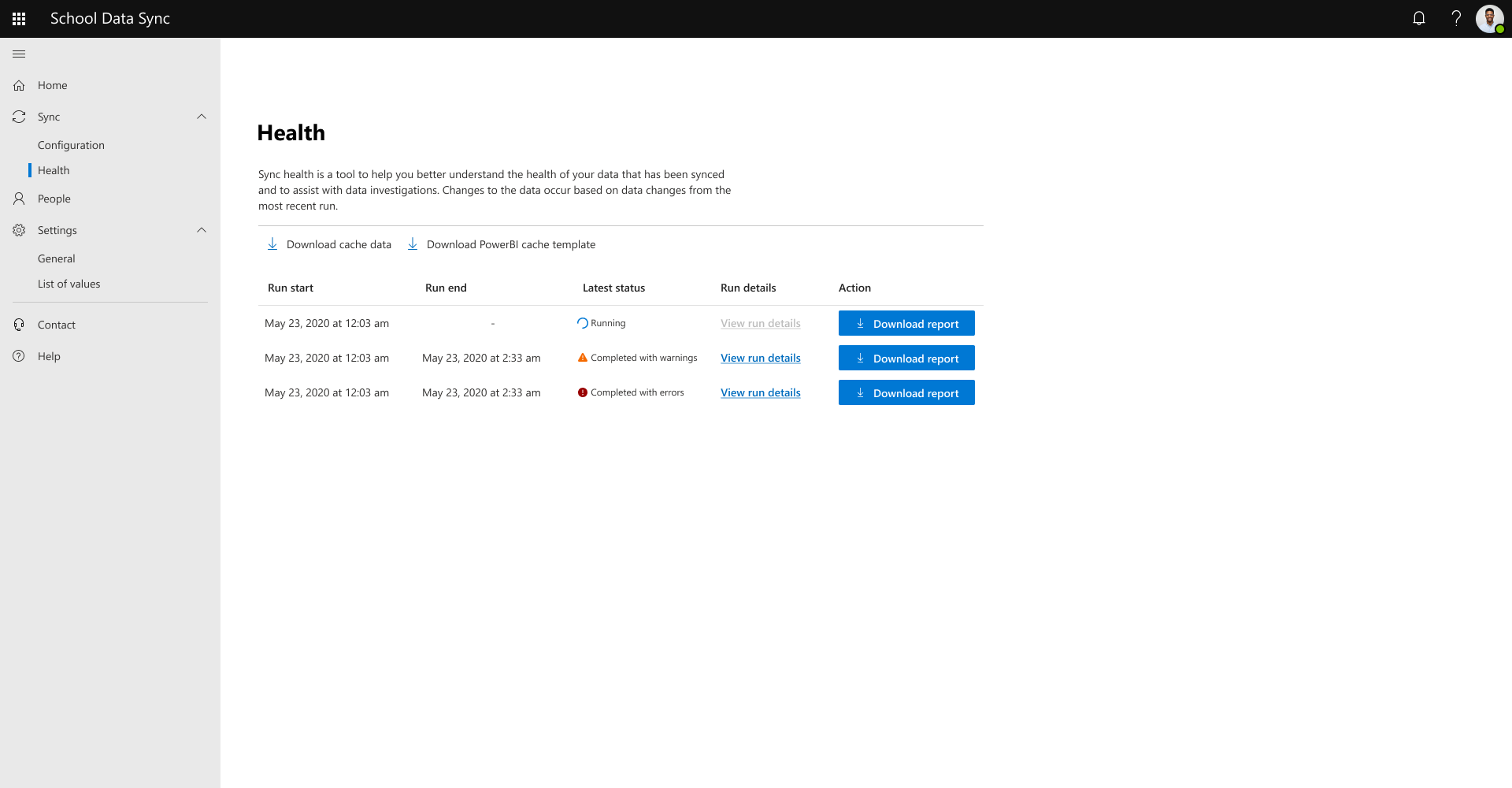
To investigate flagged data:
- Open Sync Health or Run details.
- Select Download report.
The report is a comma separated values (CSV) file:
- Row 1: Header row
- Subsequent rows: Records that didn't pass validation
To help you understand the format, let's walk through the key columns.
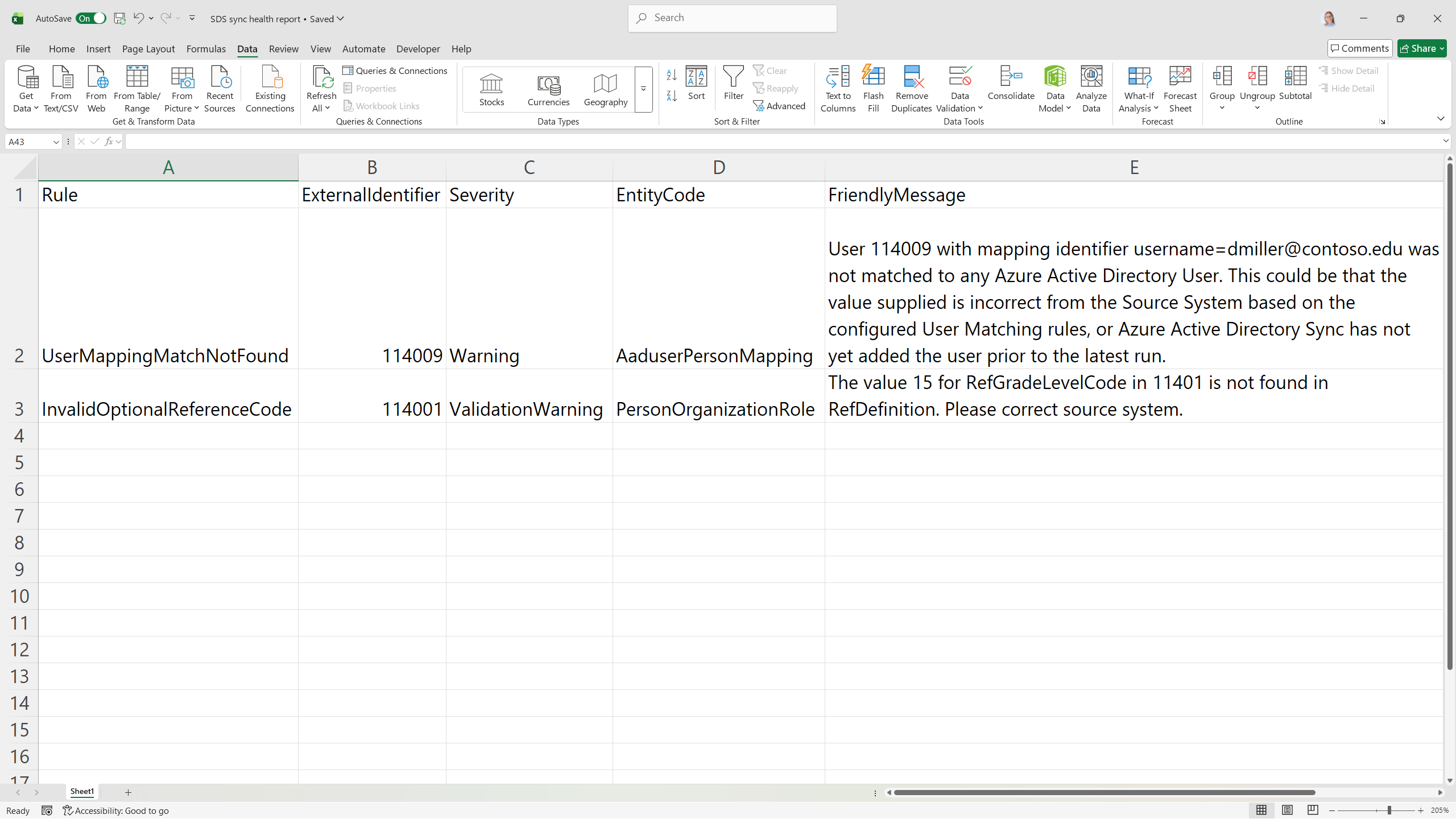
| Column | Description |
|---|---|
| Rule | Describes the validation rule that failed for the record. Example: Indicates that a user record from the SIS didn't match any Microsoft Entra ID user based on the configured identity matching rules. |
| ExternalIdentifier | The sourced ID (external ID) of the related entity from the SIS. This is treated as a Unique ID data type. Example: 114009. You can use this value to locate the record in users.csv or via the user's endpoint from the SIS. |
| Severity | Indicates how serious the issue is: - ERROR: Required data failed validation - WARNING: Optional data failed validation Example: WARNING. The validation rule flagged optional data but allowed the record to proceed. |
| EntityCode | Identifies the data area related to the flagged record, like: - User/Person - Organization - Enrollment Example: A user record where the supplied value is being used for Microsoft Entra ID matching. |
| FriendlyMessage | Provides human-readable context for the issue. It typically includes: - The external ID - The value that failed validation - A short explanation of what went wrong Example: The user record with sourced ID 114009 and username demiller@contoso.edu didn't match a Microsoft Entra ID user based on the current identity rules.Possible causes: - The SIS has an incorrect username or email value. - The corresponding user hasn't yet been created in Microsoft Entra ID (for example, AD sync hasn't completed). |
In the first case, fix the SIS data before the next run.
In the second case, confirm that directory sync is working; no change might be needed if the user will appear before the next SDS run.
Additional metadata columns
The report also includes platform metadata to help you investigate:
- FlowName: The flow that ran the validation rule
- SourceSystemName: The source system from Connect Data (for example, Contoso SIS)
- Time: When the record was flagged during processing (UTC time)
Recommended troubleshooting approach
When you're reviewing errors and warnings:
- Prioritize user record errors first: Identity issues often cascade into other errors (organization, roster, membership).
- Then focus on entities with the highest error counts. For example, many errors for the same EntityCode (like User or Enrollment).
For user identity errors:
- Check the SIS fields used for identity rules (username/email/ID).
- Confirm that Microsoft Entra ID has the expected User Principal Name (UPN) or Mail value.
If a user record fails, any related memberships or associations can also fail validation. Fixing the primary user data typically resolves many downstream errors like:
- Membership references where the user or class doesn't exist
- Enrollment issues where the referenced section or user is missing
Data hygiene and SIS quality
Good data hygiene is critical for a successful SDS deployment.
Suggestions for best practices:
- Understand how your SIS manages fields like username and email.
- Compare SIS data to Microsoft Entra ID data for consistency.
- Consider piloting SDS with a smaller subset of schools or classes to assess data quality.
- When errors occur, review SIS data first; many issues originate from inaccurate or incomplete SIS records.
- After you gain confidence in your data quality, configure identity rules carefully to align with real-world conventions.
Sync Health on the Home dashboard
When a sync run completes, SDS provides summary statistics on the Home dashboard (Sync Health card):
- The Home dashboard (Sync Health card)
- The Sync Health page
Sync Health card
Shows the status of the latest sync run:
| Metric | Description |
|---|---|
| Running | The run is in progress |
| Completed | No errors or warnings |
| Completed with errors | Errors were found |
| Completed with warnings | Only warnings were found |
| Failed | The run was canceled or encountered a critical issue |
| Error counts | Number of records that failed data validation and were excluded from the cache |
| Warning counts | Number of records in which optional fields failed data validation but the record was still processed |
Institution statistics
The Institution data insights card shows counts for active data that passed validation:
| Metric | Description |
|---|---|
| Organizations | Organizations that have active user roles |
| Users | Users with an active user role associated with an organization |
| Classes | Classes with active user enrollments |
| Enrollments | Active enrollment records for active classes |
The User insights card shows:
- Source users: Users with an active role associated with an organization
- Mapped users: Users successfully matched to Microsoft Entra ID accounts
Microsoft 365 group and IT group statistics
On the Home dashboard, SDS also shows group statistics:
- Managed groups in Microsoft Entra ID: Number of groups that SDS is actively managing in the current session
Hover over the chart to see a breakdown by:
- Class groups
- Security groups
- Administrative units
This report helps you to quickly understand how SDS-managed groups are distributed across your Microsoft 365 tenant.