Configure Tunnel gateway
Microsoft Tunnel Gateway runs as a containerized service on a Linux server. Before devices can use the tunnel to reach corporate resources, you need to build the configuration in Intune, install the server software, deploy the client app and assign a VPN profile. Each step builds on the previous one, so let's walk through the full process.
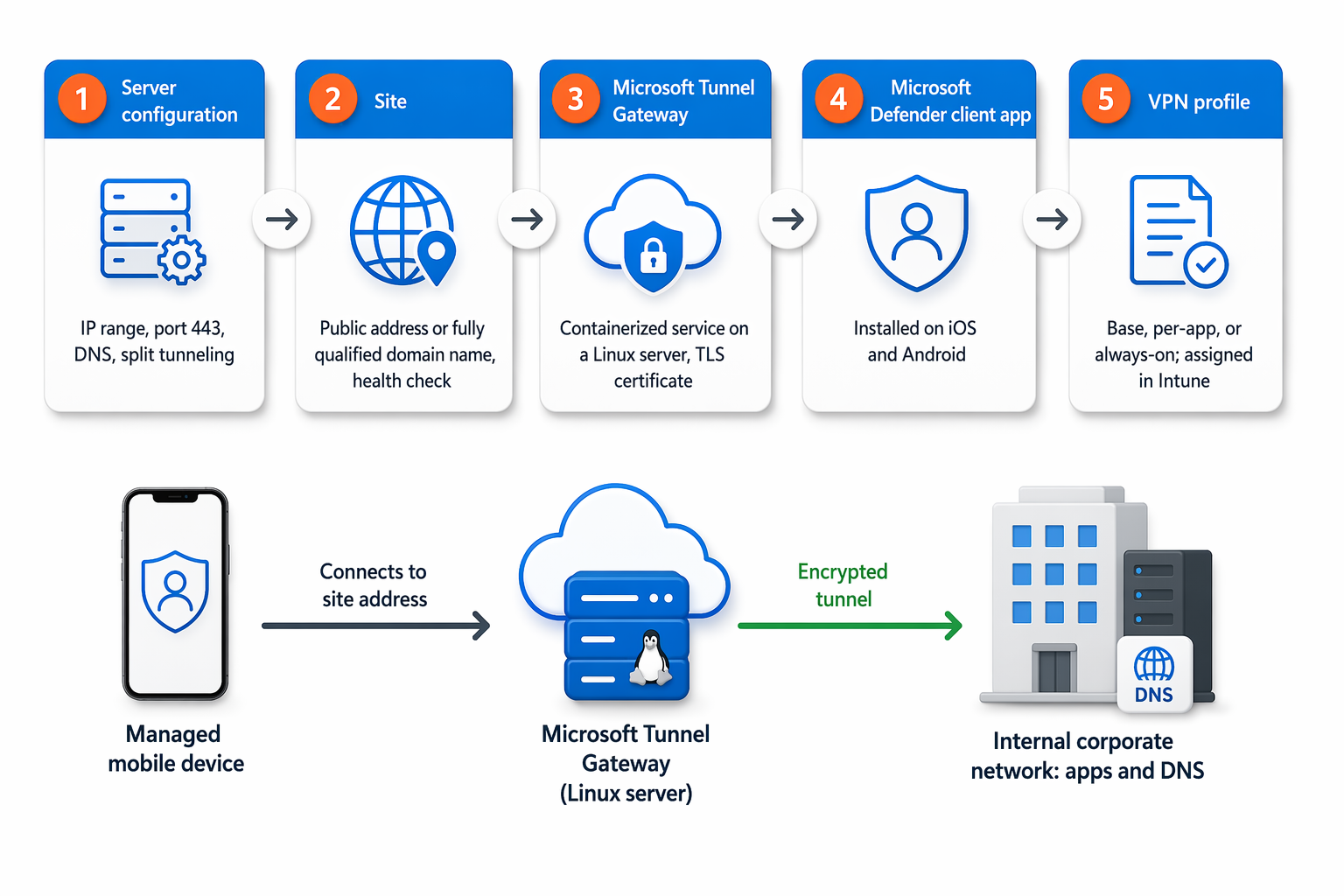
The following diagram shows the full Microsoft Tunnel Gateway deployment, from server configuration through the encrypted data path to your corporate network.
Create a server configuration
A server configuration holds the network settings that every server in a site will use. You create it once and then assign it to a site, which applies the settings automatically to all servers that join that site.
Sign in to the Microsoft Intune admin center and go to Tenant administration > Microsoft Tunnel Gateway > Server configurations > Create new.
On the Basics tab, enter a name and an optional description, then select Next.
On the Settings tab, configure the following values:
Setting Guidance IP address range Leased to devices when they connect. Use the APIPA range 169.254.0.0/16to avoid conflicts with corporate subnets.Server port Port the server listens on. The default is 443for both TCP and UDP (DTLS).DNS servers Used for DNS requests from connected devices. DNS suffix search Optional default domain provided to clients. Disable UDP connections Enable only when devices use the Microsoft Defender Tunnel client and you need TCP-only connections. Optionally, configure split tunneling rules to include or exclude specific IP ranges. Included ranges are routed through the tunnel; excluded ranges go directly to the internet. You can create up to 500 rules total across both lists.
On the Review + create tab, review the settings and select Create.
Note
Don't use 0.0.0.0 in any split-tunneling rule. Tunnel Gateway can't route traffic for that range. If you're using corporate DNS, add those addresses to your include rules.
Create a site
Sites are logical groups of servers that share a connection point for devices. Each site uses one server configuration, which keeps your settings consistent as you add more servers.
Go to Tenant administration > Microsoft Tunnel Gateway > Sites > Create.
On the Basics tab, enter a name and an optional description, then select Next.
On the Settings tab, set the following properties:
- Public IP address or FQDN - The address devices connect to. This must be publicly resolvable. It can be the address of an individual server or a load balancer.
- Server configuration - Select the configuration you created in the previous step.
- URL for internal network access check - An HTTP or HTTPS URL on your internal network. Every five minutes, each server in the site pings this URL to confirm it can reach the corporate network.
- Automatically upgrade servers at this site - Set to Yes to allow automatic upgrades when new versions are available.
- Limit server upgrades to maintenance window - Optionally restrict when upgrades can start to reduce disruption during business hours.
Add scopes if you want to on the Scope tags tab
On the Review + create tab, review the settings and select Create.
Install Microsoft Tunnel Gateway
With a server configuration and site in place, you can now install the Tunnel Gateway software on your Linux server. The installation script downloads container images from Microsoft and creates the required folders and service accounts.
Important
Before running the installation script, confirm that your Linux server meets the current requirements in Microsoft Tunnel prerequisites. Use the prerequisites page for the supported Linux distributions and container versions because supported versions change over time.
| Requirement | Check before installation |
|---|---|
| Supported Linux distribution | Use only a distribution and version listed in the Microsoft Tunnel prerequisites. |
| Server sizing | Start with the current sizing guidance. For smaller deployments, the prerequisites list 4 CPUs, 4 GB memory and 30 GB disk space. Increase CPU, memory, server count and site count based on the number of devices you support. |
| Required outbound network access | Allow the Linux server to reach Microsoft endpoints over the required outbound ports, including TCP 443 and TCP 8090 where your current endpoint and firewall guidance requires it. |
| Container engine | Install the container engine required for your Linux distribution. The prerequisites identify Podman for Red Hat Enterprise Linux and Docker for other supported distributions. Rootless Podman is supported and requires the modified installation command shown in the next step. |
Run the installation script
Download the installation script using one of these methods:
Navigate to
https://aka.ms/microsofttunneldownloadin a browser to downloadmstunnel-setup.Or run the following command on the Linux server:
wget --output-document=mstunnel-setup https://aka.ms/microsofttunneldownload
Run the script as root:
sudo ./mstunnel-setupImportant
For rootless Podman containers, use
mst_rootless_mode=1 ./mstunnel-setupinstead.Accept the license agreement (EULA) when prompted.
Review and configure variables in
/etc/mstunnel/env.shfor your environment, including any proxy settings.Copy your Transport Layer Security (TLS) certificate to the server. The certificate must include the server's IP address or FQDN in the Subject Alternative Name (SAN). Use the format that matches your certificate type:
PFX format:
cp /path/to/your/cert.pfx /etc/mstunnel/private/site.pfxPEM format:
cp /path/to/your/fullchain.crt /etc/mstunnel/certs/site.crt
cp /path/to/your/private.key /etc/mstunnel/private/site.key
When prompted to authenticate, open a browser and go to
https://microsoft.com/devicelogin. Enter the device code shown in the script and sign in with an account that has Intune Administrator permissions and an Intune license.After authentication, the script retrieves your site and server configurations from Intune and prompts you to select the site this server will join. Select the site you created earlier.
After installation completes, go to Tenant administration > Microsoft Tunnel Gateway > Health status in the admin center to confirm the server is online.
Deploy the Microsoft Tunnel client app
Devices need the Microsoft Defender app installed to use the tunnel. Deploy the app through Intune before assigning VPN profiles.
- Android - Add Microsoft Defender from the Google Play store as an Android store app.
- iOS/iPadOS - Add Microsoft Defender from the Apple App Store as an iOS store app.
After adding the app to Intune, assign it to the same groups that will receive the VPN profile.
Create a VPN profile
A VPN profile tells devices how and when to connect to the tunnel. You create separate profiles for Android and iOS/iPadOS because each platform has different settings.
Android Enterprise
Go to Devices > Manage devices > Configuration > Create.
For Platform, select Android Enterprise. For Profile type, select Templates and then VPN for either Corporate-Owned or Personally Owned Work Profile, then select Create.
On the Basics tab, enter a name and an optional description, then select Next.
For Connection type, select Microsoft Tunnel, then configure:
- Base VPN
- Connection name - A friendly name visible to users.
- Microsoft Tunnel Site - Select the site the VPN profile connects to.
- Per-app VPN - Optionally restrict tunnel usage to specific apps.
- Always-on VPN - Set to Enable to keep the VPN connected automatically.
- Proxy - Add information for a Proxy if needed in your environment.
- Base VPN
On the Assignments tab, assign the profile to users or device groups.
Select Create.
iOS/iPadOS
Go to Devices > Manage devices > Configuration > Create.
For Platform, select iOS/iPadOS and for Profile type, select Templates and then VPN, then select Create.
On the Basics tab, enter a name and an optional description, then select Next.
For Connection type, select Microsoft Tunnel, then configure:
- Base VPN
- Connection name - A friendly name visible to users.
- Microsoft Tunnel Site - Select the site the VPN profile connects to.
- Per-app VPN - Optionally restrict tunnel usage to specific apps. When enabled, split tunneling rules are ignored.
- On-demand VPN rules - Define rules to connect automatically when specific FQDNs or IP addresses are accessed.
- Proxy - Add information for a Proxy if needed in your environment.
- Base VPN
On the Assignments tab, assign the profile to users or device groups.
Select Create.
Tip
On iOS devices that use both Microsoft Tunnel and Microsoft Defender web protection, configure an On-Demand rule with Connect VPN and your target domains. This ensures the "Disconnect on Sleep" setting works correctly.
With the server running, the client app deployed and VPN profiles assigned, your devices can now authenticate through Microsoft Entra ID, pass Conditional Access evaluation and connect securely to corporate resources through the tunnel.