Installation
This module has divided the installation process of the Inventory Visibility add-in into two parts: installing the add-in in Microsoft Dynamics 365 Lifecycle Services and setting up the add-in in Supply Chain Management.
Inventory Visibility prerequisites
Before installing Inventory Visibility, you need to make sure that you've satisfied some prerequisites. Make sure that you have a Dynamics 365 Lifecycle Services implementation project where at least one environment is deployed. Also, you need to make sure that you've completed the prerequisites for setting up add-ins. Inventory Visibility doesn't require dual-write linking. For more information, see Add-ins overview.
Install the Inventory Visibility add-in
Prior to installing the Inventory Visibility add-in, you need to register an application and add a client secret to Microsoft Entra ID under your Azure subscription. For instructions on how to do so, see Quickstart: Register an app in the Microsoft identity platform.
Make a note of your Application (client) ID, Client secret, and Tenant ID values because you'll use them later. If you have multiple Lifecycle Services environments, you need to create a different Microsoft Entra ID application for each. Using the same application ID and tenant ID for installation across different environments might cause a token issue to occur in older environments. After you've registered an application and have added a client secret to Microsoft Entra ID, you can complete the following steps to install Inventory Visibility.
Sign in to Microsoft Dynamics 365 Lifecycle Services.
On the home page, select the project where your environment is deployed.
Within the project page, select the environment where you want to install the Inventory Visibility add-in.
When you're in the environment page, scroll down to the Power Platform integration section, where you'll find the Environment add-ins section. Ensure that the Microsoft Dataverse environment information is correct.
In the Environment add-ins section, select Install a new add-in.

After you've selected the link, a list of available add-ins appears.
Select Inventory Visibility from the list.
Enter the Microsoft Entra ID application ID and Microsoft Entra ID tenant ID values that you noted previously.
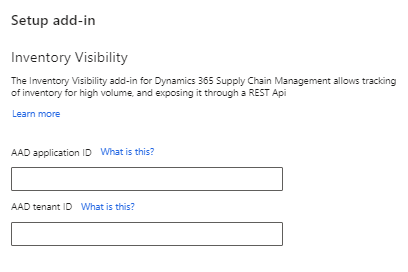
Agree to the terms and conditions by selecting the Terms and conditions checkbox.
Select Install. The status of the add-in shows as Installing. When the installation is complete, refresh the page. The status of the add-in shows as Installed.
In the Environment Uri in the Power Platform Integration section, Inventory Visibility should show as an app. If not, contact the Inventory Visibility product team at inventvisibilitysupp@microsoft.com.
Set up Inventory Visibility in Supply Chain Management
After you've installed the Inventory Visibility add-in, enable the integration to the add-in in your Supply Chain Management system by following these steps:
Open the Feature management workspace and ensure that the Inventory Visibility integration with reservation offset feature is enabled.
Go to Inventory Management > Set up > Inventory Visibility Integration parameters.
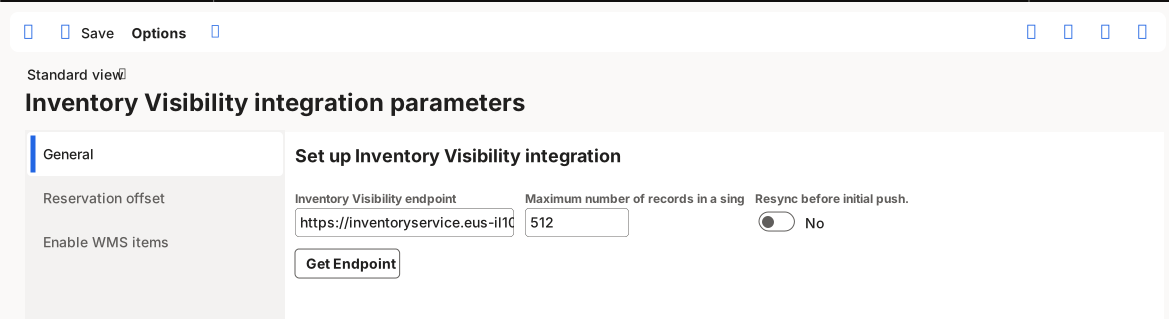
Open the General tab. In the Inventory Visibility endpoint field, enter the URL of the environment where you're running Inventory Visibility. For more information, see Configure Inventory Visibility. Next, set the maximum number of records to include in a single request. For this field, you need to enter a positive integer that's less than or equal to 1001. We strongly recommend that you use the default value of 512 unless Microsoft Support or your internal resources advise otherwise.
If you enabled the Inventory Visibility integration with reservation offset feature, open the Reservation offset tab. To enable this functionality, set the Enable reservation offset toggle to Yes. Then, specify the inventory transaction status that offsets reservations that are made on Inventory Visibility. This action determines the order processing stage that triggers an offset. The On order setting means that an order with the inventory transaction status of On transaction sends an offset request when it's created. The offset quantity is the quantity of the created order. The Reserved setting means that orders with a status of Reserve ordered transaction sends an offset request when they're reserved, picked, packing-slip posted, or invoiced.
Go to Inventory Management > Periodic tasks > Inventory Visibility Integration and enable the job. This setting allows all inventory change events from Supply Chain Management to be posted to Inventory Visibility.
To uninstall the add-in, disable the Inventory Visibility Integration job, uninstall the add-in from Lifecycle Services, and then delete the solutions in Power Apps that are associated with Inventory Visibility.