Create a time window
Time windows indicate the allowable range for a service order line to deviate from its scheduled date. The system determines this scheduled date by the interval settings and the service period that you specify on the Create service orders page. The following values are available for defining a time window:
Week – You can reschedule the service order line to any available day within the same week as the originally calculated date.
Month – You can reschedule the service order line to any available day within the same month as the original calculated date.
Manual – You can specify the maximum number of days that the service order line can be adjusted before or after the initial calculated date.
Create time windows
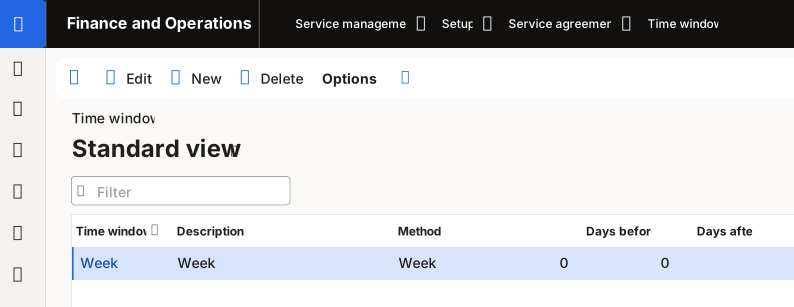
To create a time window, go to Service management > Setup > Service agreements > Time window. Select New on the Action Pane to create a new time window. Enter a name in the Time window field and a description in the Description field. Select a Method for automatic creation.
Note
If you select Manual, then you need to specify the number of days before or after the calculated date that the system can move the service order line. This flexibility can help your organization manage scheduling and resource allocation effectively.