Create service agreements
Create a service agreement from Service management
To create a service agreement from Service management, follow these steps:
Go to Service management > Service agreements > Service agreements.
Select New on the Action Pane.
Enter a Description and then select a Project ID and Service agreement group.
After you fill out the necessary fields according to your business processes, select Save.
After you save the record, select the Service agreement tab from the Action Pane.
Go to Relations > Service objects or Service tasks to create a new service object or service tasks for the service agreement.
By expanding the Lines FastTab, you can create service agreement lines. You can copy lines from a service template, another service agreement, or you can create them manually.
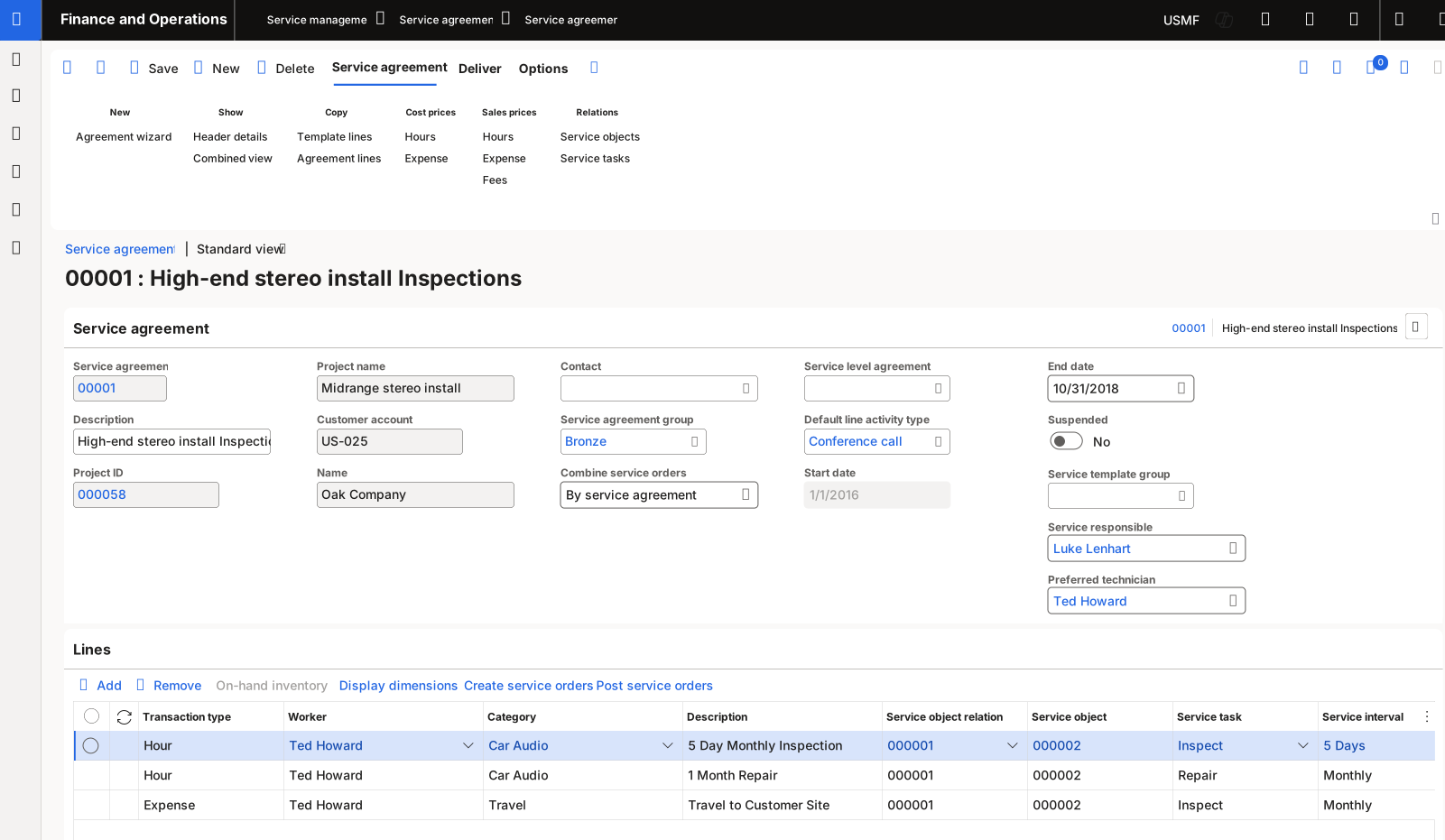
Create service agreement lines manually
To create a service agreement line manually, go to the Service agreements page. Create a new service agreement or select an existing service agreement. On the Service agreements page, expand the Lines FastTab. Select Add and then specify the necessary information for the service agreement line. Select Save on the Action Pane to save the line.
Create a service agreement from Project
To create a service agreement from Project, go to Project management and accounting > Projects > All projects. Select a project from the list. On the Projects page, select Manage on the Action Pane and then select New > Service > Service agreement. Select New on the Action Pane and then enter the necessary information to create a service agreement. Select Save to save the service agreement.