Create service object relations
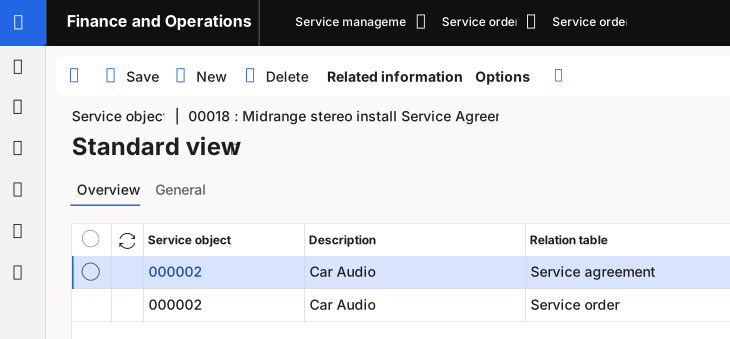
When you create a service object relation, you link the service object to a service agreement or service order.
Create a service object relation for a service agreement
To create a service object relation for a service agreement, follow these steps:
Go to Service management > Service agreements > Service agreements.
Select an existing service agreement from the list or create a new one by selecting New on the Action Pane.
In the Service agreements form, select the Service agreement tab on the Action Pane and then select Relations > Service objects.
Select New on the Service objects form and then select a Service object.
Alternatively, you can assign a template bill of materials (BOM) to the service agreement. To do so, select the Related information tab on the Action Pane and then select Functions > Attach template BOM. Select a Template BOM on the Select template BOM form and then select OK.
Create a service object relation for a service order
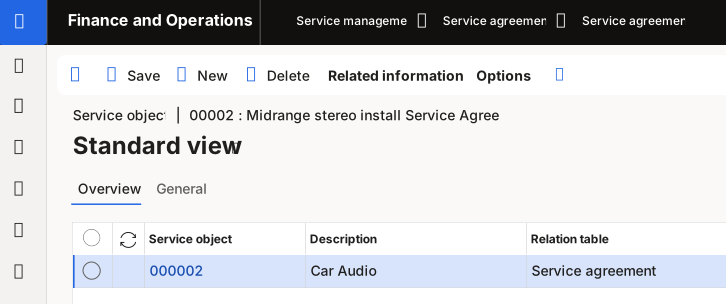
To create a service object relation for a service order, follow these steps:
Go to Service management > Service orders > Service orders.
Select an existing service order from the list or create a new one by selecting New on the Action Pane.
Select the Service order tab on the Action Pane and then select Relations > Service objects.
Select New on the Action Pane on the Service objects form.
In the Service object field, select a service object.
To assign a template BOM to the service order, select Related information on the Action Pane and then select Functions > Attach template BOM. Select a template in the Template BOM field on the Select template BOM form.