Create template BOMs
A template bill of materials (BOM) offers a standardized list of components for service objects that require regular servicing. The components in the template BOM represent the individual subcomponents of the service object. By applying a template BOM to a service object, you can maintain a record of the subcomponents that were replaced during servicing.
Create a template BOM manually
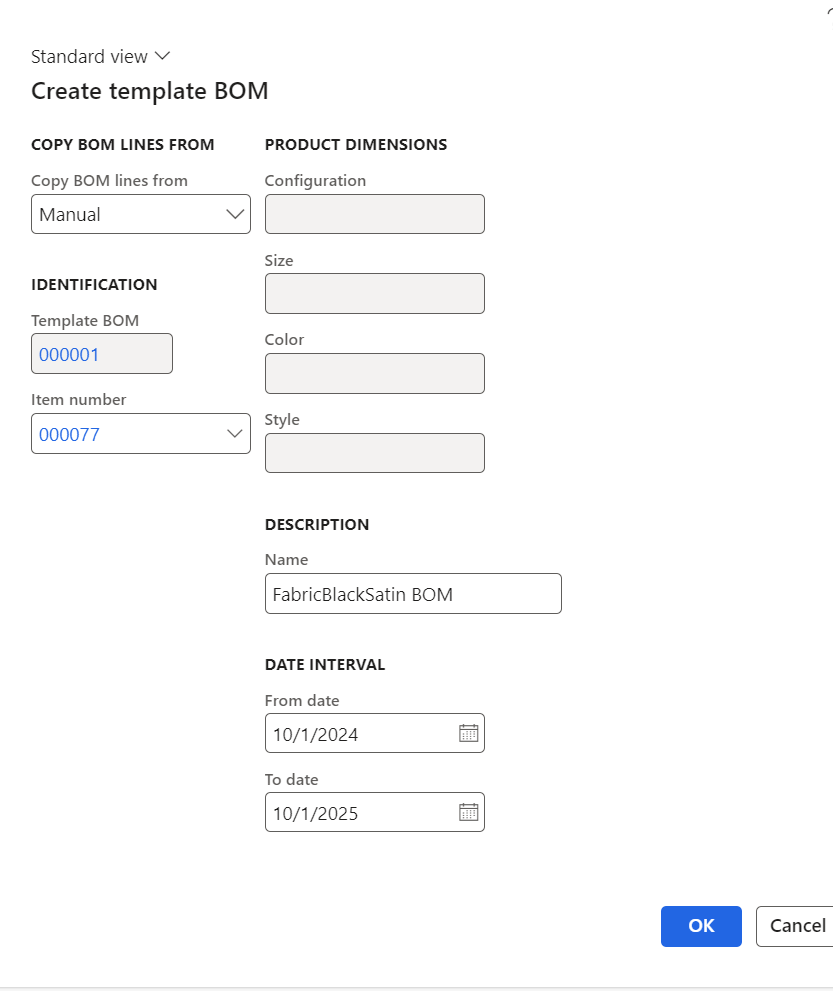
To manually create a template BOM, follow these steps:
Go to Service management > Setup > Service objects > Template BOMs. Select New on the Action Pane.
Select Manual under Copy BOM lines from reference.
Enter an item of the type BOM in the Item number field.
In the Name field, enter a name.
Enter a date interval in the From date and To date fields in which you want the template BOM to be active.
Select OK.
Create a template BOM based on another template BOM
Your organization can create a template BOM based on another template BOM. To do so, follow these steps:
Go to Service management > Setup > Service objects > Template BOMs.
Select New on the Action Pane.
Select the Template BOM option under the Copy BOM lines from reference field.
Select an existing template BOM to copy to your new template in the Reference number field.
Enter a Name and a date interval in the From date and To date.
Select OK.
Create a template BOM based on an item BOM
To create a template BOM based on an item BOM, follow these steps:
Go to Service management > Setup > Service objects > Template BOMs.
Select New on the Action Pane.
Select BOM in the Copy BOM lines from reference field.
Select an existing template BOM to copy to your new template in the Reference number field.
Enter a Name and a date interval in the From date and To date.
Select OK.
The system creates a new template BOM by using lines that correspond to the lines of the BOM that’s listed in Bills of materials.
Create a template BOM based on a production BOM
To create a template BOM based on a production BOM, follow these steps:
Go to Service management > Setup > Service objects > Template BOMs.
Select New on the Action Pane.
Select Production in the Copy BOM lines from reference field.
In the Reference number field, select a production BOM.
Enter a Name and a date interval in the From date and To date fields.
Select OK.
Note
The system creates new template BOM by using lines that correspond to the lines of the BOM that’s listed in Bills of materials.