Service intervals
In Dynamics 365 Supply Chain Management, service intervals in service agreements refer to the scheduled frequency at which you perform services or generate service orders for a customer. These intervals are part of the service agreement and help automate the creation of service orders over time.
To create a service interval, go to Service management > Setup > Service agreements > Service intervals. Select New on the Action Pane. Enter an ID in the Service interval field and a Description. Select a range in the Range field and then specify the Frequency. Select Save when you’re done.
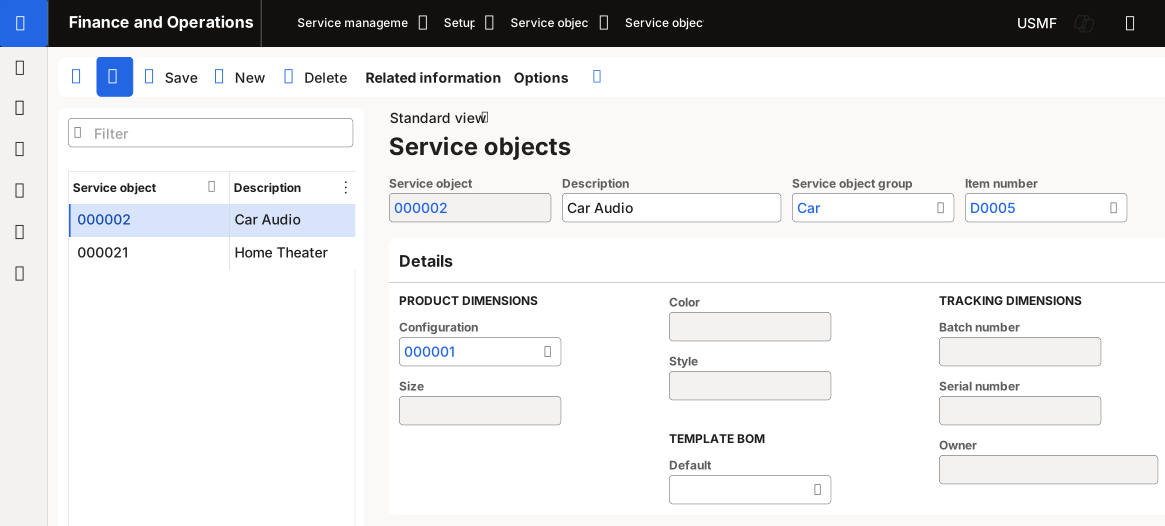
Example: Service intervals
This example demonstrates how a service interval might affect service agreement lines and service order lines on a service order.
Create a service agreement
Your first task is to create a service agreement by following these steps:
Go to Service management > Service agreements > Service agreements. Select New on the Action Pane.
Enter a Description, select a project in the Project ID field, enter a Start date, and then select By service agreement in the Combine service orders field.
Select Save.
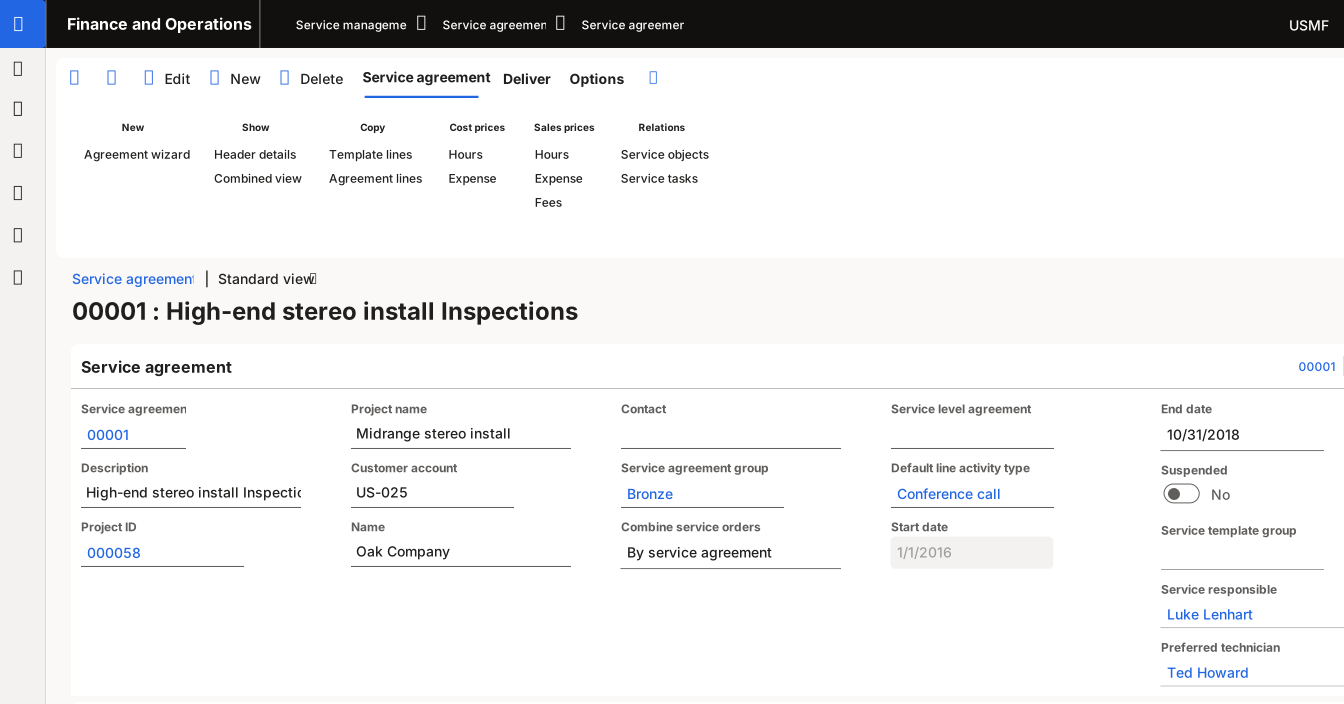
Create a service agreement line
Next, you must create a service agreement line on the service agreement that you previously created. To do so, follow these steps:
Expand the Lines FastTab on the service agreement that you previously created.
Select Add.
Select Hour in the Transaction type field.
Select a worker in the Worker field.
Select 10 Days in the Service interval field.
Select Save.
Create planned service orders
After you create a service agreement and service agreement lines, you can create planned service orders and service order lines for the coming months. On the Service agreements page, select Deliver on the Action Pane and then select Create > Planned service orders. On the Create service orders page, enter the current date in the From field. In the To date field, enter a date one month from now. Set Hour to Yes and then select OK.
The system creates three service orders within the specified time frame. To view the service order lines, select the Deliver tab on the Action Pane and then select Service orders > View.