Design calculation models
With calculation models, you can arrange and configure tiles to define the calculation that a calculation profile runs.
Create and customize a calculation model
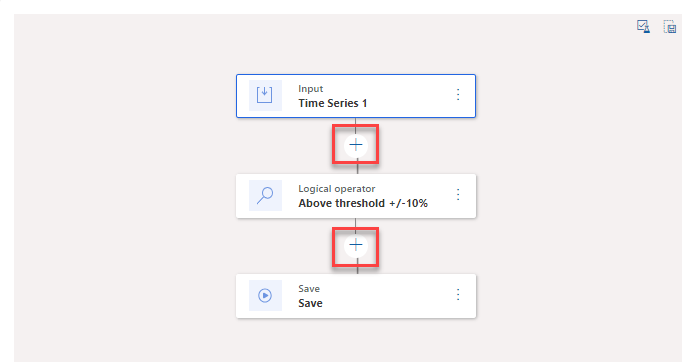
Before you create and customize a calculation model, you need to open an existing calculation profile. Go to Operations > Calculations and select a calculation profile. Select the Calculation Model tab, where you can add, remove, and arrange tiles to fit your business processes. To add different tile types to your calculation model, select the plus (+) icon between the tiles to show a dialog with different tile type options.
After you finish customizing your calculation model, select the Validate button. During the validation process, the system notifies you if any issues arise.
After you fix all issues, you can select Save on the Action Pane. You also have the option to save your calculation model as a preset in case you want to use this calculation model again when you create a new calculation profile. To do so, select the Save as model template button.
Calculation tile types
Multiple types of tiles are available for you to choose from when you're creating a calculation model to help streamline your business processes. The following tiles are available in Demand Planning when you're creating a calculation model:
Input tiles - These tiles signify a time series that provides input to the calculation model. When you add an input tile, the system automatically assigns a name.
Arithmetic operator tiles - When you use these tiles, a certain calculation combines values from two input time series.
Constant arithmetic operator tiles - When you use these tiles, a certain calculation applies a constant arithmetic operation to each value in an input time series.
Data offset tiles - When you use these tiles, a shift occurs in the input time series by a fixed value along the x-axis.
Logical operator tiles - These tiles test whether a value exceeds a constant (threshold) at each point along a time series.
Merge tiles - These tiles merge two time series into a new time series by applying the selected merge logic.
Monetary value tiles - When you use these tiles, they convert a forecast or historical demand time series that's based on sales units into a series of monetary values that are based on a selected price list.
Phase in/out tiles - These tiles modify the values of a data column in a time series to simulate the gradual phasing in of a new element or phasing out of an old element.
Ratio in percentage tiles - These tiles calculate a ratio in percentage based on two input time series.
Save tiles - When you use these tiles, the system saves the results of a calculation model as a new or updated series.
For more information, see Calculation tile types.