Install, turn on, and set up the demand planning app
To use Demand Planning, you must be running Supply Chain Management version 10.0.38 or later.
Install Demand Planning in Power Platform admin center
After signing in to the Power Platform admin center, select Resources > Dynamics 365 apps on the left navigation pane. Select Dynamics 365 Demand Planning Application in the list and then select Install from the toolbar. Select the I agree to the terms of service checkbox and then select Install.
Turn on and set up Demand Planning in Supply Chain Management
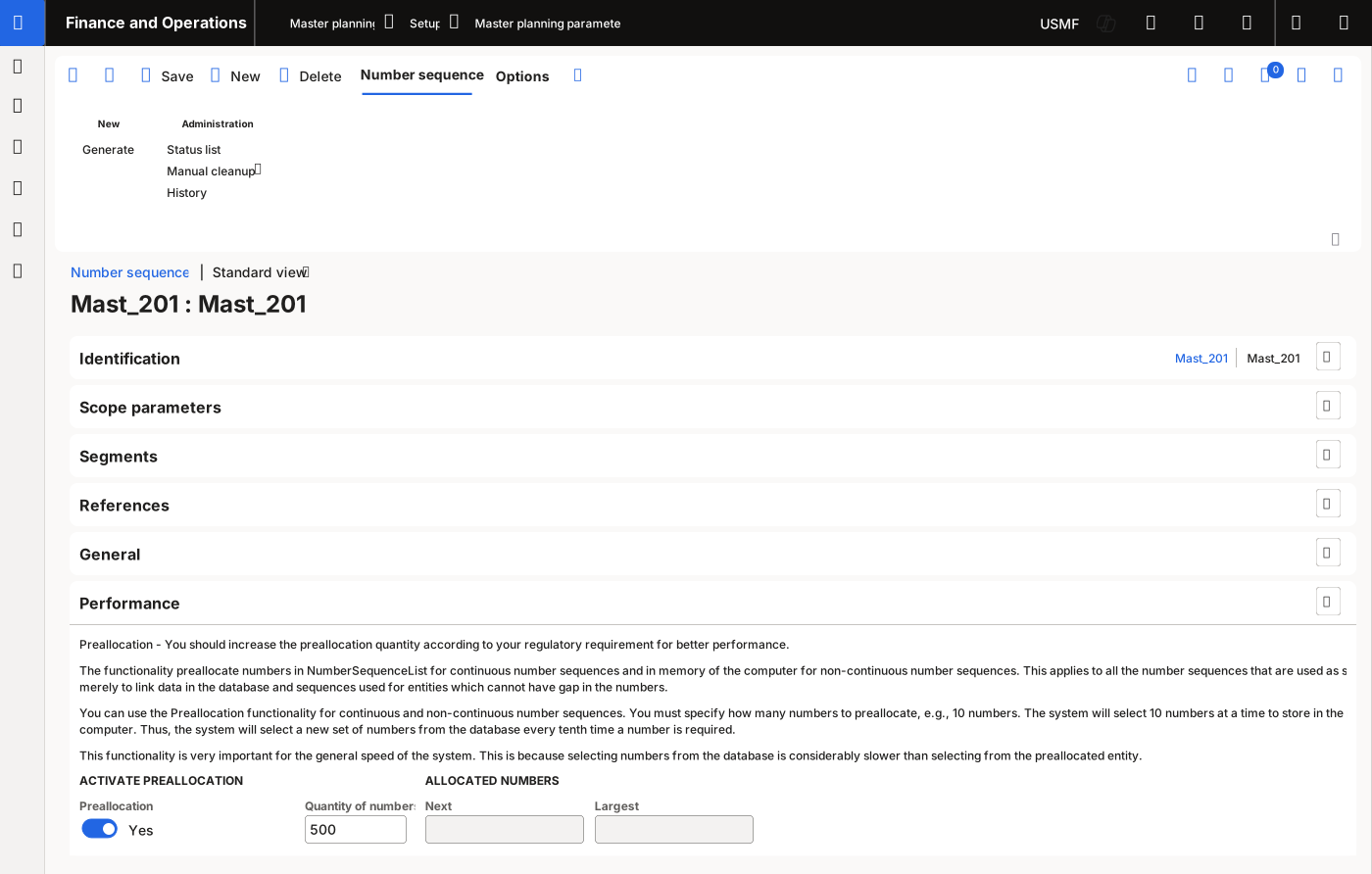
Go to the Feature management workspace in Dynamics 365 Supply Chain Management and turn on the Demand Planning feature. After you turn on the feature, go to System administration > Setup > Demand planning app parameters. In the Demand planning app URL, enter the URL where Demand Planning is installed. Go to Master planning > Setup > Master planning parameters and select the Number sequences tab. Select the Number sequence code for the Reference field Demand forecast sequence number. Expand the Performance FastTab and then set the Preallocation option to Yes. In the Quantity of numbers field, enter 500 and then select Save.
To ensure that data imports and exports between Supply Chain Management and Demand Planning are working correctly, you can refresh the data entity list. To do so, go to System administration > Workspaces > Data management and then select the Framework parameters tile. Select the Entity settings tab and then select Refresh entity list.