Import data into demand planning
View and run existing data import files
When data changes in the external system, you need to do a data import. To update your data by running an existing data import file, go to Data management > Import. In the Name column, select the link for the profile that you want, and then select the type of import that you want to run.
Each tab on the details page for the selected profile contains important information:
Summary - View basic information about the profile.
Configure provider - View and edit the settings for the data provider that the profile uses.
Run schedule - Set up a schedule for the profile to run.
Jobs - View a list of every run of the profile.
If you want to run the profile, select Run on the Action Pane. The system adds a new row to the grid on the Jobs tab that you can use to follow the status of the new import.
Create and manage data import profiles
A manager or admin must create a new data import profile whenever your organization needs to run a new data import.
Create an import profile to import directly from Supply Chain Management
You can create an import profile that uses the Microsoft finance and operations apps data provider. To do so, follow these steps:
Select Data management > Import and then select New on the Action Pane.
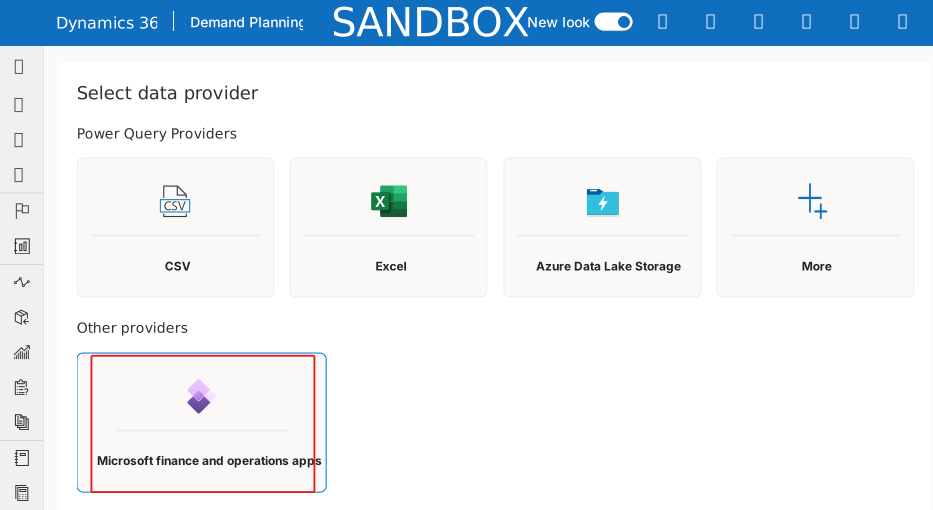
Select the Microsoft finance and operations apps tile on the Select data provider page.
Enter a Name and Description on the Get started page and then select Next when you're done.
Enter the URL for your Supply Chain Management environment in the Connection URL field on the Configure data provider page. Select Next when you're done.
On the Entity selection page, you can view a list of all Supply Chain Management data entities that the solution supports out of the box. For each entity that you want to import from for the new profile, select the Enabled option. Select Next.
Configure a schedule for the profile to run automatically on the Set run schedule page. Select Next when you're done.
Review your configured setting on the Review and finish page. When you're ready, select Review and finish to create the new profile.
Create an import profile to import from an exported file through Power Query
You can create an import profile that uses a Power Query data provider to import from a text or workbook file that you export from an external system.
Go to Data management > Import and then select New on the Action Pane.
On the Select data provider page, select the tile that matches the format of the exported file under Power Query providers.
Enter a Name and Description on the Get started page.
Select the name of the table in Demand Planning in the Select table field on the Select target table page.
Select the file that you want to import and then send it to Power Query on the Configure provider page.
On the Refresh setting page, select or clear the Delete all data for the chosen table before import checkbox. By doing so, you're specifying what happens to the data that's currently in the target table.
On the Set run schedule page, set up a schedule for the profile to run automatically (optional).
Select Review and finish to create the new profile on the Review and finish page.