Security roles and row-level security
Configure security roles and duties in Supply Chain Management
To use Demand Planning, you must have the required security roles and related duties. After you turn on the Demand Planning feature, the system adds a privilege named Demand planning informational tile. With this privilege, users can access a button that opens Demand Planning from the home page. The following table outlines the roles and duties that the system grants the privilege to when you turn on Demand Planning.
| Role name | Duty |
|---|---|
| Production planner | Maintain forecasts |
| Production planner | Maintain firming of planned orders |
| Production manager | Turn on forecast process |
| Production planner | Maintain forecast planning |
| Production planner | Maintain demand forecasts |
| Sales manager | Maintain demand forecasts |
| Production manager | Turn on the demand planning process |
Assign security roles to access Demand Planning on Microsoft Power Platform
Microsoft Power Platform offers numerous security roles to help you control access to features. The security roles that are standard to Microsoft Power Platform are Basic User and System Administrator. All users of Demand Planning must have the Basic User role to access the app. Additionally, security roles that are specific to Demand Planning are available, such as Demand Planning Manager, Demand Planning Contributor, and Demand Planning Service Role. For more information, see Security roles for accessing Demand planning on Power Platform.
Set up row-level security to access data in Demand Planning
You can configure row-level security in the Demand Planning app. Moreover, you can manage and grant access to certain areas of the application to specific users. For example, you might have a user whom you want to only view specific products or product families. The Demand Planning Contributor role allows users to access Demand Planning, but they can only edit and view data that they have access to. To grant those users with access to the data, you must assign them a row-level access rule.
Follow these steps to set up row-level security:
On the navigation pane, select Row level access in the Configuration section. You must be using the system admin account to assign row-level security.
Select New in the upper toolbar.
A setup wizard launches and prompts you to the Create new access rules page. Enter a Name and Description.
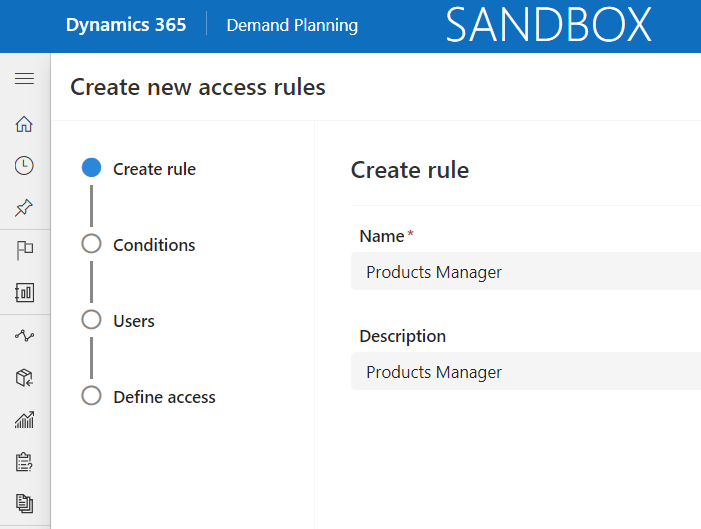
Select Next to move to the next page.
Select Add condition and then set up the logic for the data tables and columns that you want the rule to grant the user with access to.
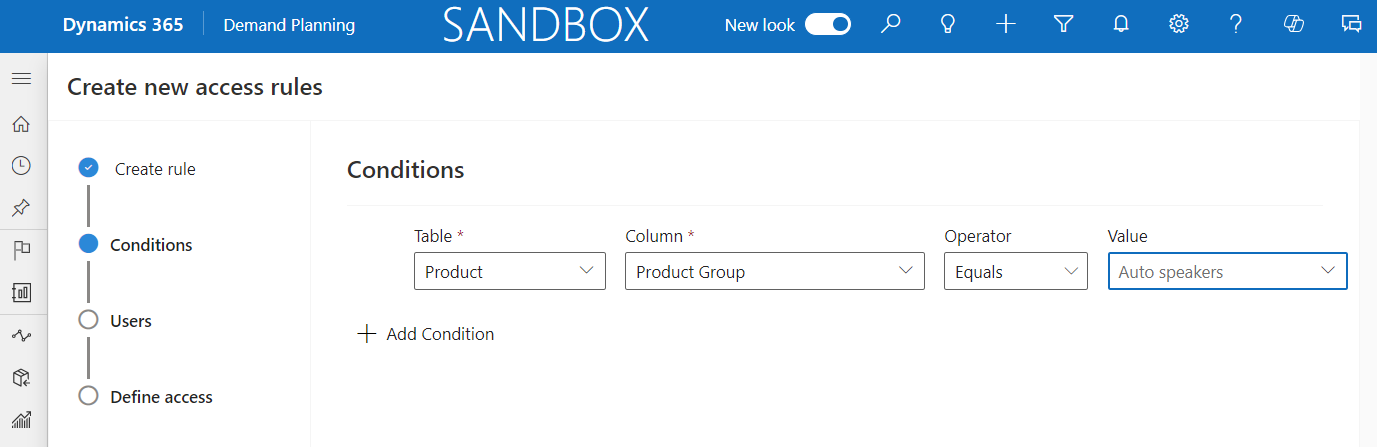
On the Users page, select each user that the current row-level access rule applies to.
On the Define access page, set whether you want the users in this row-level access rule to edit or view the data in the Access field. Set the Activation to active or inactive depending on when you want this rule to be available. Select Review and finish to create the row-level access rule.
