Transform data
Transformations allow the conversion of imported data in a chosen table into time series. Subsequently, you can use these time series for forecasting, conducting comparative analyses with forecasts, or performing various calculations. To do so, your organization needs to create transformation profiles. Transformation profiles use a selected main table as its input.
View and run existing transformation profiles
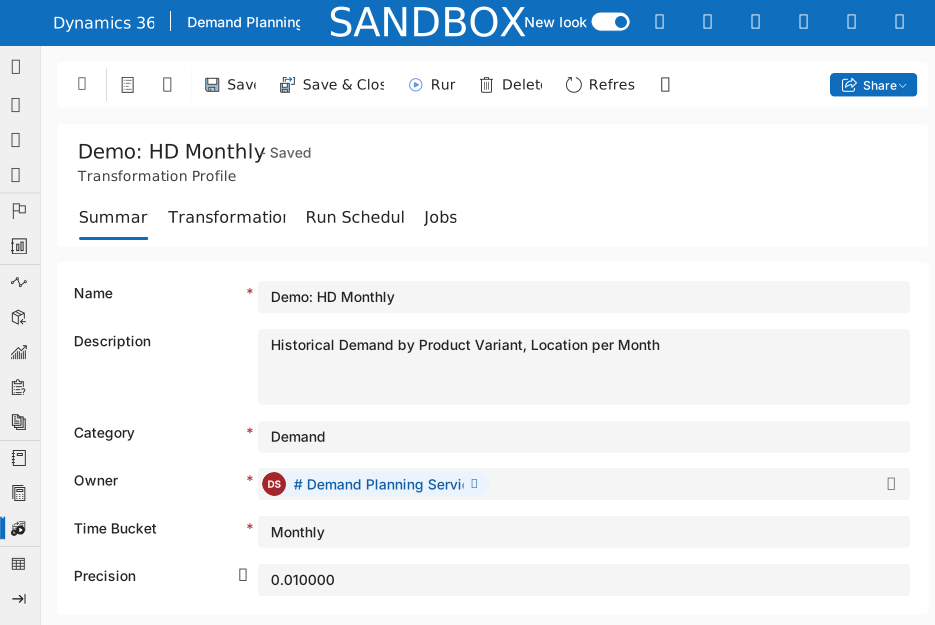
To update your time series by running an existing transformation profile, go to Operations > Transformations. Select the link in the Name field to open the profile. The details page includes tabs that display information that's relevant to the profile. To run the profile, select Run on the Action Pane.
Create and manage transformation profiles
A manager or admin must create a new transformation profile whenever your organization requires a new type of data transformation. Follow these steps to create a transformation profile:
Go to Operations > Transformations and then select New on the Action Pane.
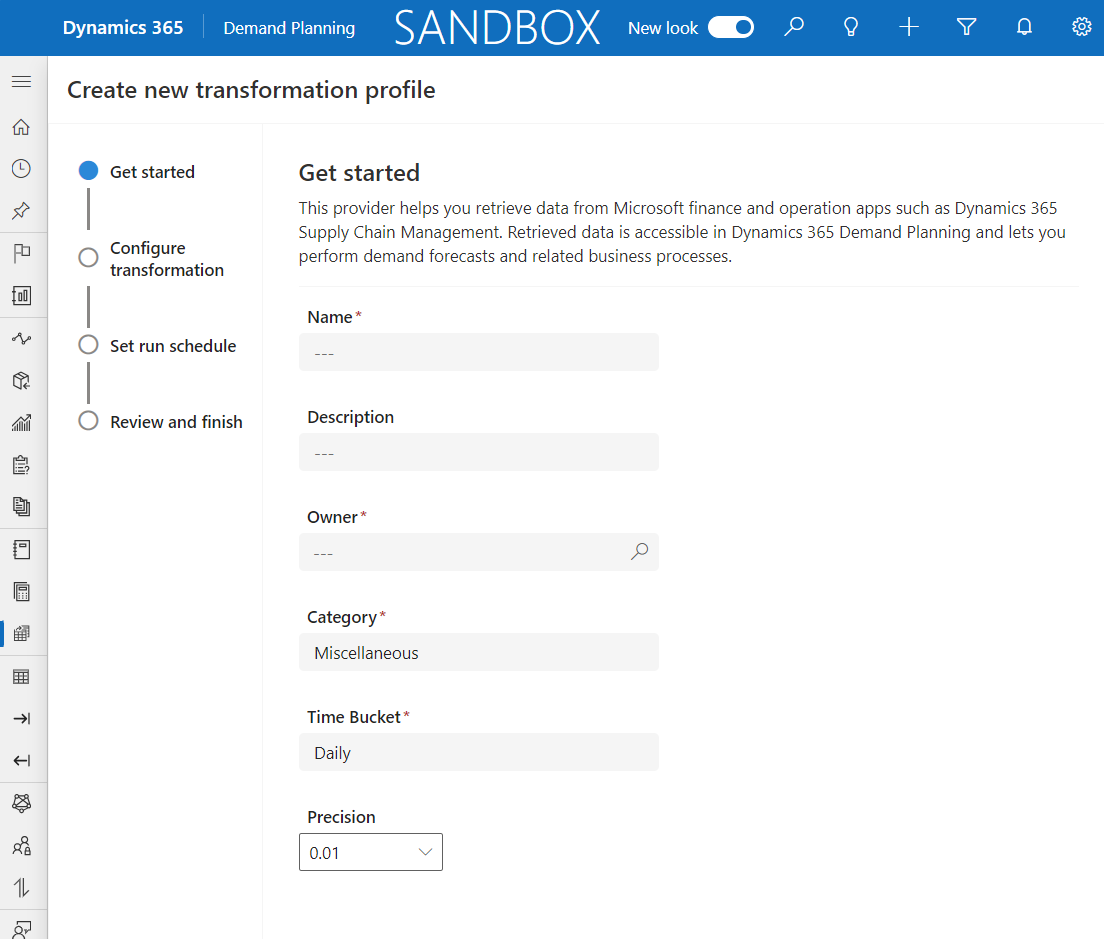
Set the Name, Description, Owner, Category, and Time Bucket fields on the Get started page. The Time Bucket field allows you to specify the time span to sum data by in the time series that the profile generates as an output.
Select a table and map the columns of the table and the related tables to transform the data into a timeline on the Configure transformation page. To select the main table, select Add columns. You can also add or remove columns from the main table and the related tables by selecting the Add columns button.
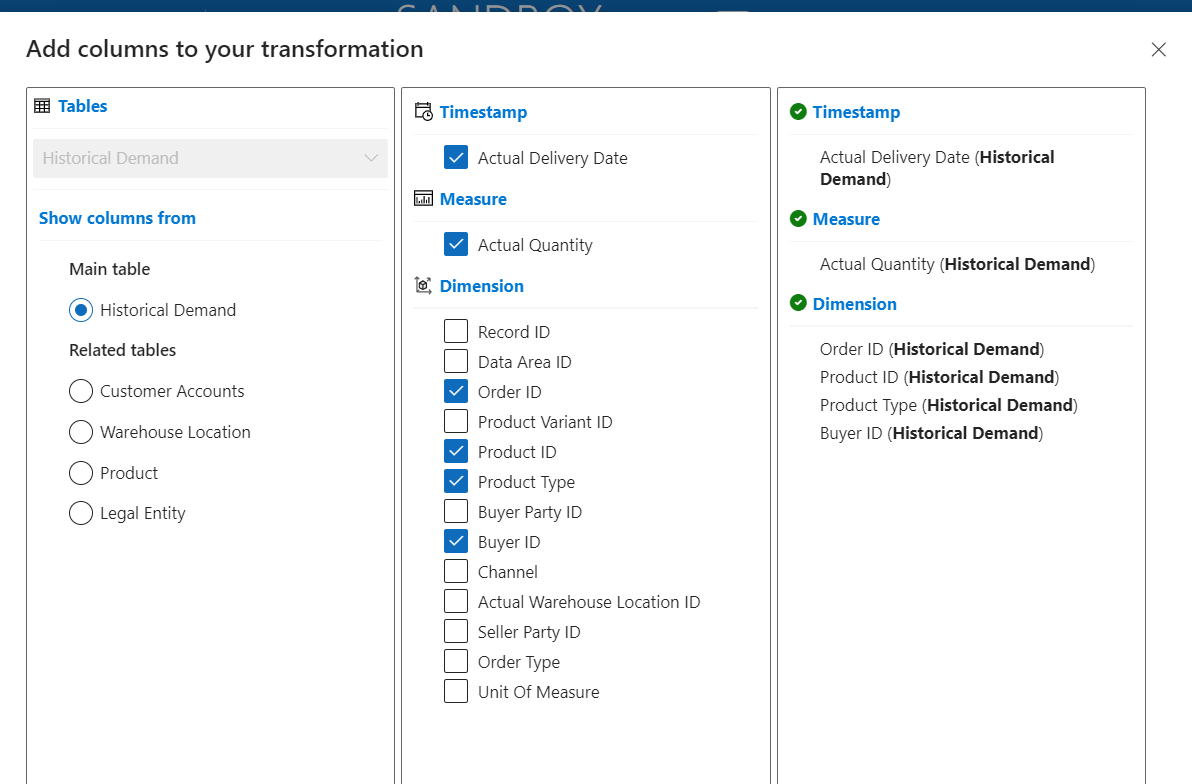
In the Add columns to your transformation dialog, select a table in the left column. In the middle column, select the name of the data column in the table that you want to add.
The Timestamp column is the x-axis of the output time series.
The Measure column is the y-axis of the output time series.
The Dimension column provides different parameters that allow you to choose values to view in the output time series.
Select OK when you're done.
Set up a schedule for the profile to run automatically on the Set run schedule page (optional).
Select Review and finish on the Review and finish page after you review the summary of your configured setting.
Select Run on the Action Pane to create a time series.
