View and customize tables for holding data
Make sure that you carefully organize the data that you bring into Demand Planning into tables that are equipped with the necessary fields and relationships that can handle the incoming information effectively. Demand Planning includes predefined tables that support standard data. Additionally, it includes tools to help you replicate custom fields if your organization has customized tables in Supply Chain Management.
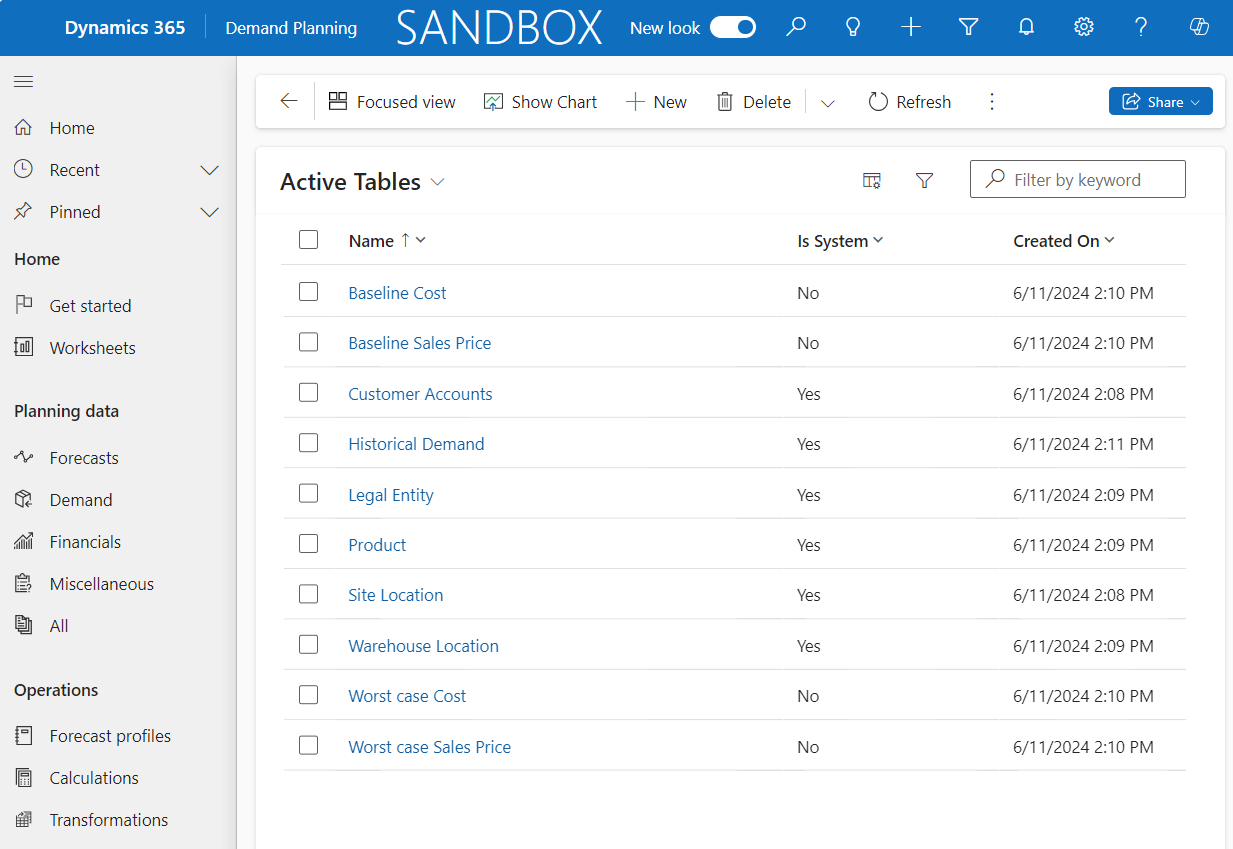
To view the tables that are available for Demand Planning, go to Data management > Data and tables. For more information, see Standard tables.
Create or edit a table and its columns and relationships
You can create your own custom tables or extend the system tables by adding extra custom columns. To create or edit a table, go to Data management > Tables and data. To create a new custom table, select New on the Action Pane. To edit an existing table, select the link in the Name column of the table that you want to edit. If you're creating a new table, on the General tab, set the Name and Owner. The system auto-populates your user as the owner of the table, but you can change that setting if you want. After you enter the required information, select Save. If you're editing an existing table, you need to specify the Key. You must specify one or more columns whose combined values identify each row in the table. After you specify the key, select Save.
On the Columns tab, the name, data type, and system status of each column is available. Select New to add a new column to the table. Each column must have a Name and Data type. If you create a new table, after you finish creating columns, return to the General tab and then specify Key columns.
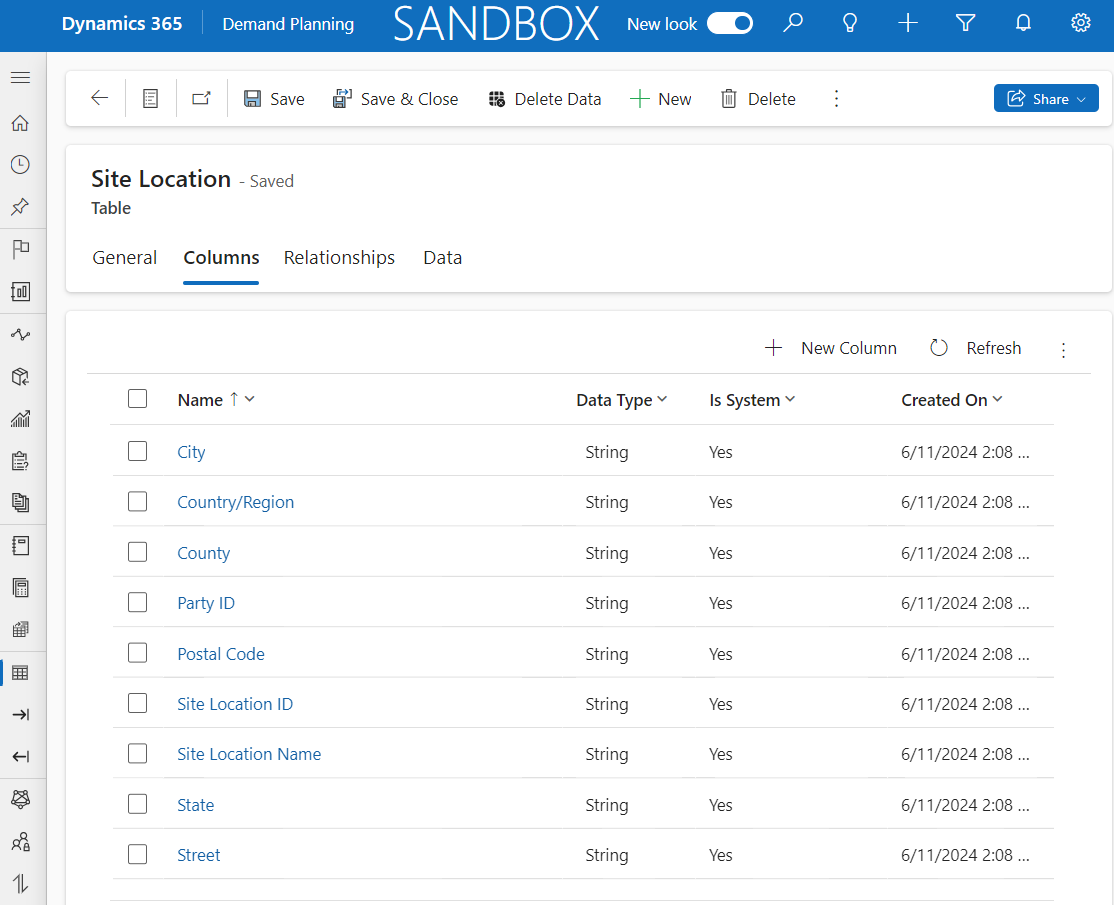
Select the Relationships tab. Predefined system relationships are required for tables and columns. Relationships link two tables together and allow you to match related information in different tables. The relationships are directional, containing a "from" table and a "to" table.
To add a new relationship, follow these steps:
Select New Relationship.
The Quick Create: Relationship dialog appears. Set the following fields: From Table, From Column, To Table, and To Column.
After you enter the required information, select Save and Close. All relations are active by default, but you have the option to deactivate or delete them if you want.
View the data that your table contains by selecting the Data tab.
Delete all records in a table
Often, your business processes change, requiring you to delete all records in a table. To do so, go to Data management > Tables and data. Select the Name of the table to open the table. On the Action Pane, select Delete Data > OK.
Security configuration for custom entities
You need to configure certain security settings in Dynamics 365 Supply Chain Management to allow the system to read data from custom entities. Follow these steps to configure the proper security settings:
In Dynamics 365 Supply Chain Management, go to System administration > Security > Security configuration and then select the Privileges tab.
Select Create new on the Action Pane.
Enter a Name for your new privilege and then select OK.
With your new privilege selected, select Entities from the References box.
Select Add references. In the dialog, select the Entities and Access properties options and then select OK.
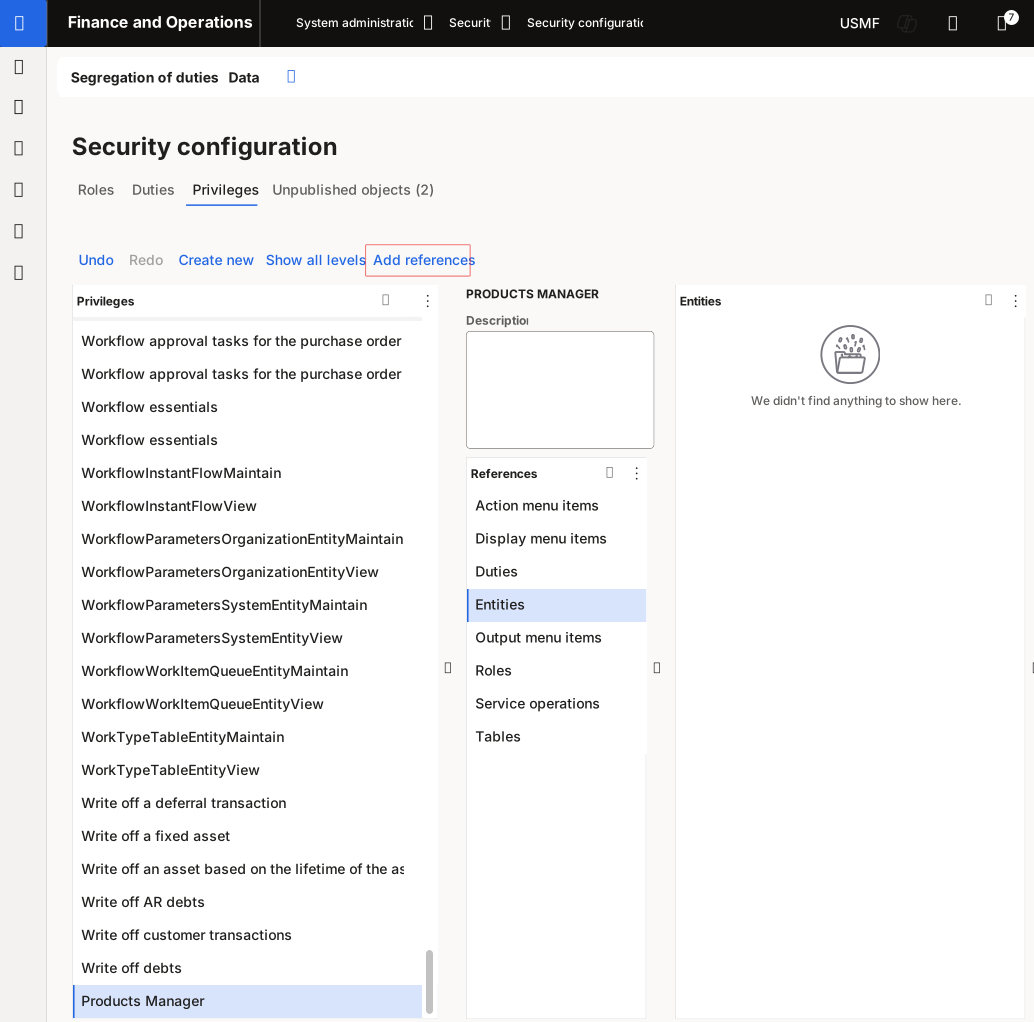
Select Duties from the References box. Select Add references.
Select View Document entity data for data management or select Create data management project and details using entity depending on the level of access you want.
Select OK.
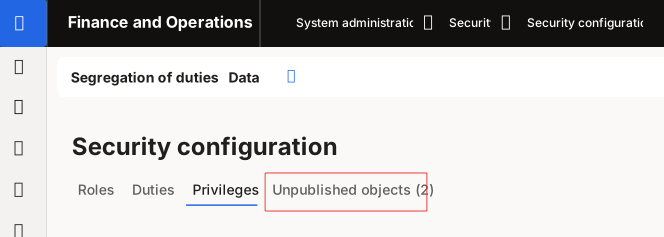
Select the Unpublished objects tab and then select Publish all.