Functional location lifecycle states
All functional locations have lifecycle states that define the status of the functional location. Some examples that are used in lifecycle states include Active, On Hold, New, and Ended. You can view the current state of a functional location at any time on the All functional locations page. This unit describes how to set up functional location lifecycle states.
Set up functional location lifecycle states
To set up functional lifecycle states, follow this procedure:
Go to Asset management > Setup > Functional locations > Lifecycle states.
Select New on the Action Pane to create a new functional location lifecycle state.
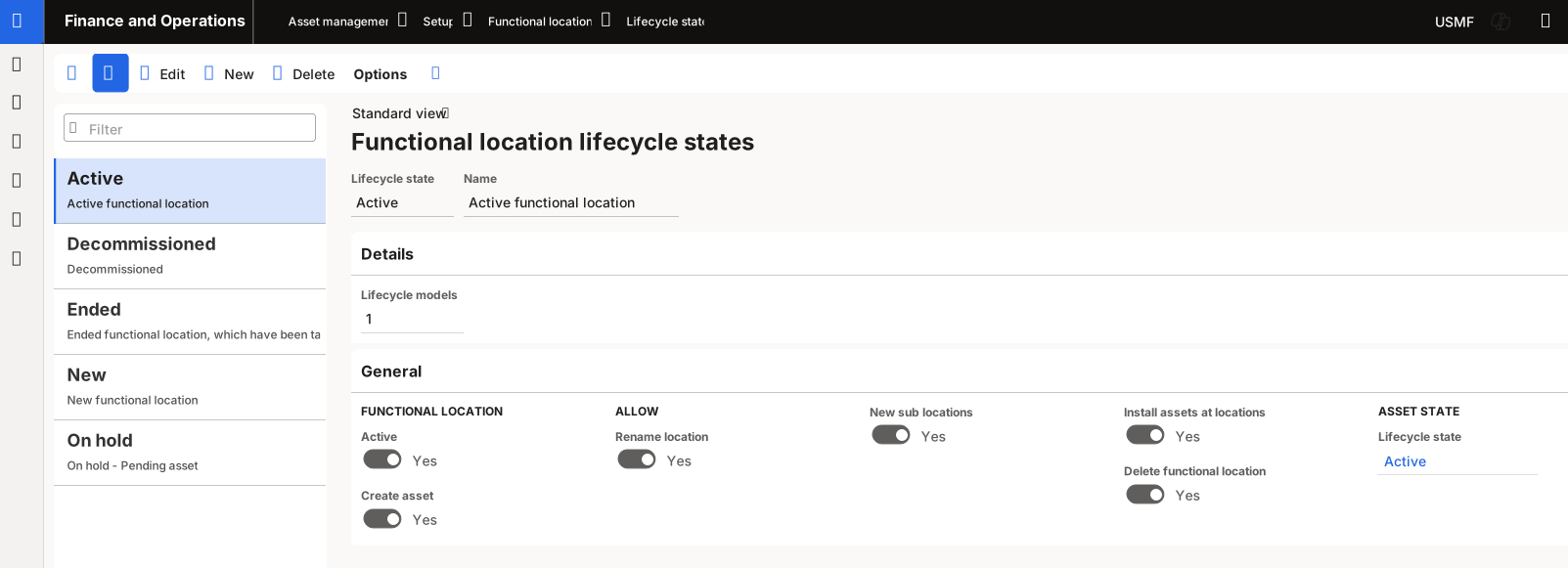
In the Lifecycle state field, enter the new Lifecycle state, such as Active.
In the Name field, you can enter the Lifecycle state, such as Active. You can also enter a description in this field, if desired. An example description could be: Active functional location.
When you are creating a new lifecycle state, the Lifecycle models field will not be populated. When this lifecycle state is added to a lifecycle model, this field automatically populates to show the number of lifecycle models that this state is included in.
On the General FastTab, select Yes on the Active toggle button if you want the functional location to be active.
Select Yes on the Create asset toggle button if you want to automatically create an asset with the same name as the functional location and install it on the functional location during this lifecycle state.
Note
The Create asset toggle button relates to the Asset type field on the General FastTab on the Functional location types page (Asset management > Setup > Functional locations > Functional location types).
Select Yes on the Rename location toggle button if you want to be able to change the name of the functional location at this state.
Select Yes on the New sub locations toggle button if you want to add new sub locations to the functional location at this state.
Select Yes on the Install assets at locations toggle button if you want to be able to install assets on the functional location at this state.
Select Yes on the Delete functional location toggle button if you want to be able to delete the functional location at this state.
Select an Asset state in the Lifecycle state field if you want the asset lifecycle state for all assets that are installed on the functional location to be automatically updated or changed at this state. For example, if you close down a functional location and set the functional location lifecycle state to Ended, you might want to automatically change the lifecycle state of all the assets that are installed on that functional location to Not in use.
Note
When initially building your lifecycle states, you might not have any information yet to select from the Asset state > Lifecycle state drop-down menu until you have completed the full configuration for your assets, including the asset lifecycle states.
Asset management > Setup > Functional locations > Lifecycle states
The following demonstration shows how to create a functional location lifecycle state.
Set up functional location lifecycle models
When you have created the lifecycle states that are required for your functional locations, you can bundle them into groups. This process is done to create a lifecycle model flow that can be used for different types of functional locations. You should have at least one standard functional location lifecycle model created.
To set up a functional location lifecycle model, follow this procedure:
Go to Asset management > Setup > Functional locations > Lifecycle models.
Select New.
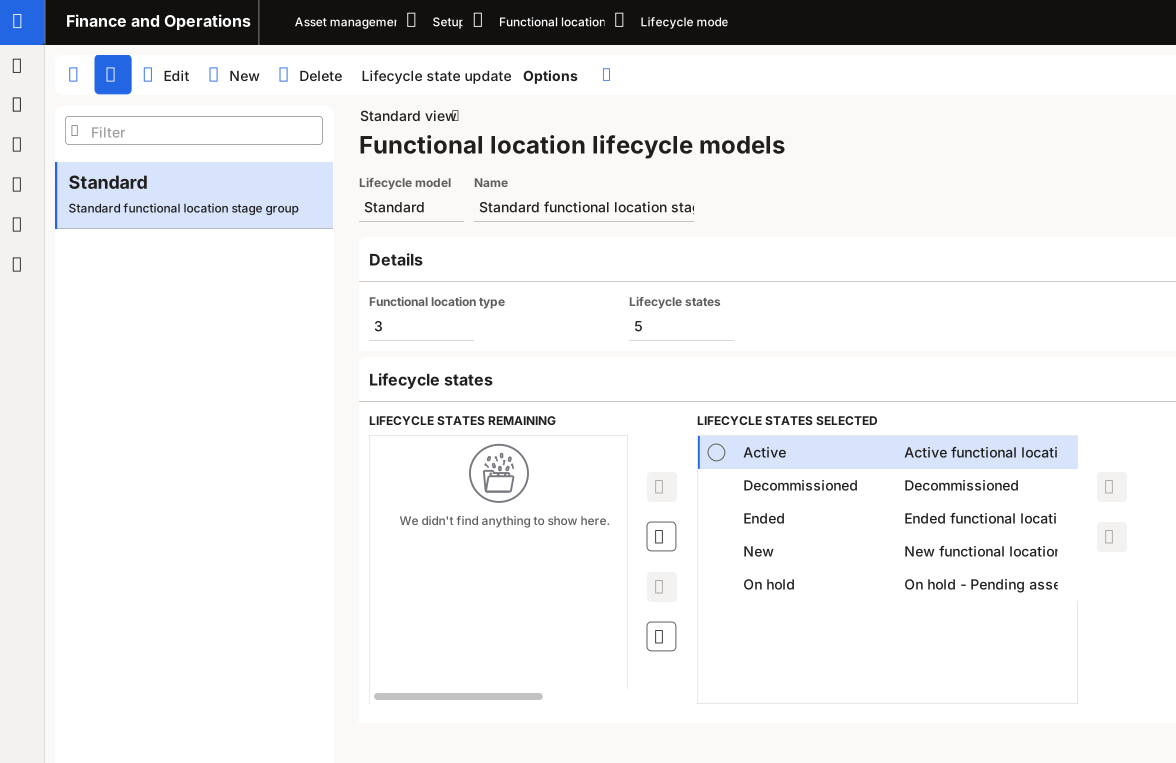
Enter the name of your Lifecycle model, for example Standard.
In the Name field, enter a descriptive name for the lifecycle model, such as Standard.
Under the Details FastTab, the Functional location types and Lifecycle states fields automatically populate and display the number of functional location types and lifecycle states that are using the current lifecycle model.
Under the Lifecycle states FastTab, the active lifecycle states appear in the Lifecycle states remaining section at the left. These states are the ones that are available for inclusion in the current model group.
To move a specific lifecycle state to the Lifecycle states selected section, select the state in the Lifecycle states remaining field to be moved and then select the right arrow button.
To select all of the lifecycle states to be included in the model, select the right move all arrow button to move the entire selection from the Lifecycle states remaining section over to the Lifecycle states selected section.
To remove a specific lifecycle state from the model, choose the lifecycle state to be removed from the Lifecycle states selected section and then select the left arrow button to move it back to the Lifecycle states remaining section.
To remove the entire selection from the model, select the left move all arrow button. All the lifecycle states in the Lifecycle states selected section are then moved back to the Lifecycle states remaining section.
Select Save.
Asset management > Setup > Functional locations > Lifecycle models
Lifecycle state updates
When the functional location lifecycle model is created, you must define how the states can flow in the system. This designation is determined by your company’s process flow and design.
While in the Functional location lifecycle models page, select Lifecycle state updates on the Action Pane.
Next to each lifecycle state, select the status that the state can be changed to.
For example:
- Active can be changed to On Hold or Ended.
- On Hold can be changed to Active or Ended.
- New can be changed to Active or On Hold.
- Ended can be changed to Active.
Select OK to save the updates.