Choose the right screenshot for your message
Start with the standard Snipping Tool capture options available in Windows 11. These options establish the baseline capture experience before you use Perfect Screenshot on a Copilot+ PC to simplify a rectangular capture.
In the Contoso scenario, your project dashboard contains information about the website refresh, including:
- Overall status: On track
- Completed milestone: Content migration
- Current milestone: User acceptance testing
- Upcoming milestone: Launch readiness review
- A project-progress visualization
- Project contact information
Snipping Tool provides different ways to capture what's on your screen.
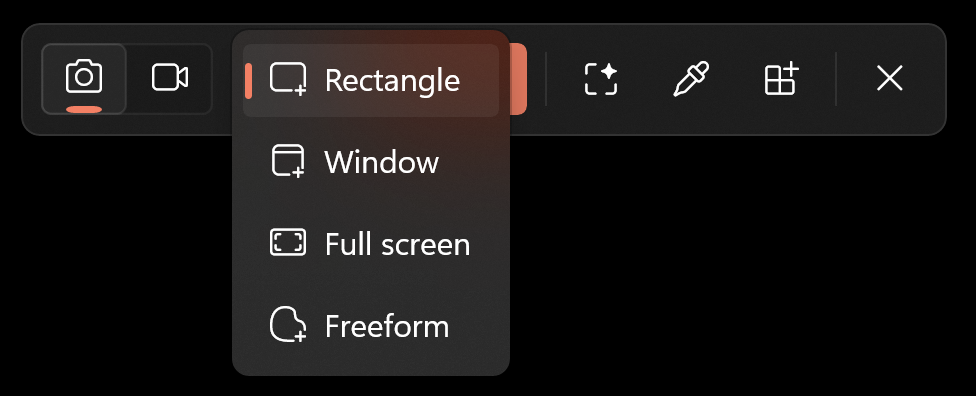
Start by choosing the capture type according to the content you want to include:
| Capture type | What it captures | Use it when |
|---|---|---|
| Rectangle | A rectangular area you drag to select | The information occupies part of the screen |
| Window | A selected window | The entire application window provides useful context |
| Full screen | The entire screen | Everything visible on the display is relevant |
| Freeform | An area enclosed by a custom shape | The content doesn't fit neatly within a rectangle |
You can use Windows logo key + Shift + S to begin an image capture with Snipping Tool.
On a supported Copilot+ PC, Perfect Screenshot is available from the Snipping Tool capture experience. Press Windows logo key + Shift + S to open the capture overlay used in this module. Perfect Screenshot might not appear directly in the main Snipping Tool window, so the interface you see can differ depending on how you start a capture.
Think about the goal, not just the screen
The most useful screenshot isn't necessarily the one that includes the most information. For the Contoso update, you need the portion of the dashboard that communicates project status, rather than surrounding applications or unrelated content.
Next, you'll see how a Copilot+ PC can make that rectangular capture easier.