Capture a focused screenshot with Perfect Screenshot
With a standard rectangular capture, getting the framing exactly right can require careful positioning or cropping afterward. Perfect Screenshot on a Copilot+ PC lets you start with a rough rectangular selection and automatically adjusts the capture area to tightly frame prominent on-screen content. This can reduce the need for post-capture cropping.
You'll use Perfect Screenshot to capture the relevant portion of the Contoso project dashboard.
Note
The Perfect Screenshot experience can look different when you begin a capture from the main Snipping Tool window. Depending on your Snipping Tool and Windows configuration, the capture experience can expose the Perfect Screenshot controls differently. This exercise uses the Windows logo key + Shift + S capture overlay for consistency.
Capture the relevant material
Open the Contoso website refresh project dashboard.
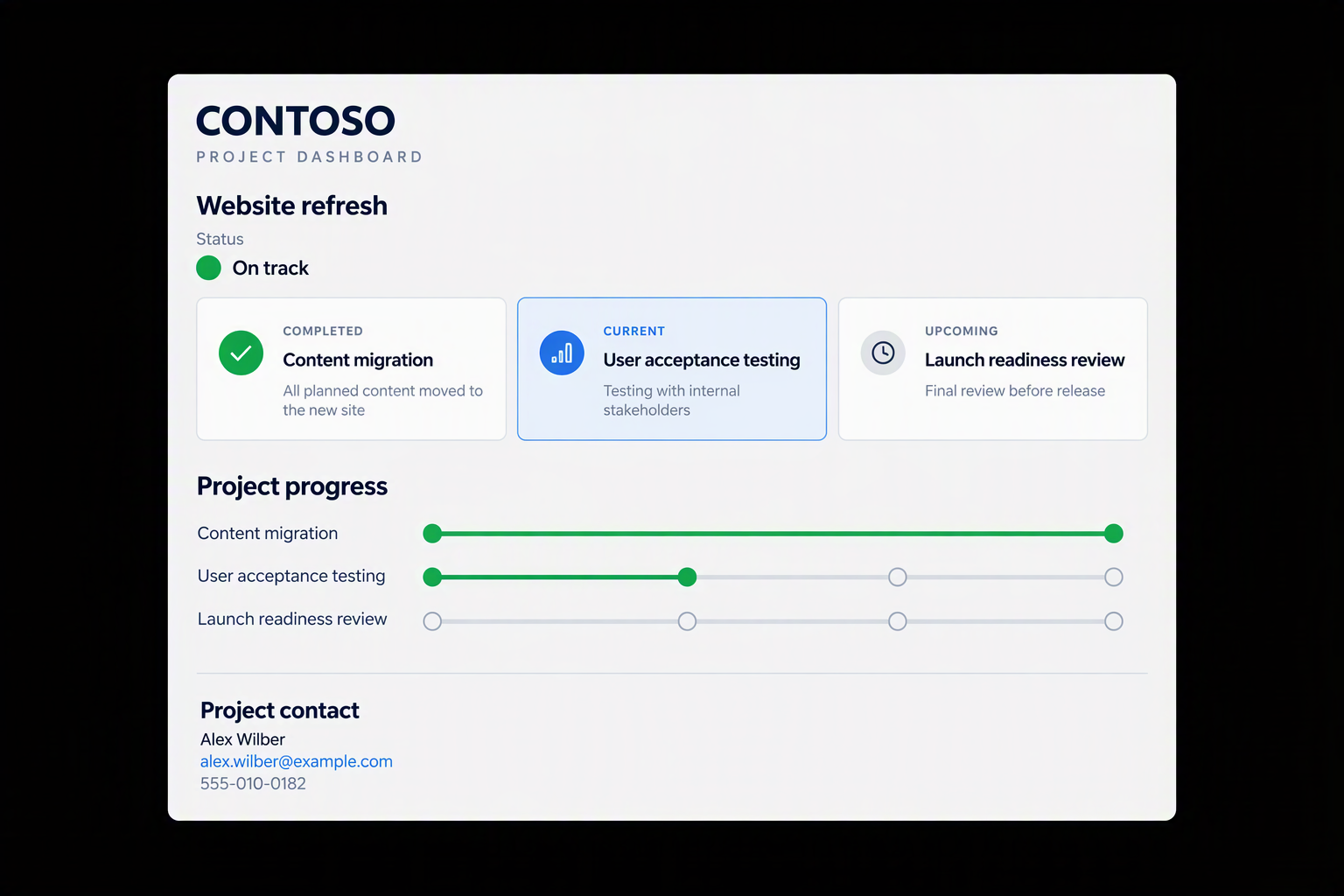
Press Windows logo key + Shift + S to open the Snipping Tool capture overlay.
Select Perfect Screenshot.
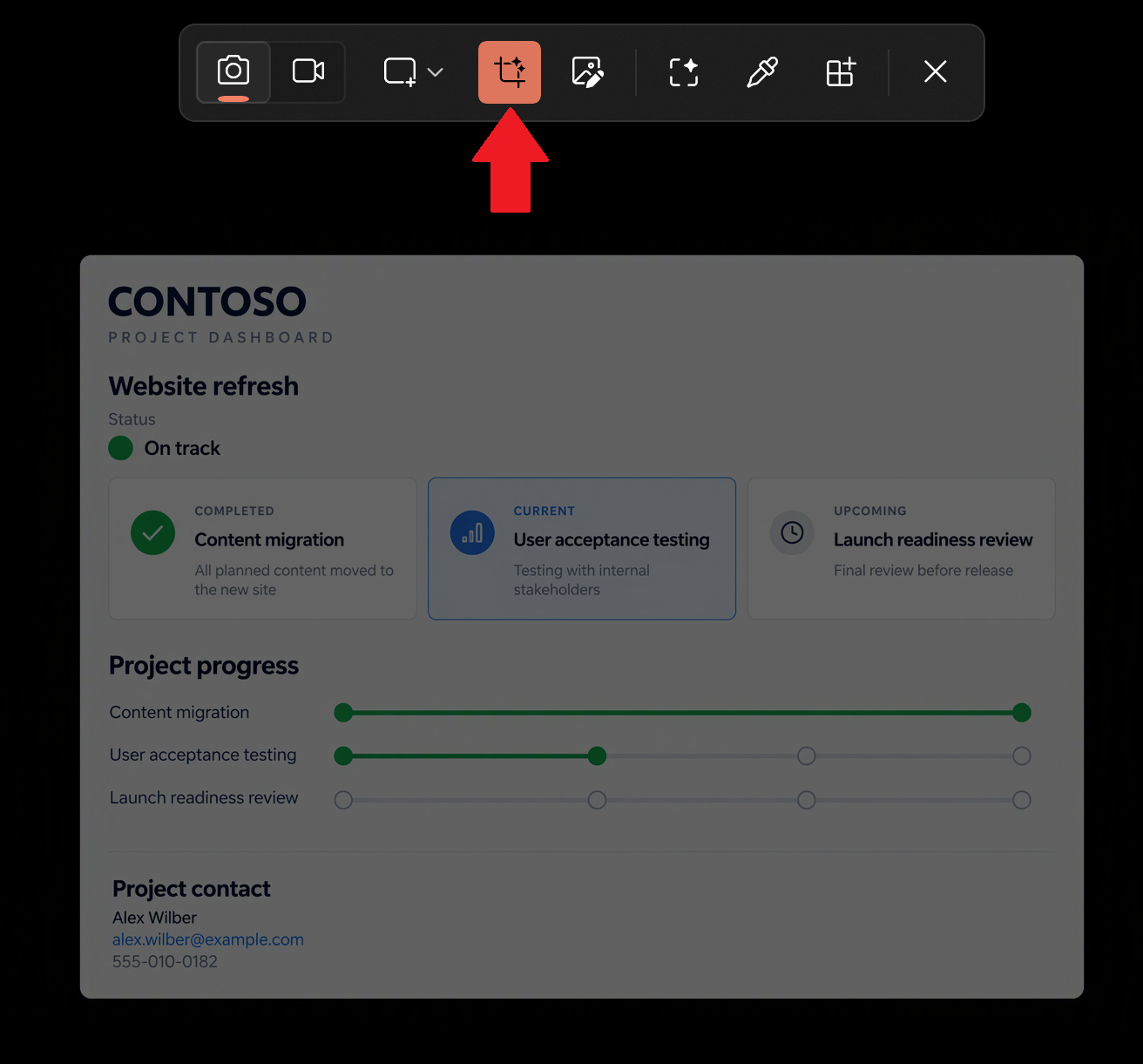
Drag a rough rectangle around the project information you want to capture.
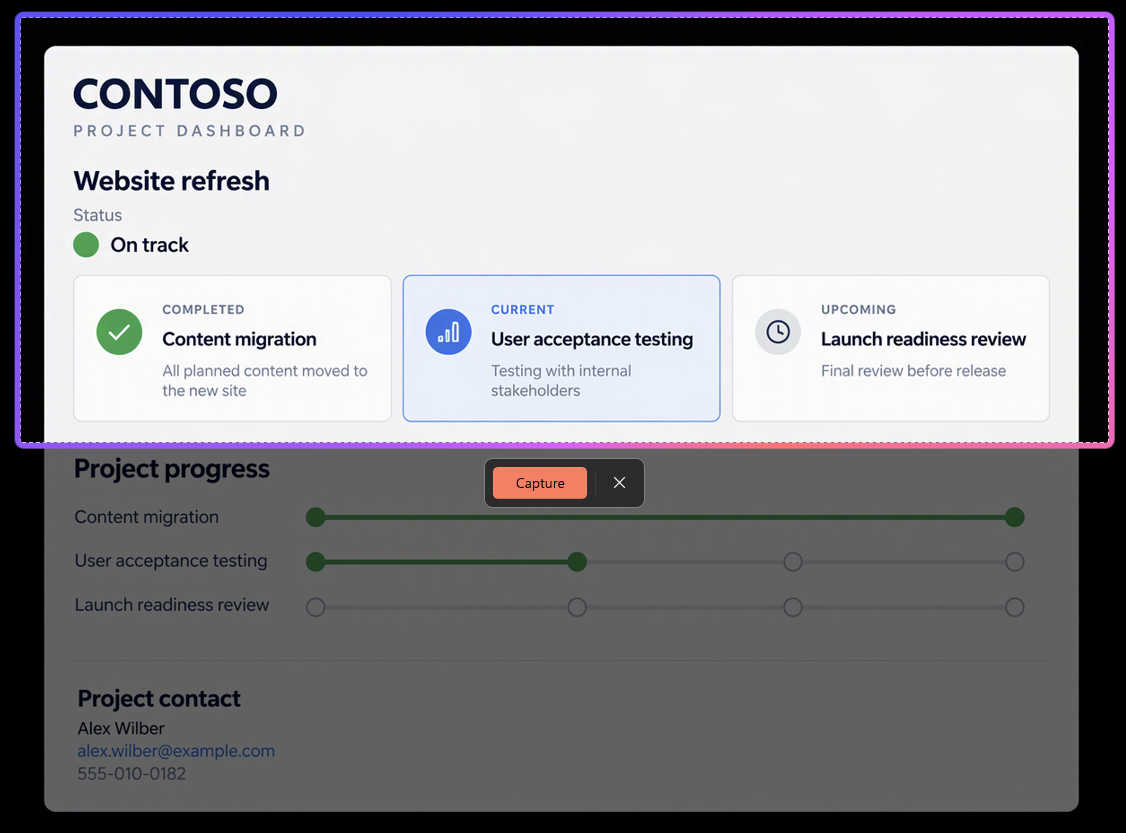
Review the adjusted capture area.
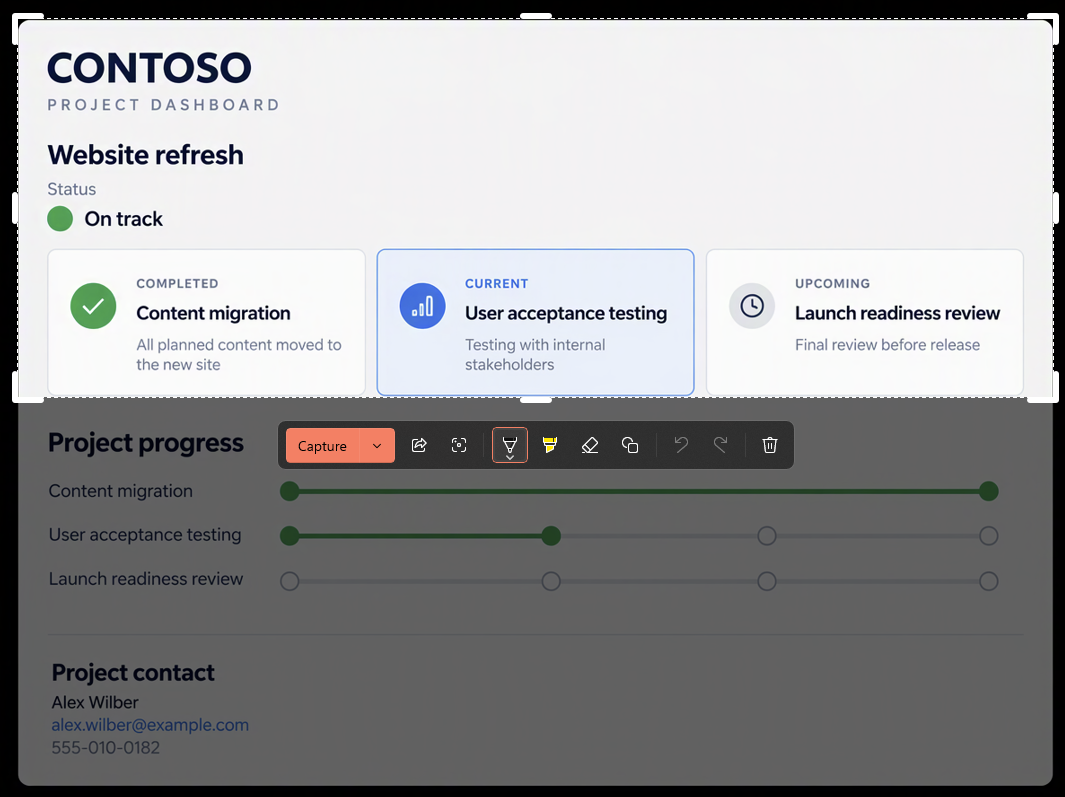
If necessary, drag the handles to fine-tune the boundary.
Complete the image capture.
Your initial selection doesn't need to be exact. Perfect Screenshot analyzes the visible content and adjusts the boundary around prominent content, helping reduce manual cropping afterward.
You now have a screenshot that focuses on the project information your colleagues need rather than everything that happened to be visible on your display.
Note
Perfect Screenshot applies to image captures on supported Copilot+ PCs. It automatically adjusts the selected capture area to tightly frame prominent on-screen content, reducing the need for post-capture cropping.
Think beyond the scenario
Perfect Screenshot adds the most value when you need part of the screen rather than an entire window or display, and you don't want to precisely position and crop the selection yourself.
Next, you'll refine the captured image so that its most important information is immediately noticeable.