What is Ink Canvas?
Microsoft Ink Canvas is an AI-powered, pen-first experience designed for visual thinkers who use pen and touch as part of how they create. By supporting sketching, annotating, image generation, and summarizing ideas into text, Ink Canvas helps users ideate and compose their thoughts on a single canvas.
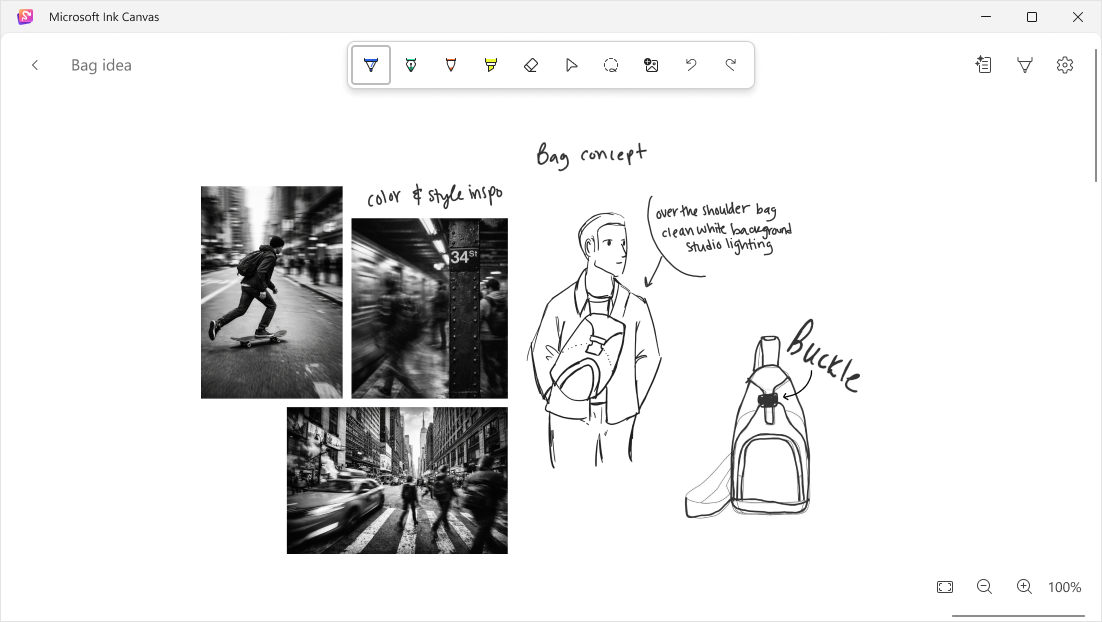
By using AI, Ink Canvas helps users iterate upon their ideas and continue working in apps that they already use. In the past, the pen was often relegated to being a capture tool, as a tool for taking notes but requiring extra steps to get usable work out of it.
Consider this scenario. You are in a meeting and brainstorming with a project lead. In your note-taking application of choice, you use your pen to take notes to stay on track. After the meeting, making use of these notes requires extra steps. Those steps might have required switching apps, retyping key findings, reformatting structure, or a combination of those steps.
With Ink Canvas, that process can be more centralized. Notes or sketches that are created with the pen can then be turned into polished output with AI integration in the Ink Canvas application. This evolution in note-taking workflow enables business users to take messy ideas and turn them into work that's ready to share. Next, let's explore core features of Ink Canvas.
What Ink Canvas can do
Licensing note: Inking and non-AI features are available without a Microsoft 365 subscription. Copilot-powered features require an eligible Microsoft 365 subscription, and AI usage limits apply. Before demonstrating AI capabilities to a customer, confirm that the intended account and subscription provide access; installing the app alone does not establish AI eligibility.
Four key capabilities help Ink Canvas users get more done:
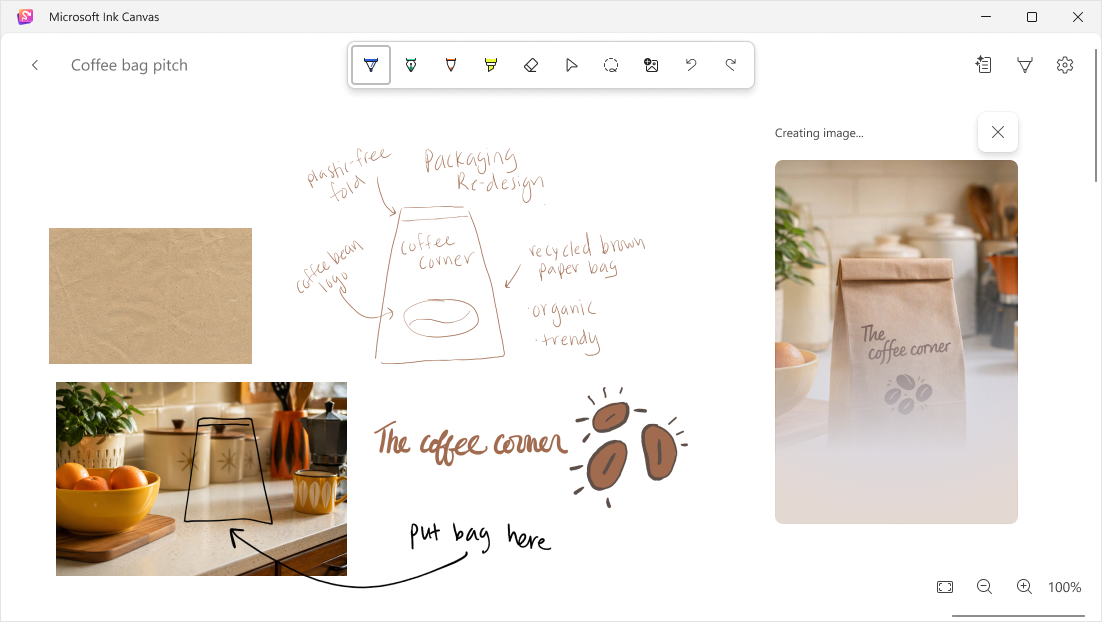
- Image generation: Using Ink Canvas, you can sketch a concept, then generate an image from your inking. Creation goes beyond the sketch itself: you can also leave annotated notes and instructions on the canvas, such as labels and arrows that show where details should appear, and the AI acts on them. This makes it easier to visually show what you want to happen, rather than typing a description into a prompt box. In the example above, the user created an idea for an espresso machine. By using Ink Canvas' built-in AI tools, they are able to generate an image of what the product could look like—enabling the end viewer to get a better understanding of the idea.
- Text summarization: Use Text Generation to turn canvas content into text and use Copilot to help understand and shape selected canvas content. The benefit of using Surface Slim Pen is that it feels like a natural pen-to-paper experience, allowing users to brainstorm effectively. Ink Canvas enhances that experience by taking those notes and turning them into easily sharable pieces of text or charts—enabling them to be used in a range of different documents. Sharing is currently done by copying and pasting elements, whether that's the text summary or individual tables, charts, or images. In the example above, the user drew multiple charts and diagrams, and Ink Canvas' AI was able to turn that into glanceable information that could be shared with stakeholders.
- Automatic canvas titles: When you launch Ink Canvas, a new canvas is created. These are named and saved automatically as you work. Because of the AI in the application, Ink Canvas can read the contents of your canvas and automatically rename it based on the context of your work. In the example above, Ink Canvas identifies that you are mapping out a sales strategy timeline and renames the canvas automatically.
- Copilot grounding: Thanks to its integration with Microsoft 365, Ink Canvas projects can be referenced in Copilot Chat by using "/" for enterprise prompts. This helps users ideate further by using Copilot's capabilities with canvases as knowledge grounding to help with the completion of a task.
Next, let's explore what makes Ink Canvas different from other note-taking applications.
Differentiating Ink Canvas
While note-taking applications are often lumped together, it's important to be able to distinguish between them as they are intended to accomplish different tasks. Let's explore the differences between Ink Canvas, Microsoft OneNote, and Microsoft Whiteboard:
| Application | Core purpose | Workflow |
|---|---|---|
| Ink Canvas | Create and transform | Ideas start in the application, then move into other apps and formats. AI turns ink and sketches into content. |
| OneNote | Capture and organize | Long-term knowledge repository that contains notes, research, meetings, and reference material. |
| Whiteboard | Collaborate visually | Real-time multi-user collaboration tool. Best suited for workshops, planning, and teamwork meetings. |
There are three key differences between Ink Canvas and conventional note-taking tools that are important to consider:
- Ink as an AI input: Ink Canvas goes beyond simply being a digital inking solution. Sketches and notes taken in the application become prompts. The AI in the application understands intent and then generates content. Where the inking was the final step in the past, with Ink Canvas it is instead the launching point.
- Built for creation, not storage: Where other note-taking tools focus on capturing and organizing notes, Ink Canvas treats the note as a foundation for creating something else, such as an image or outline generated directly from your sketches and annotations. Consider this workflow: a user draws a sketch in Ink Canvas, then an image and outline is generated from that sketch. The end result can then be used in a PowerPoint presentation or a Word document.
- Deep Microsoft 365 workflow integration: Because of its connections within Microsoft 365, Ink Canvas functions as a starting point that can be adapted into tools within Microsoft 365—making it the first step in a productivity journey, as opposed to a standalone one.
Now that you have learned what Ink Canvas is, let's explore how to access it in the next unit.