Using Ink Canvas
So far, you have understood what Ink Canvas is, how to access it, and how it fits into a Surface workflow. Next, let's explore using the application and how it enables users to iterate and refine their ideas through two scenarios.
Scenario 1: Designing a guest house
Imagine that you are an architect. You have a client that is looking to add a guest house to their property. While you have explained your proposal to them, they want to get a better idea of what it would look like before signing off. Let's explore how you can do this using Ink Canvas:
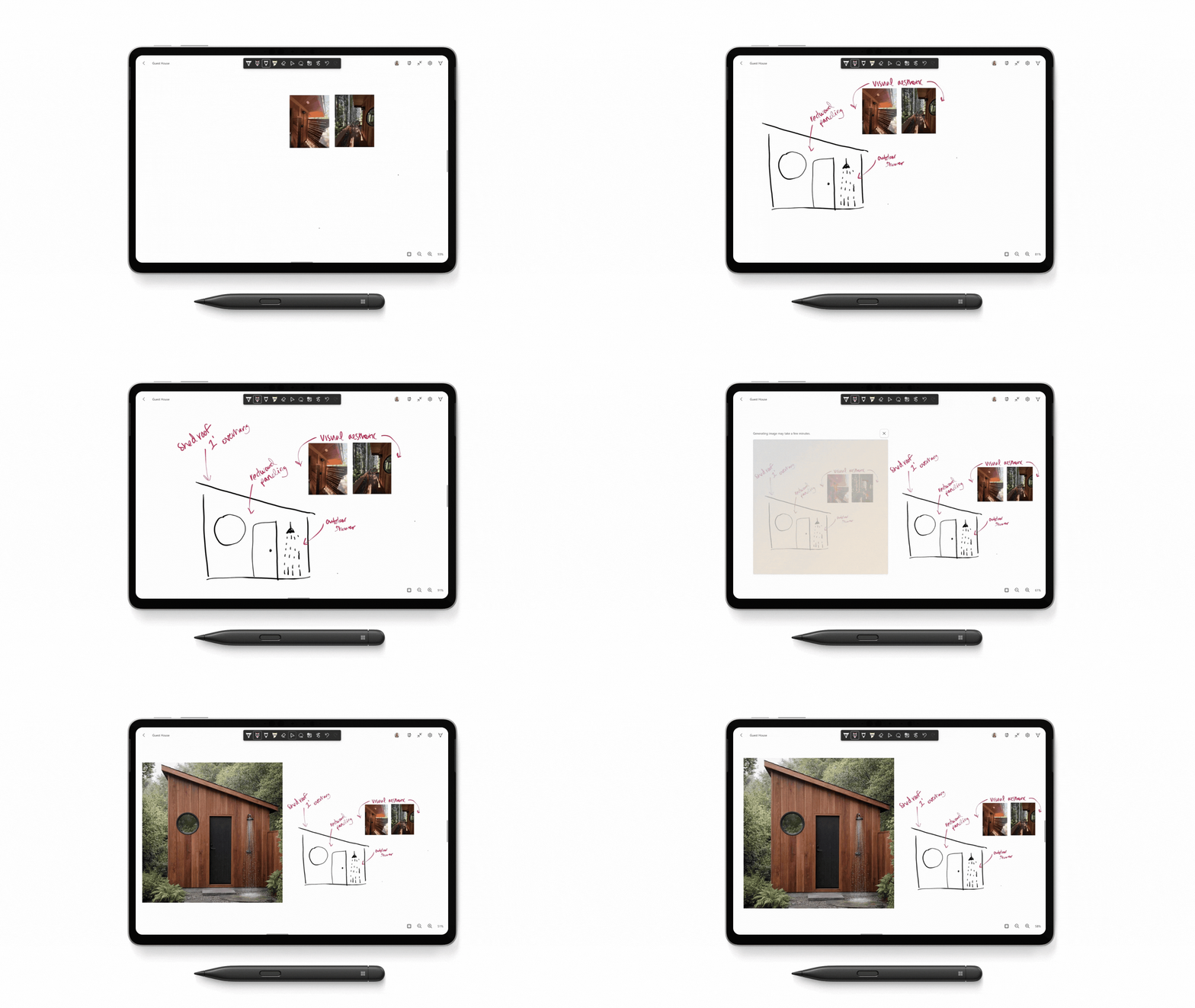
- With your Surface unlocked, click the top of your Surface Slim Pen to launch Ink Canvas.
- Begin drawing your diagram and annotate key features. In this example, you specifically call out Redwood paneling, shed roof 1' overhang, and an outdoor shower.
- Add reference images and annotate them as "visual aesthetic" to indicate what the look of the exterior should resemble.
- Now that all your sketching and annotation is done, select the Lasso tool and select the sketch and reference images.
- Once selected, tap the Image generation button.
- Now that the image is generated, it's ready to be copied into other applications—whether that's a doc, presentation deck, message, or design workflow.
In this process, Ink Canvas functions as a starting point for work, allowing your client to easily visualize what the final product will look like.
Scenario 2: Packaging and redesign
Next, imagine that you own a coffee business. You are reviewing data from the previous quarter and are identifying potential opportunities to maximize revenue on a Teams call. Using Ink Canvas you're able to take notes and turn them into actionable representations of data and an overview into the steps needed moving forward:
- In Ink Canvas, you have identified your top three revenue streams and how much revenue they generated. Because you want this to be a bar chart, you label it with "bar chart" to add context.
- Using the lasso select tool, you highlight the data and "bar chart" annotation and tap the generate button. This creates a bar chart with a representation of the top revenue streams that can easily be copied into another document.
- As the chart generates, your team identifies that the top opportunities moving forward are an update to packaging and a branding redesign. You note this on Ink Canvas and draw a rough sketch of what the updated coffee bag design should look like.
- On the diagram, you annotate key features of the bag. You indicate where the logo should be, and, because Ink Canvas is connected to your work account, it has context for your company logo. You also note the fold of the bag, bag color, and that it will be organic.
- Using the Lasso tool, you select the diagram with the annotations and select the image generate button.
- Ink Canvas generates an image based on your notes, but you notice that there is no indication of the coffee being organic. You annotate the image, indicating that you'd like to add the organic label, then select the generate image button.
- Another image is generated, this time with the organic label. Both images are on your canvas, giving you the option to select your preferred option.
- You've done a lot in this canvas. To get a detailed, shareable summary of the changes, select the Summarize button on the top right corner of the Ink Canvas app.
- The summary includes an overview, revenue snapshot, top opportunity, proposed packaging concept, certification consideration, and summary. These notes can then be utilized in other communications.
With Ink Canvas, you were able to create a representation of your company's revenue and formulate a plan for packaging redesign—all within the same canvas experience. The output can then be applied to other applications as a launching pad for productivity.