Work comfortably throughout the day
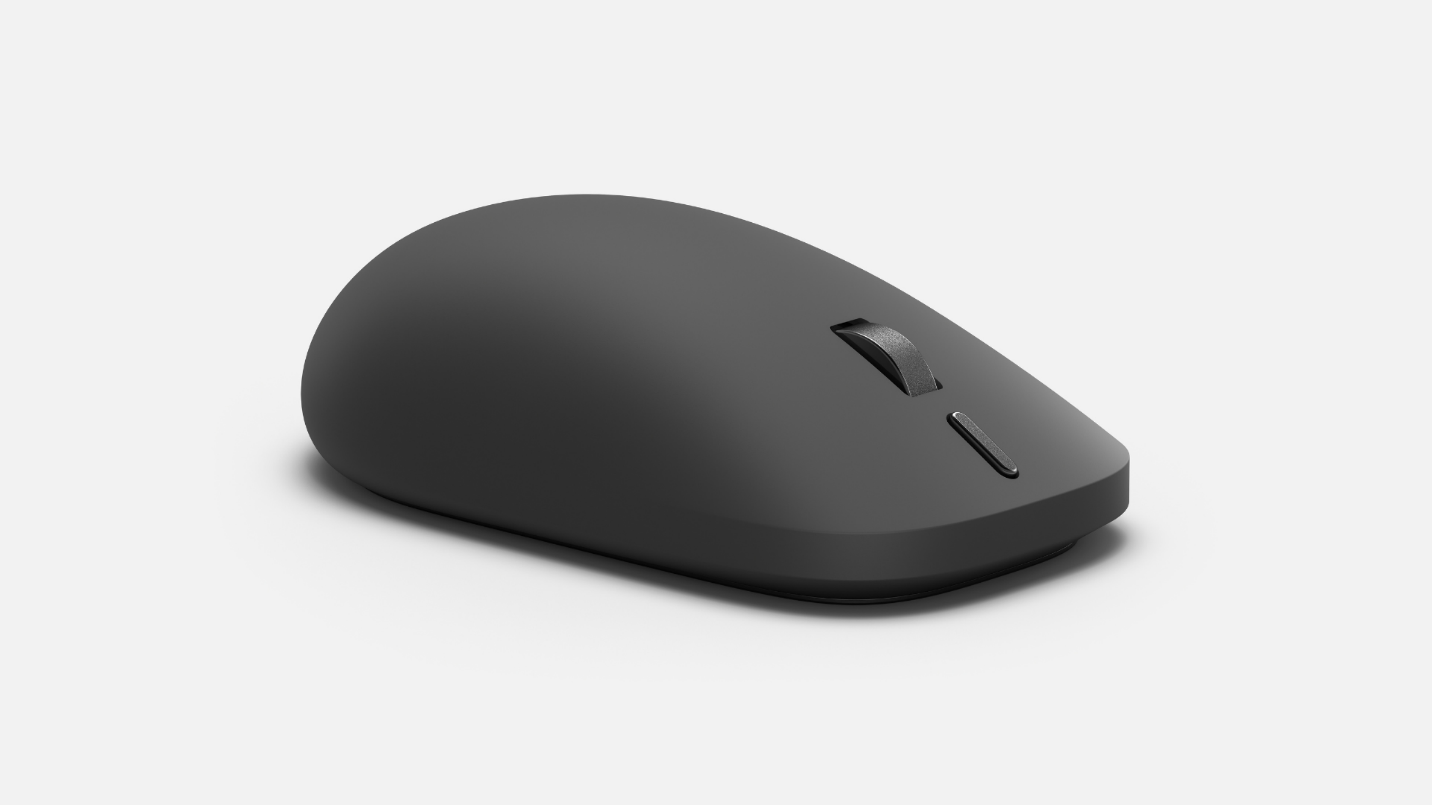
A mouse is often used across many tasks throughout the workday—from navigating documents and presentations to moving between applications. Surface Mouse (2nd Edition) is designed with a refined profile, compact form factor, and silicone top cover to provide a comfortable, tactile experience while maintaining full mouse functionality.
Designed for everyday comfort
Surface Mouse (2nd Edition) has been redesigned for comfort, with a compact form factor that supports portability without sacrificing mouse functionality. Its silicone top cover provides a comfortable surface, while its lightweight construction makes it easier to carry as part of a Surface setup.
The left and right buttons also use quiet switches. Together with the mechanical scroll wheel, these controls provide familiar pointing, clicking, and scrolling for everyday tasks.
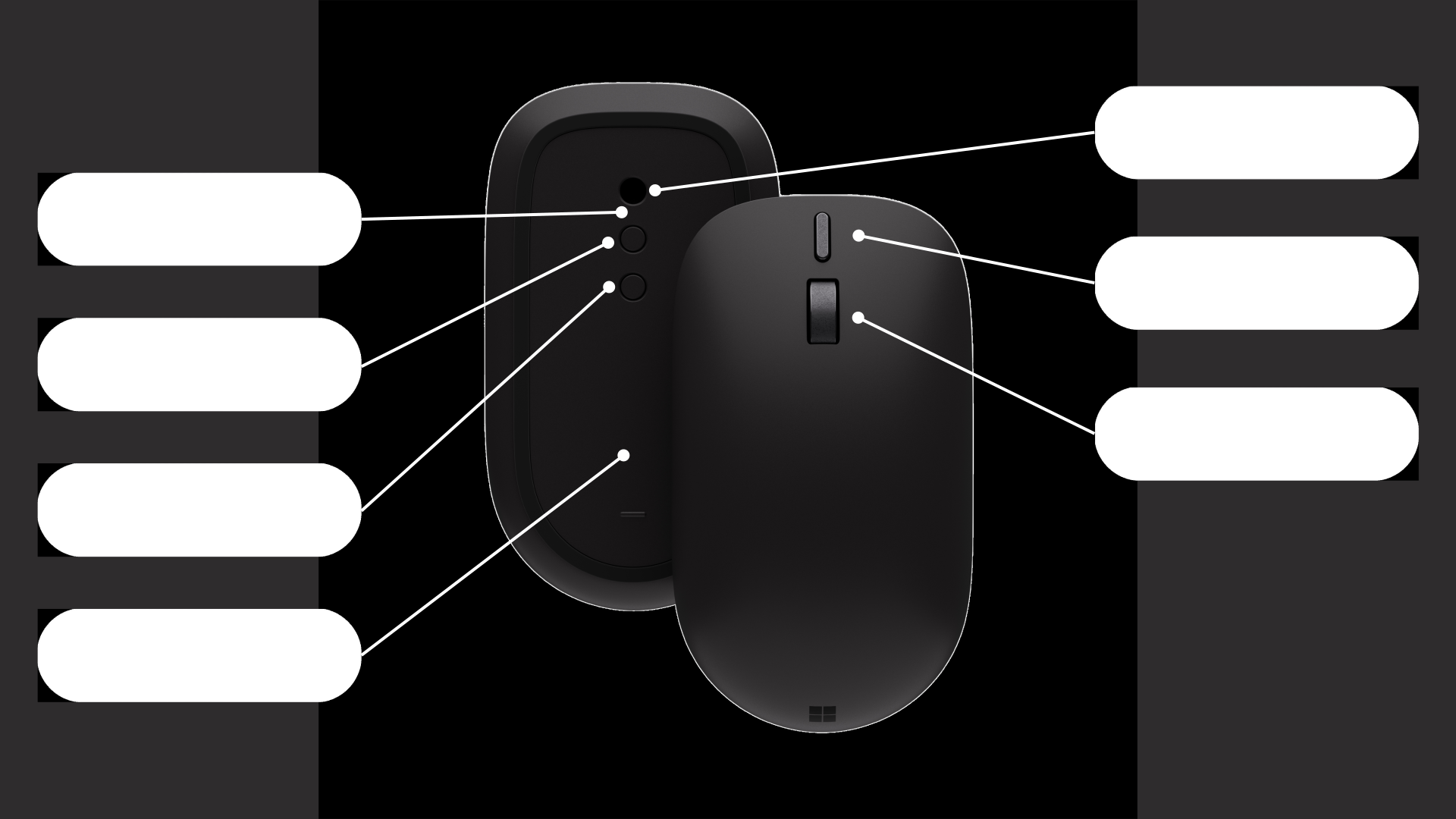
Let's get more familiar with the design of the mouse:
Connect across multiple PCs
For users who work from more than one PC, Surface Mouse (2nd Edition) supports Bluetooth 6.0, Swift Pair, and connections with up to three computers. After pairing, the mouse can become part of a Surface setup that shifts between desks, meeting spaces, or demo environments.
For example, a sales specialist might prepare customer materials on a Surface device, then use a separate demo PC during a meeting. Pairing the mouse with both PCs helps keep the interaction familiar without requiring a separate peripheral for each setup. Once paired with multiple devices, the light indicator on the bottom of the mouse lets's you know which device you have switched to.
Tip
When considering where to use the mouse, identify the PCs and locations that are part of your regular routine. If your work includes a desk setup, a shared workspace, or a demo environment, multi-host connectivity may simplify how the mouse fits into that routine.
To pair your Surface Mouse (2nd Edition) to your Surface, follow these steps:
- Turn on your Surface Mouse (2nd Edition).
- Press and hold the pair button on the bottom of the mouse until it enters pairing mode.
- On your Surface, select Connect if a notification appears for your mouse, then wait for it to complete the setup process.
If you don't see a notification, follow these steps:
- Open Settings.
- Open Bluetooth & devices.
- Select Add device.
- Select Bluetooth.
- Select Surface Mouse (2nd Edition), then wait for Windows to confirm that the mouse is connected.
Important
If the selection connection slot has never been paired before, the mouse automatically enters pairing mode and the pairing light blinks slowly. If the selected slot has been paired before, the pairing light blinks quickly as the mouse tries to reconnect. To pair the slot with a new device, press and hold the pairing button for three seconds or more. The mouse enters pairing mode and the pairing light blinks slowly. Once devices are connected, the three light indicators are used to denote which device is currently connected to the mouse.
Match the design to the way you work
Note
To use Surface Mouse (2nd Edition), your PC must run Windows 11 and support Bluetooth 4.0 or later. Advanced features require Windows 11. Haptic feedback is available during supported Windows and application interactions, so the haptic experience can vary depending on the interaction and application.
When evaluating the mouse for a Surface workspace, consider how and where Surface Mouse (2nd Edition) will be used:
- For regular desk work: The redesigned profile, silicone top cover, quiet clicks, and mechanical scroll wheel provide familiar controls for everyday mouse interactions.
- For working across locations: The compact form factor is designed for portability while retaining mouse functionality.
- For working across PCs: Multi-host support allows the mouse to connect with up to three computers.
These design and connectivity capabilities allow users to incorporate Surface Mouse (2nd Edition) into different Surface workflows while maintaining consistent pointing and navigation experiences.