Navigate using haptic feedback
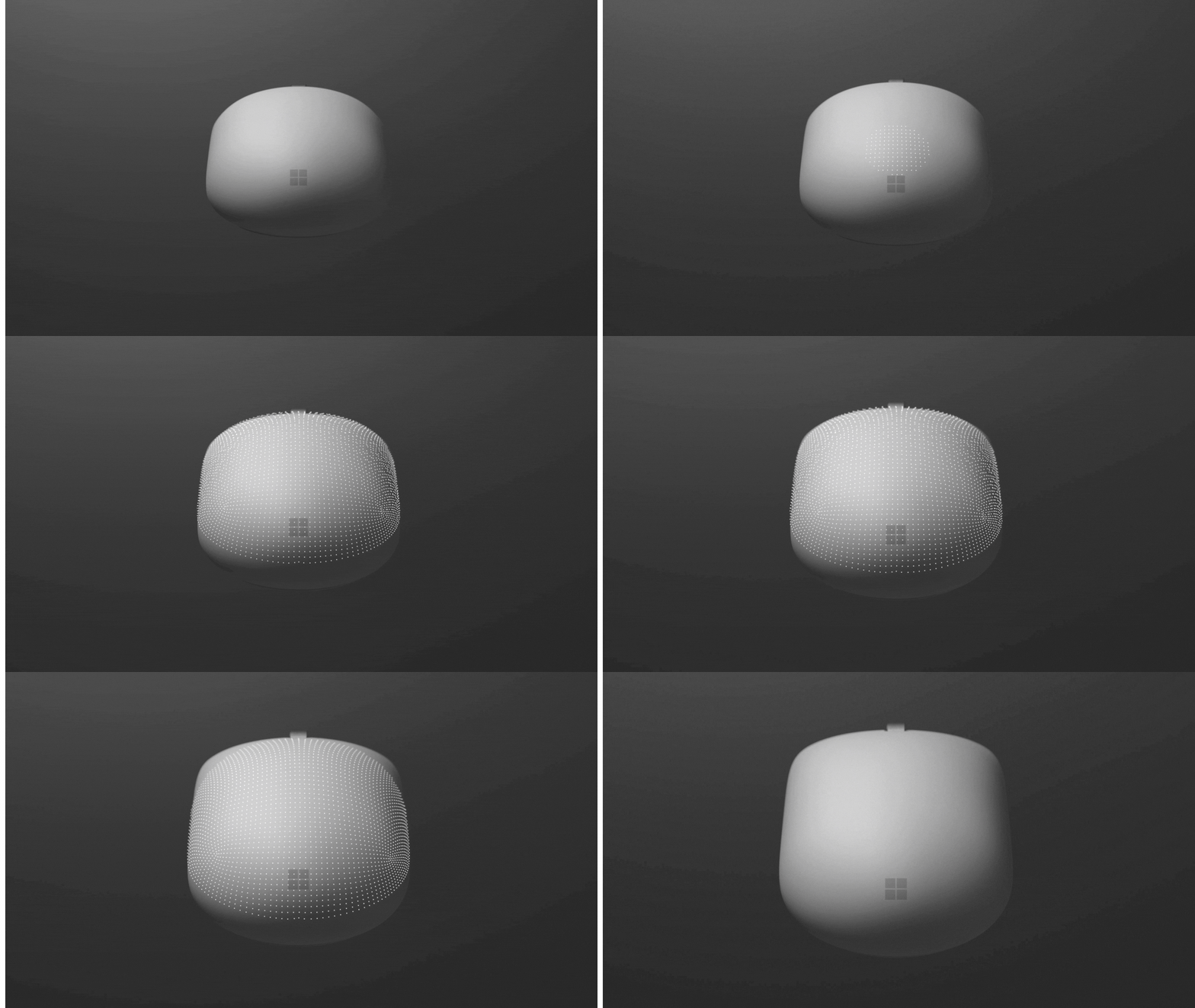
Traditional mouse interactions rely primarily on what you see on screen. Surface Mouse (2nd Edition) adds another form of feedback through integrated haptics, providing subtle tactile cues during supported interactions in Windows and certain applications.
These cues reinforce actions as they happen. For example, the mouse can provide haptic feedback during supported Windows interactions such as hovering, snapping, or resizing windows. Supported experiences in applications such as PowerPoint can also provide feedback when aligning or rotating images. Tactile feedback can be especially useful when a user is focused on precise placement or multitasking and wants confirmation without relying only on visual changes on screen.
Understand when haptic feedback is available
Haptic feedback works alongside visual information on the screen. Rather than changing how you point, click, or drag the mouse, haptics can reinforce supported interactions with a tactile response.
For example, haptic feedback can help reinforce supported interactions when you:
- Hover over supported interface elements.
- Snap or resize windows.
- Align and rotate images in Microsoft PowerPoint.
- Utilize supported third-party application. See the full list of supported applications on Microsoft Support.
This extra feedback provides another way to recognize when a supported action happens on screen.
Try haptic feedback during a supported interaction
One way to understand the experience is to note haptic feedback while completing a supported action. For example, when working with an image in PowerPoint:
- Open a PowerPoint presentation and select an image, shape, or text box.
- Slowly move the object across the slide.
- Position the object so that it aligns with another element on the slide.
- Notice the haptic feedback as you reach supported alignment points.
- Compare the tactile feedback with the visual alignment information displayed in PowerPoint.
Customize the haptic experience and put it into practice
You can adjust haptic feedback to a level that works for you:
- Open Settings and select Bluetooth & devices.
- Select Mouse.
- Select Haptic signals.
- Adjust the Signal intensity slider to your preferred level.
If you don't see the haptic signal settings, you may need to update Windows.
Consider a content creator preparing a PowerPoint presentation. The user needs to adjust several images and position them accurately on different slides.
During supported alignment and rotation interactions, the mouse can provide haptic feedback that complements the information displayed in PowerPoint. Instead of relying only on what appears on the screen, the user receives a tactile cue that can confirm when content reaches a supported alignment point or rotation position.
The same concept extends beyond PowerPoint. Supported Windows interactions, including snapping and resizing windows, can also generate haptic feedback. Additionally, certain third-party apps can utilize advanced haptic experiences. Let's explore some of those:
| Application type | Haptic experience |
|---|---|
| Photo editing | Object snapping Object alignment Object selection |
| Sketching apps | Grid snapping Object rotation Shape recognition Pen brush strokes Erase tool Shape recognition |
| Video editing | Timeline editing (trim, resize, move) Transform overlay and guides Node connection Power windows hover |
Key takeaway: Integrated haptics adds tactile cues to supported Windows and application interactions. By paying attention to these cues while performing actions such as snapping windows or aligning content in PowerPoint, users can incorporate haptic feedback into familiar mouse workflows.