Apply capabilities to your workflow
Surface Mouse (2nd Edition) brings together capabilities designed to support different ways of working. Its compact design, multi-host connectivity, integrated haptic feedback, and customizable action button can each address different needs within a Surface workspace.
Start with the tasks you perform regularly, then consider which mouse capabilities best support those tasks.
Start with what you need to accomplish
When deciding how to incorporate the mouse into your workflow, begin with the task or experience you want to support.
Consider these examples:
- You split work between a desk setup and a shared workspace PC. Multi-host support can help one mouse fit both environments.
- You frequently arrange windows or work with visual content. Integrated haptics can provide tactile feedback during supported interactions such as snapping and resizing windows or aligning and rotating images in PowerPoint.
- You regularly access Copilot experiences or other tools. The customizable action button can reduce extra steps by giving you direct access to Copilot, Click to Do, Copilot Voice, and supported customizable shortcuts.
- You frequently work away from a fixed desk. The compact form factor supports portability, while pairing with more than one PC can help when your routine includes shared or temporary workspaces.
Match a capability to your workflow
You can use a simple process to determine which capabilities are most relevant to the way you work:
- Identify a task you perform frequently. Consider how you navigate your PC, work with content, access tools, or move between devices.
- Identify the mouse capability that relates to that task. For example, haptic feedback might be relevant when working with windows or presentation content, while multi-host connectivity might be relevant when your routine includes more than one PC.
- Use the capability as part of the supported workflow. Pay attention to whether tactile feedback, connectivity, or access through the action button fits the task you're completing.
- Adjust supported customizable experiences to your preferences.
This approach keeps the focus on the task first, rather than choosing a feature simply because it's available.
Scenario: Create and present content
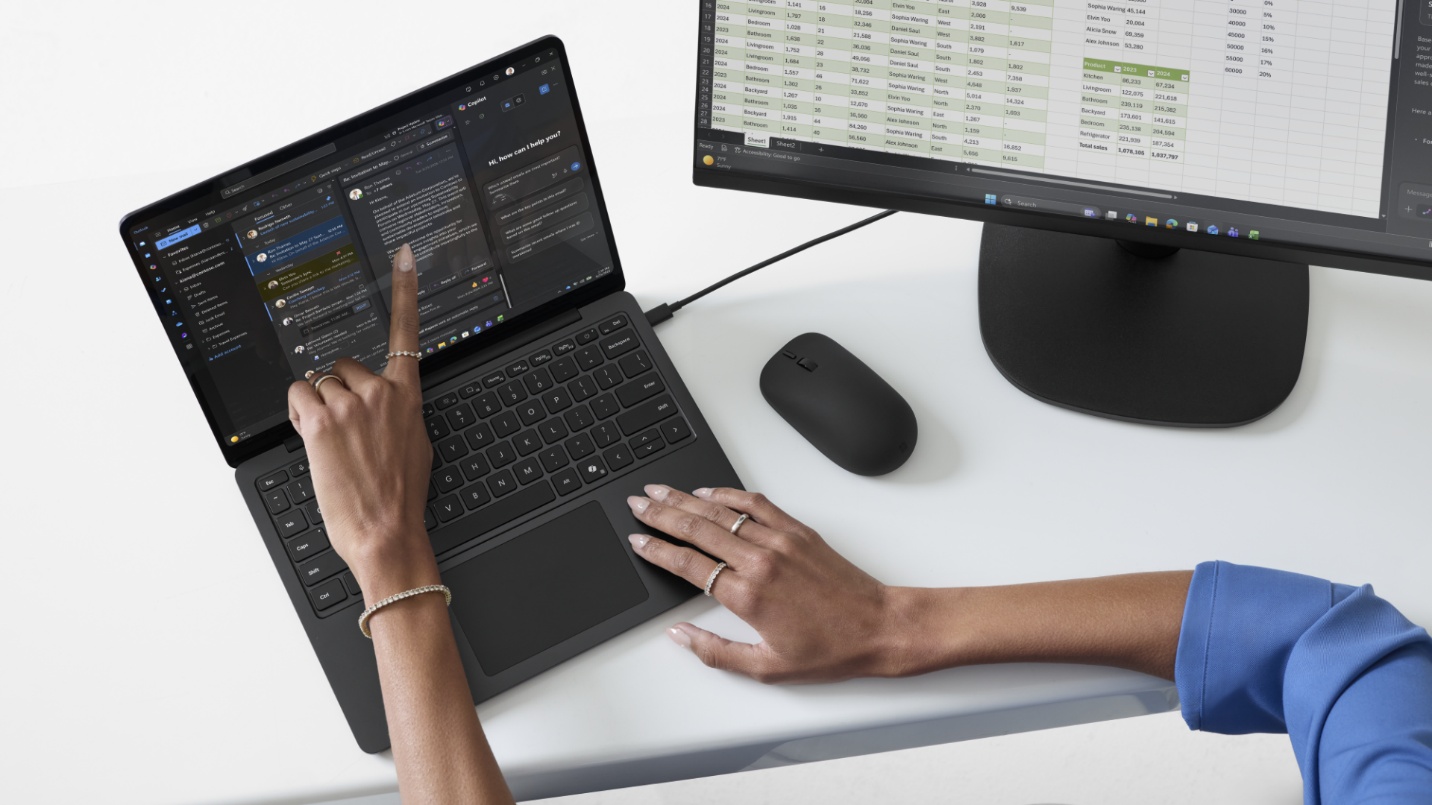
Consider a user who regularly creates presentations on a Surface PC.
While arranging a presentation, the user can receive haptic feedback during supported PowerPoint interactions such as aligning or rotating an image. This feedback can help confirm that content has reached a supported alignment or rotation point while the user focuses on slide design. When another tool or AI-assisted workflow is needed, the action button provides access to Copilot experiences and can also be customized for other supported shortcuts.
In this scenario, different capabilities support different parts of the same workflow. Haptics provides tactile feedback for supported interactions, while the customizable action button provides another way to access frequently used tools.
Scenario: Move between workspaces
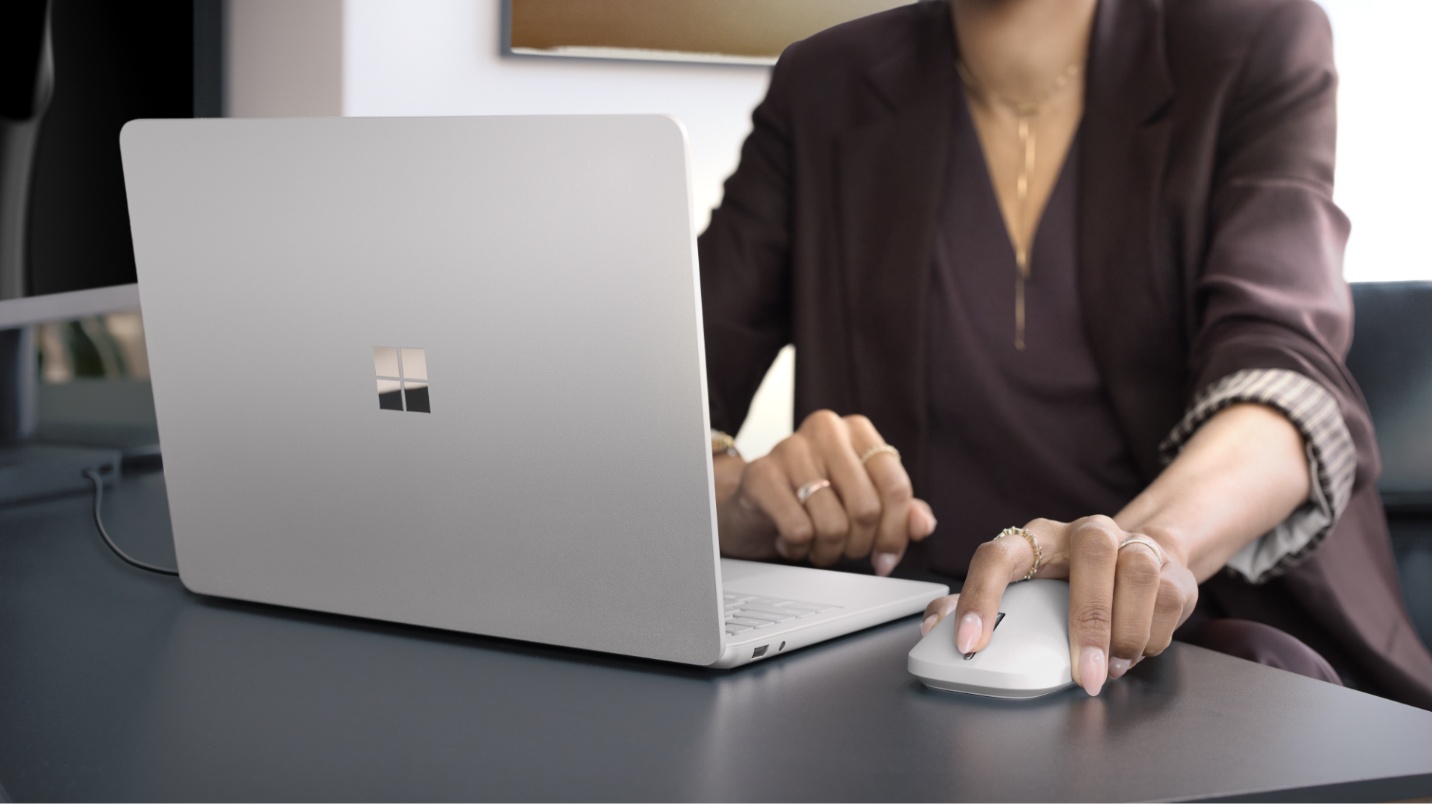
Now consider an IT admin who prepares a Surface device at a desk, then moves to a shared workspace to confirm the setup with the employee.
Because Surface Mouse (2nd Edition) supports multi-host connectivity, the admin can use the same mouse across both parts of the workflow. The compact form factor also makes it easier to carry between locations without giving up familiar mouse functionality.
In this case, connectivity and physical design are more relevant to the workflow than haptics or the action button.
Key takeaway: Surface Mouse (2nd Edition) combines physical design, integrated haptics, multi-host connectivity, and a customizable action button. Understanding how each capability relates to a specific task can help users decide which features matter most in their Surface workflows.