Exercise - Create a CSRD assessment
In this exercise, you create a Corporate Sustainability Reporting Directive (CSRD) assessment and then link the connector instance to an assessment, created for Sustainability regulations (like CSRD) in Compliance Manager, for updating the imported metrics data in the assessment.
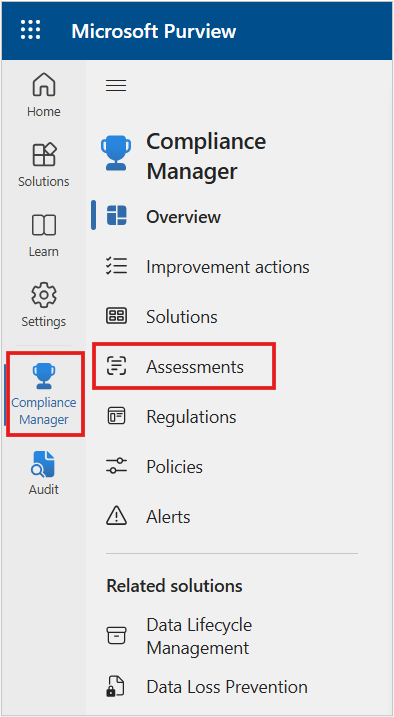
On the Microsoft Purview portal, select Compliance Manager from the left navigation.
Select the Assessments tab.
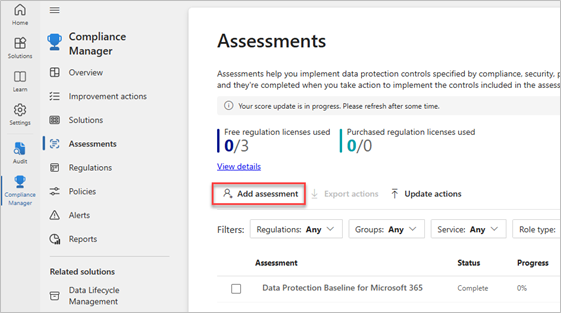
Select Add assessment.
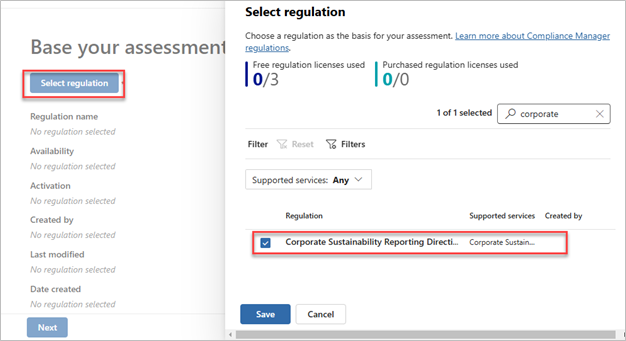
Select Select regulation > Corporate Sustainability Reporting Directive. Select Save.
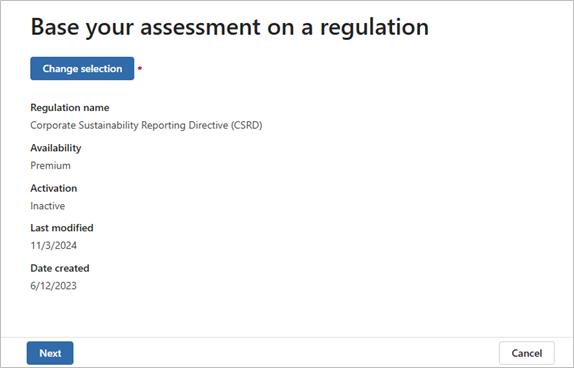
Select Next.
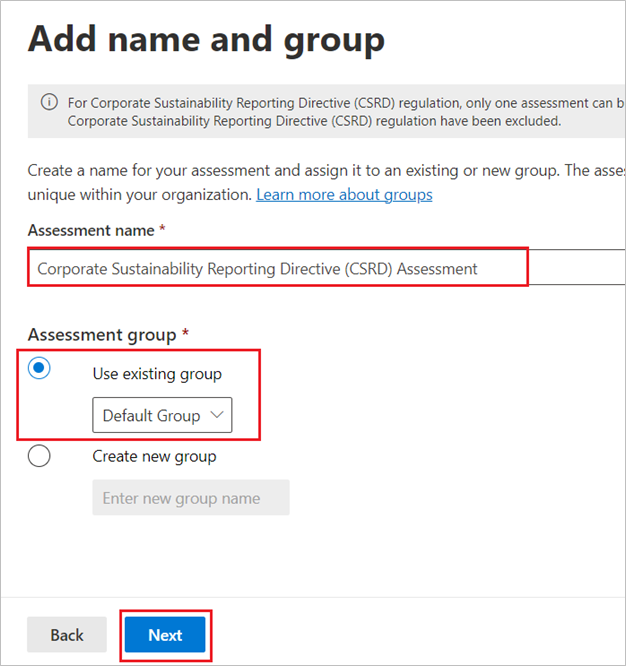
Enter the name for the assessment, select the group in which you want to create the assessment, and then select Next.
Note
A group can have only one CSRD assessment.
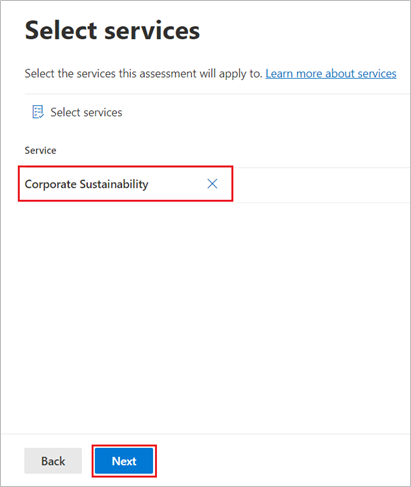
On the Service instances page, select Corporate Sustainability. Select Next.
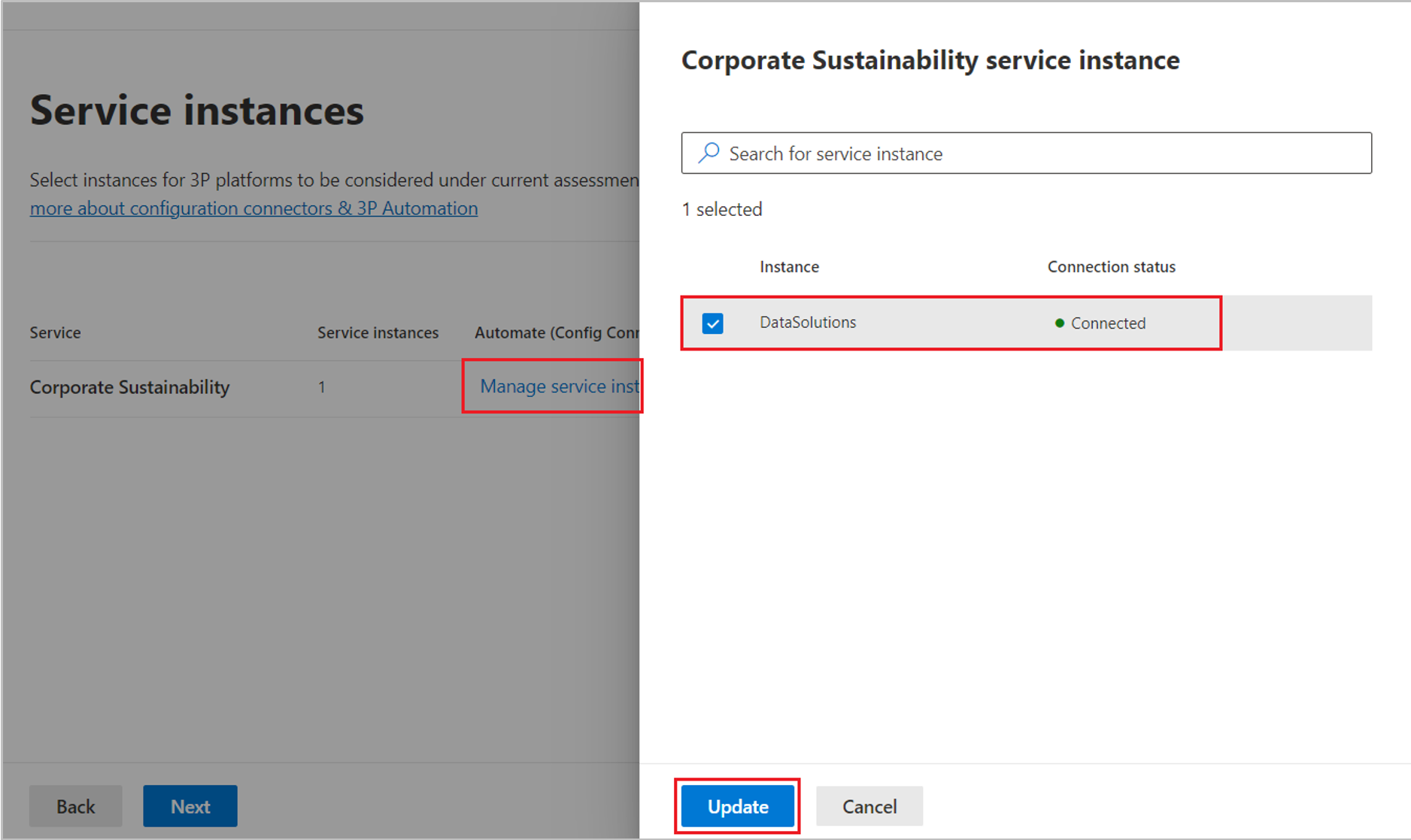
Select Manage services instances, and then select the Sustainability data solutions connector instance DataSolutions, that you created in the last task. Select Update, and then select Next.
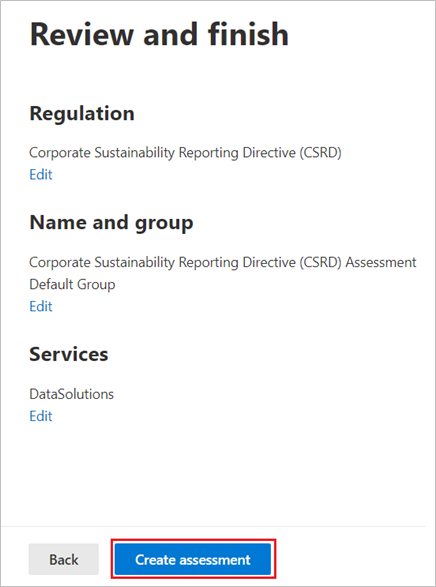
On the Review and finish page, review the details, and then select Create assessment.
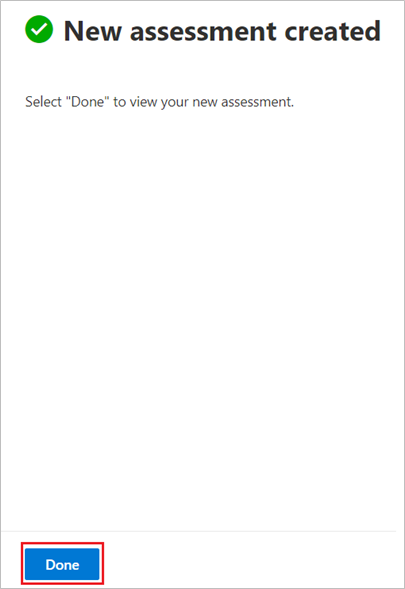
When the process finishes, select Done.
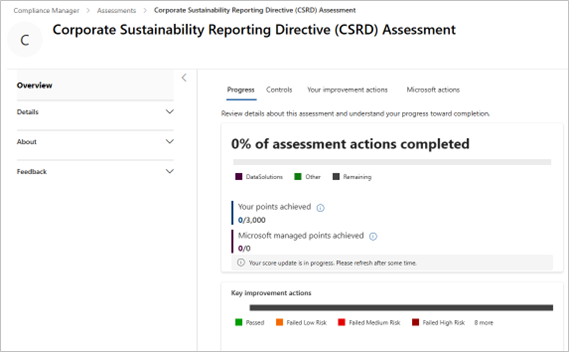
After you create the assessment, it displays on the Assessments tab in Compliance Manager.
Note
It can take 24-48 hours before the disclosure metrics data from Sustainability data solutions in Microsoft Fabric (preview) appears on the corresponding improvement action detail page of the assessment.
