Exercise - Set up CSRD template and configure Microsoft Purview connector
In this exercise, you set up the Corporate Sustainability Reporting Directive (CSRD) template in Microsoft Purview Compliance Manager. Next, you configure a Purview connector to import data from Sustainability data solutions in Fabric.
Prerequisites
Ensure you computed the Environmental, Social, and Governance (ESG) metrics as mentioned in the previous module Compute ESG Metrics for Audit Disclosures.
Review CSRD template
Open the new browser and go to Microsoft Purview portal. Sign-in with your tenant admin credentials.
Note
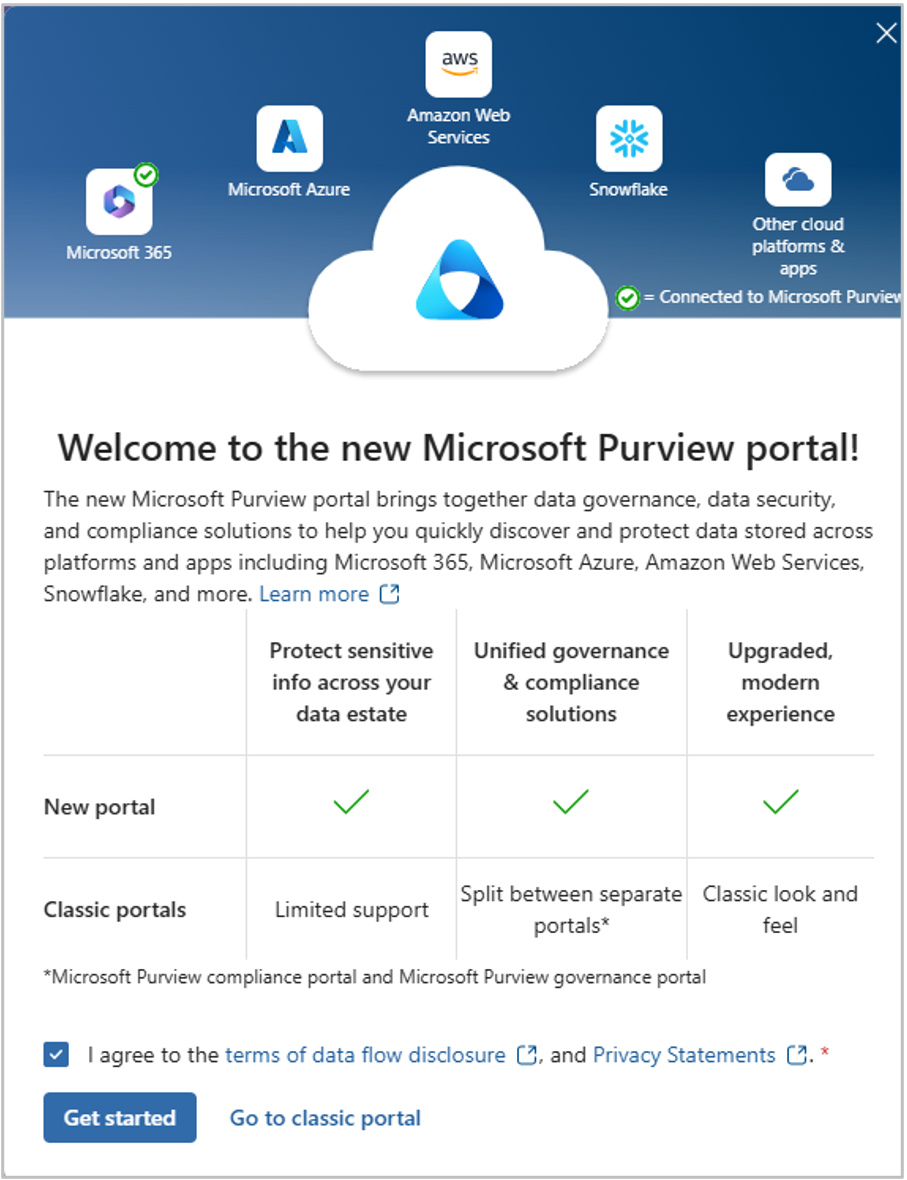
Make sure that you are on the new Microsoft Purview portal.
If prompted, select Get started.
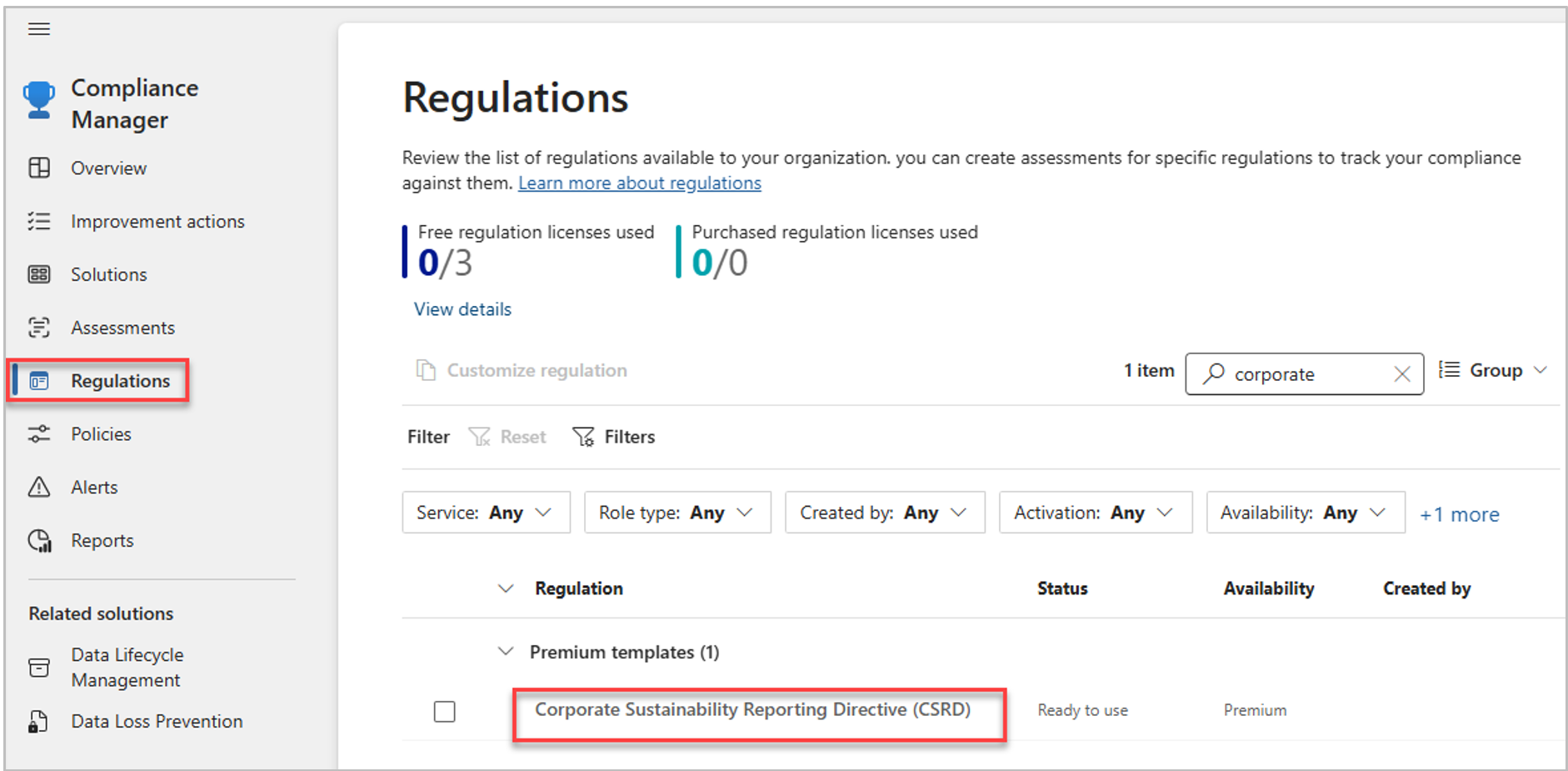
From the left navigation pane, select Solution > Compliance Manager.
This action opens the Regulations tab in Microsoft Purview Compliance Manager. Search for and select the Corporate Sustainability Reporting Directive (CSRD) template.
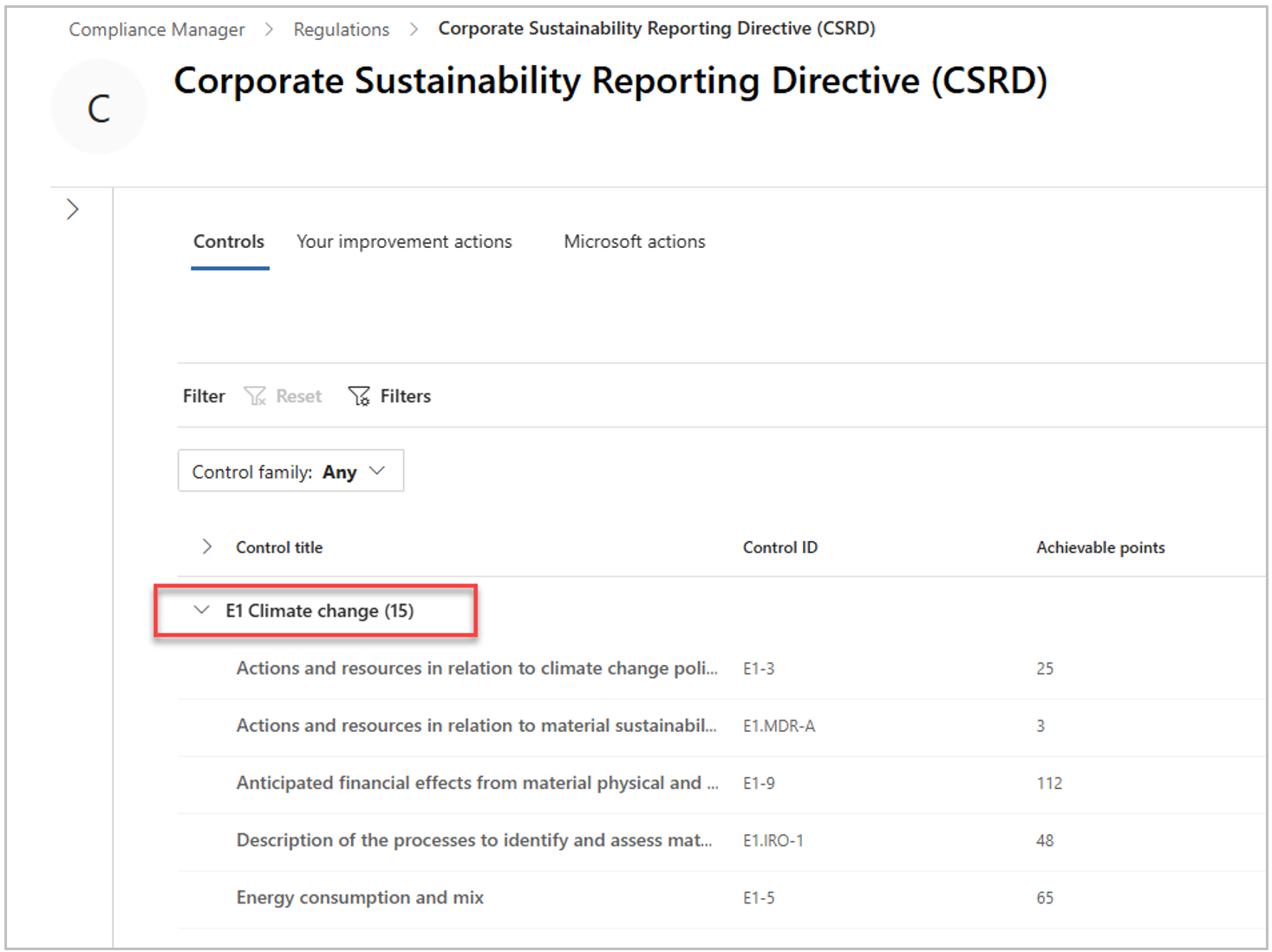
In the Corporate Sustainability Reporting Directive (CSRD) page, select the Controls tab to view all the ESRS standards.
Select a control family, such as E1 Climate change, to view the controls, or disclosure requirements, of the reporting standard.
Select a disclosure requirement, such as Gross Scopes 1, 2, 3 and Total GHG emissions. View the disclosure details on the Improvement actions tab.
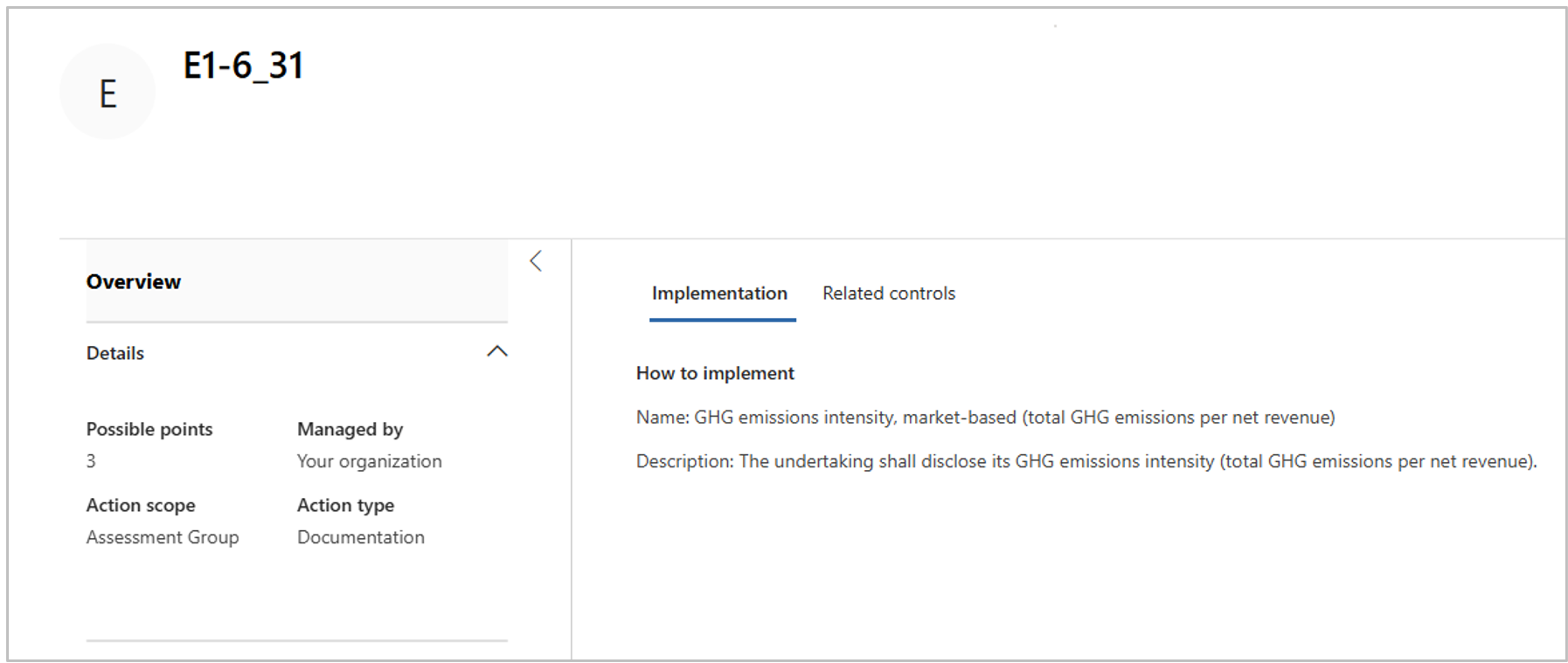
Select the disclosure detail title, such as E1-6_31, to view the description. The description helps you to understand the data that is required for the disclosure details.
For more information about Microsoft Purview Compliance Manager templates, go to Learn about regulations in Compliance Manager. For more information about terminology used in Microsoft Purview Compliance Manager, go to the Compliance Manager glossary of terms.
Configure a Purview connector
In this task, you configure a Purview connector to import data from Sustainability data solutions in Fabric. The connector instance reads the metric extract files from the specified OneLake folder path, and then it transforms and updates the metrics data to Microsoft Purview Compliance Manager.
Register an application with Microsoft Entra ID and create a service principal
Sign in to the Microsoft Entra admin center with your admin tenant.
Select Identity > Applications > App registrations then select New registration.
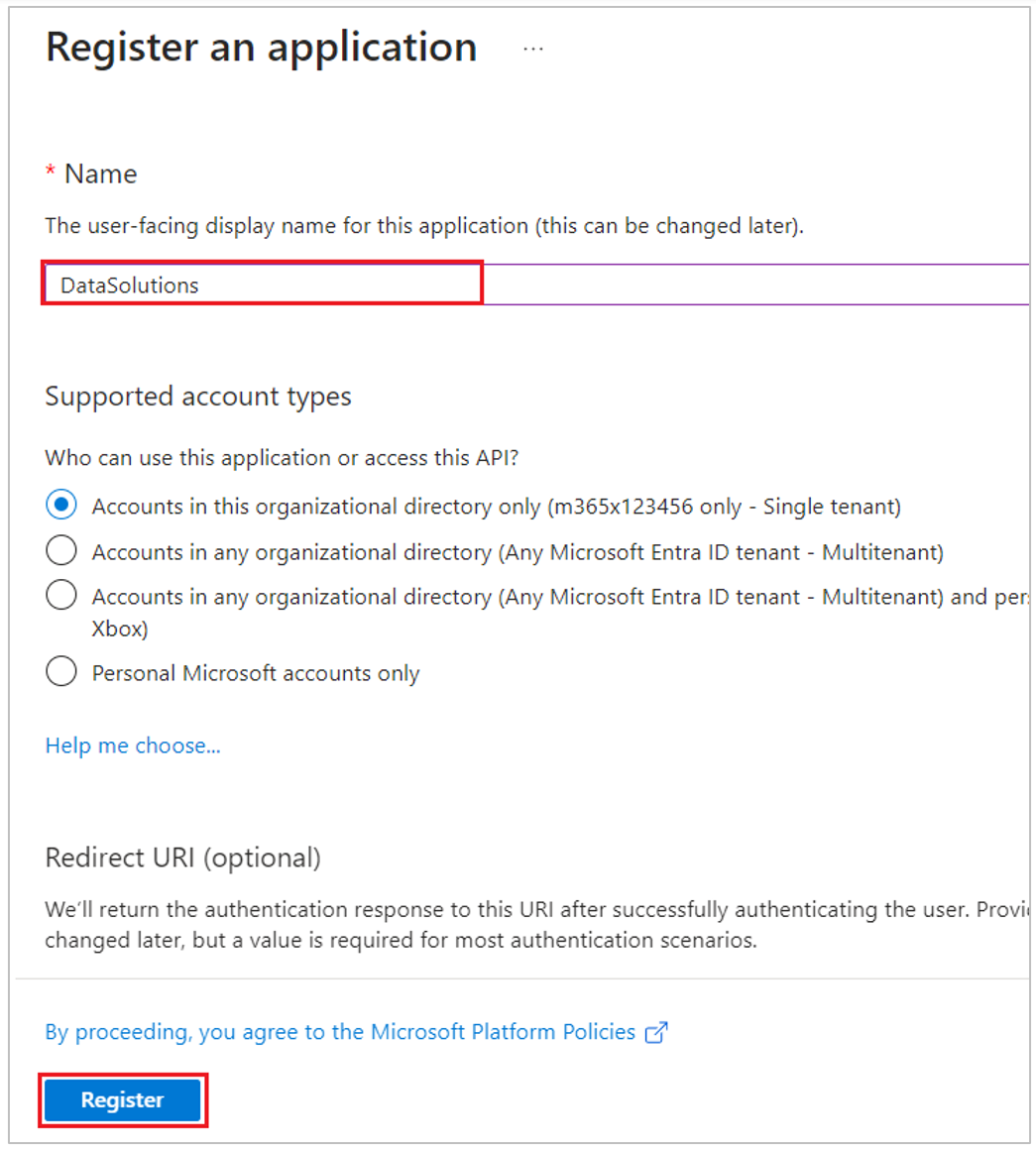
Name the application, for example DataSolutions.
For supported account type, select Accounts in this organizational directory only (only - Single tenant).
Leave the Redirect URI field empty.
Select Register.
You created your Microsoft Entra application and service principal.
In the Overview tab of your DataSolutions app, copy the Application (client) ID and make note of it.
From the left navigation pane, select Certificates & secrets.
Select Client secrets > New client secret.
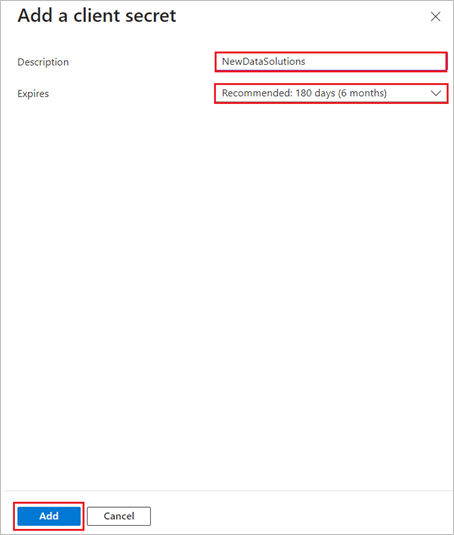
Enter the description, retain the default expiration, and then select Add.
Copy the new client secret (Value) and make note of it for future use.
Warning
You won’t be able to retrieve the secret later, so make sure that you make a copy of it without fail.
Configure workspace settings
Navigate to your Sustainability Data Solutions workspace in Microsoft Fabric.
Select Settings in the upper-right corner and then select Admin portal.
In the Tenant settings section, go to Developer settings.
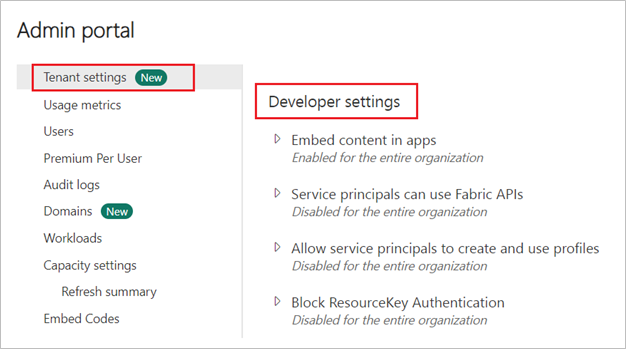
Enable the Service principals can use Fabric APIs permission for The entire organization.
Select Apply.


Assign permissions to app identity
On your Sustainability Data Solutions workspace Home page, select the ellipsis (...) next to ComputedESGMetrics lakehouse.
From the More options menu, select Manage permissions.
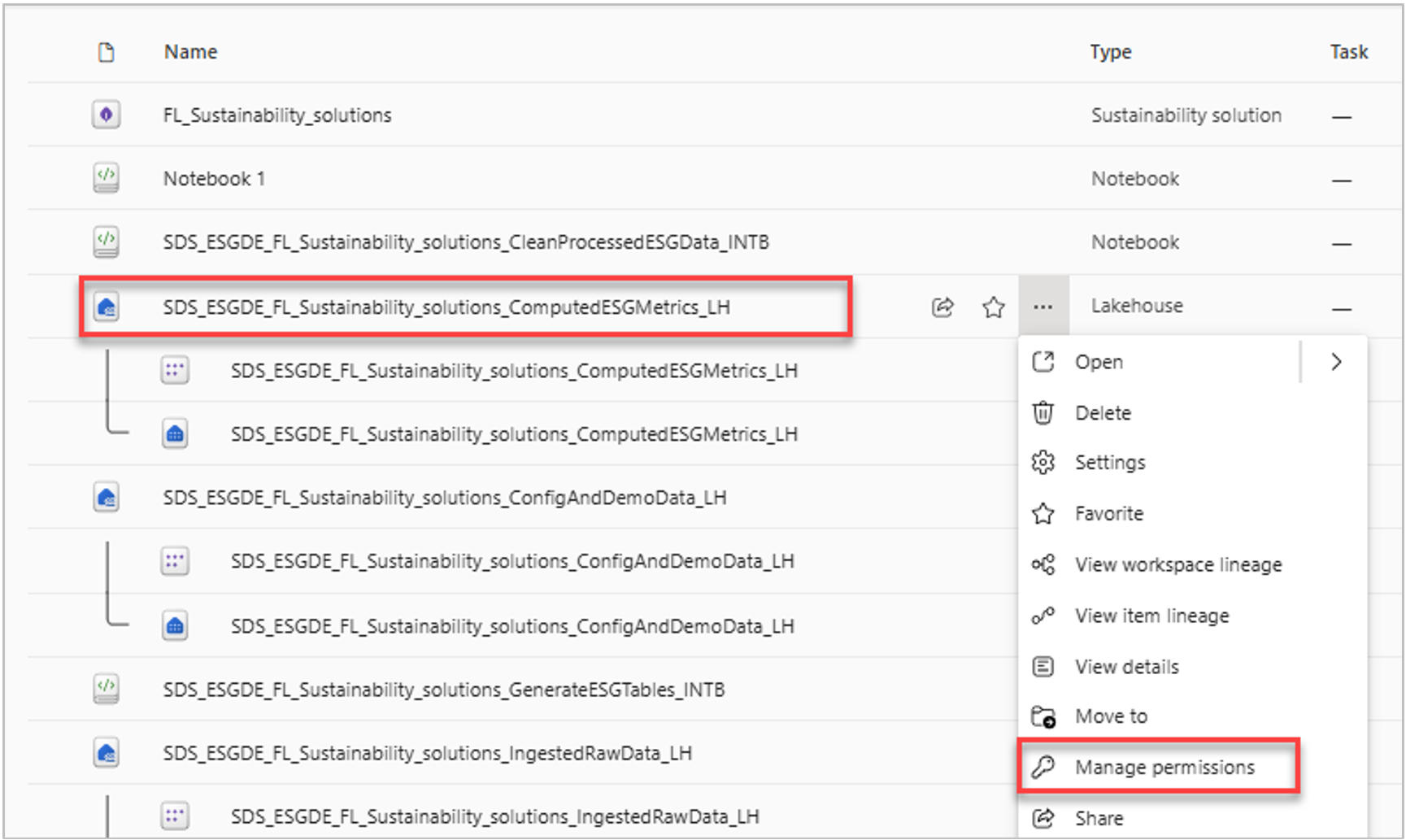
Select Add user.
On the Grant people access page, select User, select the checkboxes next to Read all Apache spark, Read all SQL endpoint data, and Build reports on the default semantic model permissions and select Grant.
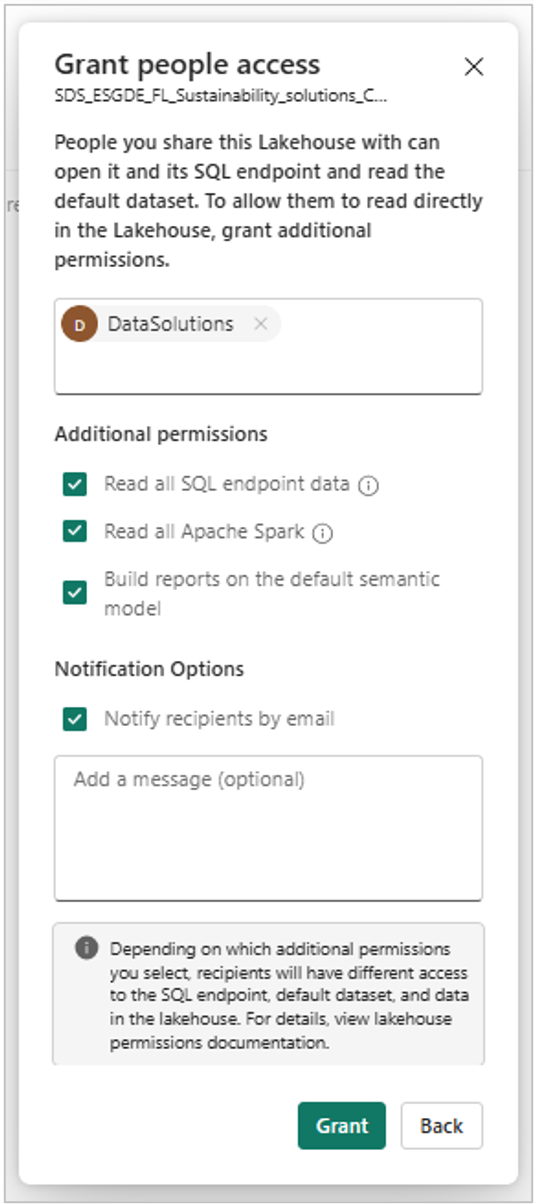
Go back to your Sustainability Data Solutions workspace Home page. From the upper-right corner, select Manage access.
In the Manage access pane, make sure that your tenant admin is listed as an Admin. If not, add it as an Admin.
Select + Add people or group.
Search for your DataSolutions app identity and assign Admin role to it.
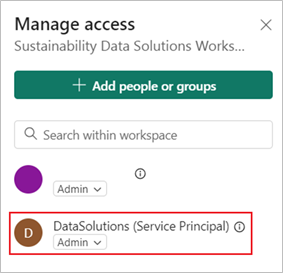
Set up Data Connector Admin role
Navigate to the Home page of Microsoft Purview portal, and then select View all solutions.
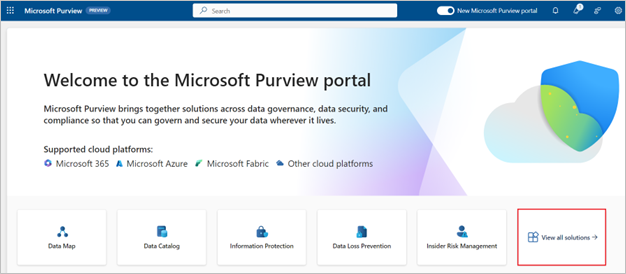
Select Settings.
Select Roles and scopes > Role groups.
Select Create role group.
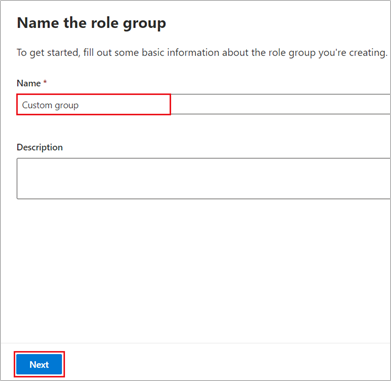
Enter Custom group in the Name field and select Next.
Select Choose roles and then select Data Connector Admin role.
Select Next.
On the Add members to the role group page, select User, and then select Next.
Review the role group and select Create.
Select Done.
Enable audit logging
Select Solutions from the left pane and then select the Audit.
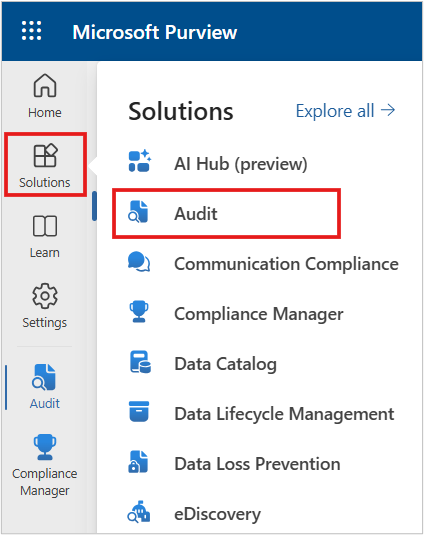
If auditing isn't turned on for your organization, a banner is displayed prompting you to start recording user and admin activity.
Select the Start recording user and admin activity banner.
Select Yes on the Complete organizational setup dialog.
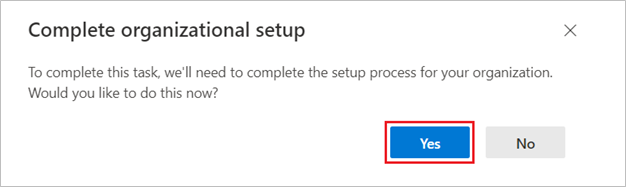
It might take up to 60 minutes for the change to take effect.
Configure a Purview connector
On the left pane, select Settings.
Select Data connectors > All connectors in the left navigation.
From the Connector list view, select the Sustainability Data Solution connector.
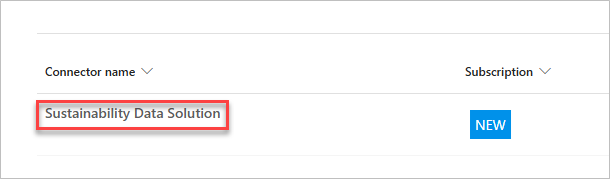
On the Sustainability Data Solution connector page, select Add connector.
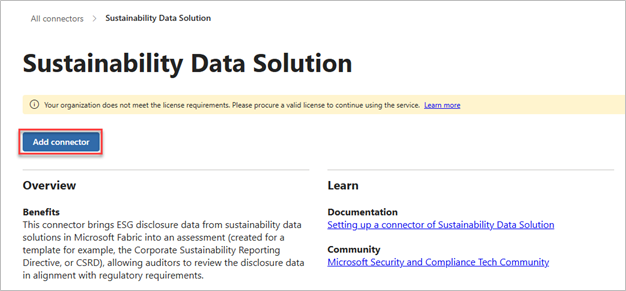
View and accept the Microsoft Terms of service.
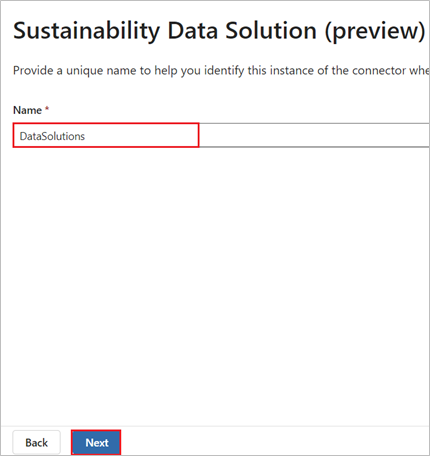
Next, enter DataSolutions in the Name field and select Next. Note this name as you need the connector instance name later to link the connector instance to the Compliance Manager assessment.
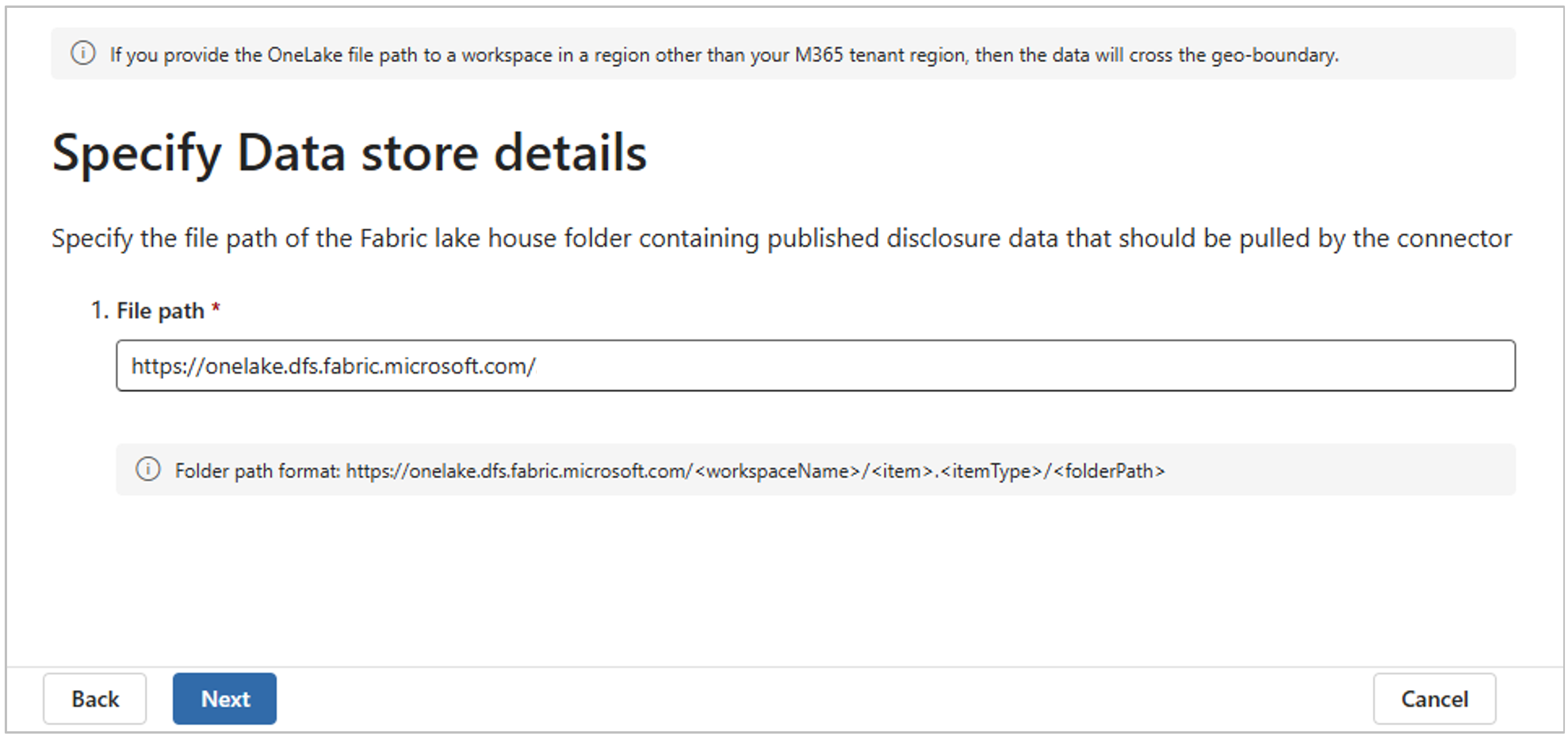
On the Specify Data store details page, specify the folder path where the metric extract files are stored in the Lakehouse.
To get to the file path of the Lakehouse, navigate to Microsoft Fabric tab, select ComputedESGMetrics Lakehouse in your ESG data estate.
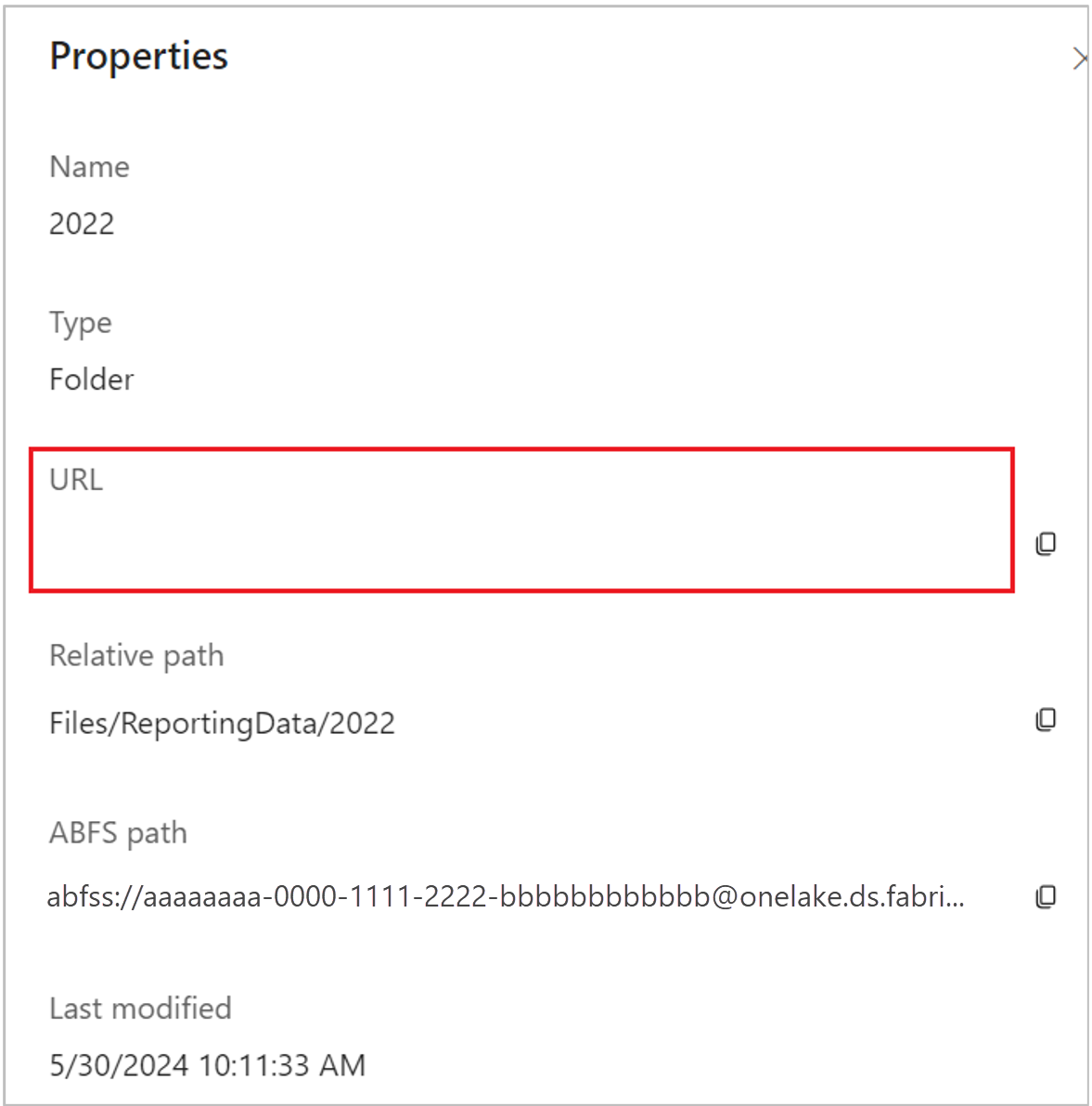
Expand the ReportingData folder and then select the ellipses next to the 2022 folder.
Select Properties.
Copy the URL and paste it in the File path field on Data connector widget of Compliance Manager.
Paste the Organizational unit ID on Data connector widget of Compliance Manager. Select Next.
Specify the Application (client) - ID and Secret (Value) of the app identity that you created in the first task and then select Validate connection.
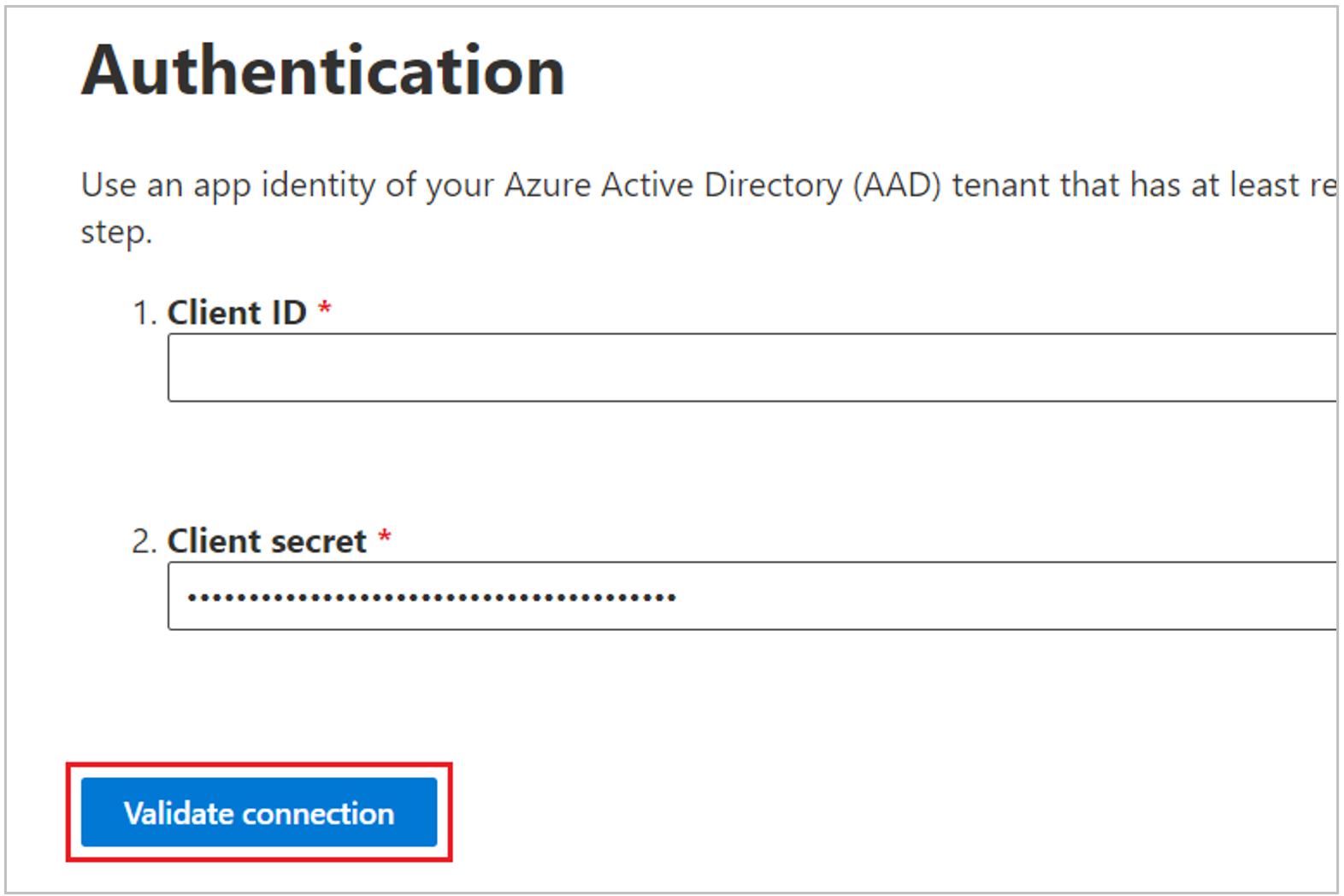
When the connection is validated, select Next.
Review the connector details and then select Finish.
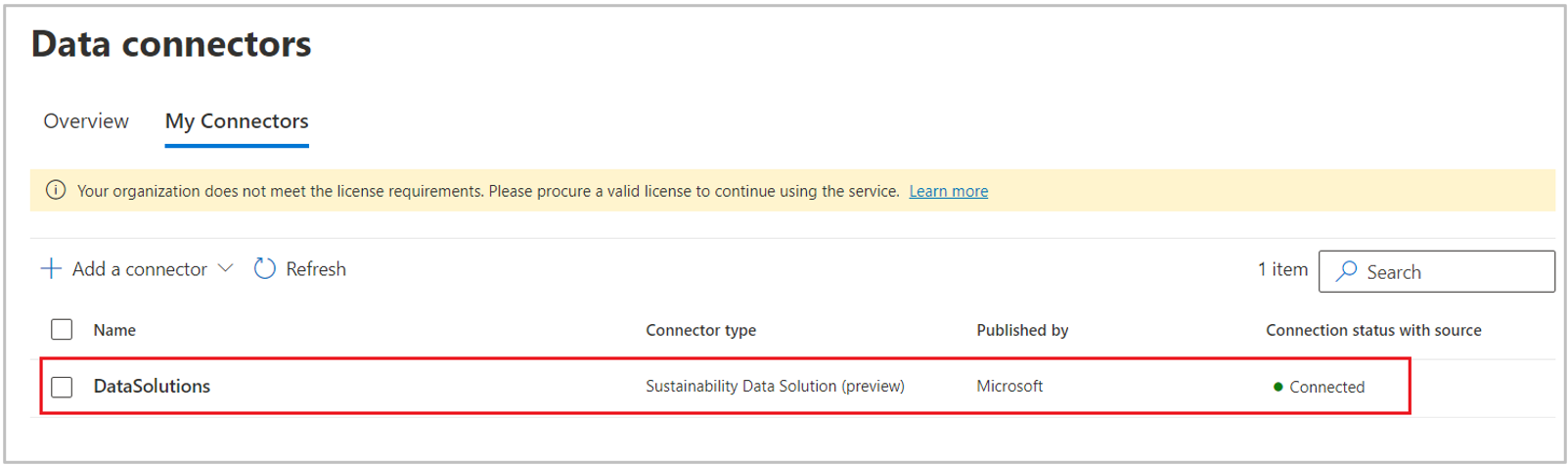
Select Done. The connector instance is configured and visible under My connectors section.