Exercise - Visualize CSRD disclosure metrics data
After you link your assessment to Sustainability data solutions in Microsoft Fabric connector instance, the disclosure metrics data appear on the corresponding improvement actions detail page of the assessment, within 24-48 hrs.
In this exercise, you view the disclosure metrics in Microsoft Purview Compliance Manager and compare them against disclosure details under improvement actions in the assessment. Also, you add evidence to substantiate the disclosure data.
On the Microsoft Purview portal, select Compliance Manager from the left navigation, and then select the Assessments tab.
Select the assessment that is created in the last task.
Select the Controls tab to view the control families or the disclosure categories.
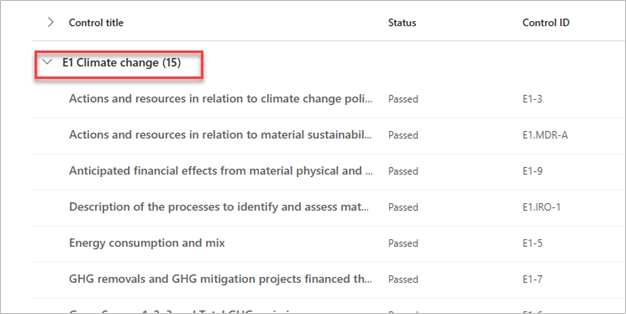
Expand the accordion of E1 Climate change to view the controls or disclosure requirements of a specific control family.
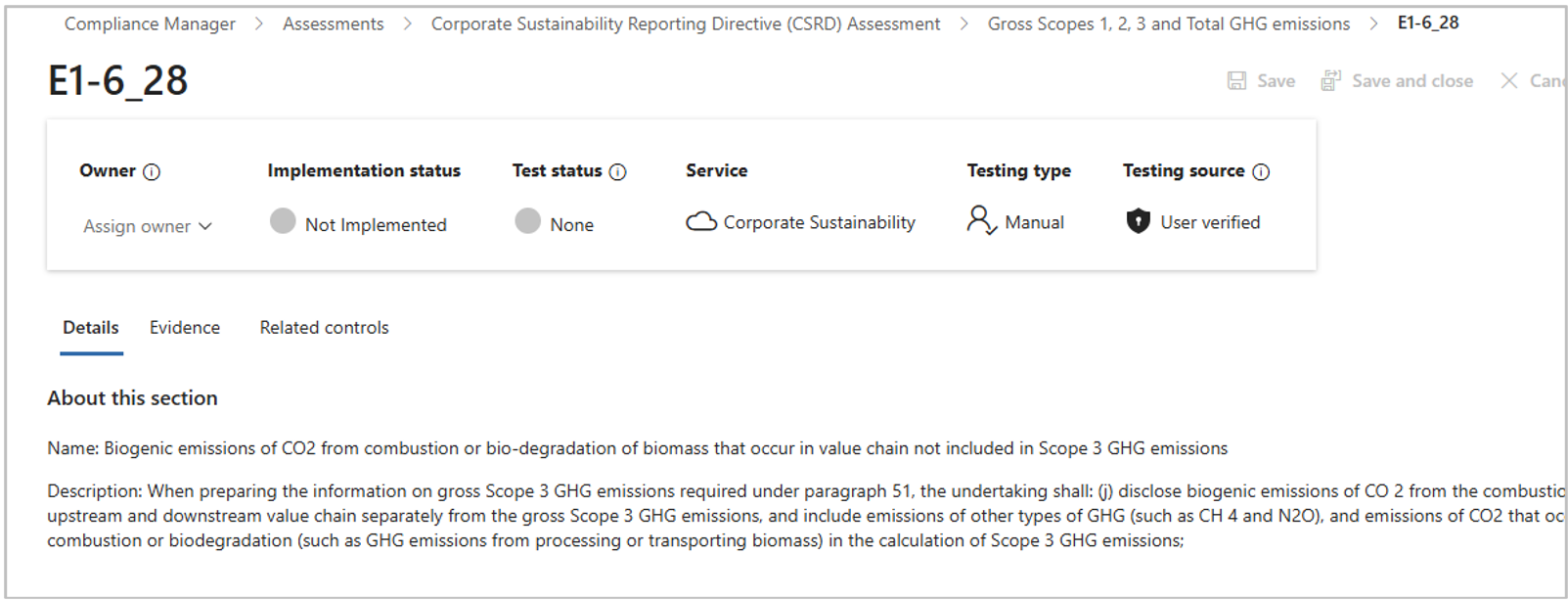
Select Gross Scopes 1, 2, 3 and Total GHG emissions to view the list of improvement actions or disclosure details. Select E1-6_28 improvement action to view the updated disclosure data.
To add more information as evidence to substantiate the disclosure data, select the Evidence tab, and then select Add evidence. Select either Document or Link.
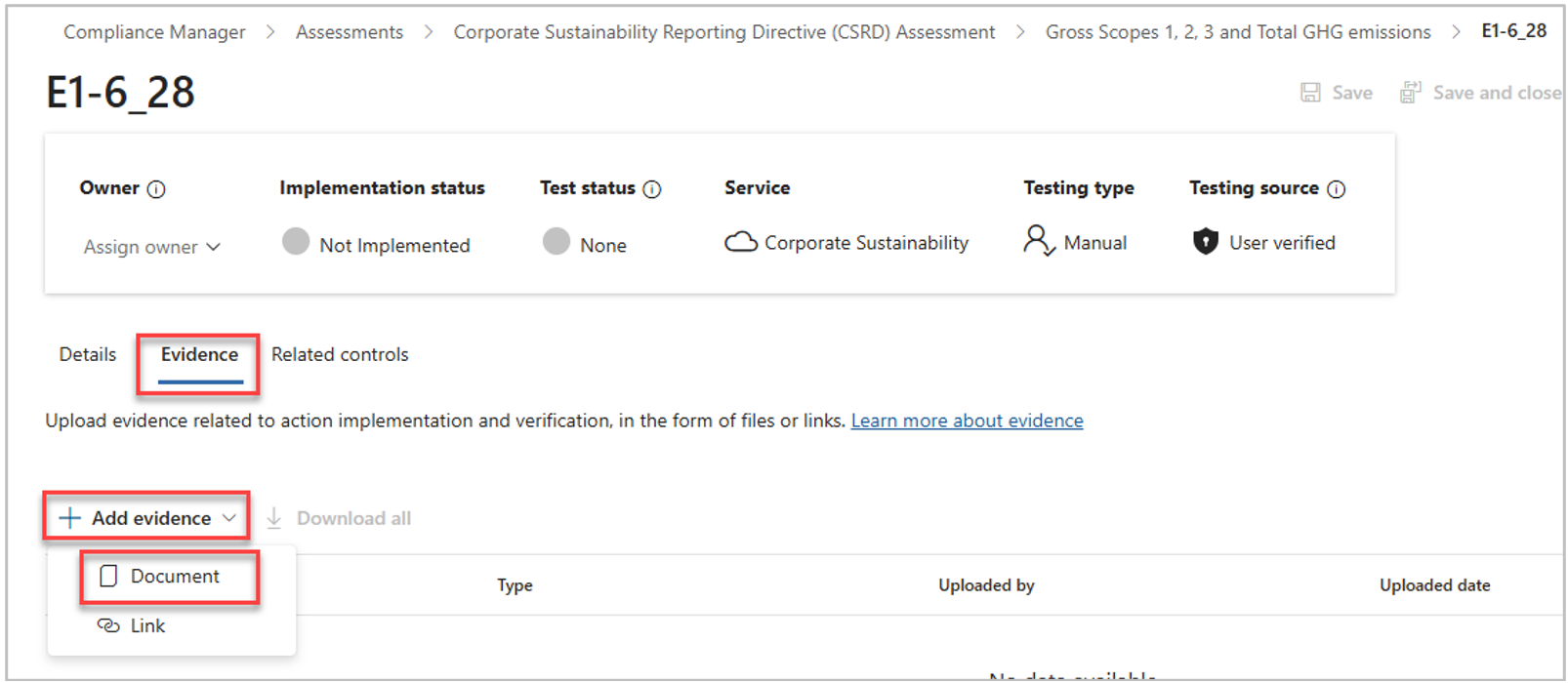
For a document, browse to select the file you want to upload, then select Done.
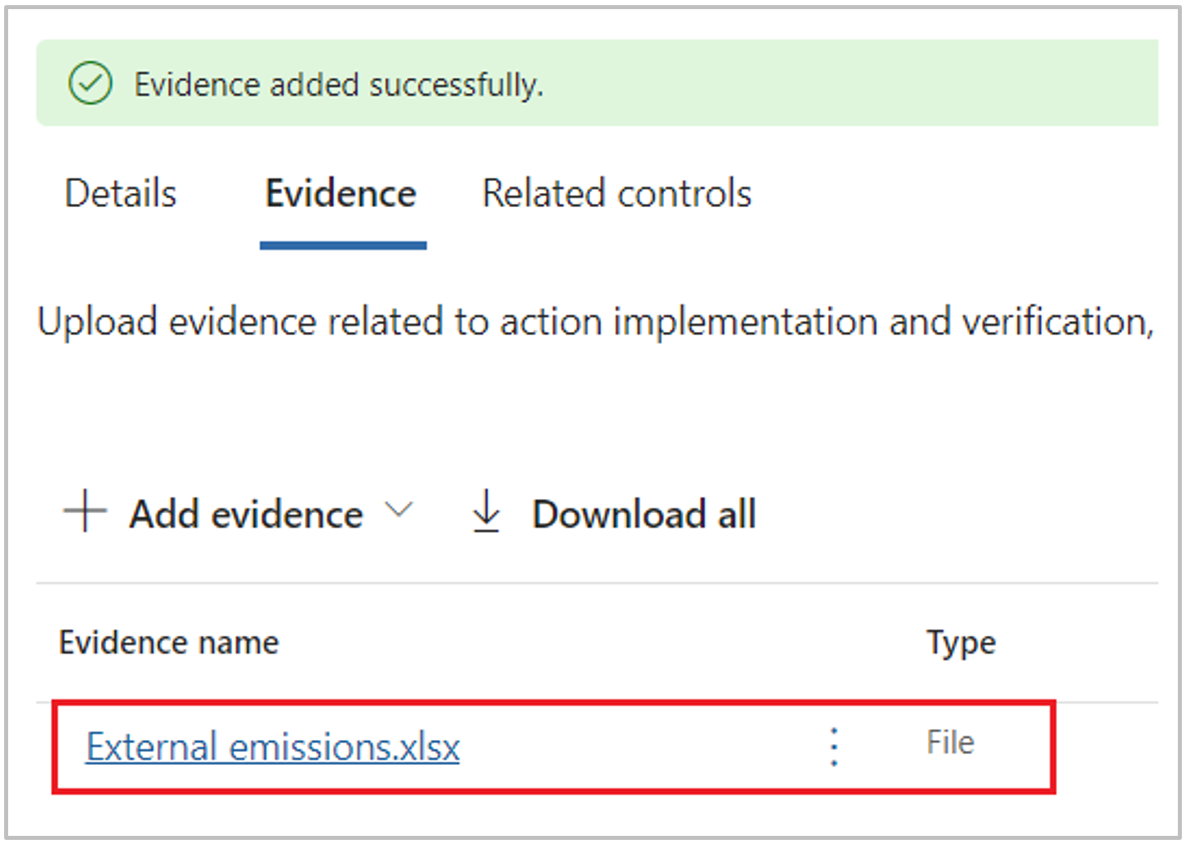
The evidence is listed under the Evidence tab.