Exercise - Deploy the External ESG Reporting solution
In this exercise, Amber deploys the External ESG Reporting solution in a Microsoft Dataverse environment from the Microsoft Power Platform admin center.
Prerequisites
To complete the exercises in this module, complete the following modules:
Set up users and roles (set up only two users: Amber Rodriguez and Jamie Evans)
Deploy the External ESG Reporting solution
To deploy the External ESG Reporting solution, follow these steps:
In an InPrivate or Incognito window, open Microsoft Power Platform admin center.
Sign in with the credentials of Amber Rodriguez.
In Microsoft Power Platform admin center, search for Microsoft Cloud for Sustainability ESG Reporting.
Select Install in the upper menu.
Select the sustainability environment where you want to install the solution.
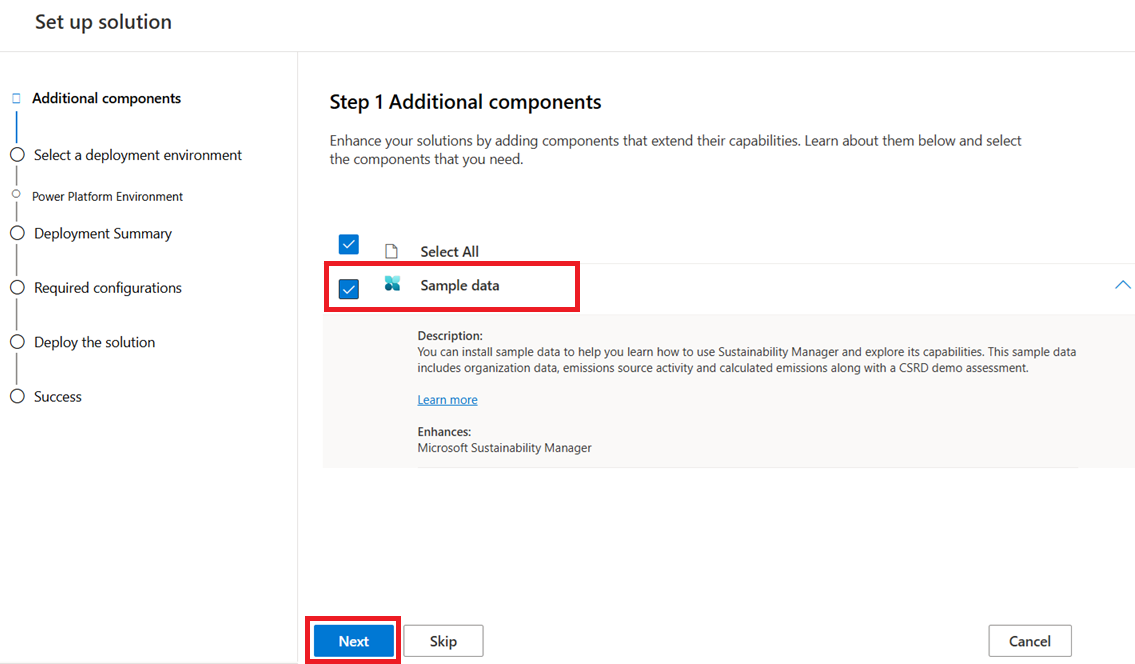
In the Additional components step, select Sample data and then select Next.
In the Select a Power Platform environment for Microsoft Sustainability Manager step, select a Dataverse environment where you want to install Microsoft Sustainability Manager, External Reporting in Sustainability Manager, and standard templates. Select Next.
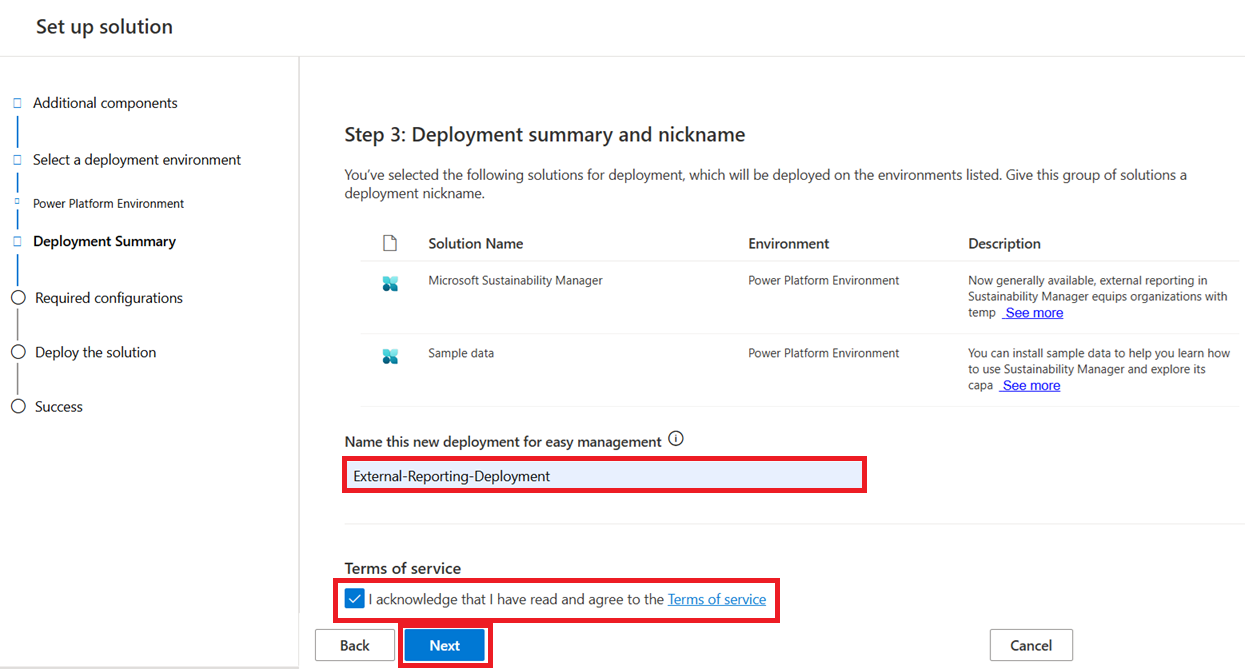
On the Deployment summary and nickname page, give a name to your deployment, select the Terms of service acknowledgment checkbox, and then select Next.
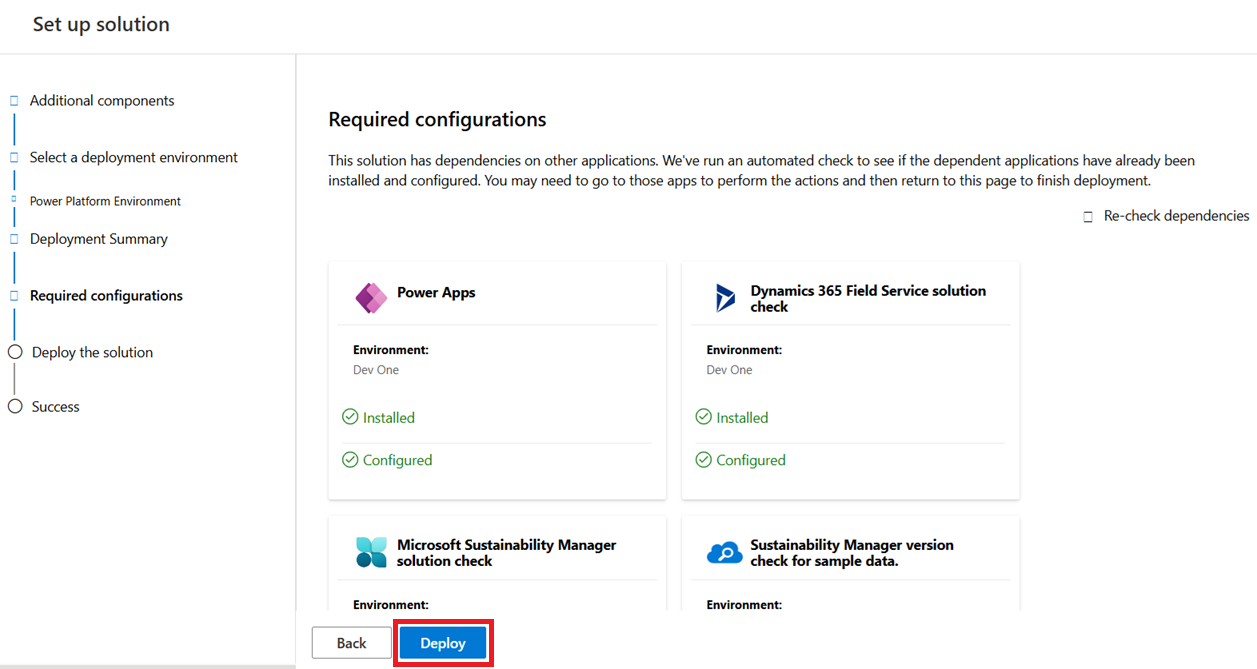
On the Required configurations page, check the dependencies and then select Deploy.
Check the progress of the deployment if necessary.
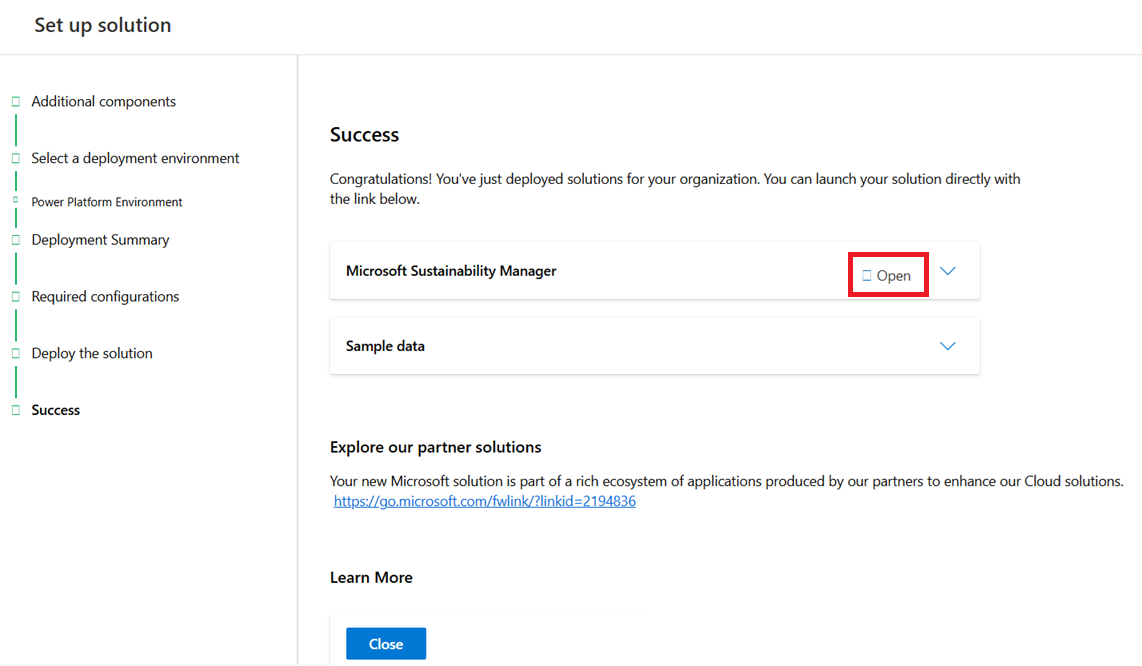
After the deployment completes, select Open to access External ESG Reporting in Sustainability Manager. You can also open the External ESG Reporting portal by going to the Deployment tab.
The system directs you to the External ESG Reporting page.
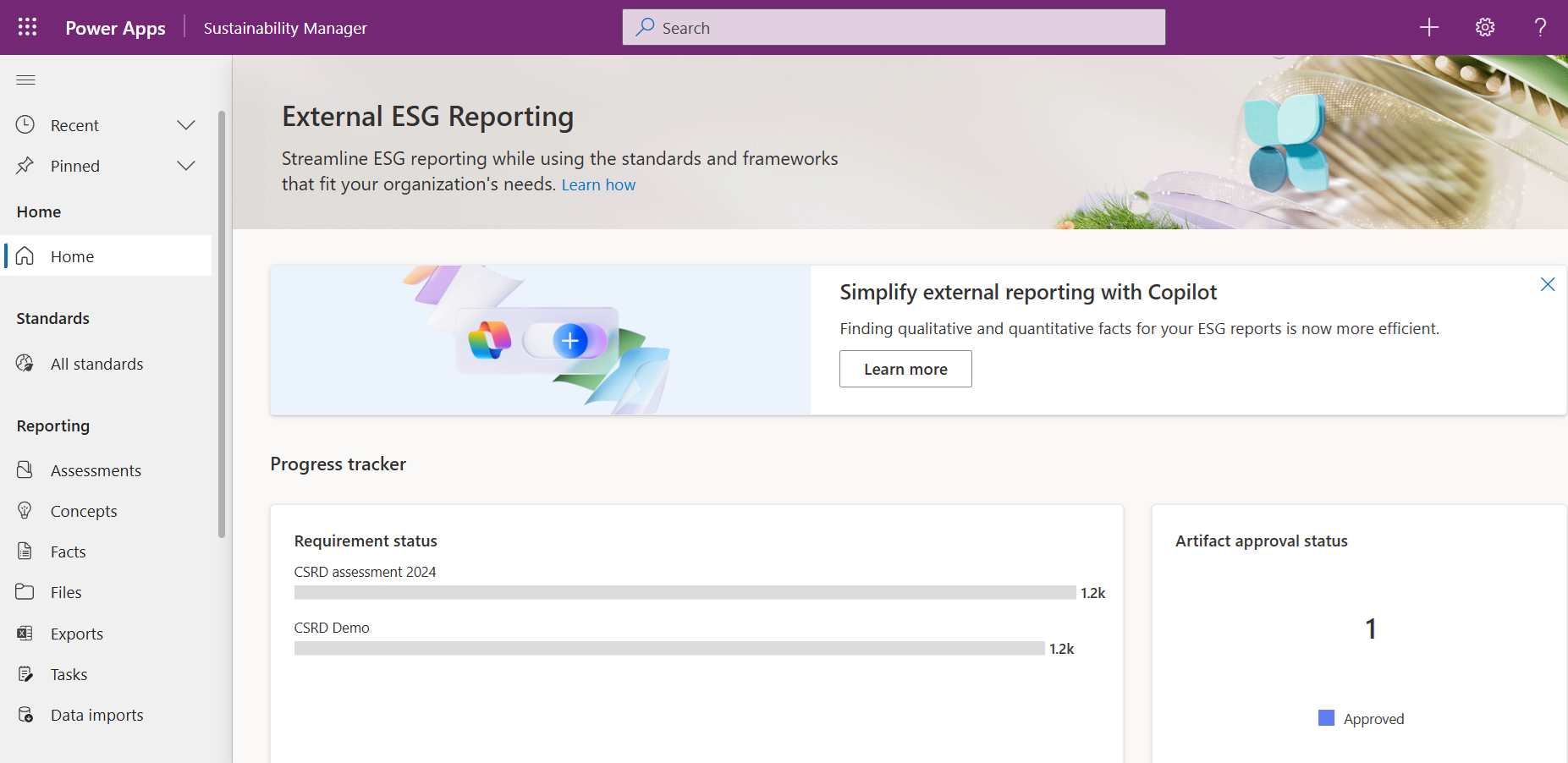
Copy the URL of your External ESG Reporting environment and note it for future exercises.
Create a company profile
To create a company profile, follow these steps:
On the left navigation, select Settings > Company profile.
The Company profile page includes basic information about the organization, such as its name and address. Additionally, the upper part of the page includes tabs for setting up the organization structure and facilities.
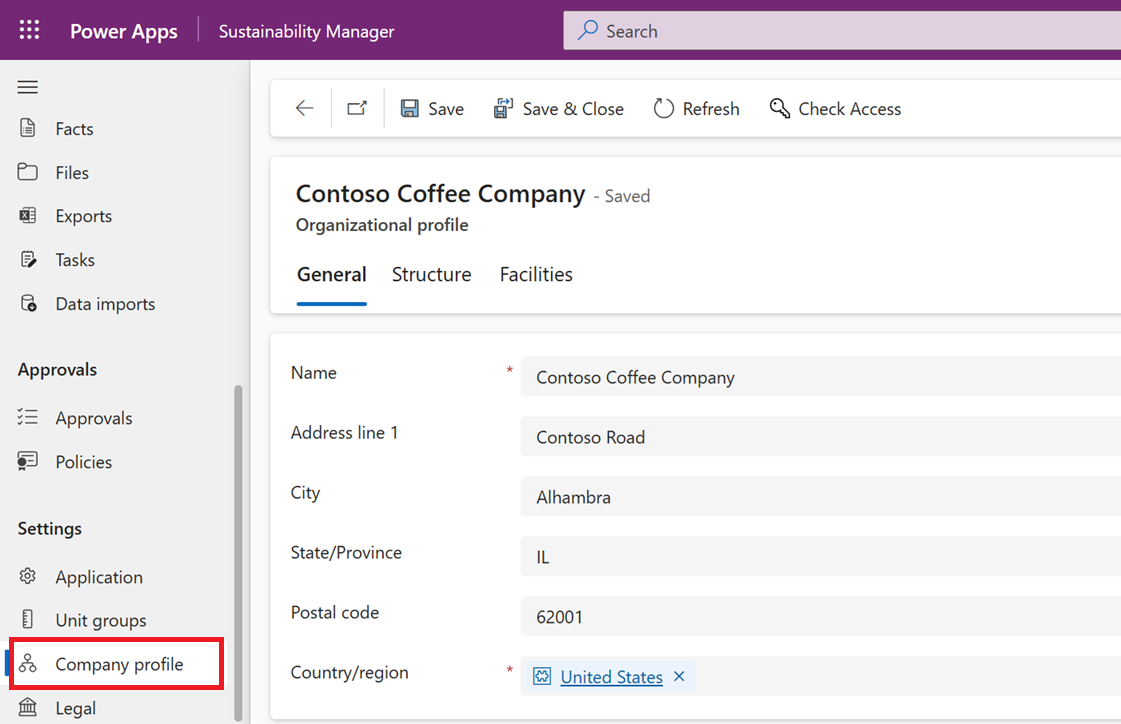
You can add more organizational hierarchy and facilities information by using the Structure and Facilities tabs. This step is optional for this task.
Add unit groups
To add unit groups, follow these steps:
On the left navigation, select Unit groups in the Settings area.
To add a new unit group, select New.
On the New unit group page, enter Quantity Unit in the Name and Description fields and then select Save & Close.
Add reporting periods
To add reporting periods, follow these steps:
On the left navigation, select Application > External reporting periods.
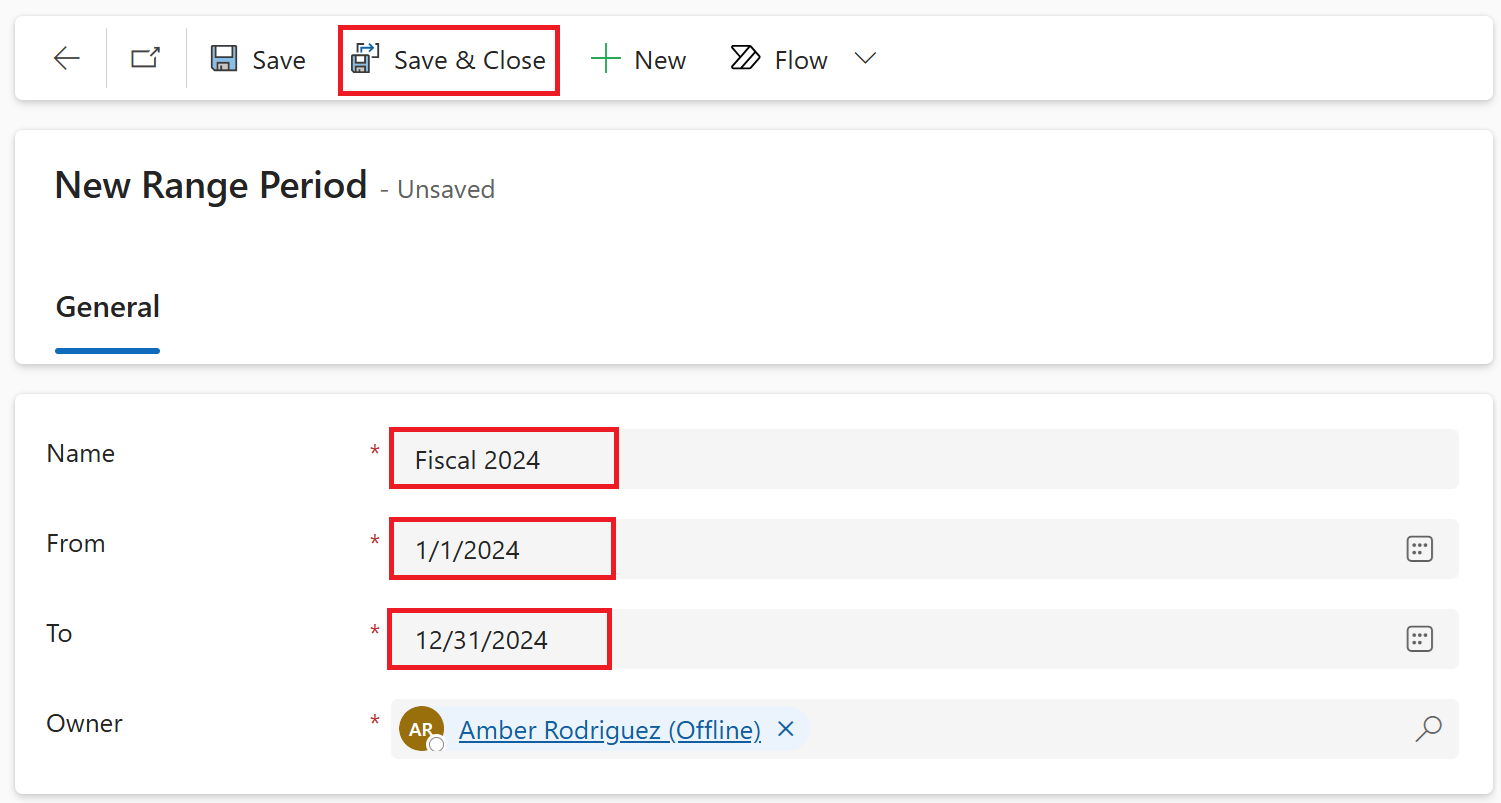
Select New Range Period.
Enter the following information and then select Save & Close.
Name - Fiscal 2024
From - 1/1/2024
To - 12/31/2024
Assign security roles
To assign security roles, follow these steps:
Sign in to the Microsoft Power Platform admin center with the admin credentials and then select Environments in the navigation pane. Select the correct Sustainability Trial environment.
Select Settings from the upper menu.
Select Users + permissions > Users.
Select Amber Rodriguez and then select Manage security roles.
On the Manage security roles page, select the ESG Full Access and System Administrator roles. Select Save.
Similarly, assign the ESG Approver role to Jamie Evans.