Exercise - Validate and export your responses
You can get your responses validated by taking them through multiple levels of approval.
In this exercise, Amber creates an ESG approvers approval policy and then assigns the approval policy to the fact. Jamie, an ESG approver, reviews the approval records and then approves it.
Then, Amber exports the approved CSRD assessment 2024 responses to Excel.
Create an ESG approvers approval policy
To create an ESG approvers approval policy, follow these steps:
On the left navigation under Approvals, select Policies.
To create a new approval policy, select New.
Name the policy as External ESG approvers and then select Save.
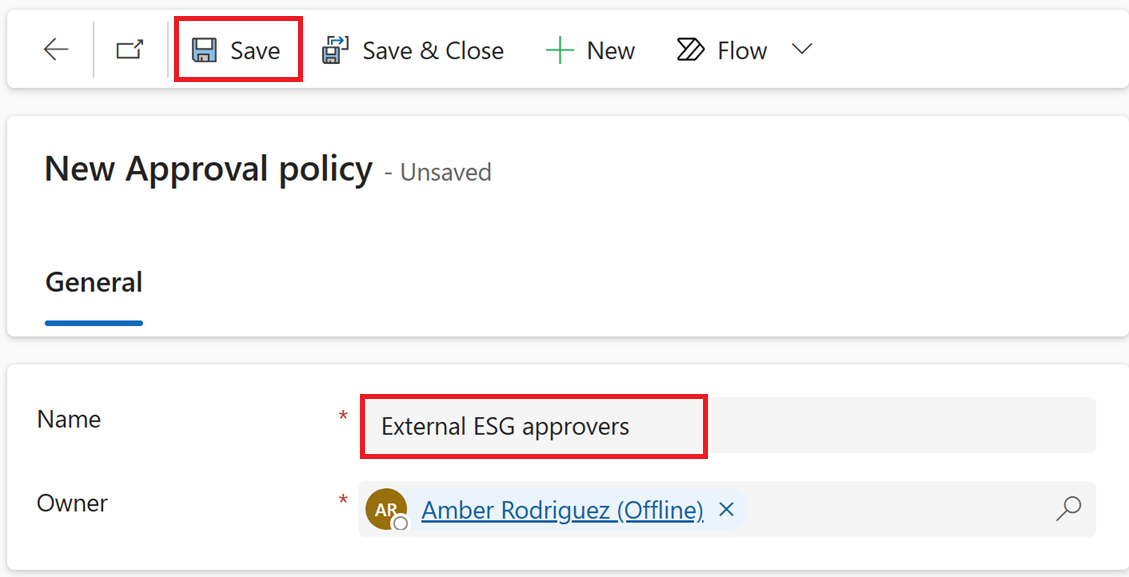
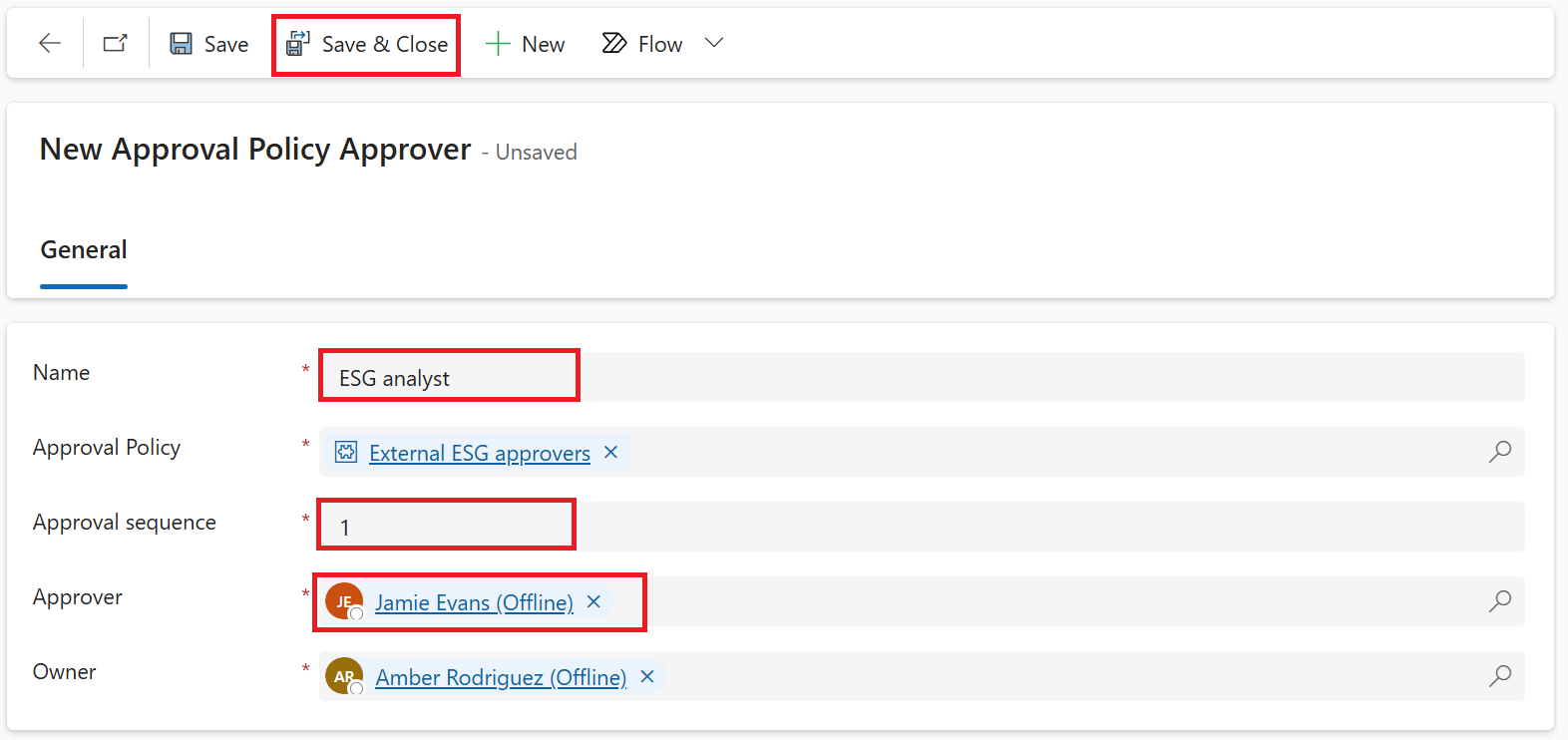
After saving the new approval policy, select New Approval Policy Approver in the Approvers grid. For each approver, provide a name, select the team or individual who's assigned to that approval level, and then specify their position in the approval sequence.
Add ESG analyst as the Name with an Approval sequence of 1, and then pick the user from your organization who has at least an ESG approver role.
Add ESG specialist as the Name with an Approval sequence of 2, and then pick the user from your organization who has at least an ESG approver role.
Select Save & Close.
Assign approval policy to TotalGHGCO2e and submit it for approval
To assign an approval policy to the TotalGHGCO2e fact and submit it for approval, follow these steps:
Select Facts from the left navigation.
Select to open the TotalGHGCO2e fact that you recently created.
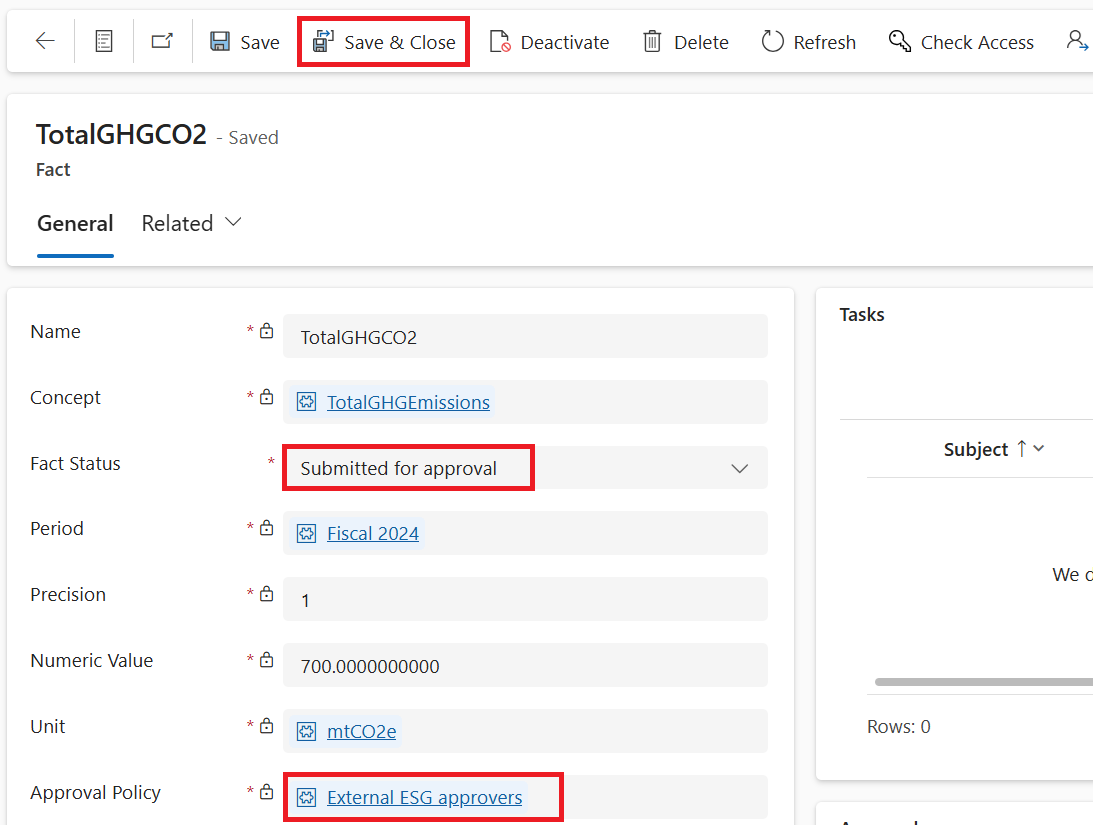
Under Approval Policy, select External ESG approvers.
Change the Fact status from Draft to Submitted for approval to create approval records for the approvers to review.
Select Save & Close.
Review approval records
To review the approval records, follow these steps:
Sign in to your External ESG Reporting environment with the credentials of Jamie Evans.
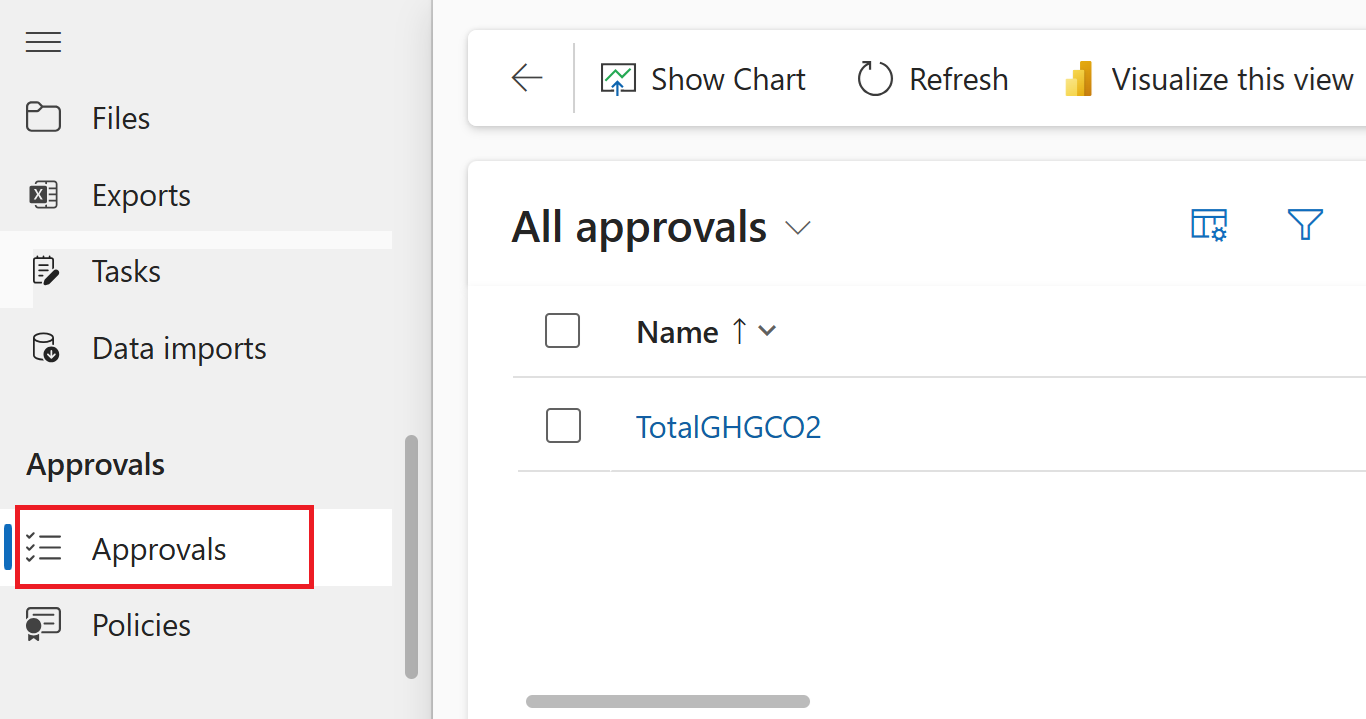
Select the Approvals tab in the left navigation. The approval record that you created for the TotalGHGCO2e fact should appear. Select the approval record.
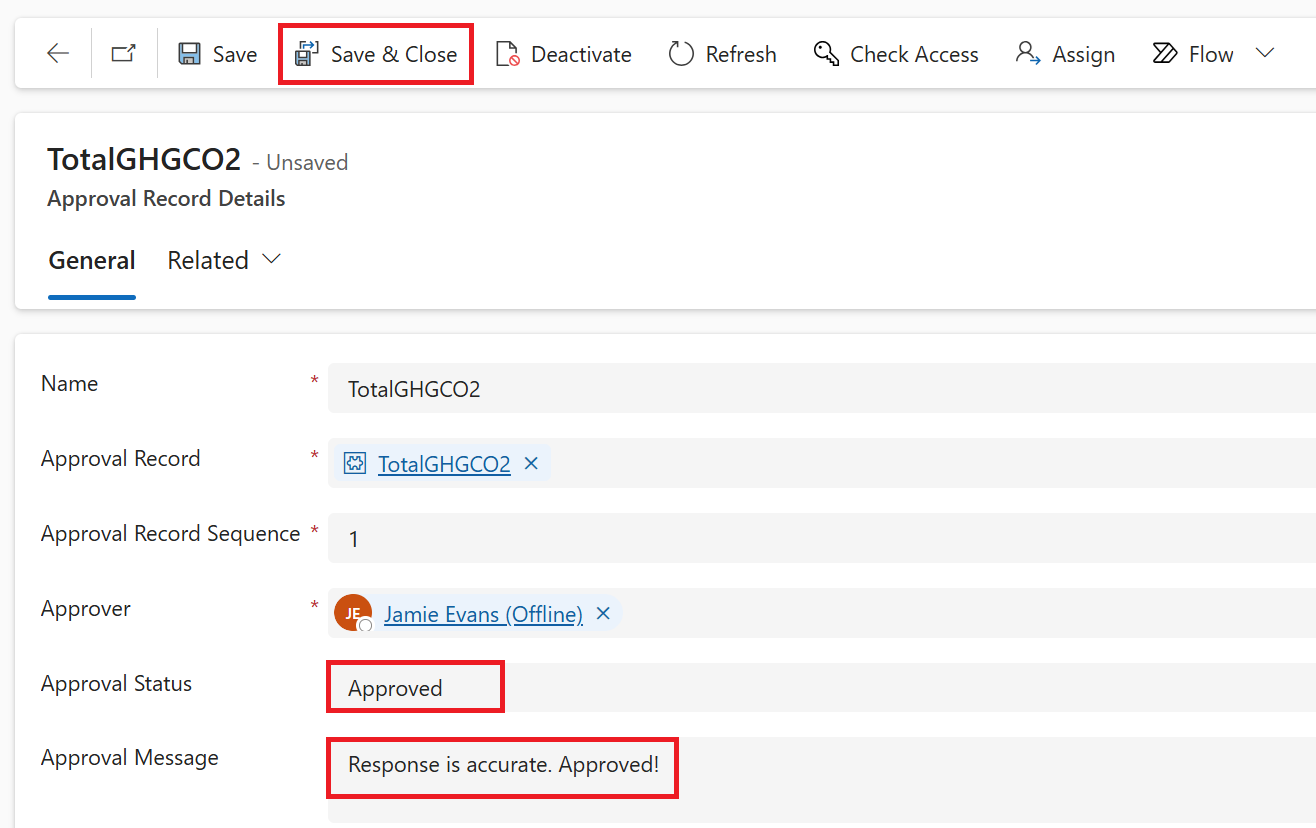
Change the Approval Status to Approved along with feedback under the approval message.
Export CSRD assessment 2024 to Excel
To export the CSRD assessment 2024 to Excel, follow these steps:
Sign in to your External ESG Reporting environment with the credentials of Amber Rodriguez.
Go to Reporting > Exports on the left navigation.
Select New.
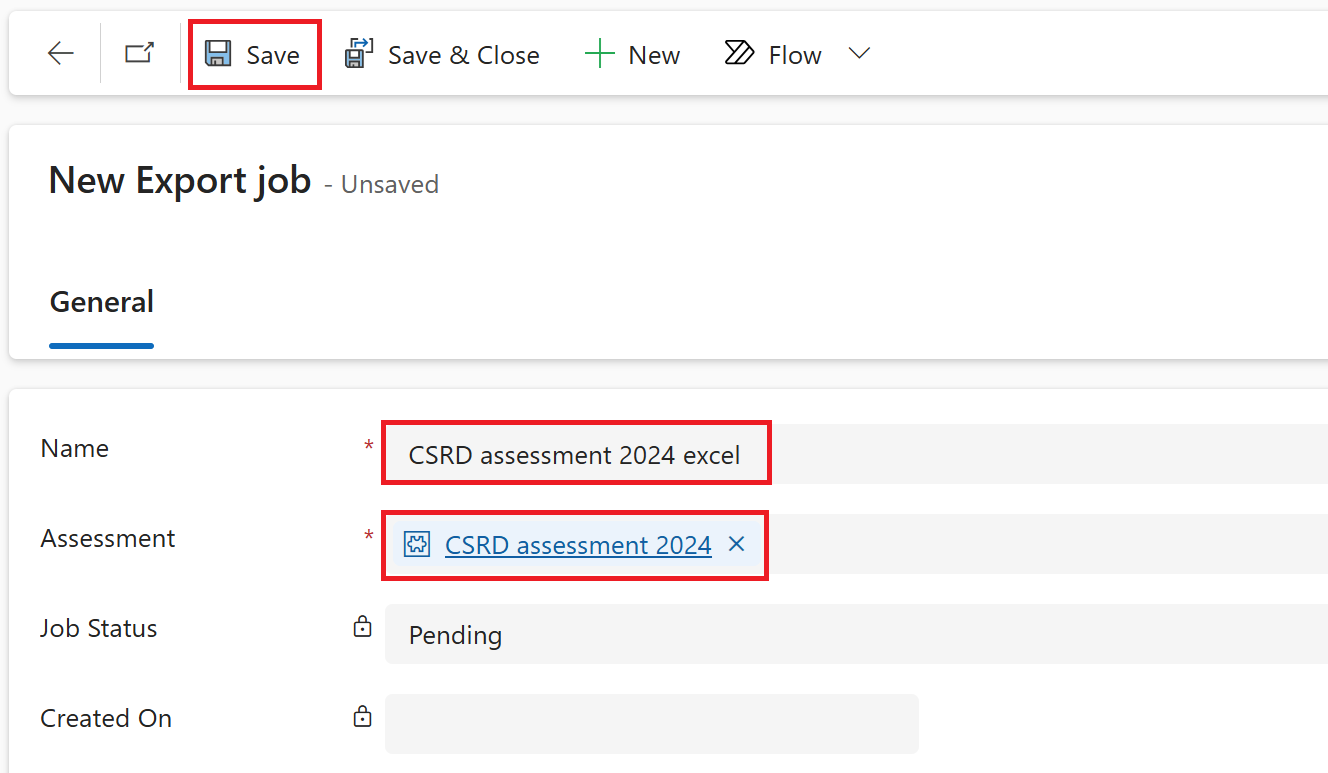
Name your export as CSRD assessment 2024 excel.
Select CSRD assessment 2024 from the assessment dropdown menu.
Select Save.
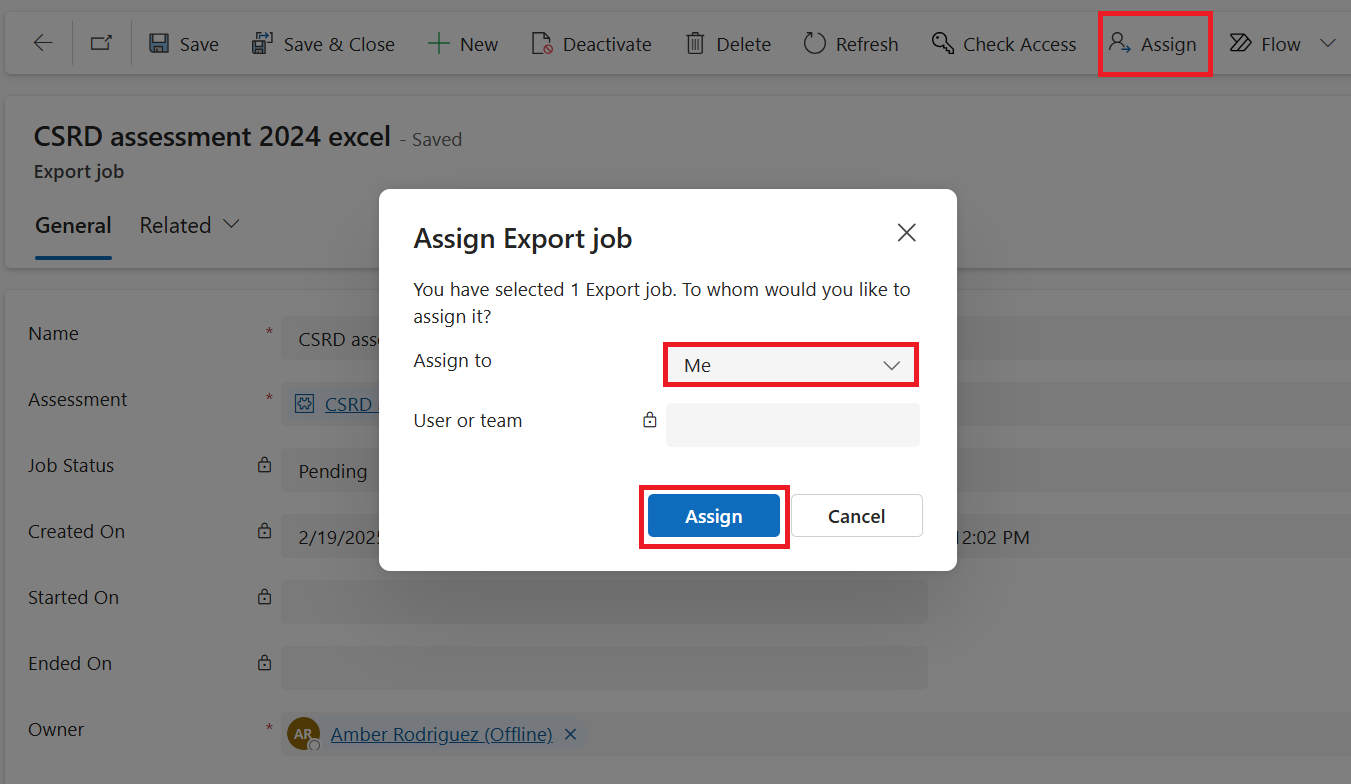
Select Assign from the upper menu. On the Assign Export job dialog, select Me from the Assign to dropdown menu. Select Assign.
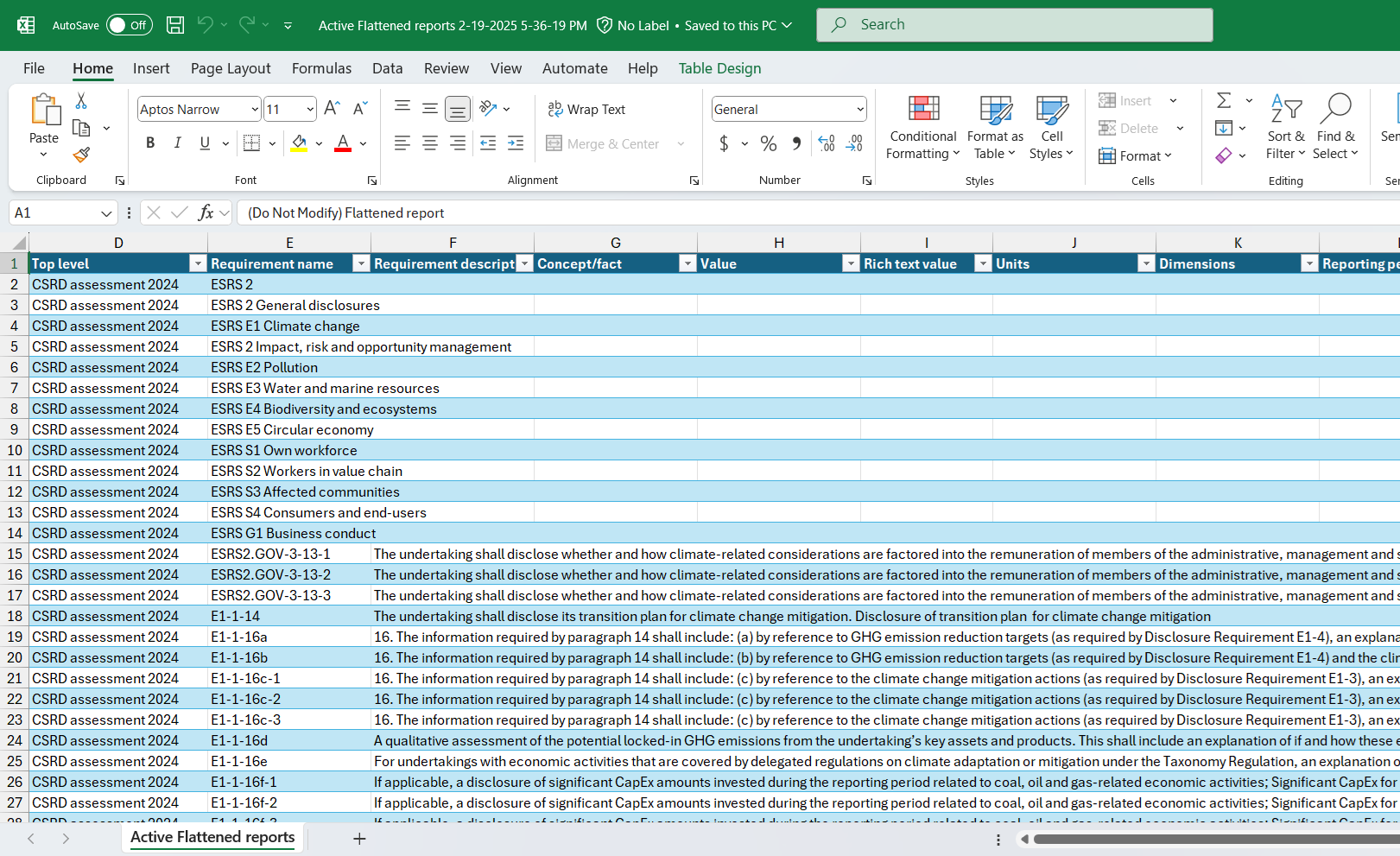
After the job status changes from Pending to Completed, a flattened report should display in the lower part of the page.
Select the ellipsis (...) in the upper-right corner of the flattened report and select Export Flattened reports.
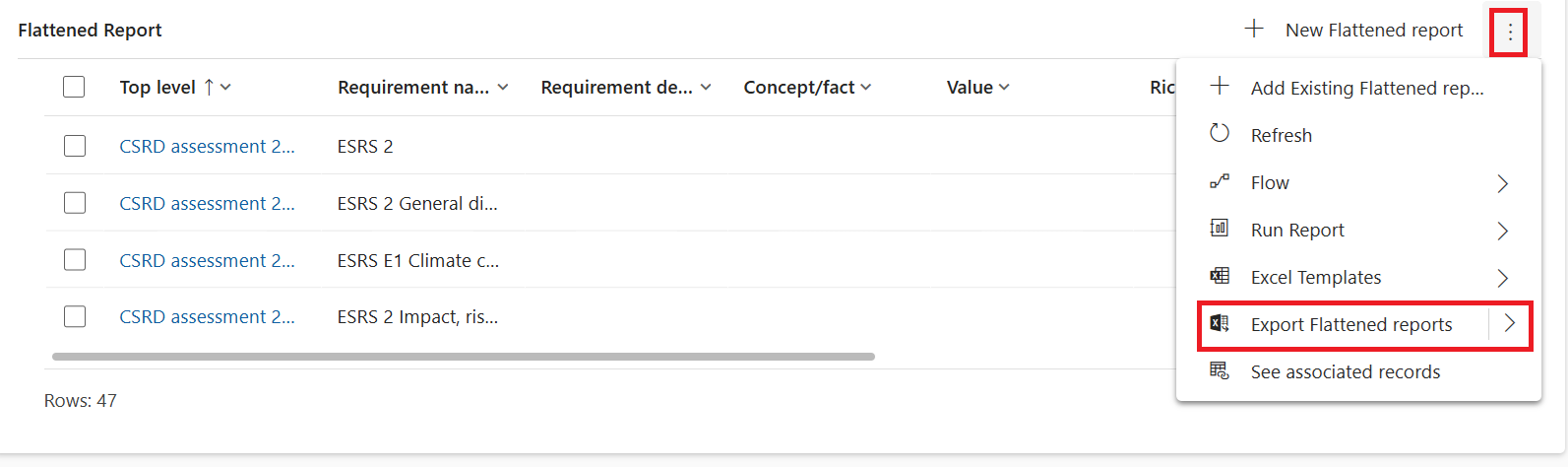
You can view the Excel file as it downloads.