Call tools from agent topics
Topics in Copilot Studio define the shape of a conversation — the questions asked, the branches taken, and the responses given. But a topic can't reach into an external system on its own. It has no native way to query a database, update a record, or call a service. That capability comes from tools. When you add a tool to a topic, the agent gains the ability to perform a specific action at a defined point in the conversation flow.
How tools extend a topic
Copilot Studio offers several types of tools, including:
- Connectors: prebuilt or custom Power Platform connections to popular services, including Microsoft 365, SharePoint, Dynamics 365, and thousands of non-Microsoft services
- Agent flows: multi-step workflows built in Power Automate that combine multiple actions and return structured results
- Prompts: single-turn AI prompts that reference knowledge sources or analyze data
- REST APIs (preview): integrations with external APIs defined using an OpenAPI specification; each API endpoint and method you want to expose is selected and configured as a tool
- Model Context Protocol (MCP): connections to MCP servers that expose tools and resources for the agent
- Computer use (preview): lets the agent interact directly with a graphical interface, including web and desktop applications
Before you configure a tool, there's one important distinction to understand: where a tool is added affects when it runs. Tools added at the agent level (on the agent's Tools page) are available for the AI orchestrator to invoke automatically at any point in a conversation, based on what the user says. Tools added inside a topic node run at a specific, controlled moment you define on the authoring canvas. Use topic-level tools when the action should happen at a precise step in a known flow.
For Adatum's order status scenario, that level of control matters. The topic collects an order number first. The Dataverse lookup runs only after that input is confirmed, and only in this topic. Topic-level is the right choice.
Topic-only tools for search and retrieval
Two tools in Copilot Studio are only available at the topic level — they don't appear on the agent's Tools page and can't be invoked by the AI orchestrator. Both are added via Add a tool inside a topic, and both are designed for knowledge retrieval scenarios where the agent needs to search structured content and process the results before responding.
Create search query rewrites the user's most recent message into a structured, enriched query by incorporating relevant conversation history and context. The tool outputs a clarified query string that can be passed to a search endpoint, an HTTP request, or any downstream logic. Use Create search query when raw user input isn't precise enough for your search system — for example, when a follow-up message like "what about sick leave?" needs to be resolved into a complete, context-aware query before it's sent to a SharePoint search API or an internal knowledge base.
Perform custom search runs a search against a set of knowledge sources you configure on the node and returns the raw, unsummarized results as an output variable. Use Perform custom search when you need full control over what happens with search results before the agent responds — for example, to filter sensitive records, apply business logic, or feed the results into a prompt for custom summarization. Unlike the generative answers node, which retrieves and summarizes in one step, the custom search node separates retrieval from response, giving you a processing stage in between.
These two tools are often used in sequence: Create search query generates a structured query, then Perform custom search uses that query against the configured sources. The custom search results are then available in a topic variable for conditioning, filtering, or composing a response.
This module focuses on a different class of topic-level tools: action-oriented integrations that call external systems to do something, not just retrieve information. Those patterns use either the tool picker (for connectors, agent flows, and registered tools) or the Send HTTP Request node (for direct, canvas-native API calls).
Add a tool to a topic
Adding any tool to a topic generally follows the same approach. Open the topic in Copilot Studio, then on the authoring canvas, select Add node (+) at the point where the tool should run.
Next, select Add a tool. In the tool picker, locate and select the tool that fits your scenario or select an option to create a new tool.
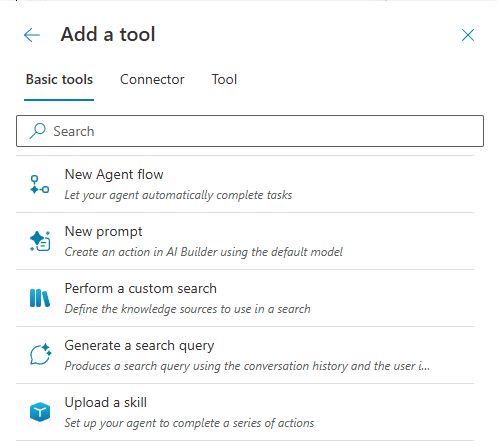
In Adatum's order status scenario, this pattern applies as follows: the customer service topic collects an order number, then a Microsoft Dataverse connector tool is placed immediately after. In the tool picker, the maker selects Connector, searches for the Microsoft Dataverse connector, and chooses the action that retrieves an order record by ID. After the node is added to the canvas, the topic passes the collected order number to the connector and captures the returned status.
Prebuilt vs. custom connectors: Prebuilt connectors, like the Microsoft Dataverse connector, are available without additional setup as soon as their connection is created. Custom connectors let you define a connection to a custom service or system using Power Platform Connectors, and you add them to a topic using the same steps.
Important
The Microsoft Dataverse connector is a premium connector. Users who trigger the connector without a Copilot Studio plan that includes premium connector access may encounter errors at runtime. Confirm licensing requirements before you deploy the agent.
Configure inputs and outputs
After the connector node appears on the canvas, configure what data you send into the tool (inputs) and what you capture from its response (outputs).
Inputs are the parameters the connector action requires to run. For the Dataverse order lookup example, that's the Order ID. In the node configuration, map the topic variable that holds the customer's order number — for example, Topic.OrderNumber — to this input field. At runtime, the agent passes the variable's current value to the connector.
Outputs are the values the connector returns after running. The Dataverse response might include order status, estimated delivery date, and carrier information. Rather than capturing all of it, store only the fields your topic actually needs, and assign each to a clearly named topic variable—for example, Topic.OrderStatus. Downstream nodes can then reference those variables to branch the conversation or compose a response.
In Adatum's scenario, a condition node that follows the connector checks the value of Topic.OrderStatus. If the status indicates a delay, the topic routes the customer toward escalation. If the order is on track, the topic confirms the status and closes the conversation.
This input and output mapping pattern is consistent across all tool types. Whether you're calling a connector, an agent flow, or a REST API endpoint, you always identify the inputs to send and the outputs to capture. The same pattern applies in the next two units.
Configure authentication for connector tools
Connector tools require credentials to access external services. Copilot Studio gives you two options, and the right choice depends on who should be accessing the data and how the agent is deployed.
End user authentication is the default. When a user triggers the connector tool for the first time, the agent prompts them to sign in with their own credentials for the connected service. Each user can only see data their account is authorized to access, which is appropriate when data should follow user-level permissions. For Adatum, this means each customer sees only their own orders.
Maker-provided authentication uses the maker's credentials for all users of the agent. Every user who triggers the connector does so as you, the maker. Use maker-provided authentication when the tool accesses a shared resource all users legitimately need, or when requiring individual credentials creates unnecessary friction. To switch to maker authentication, open the tool's configuration page, select Additional details, and change Credentials to use to Maker-provided credentials.
Important
Before using maker-provided credentials, you must configure your agent to use an authenticated channel. See Configure web and Direct Line channel security for details.
Individual tool calls work well for single-action integrations: a direct lookup, a status check, or a one-step update. When the integration requires multiple steps in sequence, or when you need the same logic callable from more than one topic, an agent flow gives you more control and reusability. The next unit covers how to build and call an agent flow from within a topic.